
Workflows overview
What Workflows are
Section titled “What Workflows are”Workflows are automation for your practice: a trigger (something that happens in Open Dental or Teamio) automatically fires one or more actions. When an appointment breaks, text the patient. When a procedure is completed, send post-op instructions and create a follow-up task. You set the rule up once, and it runs around the clock — no one has to remember to act.
Every workflow follows the same simple shape:
Trigger → Action — when this happens, do that.
What you can automate
Section titled “What you can automate”A single trigger can drive several actions at once. Today you can:
- Send a text message to the patient — confirmations, reminders, broken-appointment rescue texts, review requests.
- Send an email — longer welcomes, instructions, post-op care.
- Assign a Teamio task to a person or team — so human follow-up never depends on someone noticing.
Triggers come from real events Teamio detects automatically — an appointment scheduled, broken, or completed, a procedure added through Open Dental’s Quick Add, or a missed call from your phone system. See the triggers reference for the full list.
Workflows vs. Campaigns
Section titled “Workflows vs. Campaigns”Both can text or email patients, but they solve different problems:
- Workflows are automated and ongoing. They react to events as they happen, one patient at a time, indefinitely — set it up once and forget it.
- Campaigns are a one-time blast. You pick a list of patients and send them all the same message once.
Use a workflow when you want something to happen every time an event occurs; use a campaign for a one-off announcement to a group.
Start from a recipe
Section titled “Start from a recipe”You rarely build from scratch. Teamio ships a library of ready-made templates and Suggested Workflows — broken-appointment rescue, new-patient welcome, review requests, and more — that pre-build the trigger and a starter action so you just fill in the details. This section’s recipes walk through the most useful setups step by step. See Quick-start templates and suggestions.
Where: In the left sidebar, select the Workflow Builder icon (the branching-lines icon).
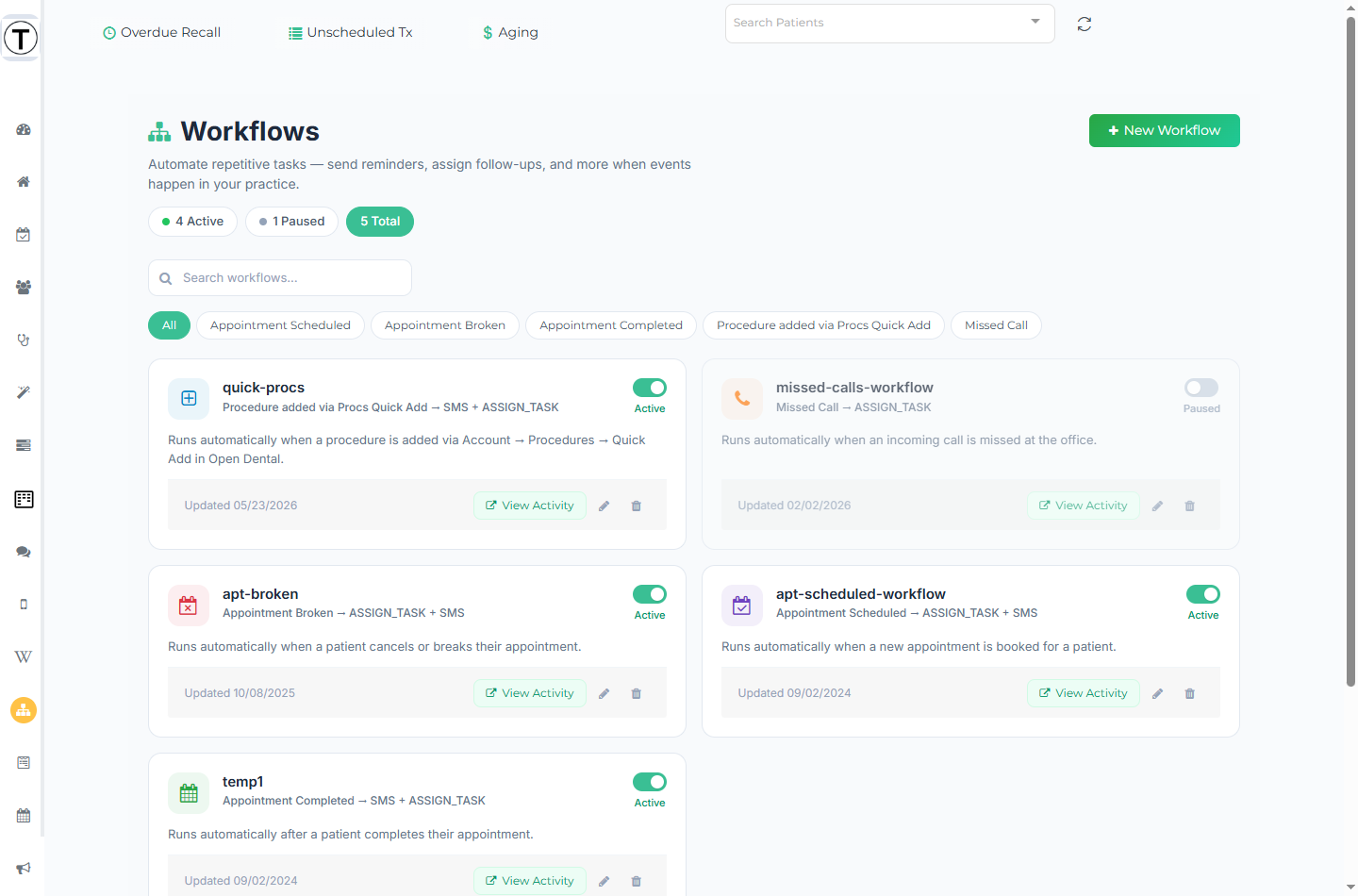
The workflow list
Section titled “The workflow list”The list shows every automation on your site as a card, plus tools for finding and filtering them.
- Stat pills — Active, Paused, and Total counts at the top. Each pill is also a filter: select Active to show only running workflows, Paused for stopped ones, or Total for all.
- Search — the Search workflows… box filters cards by name as you type.
- Trigger filter chips — chips like Appointment Scheduled or Missed Call appear only when your workflows use more than one trigger type. Select a chip to show just those workflows. (On this list the Mango Voice trigger is labeled Missed Call; inside the builder the same block is called Mango Voice Event.)
- Pagination — the list shows 10 workflows per page, with Showing x-y of z, Page x of y, and first / previous / next / last controls below the cards.
What each card shows
Section titled “What each card shows”- The workflow name and an auto-generated description (for example, Runs automatically when a patient cancels or breaks their appointment.).
- A flow summary of how it’s built, such as Appointment Scheduled → SMS + Task.
- An Updated date.
- An Active / Paused toggle.
- View Activity — the only labeled action; it opens the run history in a new browser tab.
- A pencil (Edit) and a trash (Delete) icon, each with a hover tooltip. Selecting the card body or the pencil opens the builder in a new browser tab.
Editing, the pencil, the card body, and the Active / Paused toggle require update permission; the trash (Delete) requires delete permission. By default that’s Admin for delete.
Creating a workflow
Section titled “Creating a workflow”Select New Workflow (top right) to open the Create New Workflow modal — a Quick Start from Template grid with Create from Template and Start from Scratch buttons. The builder then opens in a new tab. See Building a workflow and Quick-start templates and suggestions.
When the list is empty, an Automate Your Practice explainer appears with template cards, a Create Your First Workflow button, and an or start from scratch link.
Suggested Workflows
Section titled “Suggested Workflows”Below the card grid, a collapsible Suggested Workflows section shows templates you haven’t used yet. Some are buildable right now (Broken Appointment Alert, Missed Call Follow-up); others show a Coming Soon badge (Follow-up Form, Follow-up Task, Patient Intake). See Quick-start templates and suggestions.
How a workflow is put together
Section titled “How a workflow is put together”- Trigger — the event that starts it, detected automatically from Open Dental (appointment scheduled, broken, completed…). Each workflow has exactly one trigger. See Triggers reference.
- Action — what Teamio does: send a text, send an email, or assign a task to your team. More action types are listed in the builder as coming soon.
- Timing and filters — actions send Immediately or relative to the event in whole-day steps (for example, 1 Week Before the appointment, 1 Day After completion). The exact options depend on the trigger — see each action article. Texts and emails can also be limited to new patients only.
Start here
Section titled “Start here”- Build your first workflow
- Steal a proven setup: broken-appointment rescue or new-patient welcome
- Check what a workflow actually did