
Creating a wiki page
A wiki page can be an internal knowledge article or a reusable message template — both start the same way. You set a few details at the top, then write the content below.
Videos
Section titled “Videos”Three short walkthroughs of the SMS-template workflow, from creating the template to sending it. Each opens in a new tab.
- Creating Wiki SMS Template
- Sending Wiki SMS Template from Patient Profile
- Sending Wiki SMS Templates from Patient Conversations (2-way SMS chat)
Opening the Create page
Section titled “Opening the Create page”Where: Sidebar → Wiki → New Wiki Page
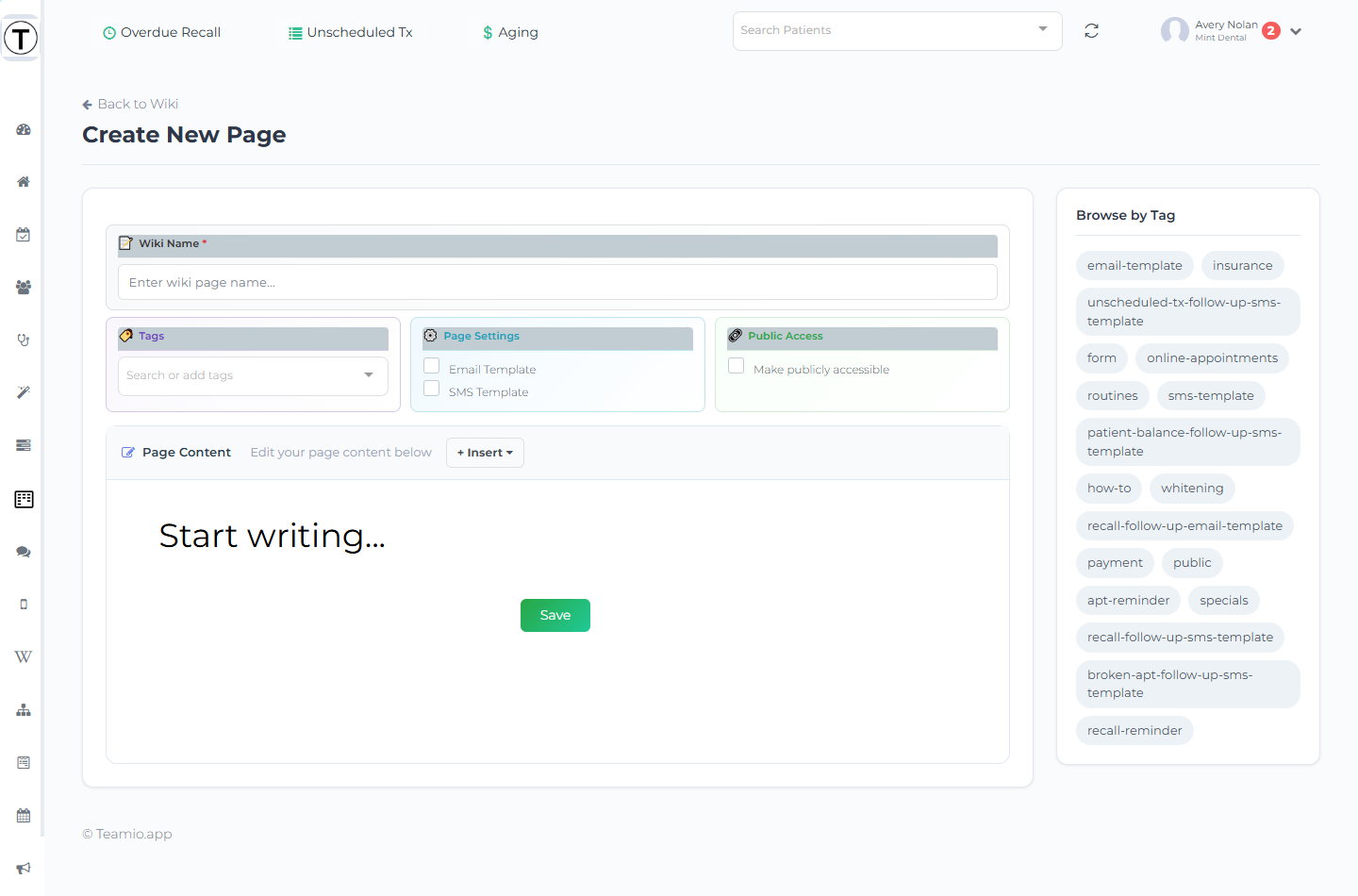
The page header reads Create New Page, with a Back to Wiki link to return to the list without saving. The settings panels sit at the top; the content editor is below; a Browse by Tag sidebar runs down the right.
Settings
Section titled “Settings”- Wiki Name (required) — the page title, shown in the list and search. If you leave it blank, saving shows the inline error Wiki name is required. and a matching toast.
- Tags — categorize the page. Type in the Search or add tags box to find existing tags, or type a new one and select Add this as new tag to create it on the fly (existing tags are matched case-insensitively, so you won’t create duplicates). Tags drive the home-page filters and the template tags. Use a consistent scheme (
how-to,recall-reminder,insurance). - Page Settings — two checkboxes that turn the page into a reusable message:
- Email Template — marks the page as an email template (adds an
email-templatetag) and reveals an Email Subject field. The subject is required; saving without one shows Email subject is required for email templates. - SMS Template — marks the page as an SMS template (adds an
sms-templatetag) and shows a live phone preview plus a character counter below the editor. - See Templates for what these do.
- Email Template — marks the page as an email template (adds an
- Public Access — Make publicly accessible lets you share the page by link with people who aren’t signed in (see Public pages).
- Translations (appears once the page is marked an SMS or Email template) — flag checkboxes for 🇪🇸 Spanish and 🇷🇺 Russian under the caption Selected languages auto-translated on save. See Translations.
Writing the content
Section titled “Writing the content”The Page Content area is a block-based editor. It opens with a default Start writing… header block — the first header block becomes the page title on the public view, so use it as the page’s heading.
Use the + Insert button at the top-right of the Page Content header to drop in variables (like {{patient_first_name}}) or emojis. To add a different block type — heading, list, checklist, table, image, embed, or divider — use the editor’s own plus (+) button beside a block. Full details are in Using the editor.
If you add an image, an Uploading Image overlay covers the screen while it uploads.
When the page is an SMS or Email template, a collapsible SMS Preview or Email Preview section appears below the editor as soon as you tick the box — see Templates.
The green Save button sits below the content editor on the Create page (it is part of the editor, not a header bar). Select it to save.
You stay on the Create screen after the first save and see the toast Wiki page created successfully! — saving again updates the same page rather than making a new one. The page now appears in your Wiki list. For templates with languages enabled, translations generate on this first save and become reviewable on the page’s Edit screen.
- Decide the page’s job first. A knowledge page and a message template are written very differently — short and personal for SMS, structured for a guide.
- Tag as you create, not later — it’s how you’ll find the page again among hundreds.
- Email templates need a subject before they’ll save.