
Working the Unscheduled Treatment list
Where: Top navigation bar → Unscheduled Tx
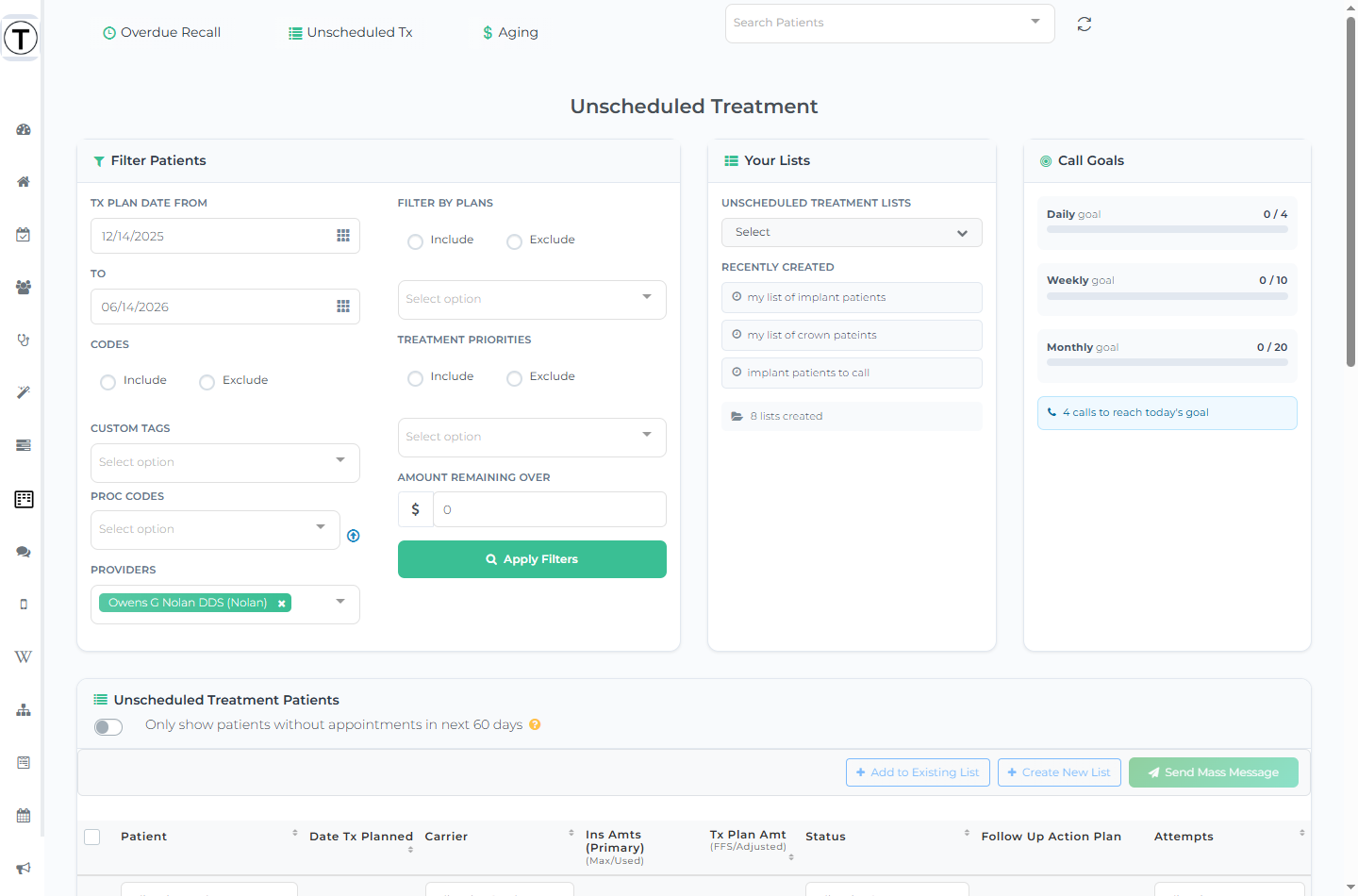
Every row is a patient whose treatment plan has work with no appointment attached — usually your biggest pile of recoverable production.
Building your working list
Section titled “Building your working list”Use the Filter Patients panel, then select Apply Filters:
- Tx Plan Date From / To — when the treatment was planned.
- Codes — an Include / Exclude choice, plus Custom Tags and Proc Codes:
- Custom Tags selects named procedure-code groups — your Custom Code Categories (e.g. an “Implants” category that bundles several codes), defined in Settings > Unscheduled Treatment. This filters by code group; it doesn’t tag patients.
- Proc Codes is a direct code multiselect. The small upload icon next to it, Load saved Proc Codes, loads the “Codes to Include” / “Codes to Exclude” sets configured in settings — so you don’t retype them.
- Providers — provider multiselect.
- Filter by Plans — Include / Exclude plus a carrier multiselect.
- Treatment Priorities — Include / Exclude by priority.
- Amount Remaining Over — show only plans with at least this dollar amount outstanding.
Above the table, the Only show patients without appointments in next 60 days toggle hides anyone already coming in soon (select the ? for details). This is the powerful play — run targeted pushes like “everyone with an unscheduled crown and nothing booked.”
Reading the table
Section titled “Reading the table”| Column | What it shows |
|---|---|
| Checkbox | Select patients for a bulk action. |
| Patient | Name (links to the profile), age, provider. |
| Date Tx Planned | When the treatment was diagnosed. |
| Carrier | Insurance carrier. |
| Ins Amts (Primary) | The primary plan’s Max / Used and Remaining benefit. |
| Tx Plan Amt (FFS/Adjusted) | The plan’s fee-for-service and adjusted amount. |
| Status | The follow-up status badge — including a green Apt on Schedule pill (with the appointment date) once the treatment gets booked. |
| Follow up Action Plan | Next follow-up date and the controls to change or stop it. |
| Attempts | Phone / envelope / mobile icons per logged attempt, with overflow and tooltips. |
Working a row
Section titled “Working a row”Lead with the clinical reason, not the schedule gap — “the doctor diagnosed this in March and wanted it done before it grows” outperforms “we have openings Thursday.” Select the patient’s name to open the follow-up panel, make your attempt, and the next date sets itself.
To text, open the patient’s panel and use SMS Followup — there’s no Text button on the row. To reach several patients at once, check them, save them as a list, and send to that list as a campaign. See texting from a list.
High-value plans deserve more than a text: present them properly with Treatment Presenter, which patients can read, ask questions on, and sign from their phone.
Saving the list
Section titled “Saving the list”Check the patients you want to keep, then Create New List or Add to Existing List — exactly like Overdue Recall. Saved lists store a snapshot of the selected patients with attempt and outcome charts; see saved lists. There’s no per-list assignee or goal — those are office-wide per list type in follow-up settings.