
Payment alerts
When a patient pays through a payment link, the Action Center tells you whether it went through. A Payment received card confirms the money came in; a Payment failed card flags a payment that didn’t go through, with a quick way to send the patient a new link.
Which payments alert
Section titled “Which payments alert”Payments the patient makes on their own device:
- a payment link you sent by text or email, and
- a deposit or payment the patient makes on a treatment plan link.
These don’t alert:
- Card-reader payments in the office (terminal payments). The patient is standing at the desk, so you already know how it went.
- Payments that are still confirming. Now and then the card processor takes a while to answer. Those payments never alert, and the Action Center never offers a new link for them: the first charge may still go through, and a second link could charge the patient twice. Check the Payment Report later instead.
Payment received
Section titled “Payment received”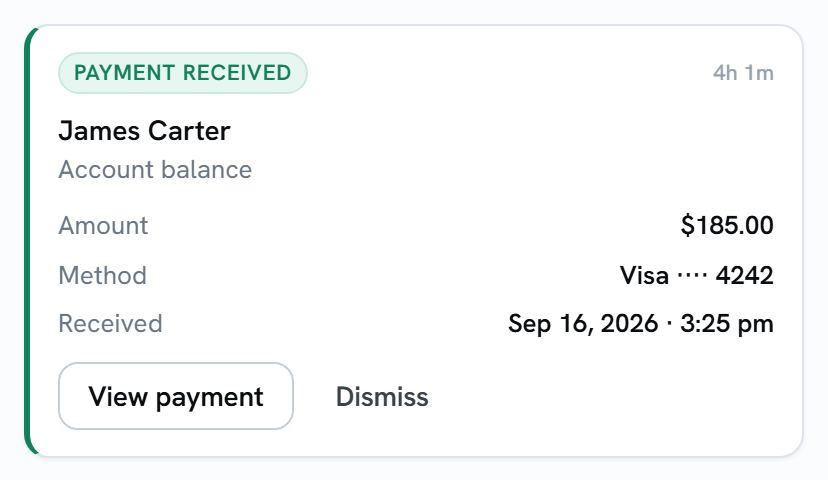
- The patient’s name, and what the payment was for: Account balance or Treatment plan prepayment.
- Amount: what was actually approved.
- Method: the card brand and last four digits.
- Received: when the payment went through.
The first button depends on who you are:
- View payment (Admins, when your practice has Open Dental Posting turned on in Settings → Payments) opens My Account → Patient Payments on the day of the payment, already searched to that patient, so you can confirm it posted to Open Dental. See Payment Report.
- View patient (everyone else) opens the patient’s profile.
A received payment doesn’t need anything from you, so the card stays until someone dismisses it. Otherwise it’s removed after 30 days.
Payment failed
Section titled “Payment failed”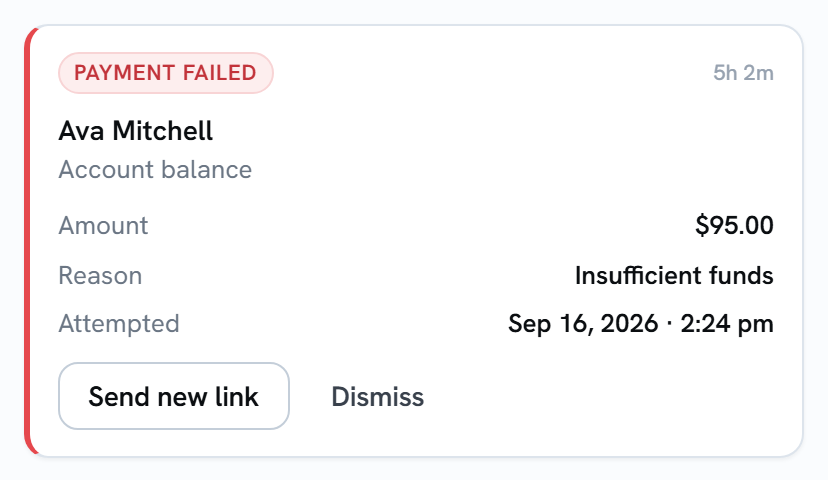
- The patient’s name, and what the payment was for.
- Amount: what the patient tried to pay.
- Reason: why it didn’t go through, as the card processor reported it (for example Insufficient funds).
- Attempted: when the patient tried.
A link can’t be used again once its payment fails, so the patient needs a new one.
Sending a new link
Section titled “Sending a new link”-
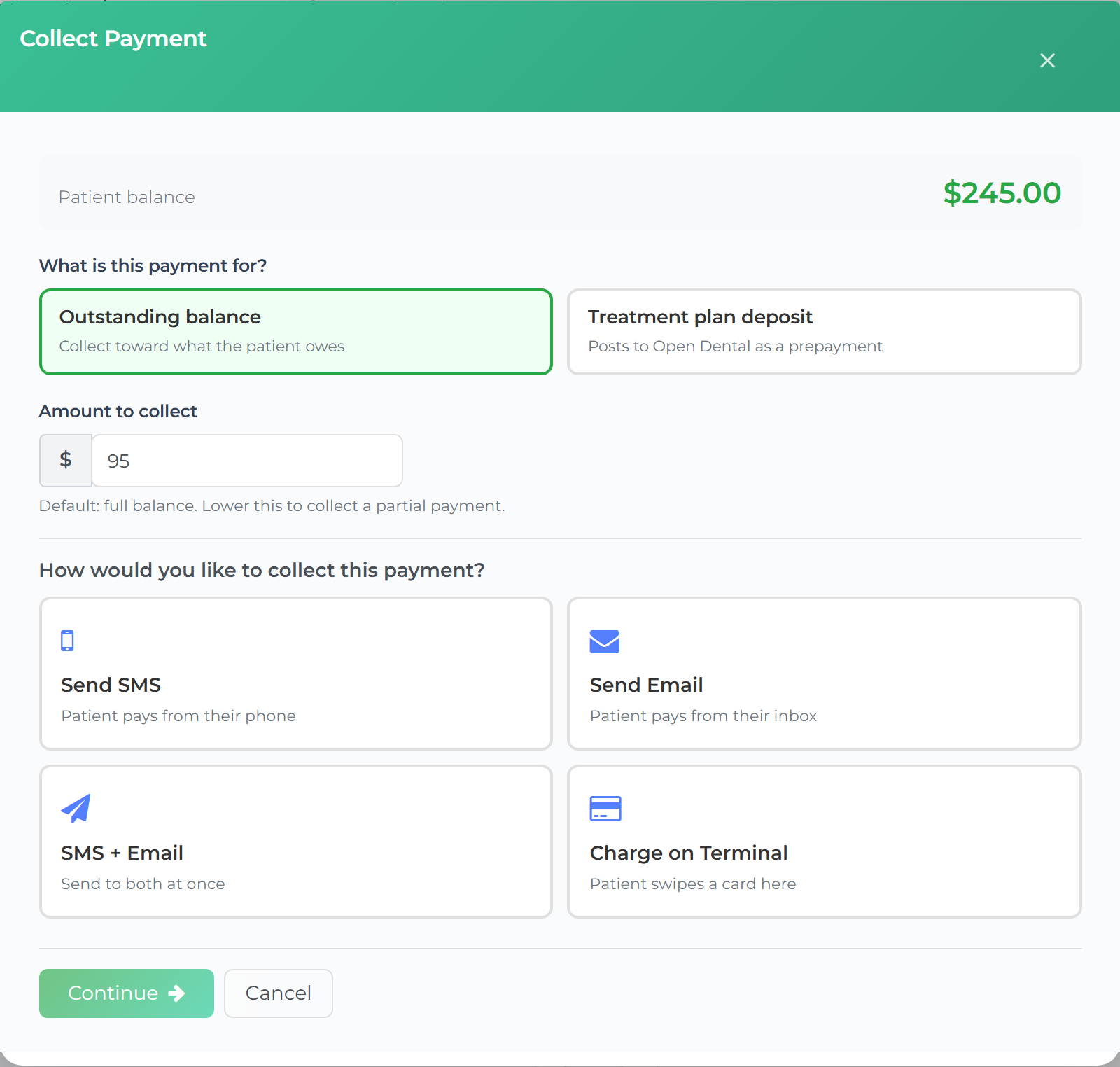
Select Send new link. The patient’s profile opens with the Collect Payment window, already filled in from the failed payment: the same kind of payment, and the same amount.
-
Check the details. Change the amount if you need to.
-
Choose how to send it and finish as usual. See Collecting a payment.
Nothing is sent until you finish in the Collect Payment window. Teamio never retries a payment or sends a new link on its own.
When the failed card clears
Section titled “When the failed card clears”The Payment failed card clears for everyone, whatever your office’s clearing setting, when:
- anyone sends that patient a new payment link, whether from this card, the Collect Payment button on their profile, or a follow-up, or
- the patient makes a payment through another link.
You can also Dismiss it, for example if the patient paid another way.