
Kanban boards
A Kanban board is columns + cards: each card is a piece of work, each column a stage, and you drag cards along as work progresses. Perfect for insurance follow-ups, lab cases, or any pipeline.
Where: Sidebar > Kanban (/app/kanban)
The Kanban dashboard
Section titled “The Kanban dashboard”With no board open, you land on the dashboard:
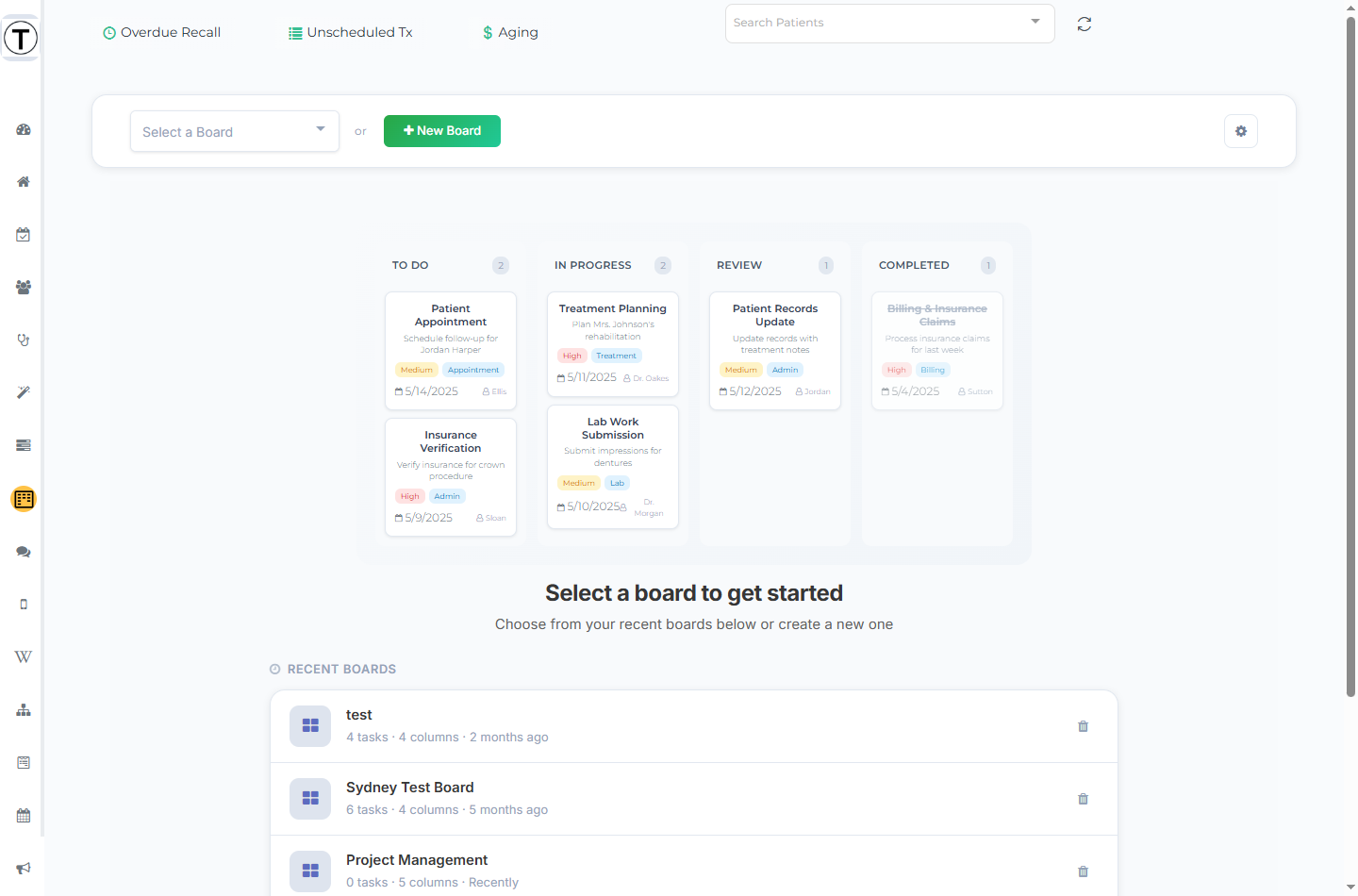
- A Select a board to get started hero.
- Recent Boards — your top 5 boards by activity, each showing its task and column counts, with a lock icon on private boards. A per-row trash button deletes a board. Use Show all N boards to see the rest.
- A Create New Board row, the Select a Board dropdown, and the New Board button.
If your site has no boards yet, you’ll see an Organize Tasks Visually explainer and a Create Your First Board button instead.
Create a board
Section titled “Create a board”- Select New Board (or the Create New Board row) to open the Create New Board modal.
- Optional. Start from a Quick Start template — Project Management, Sprint Planning, Sales Pipeline, or Personal Tasks — each of which preloads sensible columns.
- Enter a Board Name (name it for the pipeline it tracks, e.g. Insurance follow-ups) and an optional Description.
- Choose Visibility: Visible to everyone at the site or Restrict to specific employees (see Kanban board privacy).
- Select Create Board.
Work the board
Section titled “Work the board”Open a board from the dashboard to see its columns and the header controls.
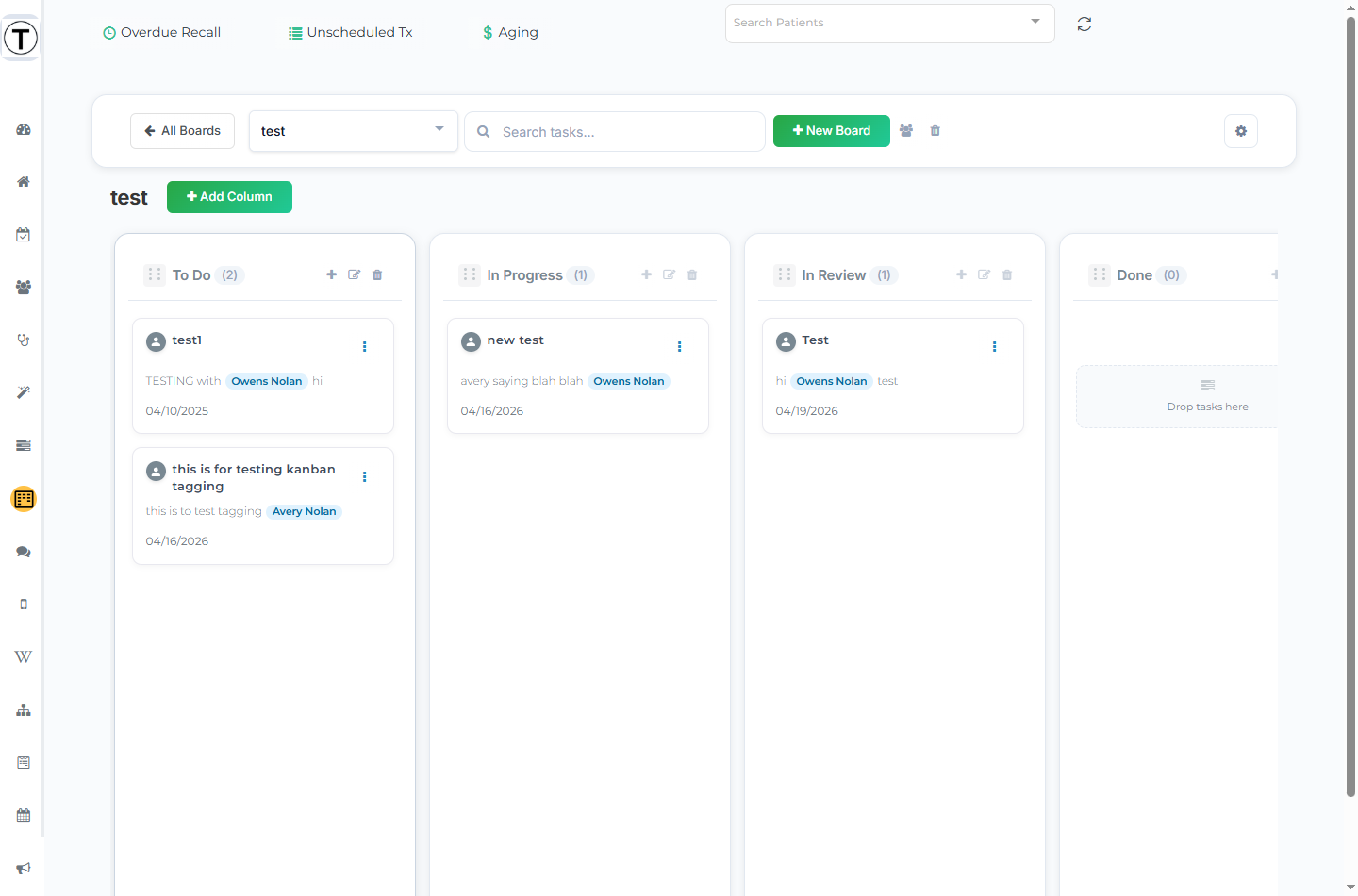
Header controls (left to right): the All Boards back button, the Select a Board dropdown, a Search tasks… box (shows a Found N tasks matching… count and a Clear search link), the New Board button, a members button (a people icon, or a lock icon when the board is private), a bell button for email alerts on tagged cards, a board trash button, and the Kanban Settings gear at the top right.
Columns:
- Select Add Column next to the board title to open the Add New Column modal; enter a Column Name and confirm.
- Each column header has a + (add a card), a pencil (Edit Column), and a trash (delete). Deleting a column that contains cards warns you first — it removes every card inside and can’t be undone.
- Drag a column’s handle to reorder columns.
Cards:
- Add one with the column’s + icon, which opens the Add New Task slide-out: Task Name (required), Description (enter @ to mention a teammate), Type, and Tags, then Add Task.
- A card shows its title, a description preview with @-mention pills, a date, and tags.
- Drag cards between columns as the work moves.
- A card’s three-dot menu gives you Edit, Move to… (pick a destination column), and Delete (which asks Are you sure you want to delete this card?).
On a phone, the board shows one column at a time via a column dropdown, with an Add First Task empty state.
@-mentions and notifications
Section titled “@-mentions and notifications”Enter @ in a card description to mention a teammate. They get a Kanban notification and a green dot appears on the sidebar Kanban icon. On a private board, the @ picker only offers board members, so you can’t notify someone who can’t see the board.
Turn your own alerts on from the Kanban Settings gear (top right): Play sound & desktop notifications when I’m @-mentioned, plus a Kanban notification sound picker with a preview button. These are separate from task notifications.
Want an email the moment a card is tagged Urgent? Each board can email chosen teammates when a card gets a tag you pick — see Email alerts for tagged cards.
- Keep boards to 3–5 columns — To submit → Submitted → Following up → Resolved.
- Cards stuck in one column for weeks are the board telling you something — review them in your huddle.
- Workflows can act on boards automatically: the Workflow Builder has a Kanban action node (“Take an action related to Kanban board”) where you pick a board, column, and card action. Pair it with email alerts and a completed procedure can put a card on the board and email the right people — hands-free.