
Getting a consent form for an appointment
Open a patient’s profile and Teamio shows you the procedures on their appointment, each one paired with the consent form it needs — so you hand over the right form without looking anything up.
Get the consent
Section titled “Get the consent”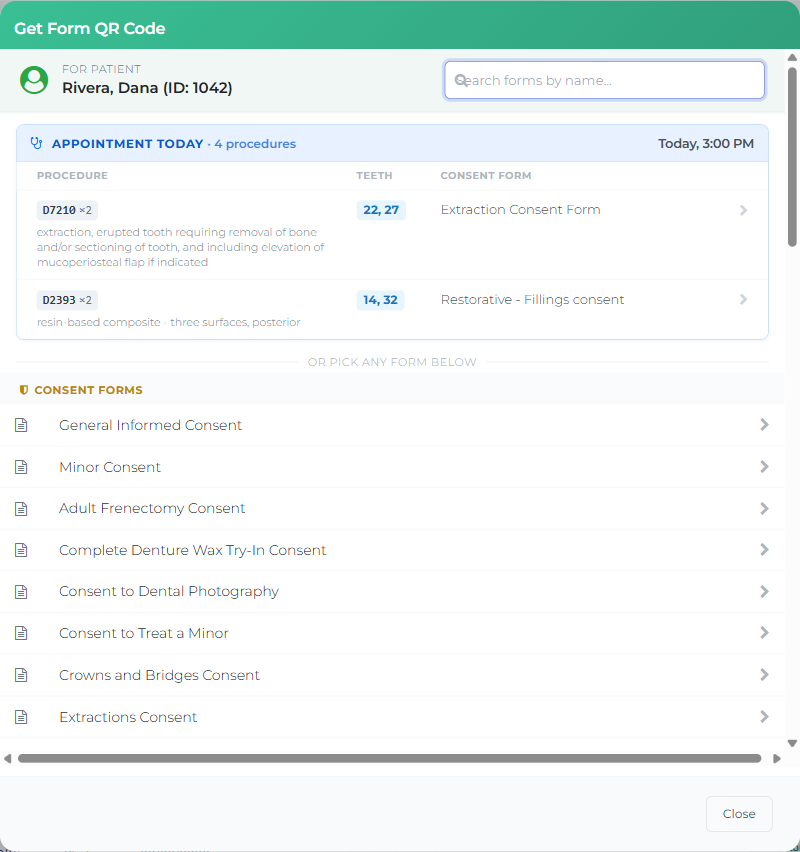
- Open the patient’s profile and select Get Form QR.
- The dialog opens with Appointment today at the top, listing each procedure on that appointment, the teeth involved, and the consent form it needs.
- Select the row for the consent you want.
- Show the patient the QR code to scan, or use the copy button to grab the link and text it to them.
The consent opens with its tooth-number field already filled in — only the teeth for that consent’s procedures.
If the patient isn’t here for a procedure that needs a consent, everything else is still below the divider: or pick any form below is followed by the full form list, exactly as before.
Which appointments show up
Section titled “Which appointments show up”The card covers more than just what’s next:
- Today’s appointment — whether it’s still scheduled or already marked complete. It stays in the list after you complete it, because grabbing a consent right after finishing is normal.
- Upcoming scheduled appointments.
- Yesterday’s completed appointment — a catch-up window for the consent nobody got to on the day.
When more than one qualifies, each appears as a selectable tab; today’s comes first. A recently completed appointment is labelled Recently completed appointment so it’s never confused with the live one.
What the patient sees
Section titled “What the patient sees”The patient scans or taps the link and fills out the consent on their own phone — see What patients see.
The tooth-number field is pre-filled but still editable. If the treatment changed at the chair, whoever is with the patient can correct it before they sign.
Teamio reads the teeth fresh each time the form is opened, so if a procedure changed in Open Dental after you sent the link, the corrected teeth are what the patient sees.
Tips and common questions
Section titled “Tips and common questions”- “It says No consent form mapped.” That procedure’s code hasn’t been matched to a consent yet. The procedure and its teeth still show, so nothing is hidden from you — an Admin or Manager can add it in a minute, see Mapping procedures to consent forms.
- “A procedure shows a dash instead of teeth.” Some treatments aren’t tied to a specific tooth — a quadrant of scaling, or a full-arch case. The consent is still the right one; there’s simply no tooth number to fill in.
- “Two procedures, one consent.” If several procedures need the same consent, they’re combined into one row with all the teeth together — one form to sign, not one per tooth.
- “The patient already signed this today.” Signing the same consent twice in one day is fine; each one is filed to Open Dental separately.
- “There’s no appointment card.” The patient has no appointment in the window above, or none of their procedures are on the schedule yet. Use the form list below the divider.
Related
Section titled “Related”- Mapping procedures to consent forms — the one-time setup this depends on
- Sharing a form with a patient — links and QR codes for any form
- Sending a plan to the patient — the same consents, bundled with a treatment plan
- What patients see
- Viewing submissions