
Health History by Category
Instead of one long type-ahead dropdown, patients tap a large category button — for example Heart or Circulatory — and tick the specific conditions under it. It’s built for patients who struggle with searching a long dropdown, like older patients or anyone filling out the form on a phone. The answers still save to the patient’s problems in Open Dental exactly like the standard Diseases field.
Who can do this: Admin / Manager (the roles that can edit forms — see Forms permissions by role) Where: Sidebar > Forms > select the form row (or its pencil, Modify Form)
How it works
Section titled “How it works”The question is an Open Dental Data Field control set to the DISEASES with Category and Checkbox Options data type — the fifth data type alongside DISEASES, ALLERGIES, MEDICATIONS, and REFERRALS. You group your practice’s Open Dental conditions into categories; the patient sees the categories as buttons, taps one open, and ticks the conditions that apply. Everything else about the control — labels, required rules, Highlight for Alert — works like any other control.
-
Open the form in the builder and select Add Control in the section where the question belongs, then choose Open Dental Data Field.
-
In the control’s Configuration panel, open Control Configuration (the cog) and set Save to Open Dental Field (Optional) to Diseases. You can also leave it blank — the answers then show only on the submission and PDF, and nothing writes to the chart.

-
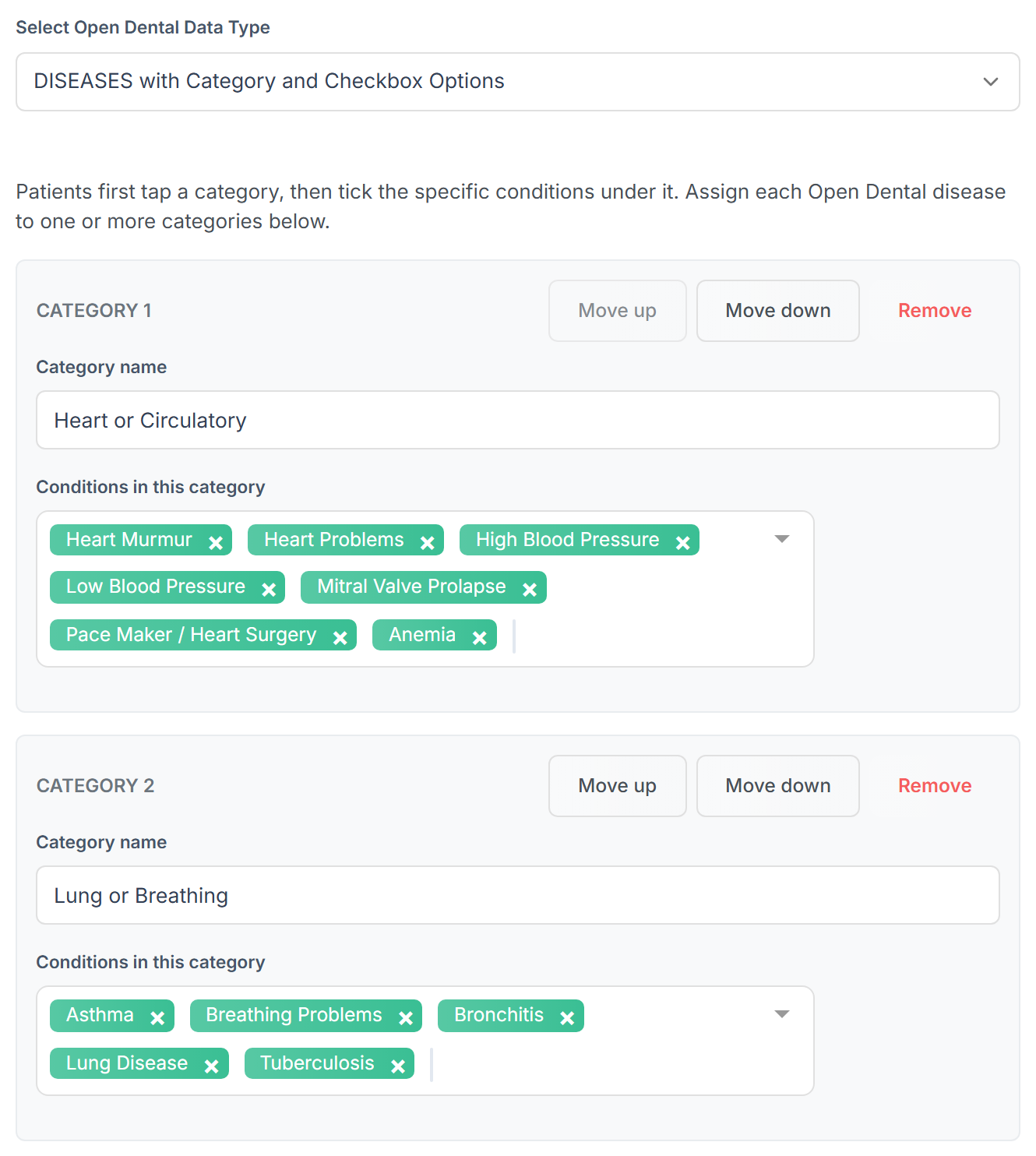
Expand Control Specific Configuration and set Select Open Dental Data Type to DISEASES with Category and Checkbox Options. The panel opens with: Patients first tap a category, then tick the specific conditions under it. Assign each Open Dental disease to one or more categories below. Six default categories are created, each empty to start: Heart or Circulatory, Lung or Breathing, Digestive or Dietary, Neurological, Autoimmune, and Other Conditions.
-
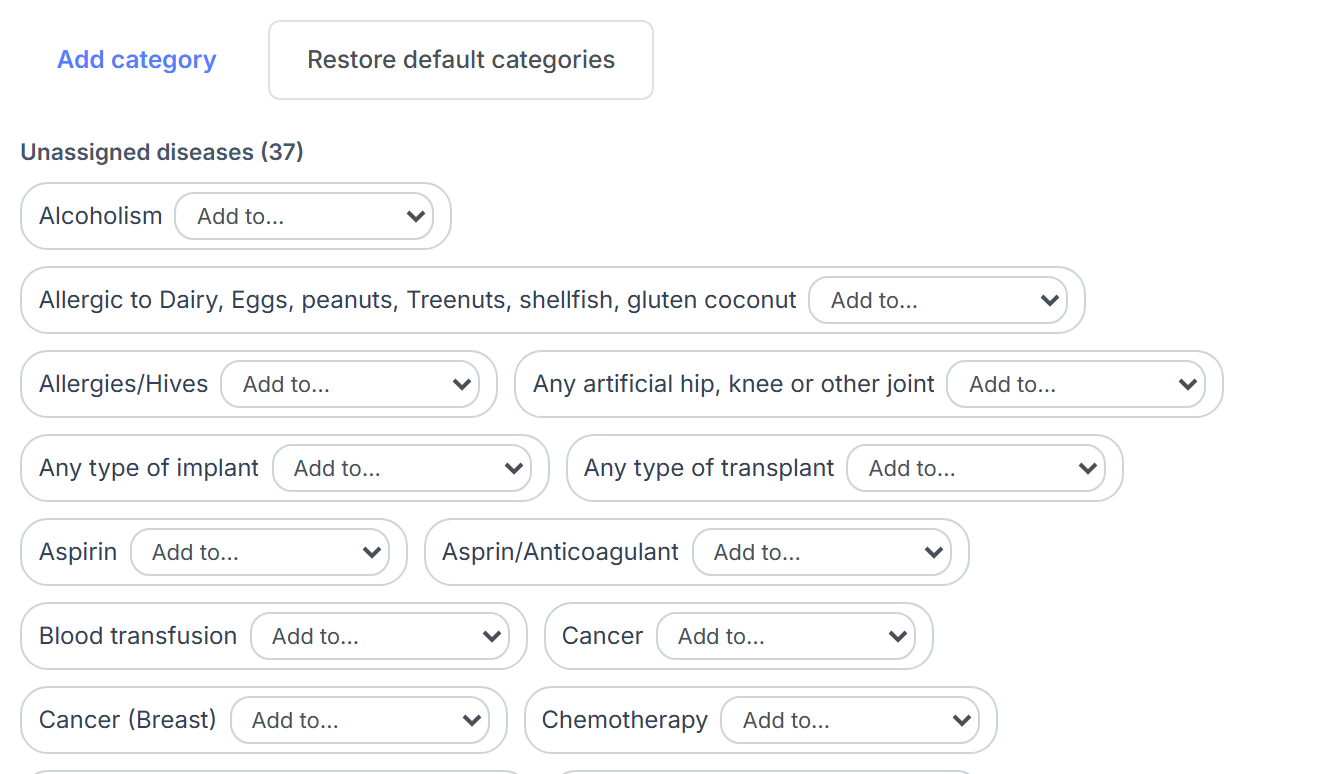
Build out your categories. Each category card has a Category name and a Conditions in this category multi-select listing your practice’s own Open Dental problem list (hidden definitions aren’t offered). You can rename a category, reorder it with Move up / Move down, or Remove it (this asks for confirmation once it has conditions in it). Add category creates a new one, and Restore default categories adds back any of the six defaults you removed — it never touches categories you added or renamed yourself.
-
Assign the rest from Unassigned diseases — every Open Dental condition not yet in a category, each with its own Add to… dropdown. Pick a category and the condition moves into it; the count drops as you go, and the section reads “Every Open Dental disease is assigned” once nothing is left. A condition can go in more than one category — it’s only ever saved once. You don’t have to assign everything; anything left unassigned simply isn’t offered to patients.
-
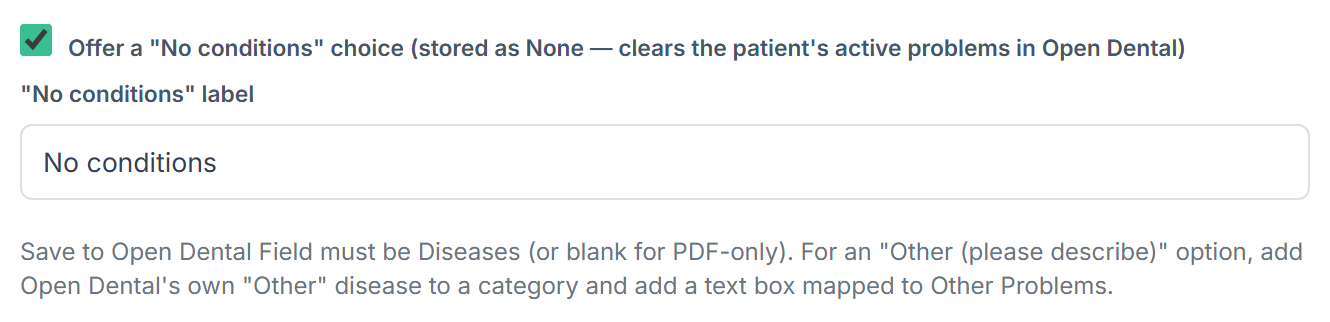
Leave Offer a “No conditions” choice on (it’s on by default) unless you want to remove that option, and reword its label in the “No conditions” label box if you’d like different wording than the default.
-
If the form has additional languages enabled, translate each category name and the “No conditions” label in the extra input added per language. Condition names come from Open Dental and aren’t translated. See Multi-language forms.
-
Optional: under Validation Rules, add required if every patient must answer.
-
Select Save or Save & Close, then Save Changes on the form.
The two settings must agree
Section titled “The two settings must agree”A field of this data type can only be saved to Diseases, or left unmapped. If Save to Open Dental Field is set to anything else, both Save and Save & Close are refused with: A DISEASES with Category and Checkbox Options field can only be saved to the Diseases Open Dental field (or left unmapped). Set it back to Diseases (or blank) and save again.

Only one field on the form can save to Diseases at all. Changing this field’s own data type needs no cleanup, but if you’re adding it alongside a separate existing Diseases field, remove that field or clear its Save to Open Dental Field first. See One field per form for each Open Dental list.
What the patient sees
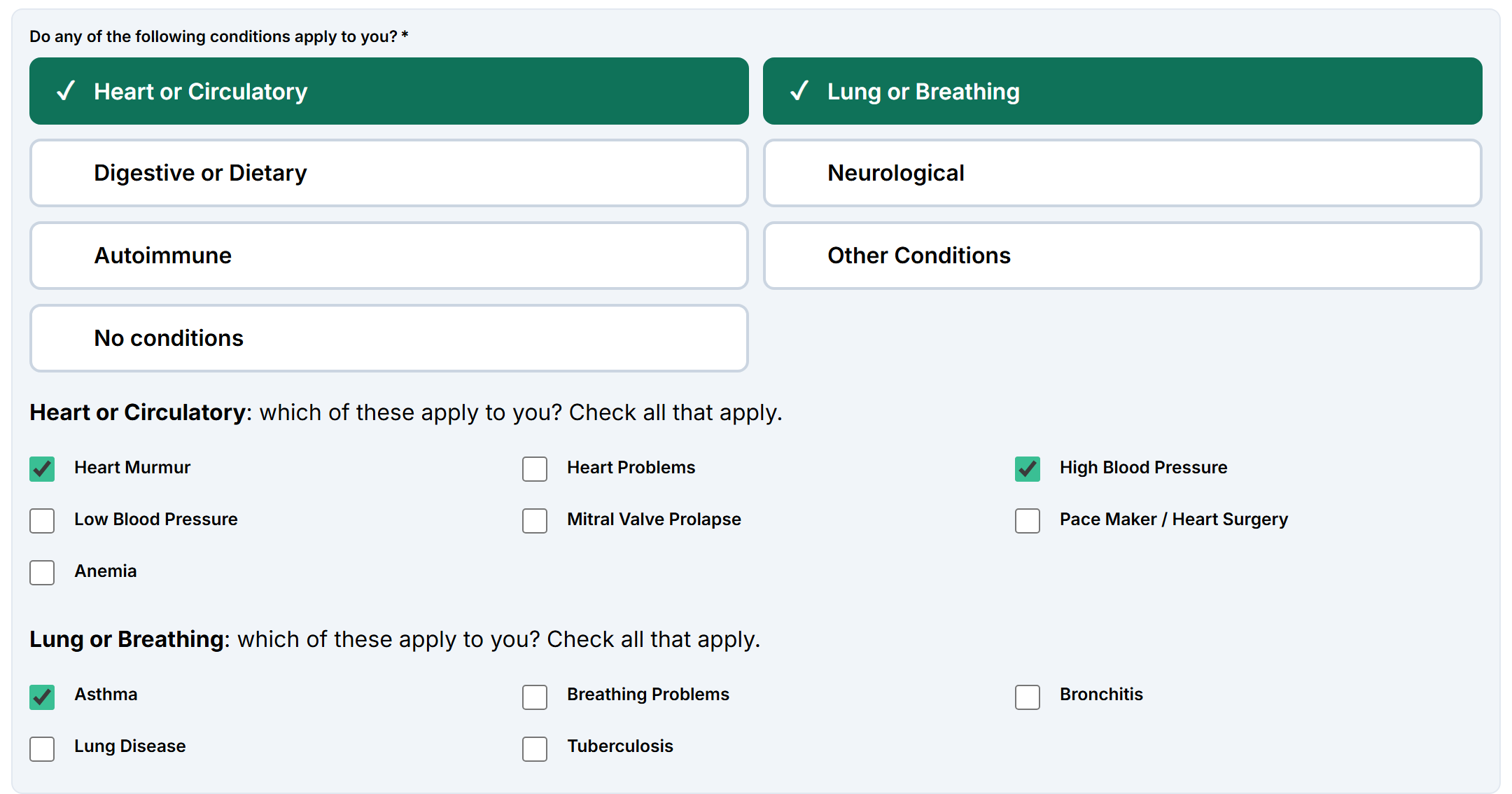
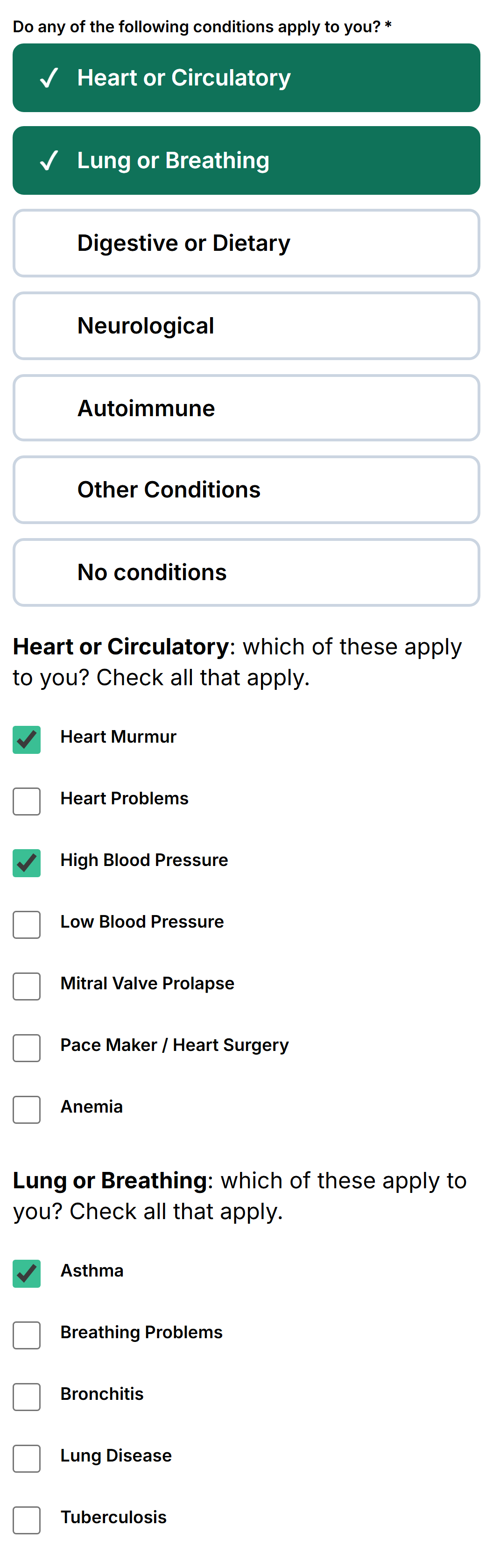
Section titled “What the patient sees”Large buttons — two per row on wider screens, one per row on a phone. Only categories that have at least one condition assigned appear as buttons.
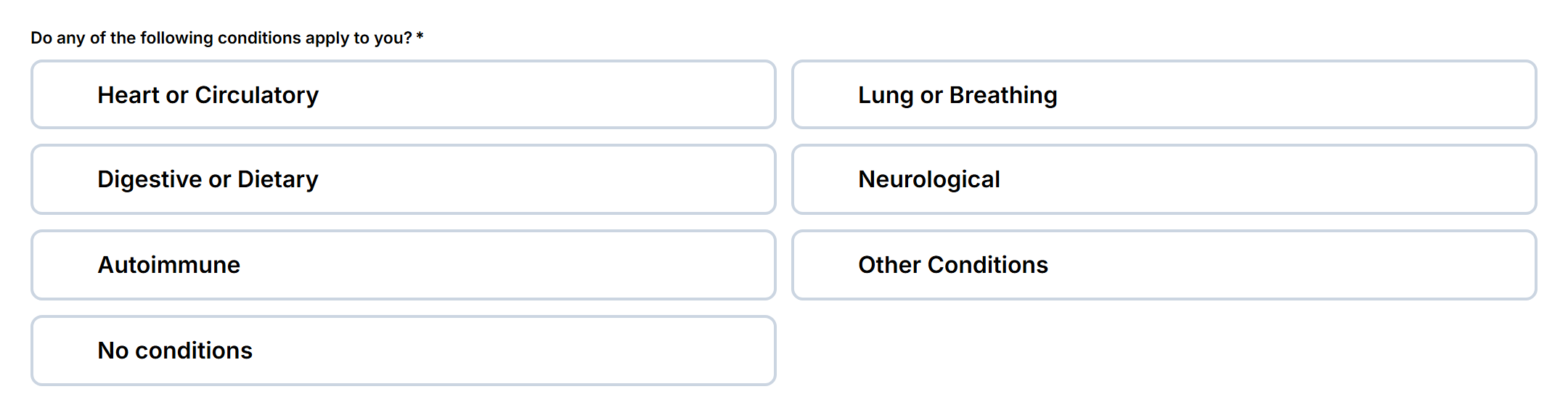
Tapping a button opens it (it turns green with a check) and shows its conditions as checkboxes under “Category name: which of these apply to you? Check all that apply.” — three per row on wide screens, one per row on a phone. Several categories can be open at once. Tapping an open category again closes it and clears whatever was ticked under it.
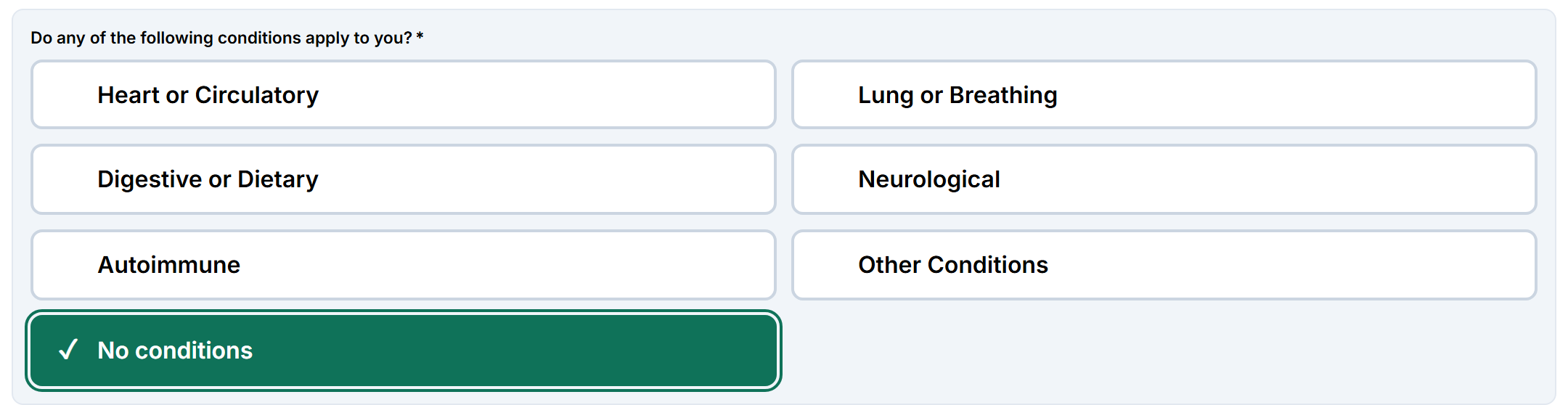
No conditions is exclusive: tapping it clears and closes every open category; tapping any category afterward clears No conditions; tapping No conditions a second time unticks it.
If you add the required validation rule, the patient must tick at least one condition or choose No conditions — opening a category without ticking anything under it doesn’t count as an answer.
Returning patients
Section titled “Returning patients”On a form that pre-fills from the chart and is opened through a patient-specific link, the patient’s active problems on their Open Dental chart pre-open the matching category with the condition already ticked, so the patient reviews instead of re-entering everything. A condition that sits in two categories is pre-ticked under the first one.
What happens in Open Dental
Section titled “What happens in Open Dental”| Situation | Result |
|---|---|
| Ticked, not already on the chart | Added to the patient’s problems as active |
| Ticked, on the chart but previously resolved | Made active again |
| Active on the chart, offered on this form, and not ticked | Marked resolved (nothing is ever deleted) |
| No conditions selected | Every active problem on the chart is marked resolved, including problems not offered on this form — the same behavior as choosing None in the standard Diseases field |
| Active on the chart but not in any of your categories | The patient never sees it and the form leaves it untouched; staff see it on the submission and PDF under Also on file (not shown to patient) |
| The same condition ticked under two categories | Written once |
”Other” — conditions that aren’t on your list
Section titled “”Other” — conditions that aren’t on your list”The question asks for this itself. Open Dental’s own Other problem is never shown as a checkbox: when you add the question it starts in the Other Conditions category, and you can move it to any category you like. What the patient sees depends on what else is in that category:
| “Other” sits in… | What the patient sees |
|---|---|
| A category on its own (the default Other Conditions) | Tapping the category opens one required box — Please describe your other condition(s). They can’t continue until it is filled in. Tapping the category again removes it. |
| A category alongside other conditions | The checkboxes, plus an optional box underneath — Any other condition(s) not listed above? (optional). Typing in it adds Other; leaving it blank adds nothing. |
Whatever the patient types is saved as the note on their Other problem in Open Dental (Other Problems), and staff see it on the submission and PDF as Other (their description). For a returning patient, the note already on their chart is filled in for them. Choosing No conditions clears it.
Don’t add a separate Text Field mapped to Other Problems — the question saves it for you, and Teamio won’t let you save a form that has both. This needs a problem named exactly “Other” in your practice’s Open Dental problem list.
Highlight for Alert
Section titled “Highlight for Alert”Works the same as the other Open Dental Data Field types: tick Highlight for Alert, then use “Highlight only when the patient selects any of:” in Control Specific Configuration — it lists every condition across all your categories. Leave it empty and any condition triggers the red highlight. No conditions never triggers it. See Per-option alert flags.
What staff see on the submission and PDF
Section titled “What staff see on the submission and PDF”The submission view and the PDF filed to Open Dental imaging show the answers as plain text grouped by category, for example “Heart or Circulatory: High Blood Pressure, Heart Murmur”, followed by “Also on file (not shown to patient): …” when applicable, or “No conditions”.

Tips and common questions
Section titled “Tips and common questions”-
Why is one of my categories missing on the patient form? It doesn’t have any conditions assigned yet — only categories with at least one condition show as buttons.
-
A patient has a problem on their chart that isn’t on my form — will the form remove it? No, unless the patient chooses No conditions.
-
Can I use this for allergies or medications? No — this layout is for Diseases/problems only. Allergies and Medications keep the dropdown.
-
I added a new problem in Open Dental — where is it? Reopen the control’s configuration; it shows up under Unassigned diseases until you add it to a category.
-
Can I switch an existing Diseases field to this layout? Yes — change the data type. Your categories replace the flat list; nothing else on the form changes. Switching back to DISEASES gives a dropdown offering every condition you had assigned.
-
I already have a Diseases dropdown on this form — can I add this too? No — only one field per form can save to Diseases. Change the existing field’s data type to switch layouts, or remove or unmap the old field first if you want a separate one. See One field per form for each Open Dental list.