
Appointment types: what patients can book
Appointment types are the heart of online booking: each type is a service a patient can pick, and its operatory-and-provider mapping is what makes the booking land correctly on your Open Dental schedule. Get these right and bookings flow straight into the right chair with the right provider.
The Appointment Types tab
Section titled “The Appointment Types tab”Open Online Appointments > Settings > Appointment Types.
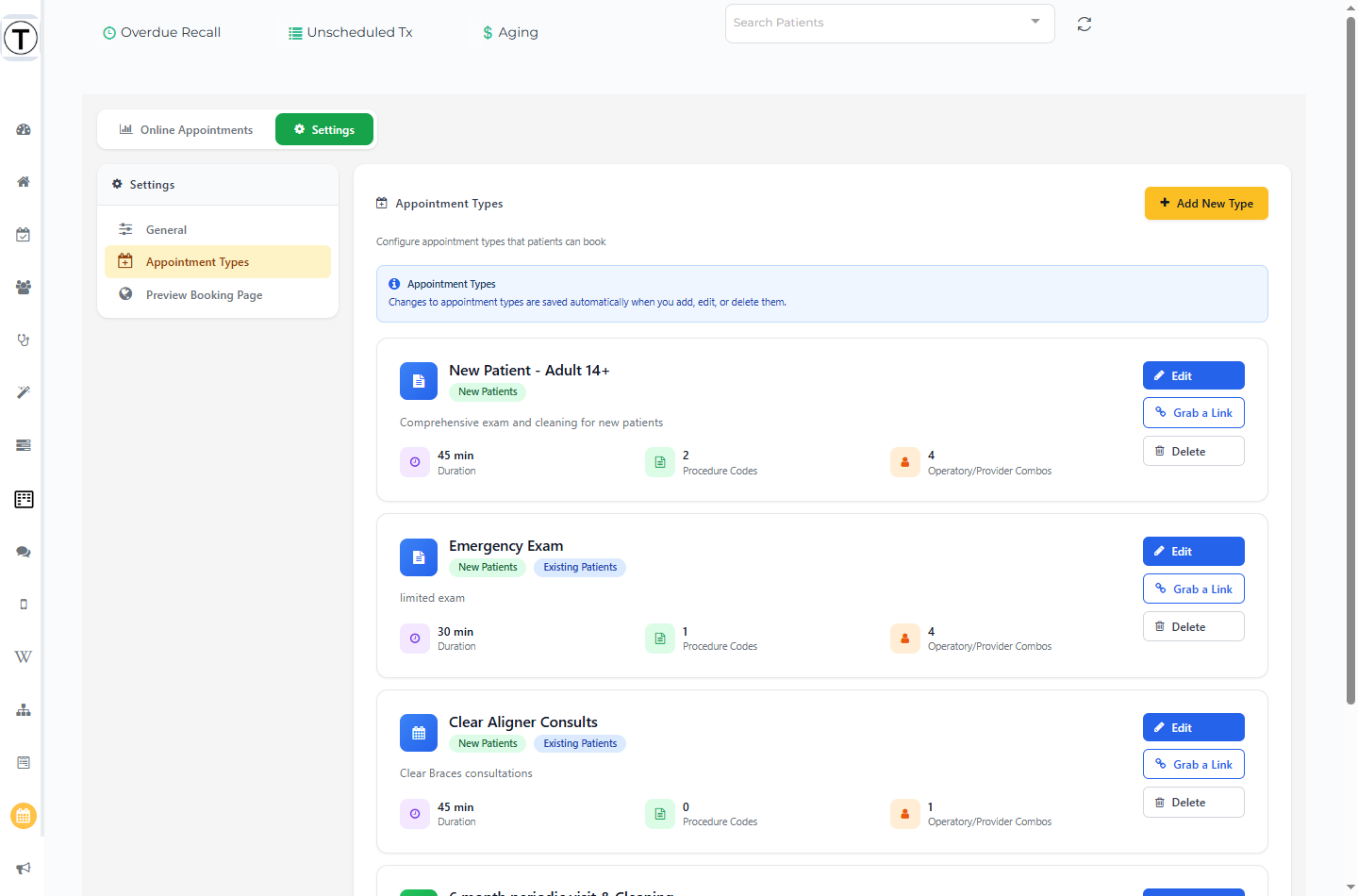
- Add New Type creates a new bookable service.
- An info box reminds you that changes here are saved automatically — there’s no separate Save button on this tab (the modal you edit a type in does have one).
- Each type is a card showing its name, a New Patients and/or Existing Patients badge, and three stats: Duration, Procedure Codes count, and the number of Operatory/Provider combos.
- Per-card buttons: Edit, Grab a Link (a booking link that drops patients straight onto this type — see Booking links), and Delete.
Getting Started Templates
Section titled “Getting Started Templates”A fresh site shows pre-populated template cards marked with a Template badge and an Edit to Configure indicator. They are starting points only — a template won’t go live to patients until you open it and map its operatories and providers. Treat the “Edit to Configure” flag as required work.
Creating or editing a type
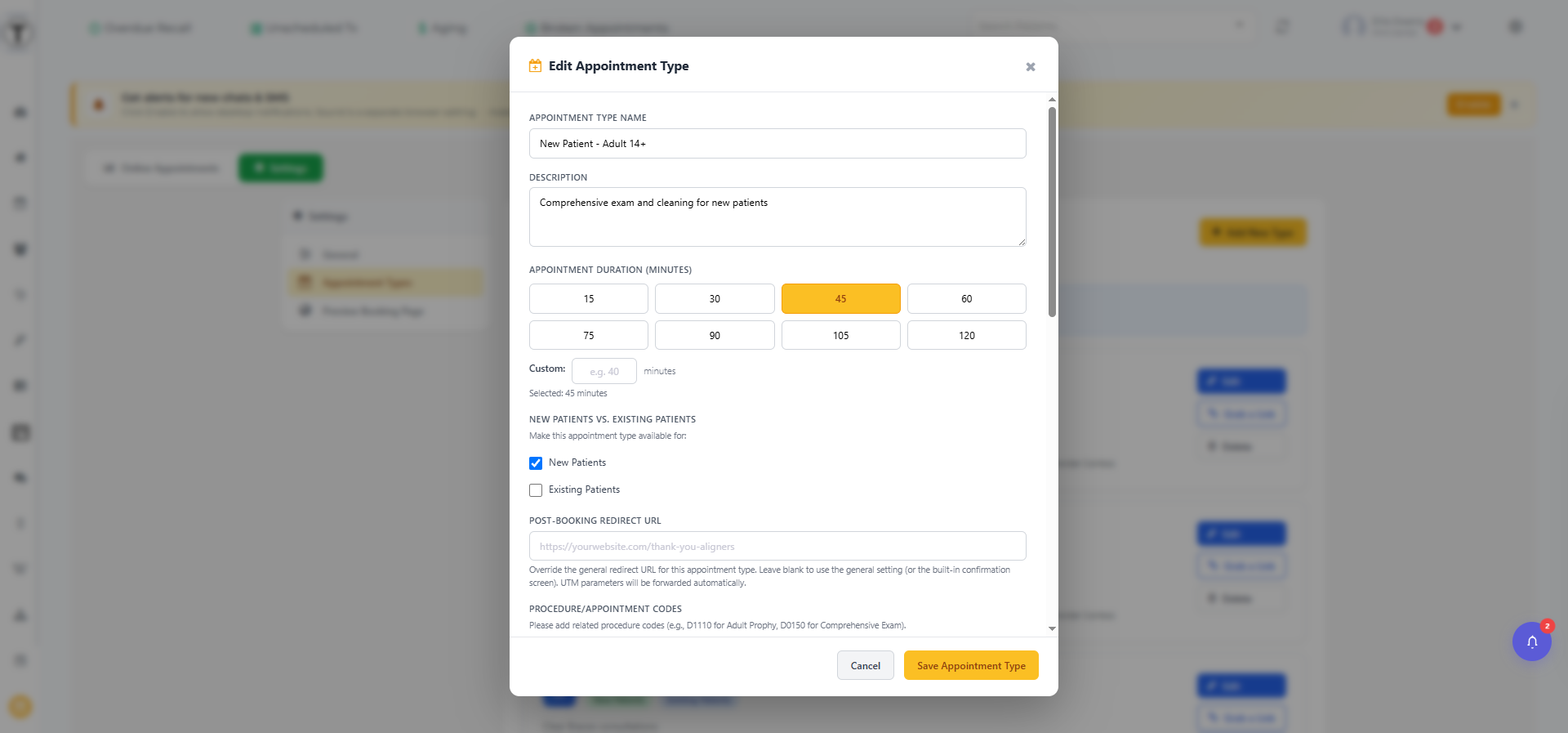
Section titled “Creating or editing a type”Select Add New Type, or Edit on a card.
| Setting | What it does |
|---|---|
| Name & description | What the patient sees on the type card. |
| Duration | A preset grid from 15 to 120 minutes, plus a Custom field for any other length. |
| Patient availability | New Patients and Existing Patients checkboxes — controls who can pick this type. |
| Procedure / Appointment Codes | The codes associated with the type. A warning makes this explicit: these codes go into the appointment note, not onto the appointment as attached procedures (the appointment itself inserts with your zero-fee code). |
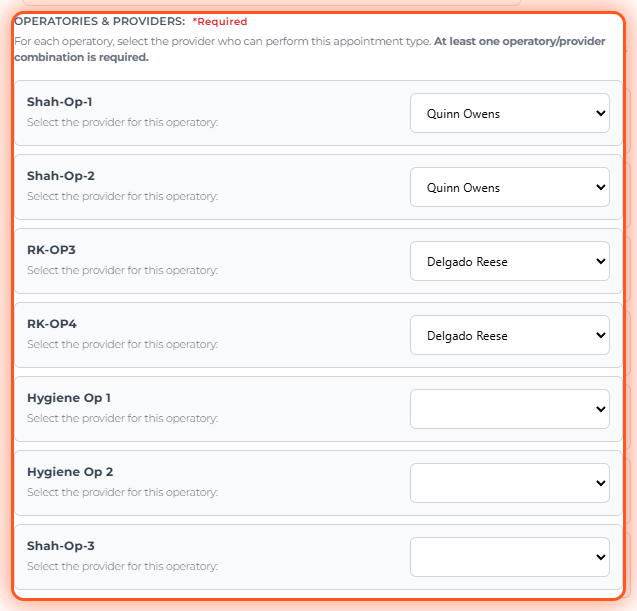
| Operatories & Providers | Required. Map each operatory to one provider. This mapping is what routes the booking to the right chair and provider; an unmapped type can’t be booked. |
| Post-Booking Redirect URL | Optional per-type override — send patients who book this type to a specific thank-you or instructions page. |
The Operatories & Providers mapping is the step that most often gets missed because it sits near the bottom of the modal — scroll down to it. It’s marked *Required, lists every operatory, and you pick the provider who can perform this type in each chair. Leave an operatory’s provider blank and that chair simply won’t be offered for this type; map none and the type can’t be booked at all.
Additional Options
Section titled “Additional Options”- Allow Double Booking — when on, the provider can be booked in two operatories at the same time and each operatory still has to be free; leave it off to offer a time only when both the operatory and the provider are free.
- Hide Service from Patients — keep the type configured but off the public page (useful for staff-only or seasonal types).
- Block Scheduling with a single block dropdown — restrict this type to a specific Open Dental block.
Select Save Appointment Type in the modal to commit your changes.
Track online-booking conversions
Section titled “Track online-booking conversions”A common reason to set a Post-Booking Redirect URL is conversion tracking: send bookers to your own thank-you page so a marketing pixel on that page can count completed online bookings.
Teamio’s only role here is the redirect. Because a patient lands on your redirect page only after a real booking is created (verification has already succeeded — see What patients see), any conversion pixel or analytics event on that page counts one genuine booking — for example a Google Ads conversion tag, a Meta Pixel Lead or Schedule event, or a GA4 conversion event.
To set it up:
- Build a dedicated thank-you page you host, and don’t link to it from anywhere else — that way only patients who finish booking ever reach it, so the pixel never fires on stray visits.
- Have your marketing person or agency add the conversion pixel or analytics event to that page. Teamio doesn’t inject any tracking code; the pixel lives entirely on your page.
- Paste that page’s address into Post-Booking Redirect URL on the appropriate appointment type, then Save Appointment Type.
Pair this with the UTM tags from Booking links so you can also see which campaign drove each booking, not just that one happened.
Troubleshooting
Section titled “Troubleshooting”A new type doesn’t show up for patients
Section titled “A new type doesn’t show up for patients”It probably has no Operatories & Providers mapping, Hide Service from Patients is on, or its New/Existing setting excludes the patient. Open the type and check all three.
A booking landed on the wrong provider
Section titled “A booking landed on the wrong provider”Check the type’s operatory-provider map — each operatory routes to exactly one provider, so a mis-mapped operatory sends bookings to the wrong chair.
Procedures aren’t billing
Section titled “Procedures aren’t billing”That’s by design — type procedure codes are written to the appointment note for reference; the appointment inserts with the zero-fee code so online bookings never post a charge. Add procedures in Open Dental as normal during the visit.