
Action Center overview
The Action Center is the round bell button in the bottom-right corner of Teamio. It collects everything that needs a person in one list: texts nobody has answered, forms and packets patients just sent in, treatment plans that were signed or questioned, new online bookings, and payments that came in or failed. Cards appear the moment something happens, and nobody needs to refresh the page.
What’s in this section
Section titled “What’s in this section”The alerts
Section titled “The alerts”| Alert | You get it when… |
|---|---|
| Unread SMS / Unanswered SMS | A patient’s text has waited 15 minutes unread, or 30 minutes without a reply |
| Form submitted | A patient submits a form |
| Packet in progress / Packet submitted | A patient works through a forms packet (one card for the whole packet) |
| Treatment plan signed | A patient signs a treatment plan |
| Question on plan | A patient asks a question on a treatment plan |
| New online booking | A patient books through your online scheduling page |
| Payment received / Payment failed | A patient pays, or fails to pay, through a payment link |
Working the list
Section titled “Working the list”- Clearing alerts: Dismiss, Mark read, Clear all and Undo, and the office setting that decides whether clearing a card clears it for everyone.
- On a phone or tablet: how the panel works on smaller screens.
- Rules at a glance and the Action Center FAQ: why an alert did or didn’t show up.
Opening the Action Center
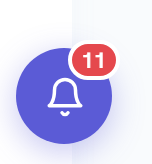
Section titled “Opening the Action Center”Select the bell in the bottom-right corner. The red number on it counts every alert waiting for you (it shows 99+ past 99).
The panel opens on the right. Select the X or the bell again, or press Esc, to close it.
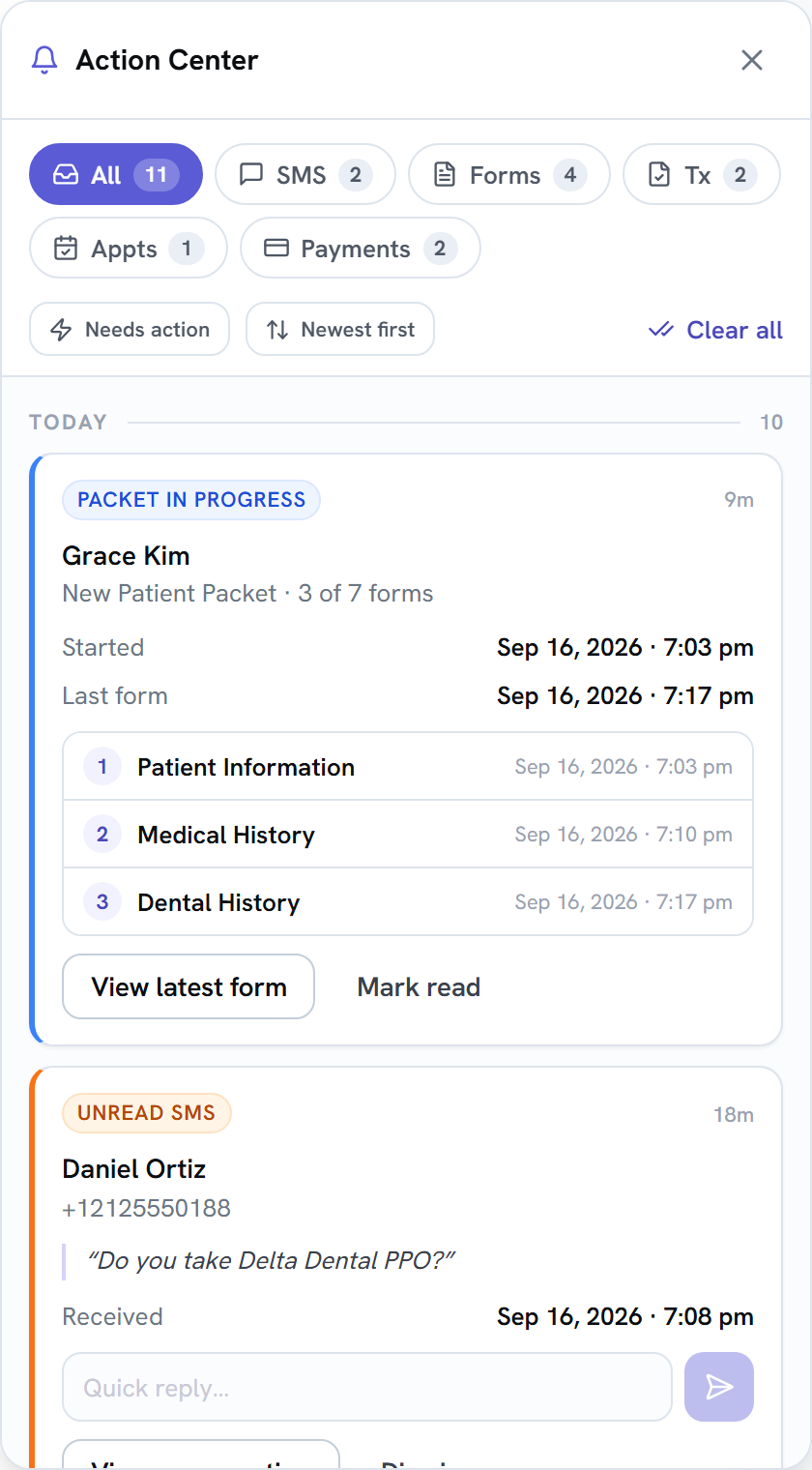
When you open something from a card (a conversation, a form, a plan), the panel stays open on a computer so you can keep working down the list. On a tablet or phone it closes so you can see the page.
Finding what you need
Section titled “Finding what you need”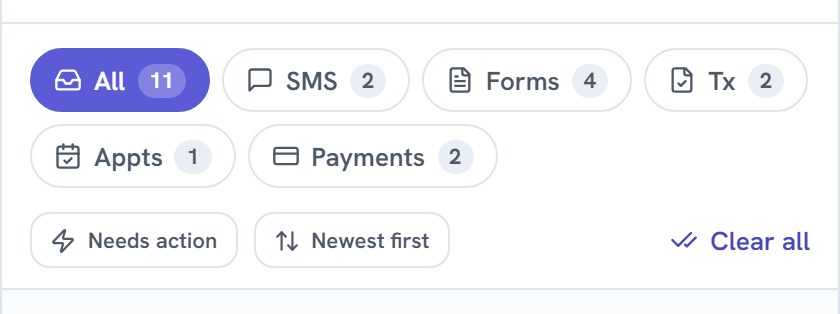
- Chips. All, SMS, Forms, Tx (treatment plans), Appts (online bookings) and Payments. Each shows how many alerts it holds. There’s no limit on how many cards the list shows.
- The filter button (the first button under the chips) narrows the chip you’re on. See the table below.
- Newest first / Oldest first. Select to flip the order.
- Today and Earlier. Cards are grouped by your practice’s calendar day.
The filter on each chip
Section titled “The filter on each chip”| Chip | Filter | Shows only |
|---|---|---|
| All | Needs action | Alerts someone has to act on: unread and unanswered texts, questions on plans, failed payments |
| SMS | Over 12h old | Texts that have waited 12 hours or more |
| Forms | Packets only | Packet cards, not single forms |
| Tx | Questions only | Questions on plans, not signed plans |
| Appts | Next 7 days | Bookings for today through the next 7 days |
| Payments | Failed only | Failed payments |
Select the filter again to turn it off. Switching chips turns it off too.
When a chip is empty you’ll see a short message instead, like Inbox zero on All or No new bookings on Appts.
Reading a card
Section titled “Reading a card”Every card has the same layout:
- The label at the top, like Form submitted or Payment failed, colored by type.
- How long ago it happened, in the top-right corner (
12m,1h 8m,3d). - The patient’s name, and a detail line under it: a phone number, form name, plan name or payment type.
- The details, like the exact date and time (for example Sep 16, 2026 · 2:19 pm).
- Buttons: one to open the right page, and Dismiss or Mark read to clear the card.