
Today's Dashboard at a glance
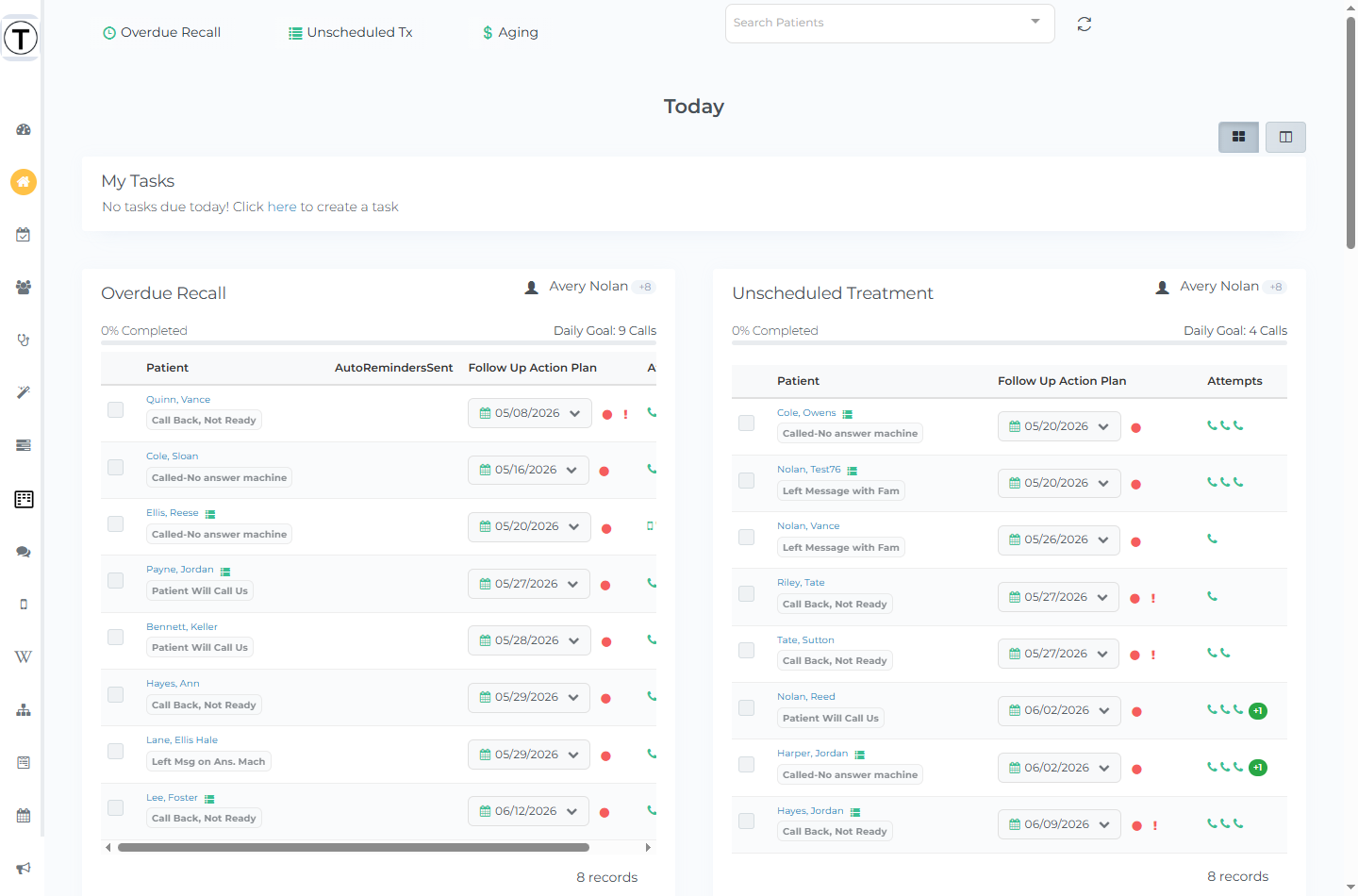
Today’s Dashboard is your team’s morning starting point: one page that answers “what needs doing today?” without opening a single report. It pulls your tasks due today and each outreach list — Overdue Recall, Unscheduled Treatment, Broken Appointments, and more — into one scrollable view, and shows how the day’s outreach goals are tracking. Many offices put it on a screen during the morning huddle.
You can read it top to bottom and act right from the page: select a patient to start a follow-up, or jump to a full list from the top navigation bar.
Where: Left sidebar → Today’s Dashboard (the page heading reads “Today”)
What’s on the page
Section titled “What’s on the page”My Tasks — your tasks due today. When you’re all caught up it shows No tasks due today! Click here to create a task, linking straight to My Tasks.
Then one section per outreach area:
- Overdue Recall — hygiene patients due to come back
- Unscheduled Treatment — diagnosed treatment not yet booked
- Broken Appointments — appointments that fell off the schedule
- Outstanding Claims — insurance claims awaiting payment
- Patient Balances — patients who owe money
- Outstanding Pre-Auths — pre-authorizations awaiting a response
Each section lists patients in a small table — Patient, Follow up Action Plan, and Attempts. Patient Balances adds an Amount column; when your office uses Appointment Reminders, Overdue Recall adds an Auto Reminders Sent column. Rows can carry a status badge such as Appointment Scheduled or Claim Received, and a checkbox to mark the patient done.
Selecting a patient’s name starts a follow-up for that patient — it does not jump to the full list. To open a full list, use the matching button in the top navigation bar.
Daily goals
Section titled “Daily goals”Only Overdue Recall and Unscheduled Treatment show a Daily Goal line (for example “Daily Goal: 5 Calls”) with a progress bar, and only when your Admin has set a goal above zero. The other four sections don’t have a goal bar.
Who owns each list
Section titled “Who owns each list”Each section shows a badge with the responsible person in the form {First name} +N — for example Jordan +8 when nine teammates share it. Hover the badge to see the full list of names.
Two ways to view the dashboard
Section titled “Two ways to view the dashboard”At the top right of the page are two view-toggle buttons:
- Block View of Important Systems — the default layout shown above.
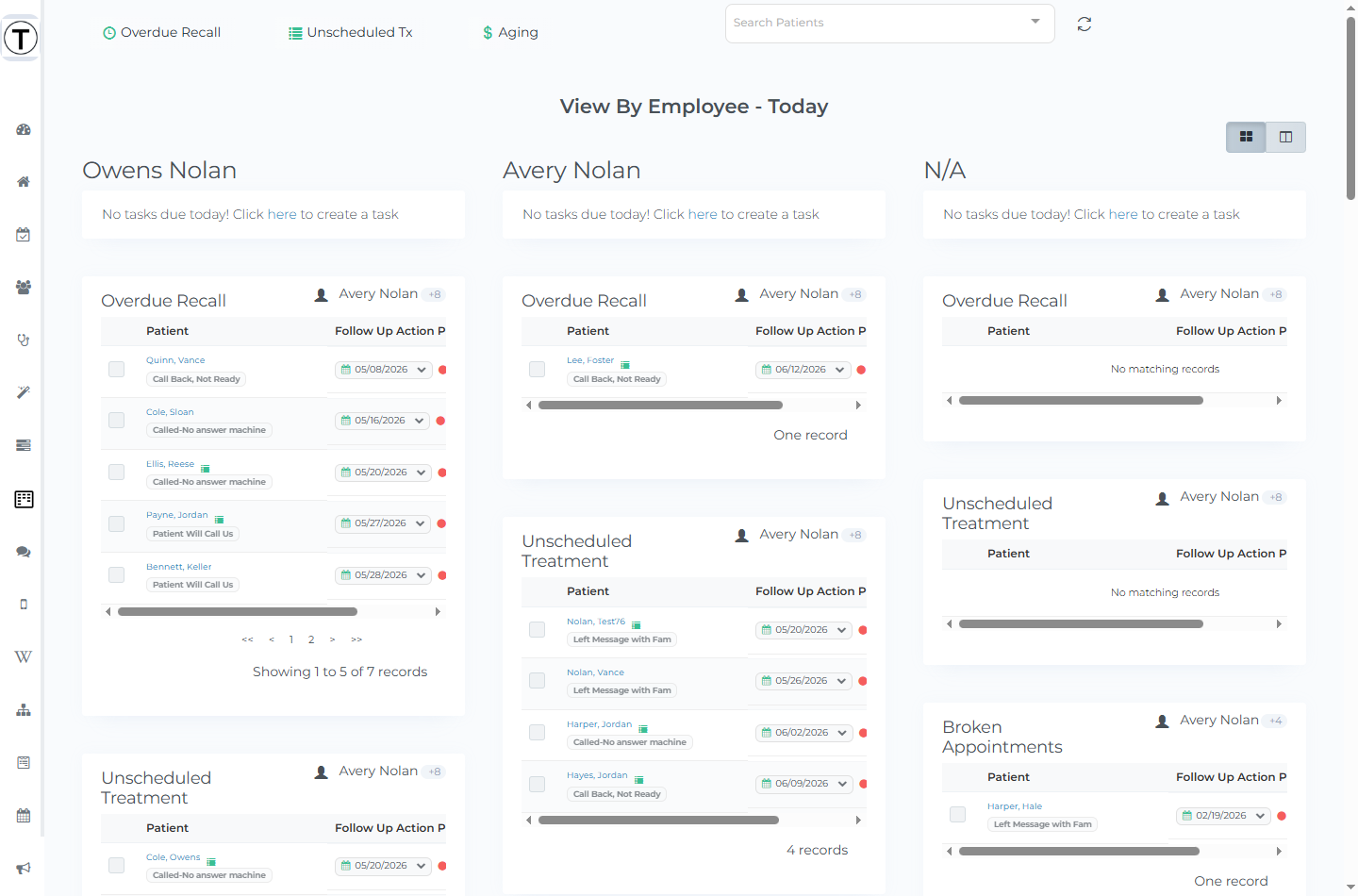
- Vertical Column View of Systems by Employees — opens an alternate dashboard at /app/admin-by-employee that breaks the same work out into a column per team member, so you can see each person’s outreach at a glance.
When a section is locked
Section titled “When a section is locked”If your role can’t work a particular list, that section shows an Access Restricted lock card instead of patients.
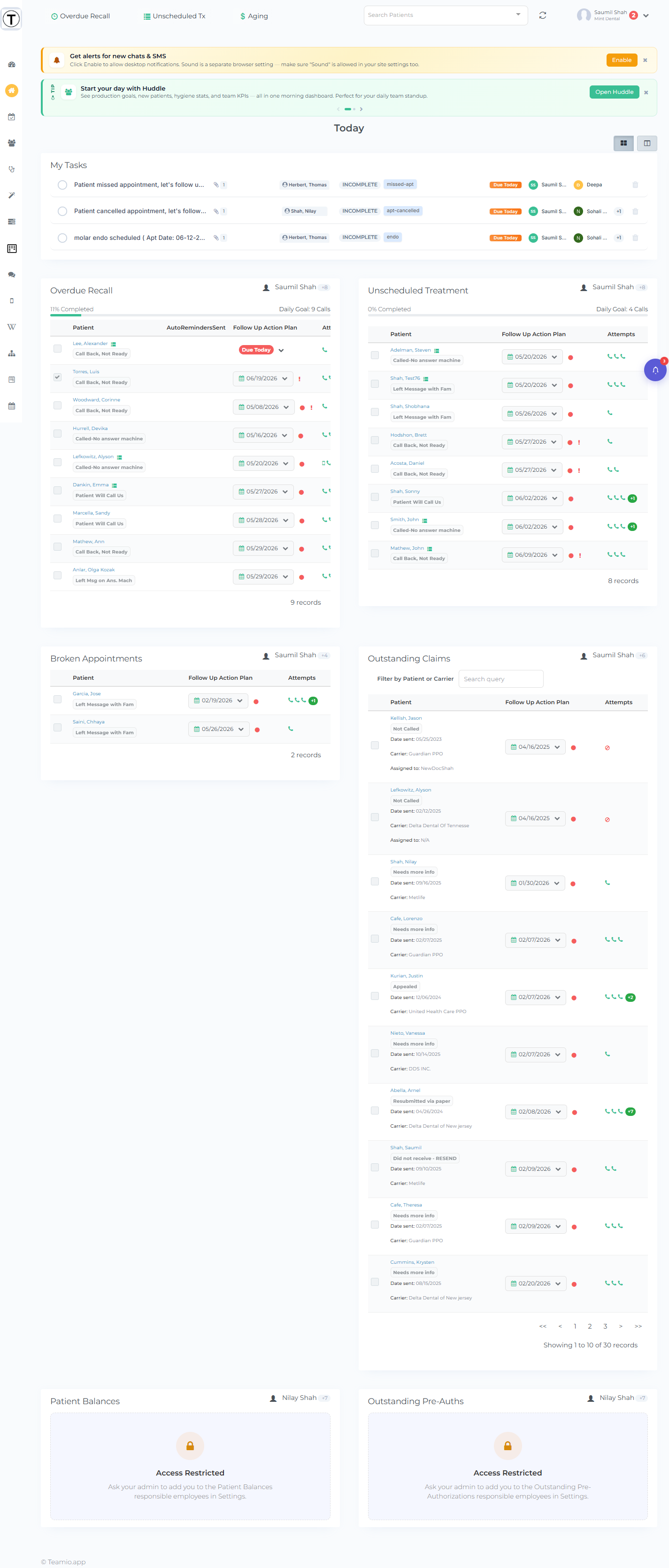
Employees gain access to a specific list when an Admin makes them its responsible person — see Understanding roles.
Tips & common questions
Section titled “Tips & common questions”- “A section says Access Restricted.” Your role doesn’t have permission for that area, or you haven’t been made its responsible person — see Understanding roles.
- Daily goals and responsible people are configurable — your Admin sets who owns each list and what the daily target is.
- “Clicking a name didn’t open the full list.” That’s expected — selecting a patient name starts a follow-up. Open full lists from the top navigation bar.
- Many offices put this page on a screen during the morning huddle.