
Present on a tablet
Many offices build plans on a desktop but present chairside on a tablet. Present on Tablet hands the exact patient and plan off to another device with a quick QR scan, so you don’t have to hunt for the patient again on the tablet.
Hand a plan off with a QR code
Section titled “Hand a plan off with a QR code”Where (on a desktop or laptop):
- Patient chart → Tx Plans → the small QR icon on a plan row, or
- Tx Presenter dashboard → click a patient → Present on Tablet (in the right panel).
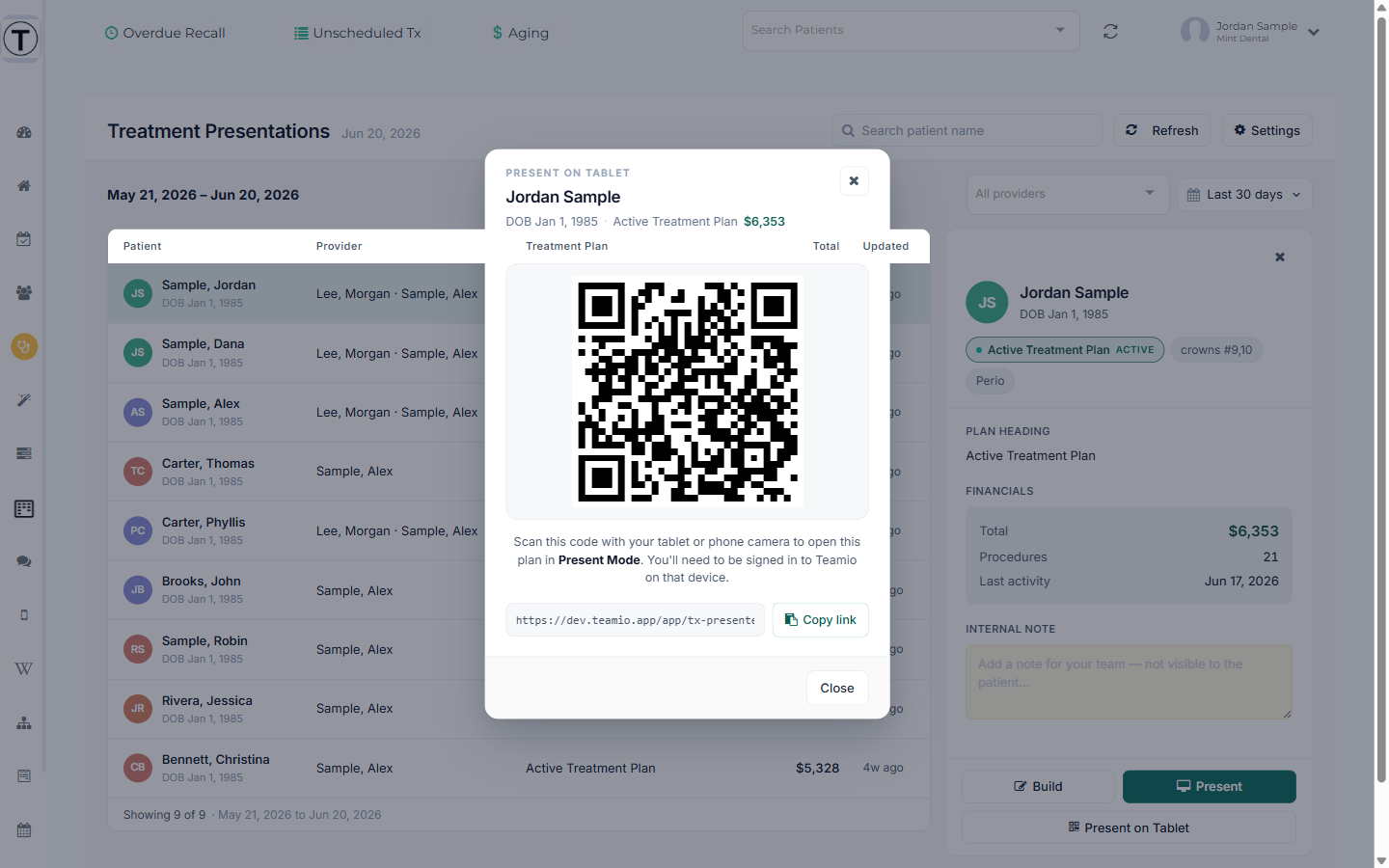
- Click the QR icon / Present on Tablet. A window opens showing the patient name, date of birth, plan, and a QR code — glance at it to confirm it’s the right case.
- On the tablet, open the camera, point it at the QR code, and tap the link it offers.
- The tablet opens Present Mode for that plan. If it’s already signed in to Teamio, it opens right away; if not, sign in once and it returns you to the same plan (no need to re-scan).
Good to know:
- You won’t see this button on a tablet or phone — you’re already on the device, so just tap Present. It appears on desktops and laptops.
- The tablet must be signed in to Teamio to open the plan. The QR code itself contains no patient information.
- Multi-location staff may need to pick the right location after signing in before the plan opens.
Open straight into Present Mode (one-tap Present)
Section titled “Open straight into Present Mode (one-tap Present)”When you don’t need to change anything, skip the Builder entirely. The Present button — on each plan row in the Tx Plans picker, and in the dashboard’s patient panel next to Build — opens Present Mode full-screen for that plan and loads everything it needs on its own.
Present Mode already reflects your practice’s default plan style plus any per-patient changes, so one tap is usually all it takes. Use Build instead when you want to tidy the plan first.