
The patient profile
Where: Select a patient from any list, or use the Search Patients box in the top-right of the header to jump to anyone by name. Results show name + DOB; the refresh icon beside the box re-syncs newly added patients.
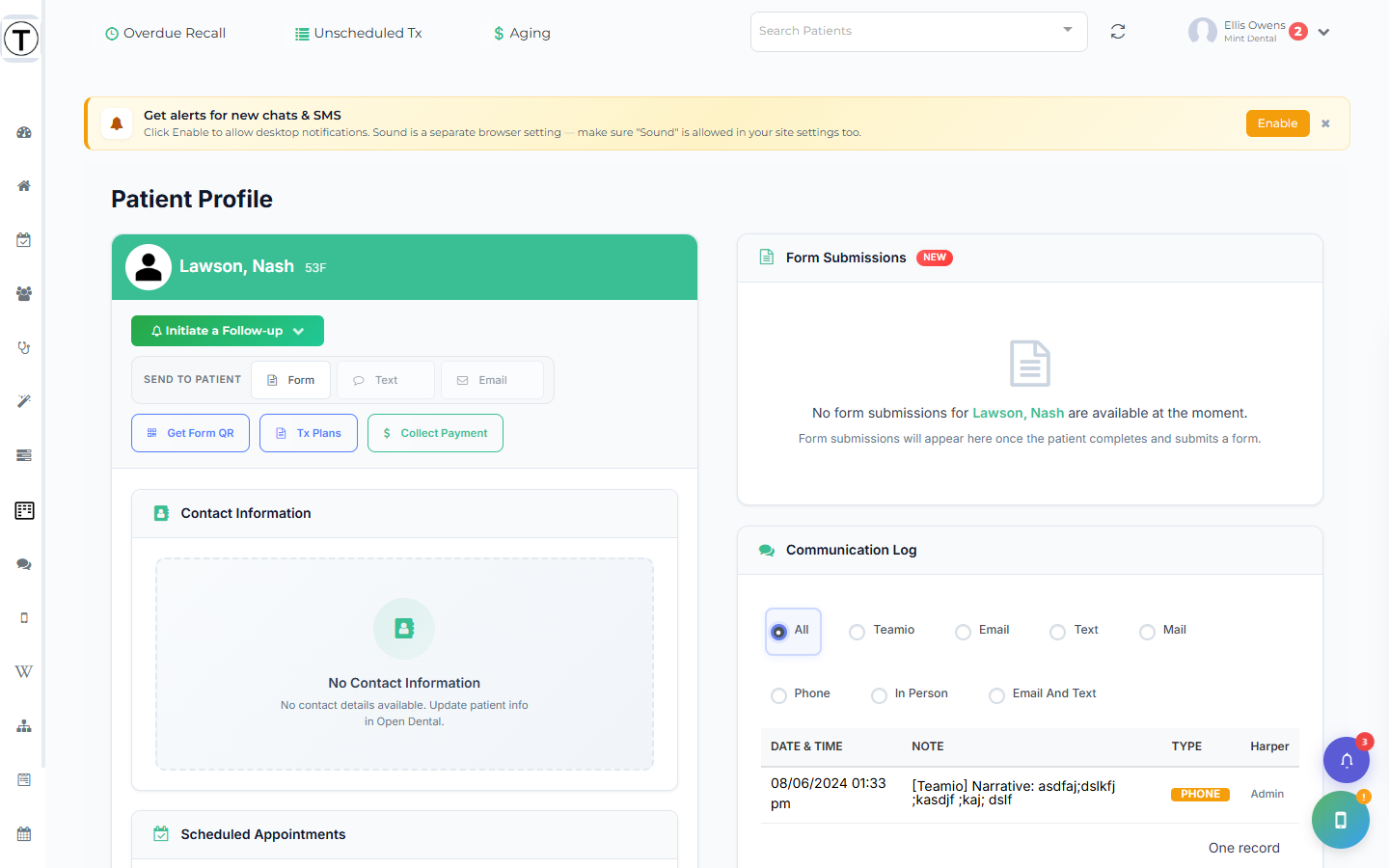
Following up from the profile. When a patient calls in or you need to act on one specific person, search their name to open their profile and handle it right there — text them, collect a payment, or log a follow-up — without first finding the list they’re on.
The action row
Section titled “The action row”The button row at the top is the heart of the page:
-
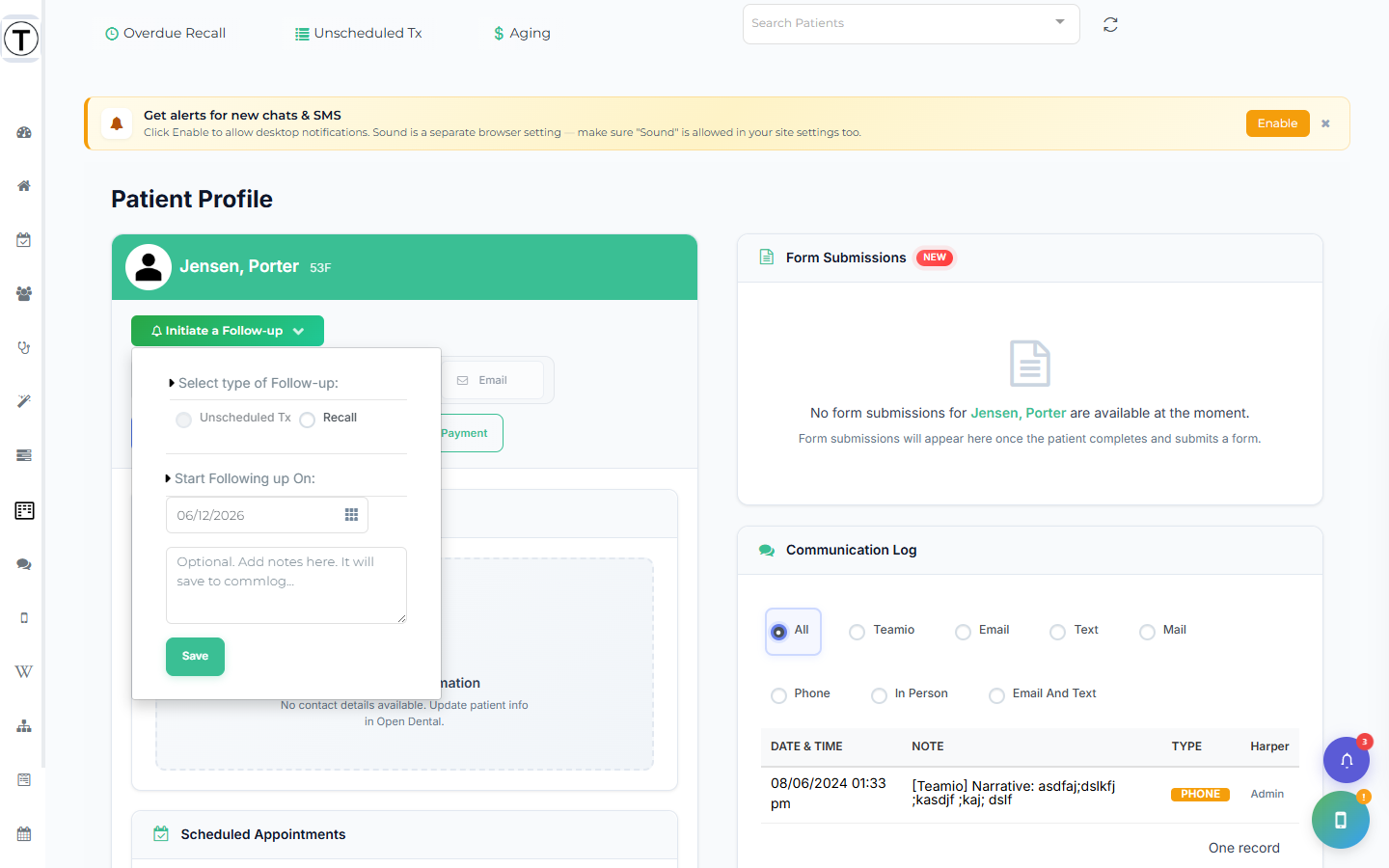
Initiate a Follow-up — opens a dropdown to start a follow-up: choose Unscheduled Tx or Recall, set Start Following up On:, add an optional note, and Save. A ? popover explains why an option might be disabled.
-
Send to patient — a Form / Text / Email group. Each disabled state has a popover explaining what’s missing.
-
Get Form QR — an in-office handoff QR code the patient scans to open a form on their phone. It opens with the procedures on the patient’s appointment and the consent each one needs — see Getting a consent form for an appointment.
-
Tx Plans — opens Treatment Presenter (feature-gated).
-
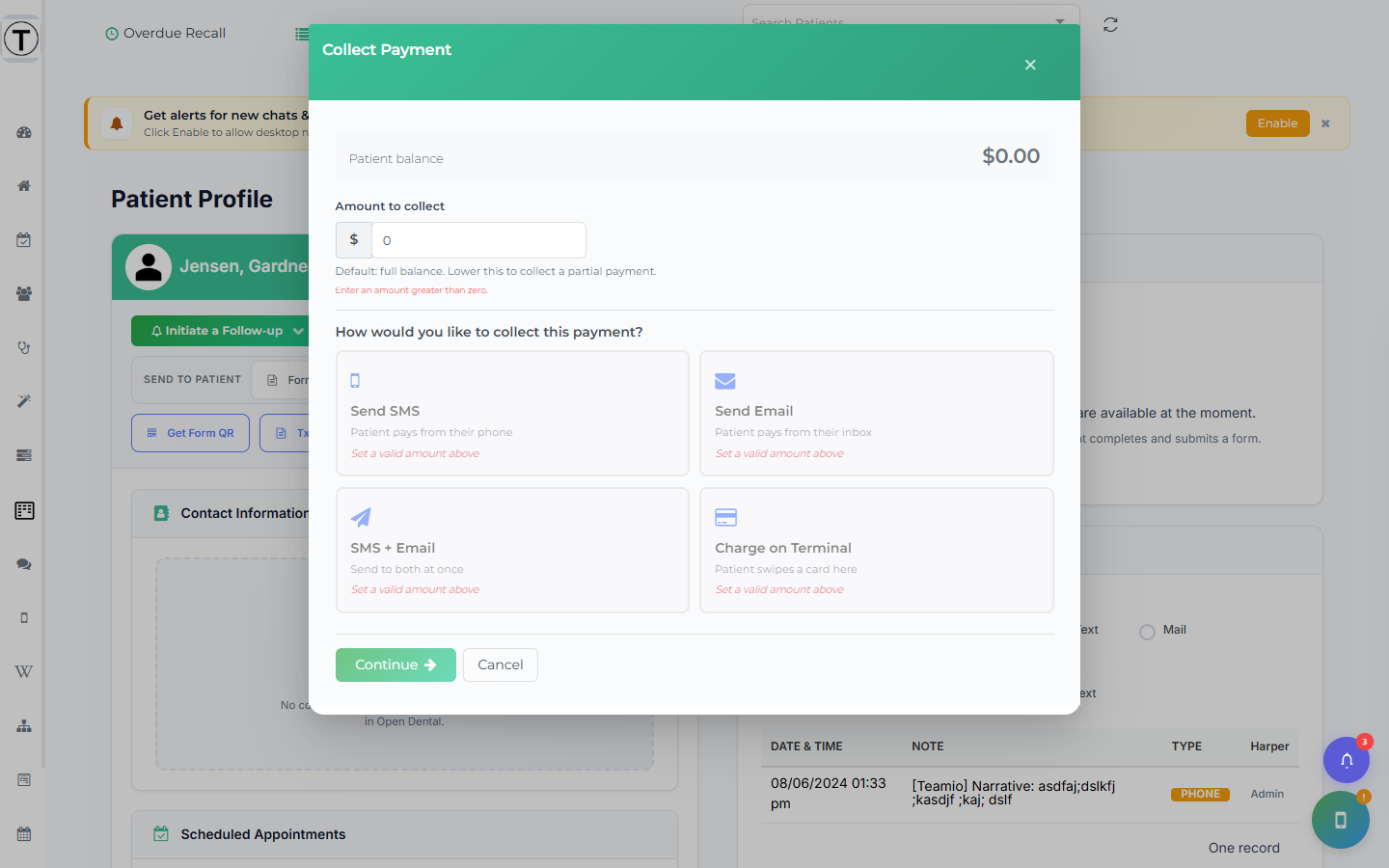
Collect Payment — opens the payment chooser (SMS / Email / Both / Terminal).
-
Create Task — opens a Create Task panel with this patient already attached. Type the to-do, optionally assign it with @ and set a due date, and it lands in My Tasks and in the profile’s Tasks card. See Create a task from the patient profile.
-
Photo to OD — take or upload a photo of a document, such as an insurance card or a medication list, pick the Open Dental image category it belongs in, and tap Send. See Sending a photo to Open Dental.
-
AI Call — places an AI call and shows a live-transcript result modal. Currently in limited rollout — contact Teamio to enable it for your practice.
Text opens the floating Patient SMS widget at the bottom-right: a full two-way thread where you can send a message, a Wiki template, a form, or a file, and minimize it to an “SMS: {name}” chip with an unread badge. A longer or emoji-heavy message asks you to confirm the cost before sending — see Texting with patients.
Email opens an email panel on the right. Write a message, or start from any of your text or email templates, with variables like the patient’s first name filled in for you — see Emailing a patient from their profile. Form lets you pick one or more forms and send them by text or email — see Sharing a form with a patient.
What’s on the profile
Section titled “What’s on the profile”The profile is two columns of stacked panels — not tabs. You scroll the whole patient’s story in one view:
Left column: Contact Information, Scheduled Appointments, Unscheduled Treatment in Treatment Plan, Recall Appointment, ASAP Appointments (with an Update Availability button), Planned Appointments, and Broken Appointment(s) History.
Right column:
- Follow-ups — a table of active follow-ups (Type, Status, Due Date with the same Due-Today/stop/reset controls as the lists, Attempts icons). A per-row Follow-up button opens the same follow-up panel as the lists.
- Tasks — every open task linked to this patient, with a count badge and a toggle for completed ones; select a row to open it, or add one with Create Task above. See Create a task from the patient profile.
- Form Submissions — gated by the Forms add-on (a blurred upsell preview if you don’t have it); select a submission to view it.
- Communication Log — the contact trail, with a mode radio to filter it.
- Family Members — an accordion per household member with a GUARANTOR badge, recall status, scheduled appointments, unscheduled treatment, broken-appointment history, and a View Profile link, so you can handle a whole family in one call.
Watch the header badges: ! Premed (premedication required) and ES (Spanish-preferred). The round photo circle beside the name is the patient’s picture — tap it to take one. See Taking a patient’s photo.
When to use it
Section titled “When to use it”The lists tell you who to contact; the profile tells you what to say. Thirty seconds here before a call — last visit, balance, family context — turns a cold call into an informed one.