
Texting patients from a list
There’s no Text button on a list row. Texting from an outreach list happens two ways: a one-shot SMS to a single patient through the follow-up panel, or checking several patients, saving them as a list, and sending to that list as a campaign. For a back-and-forth conversation, use the patient profile’s SMS widget.
Text one patient
Section titled “Text one patient”Select the patient’s name to open the follow-up panel, then choose SMS Followup.
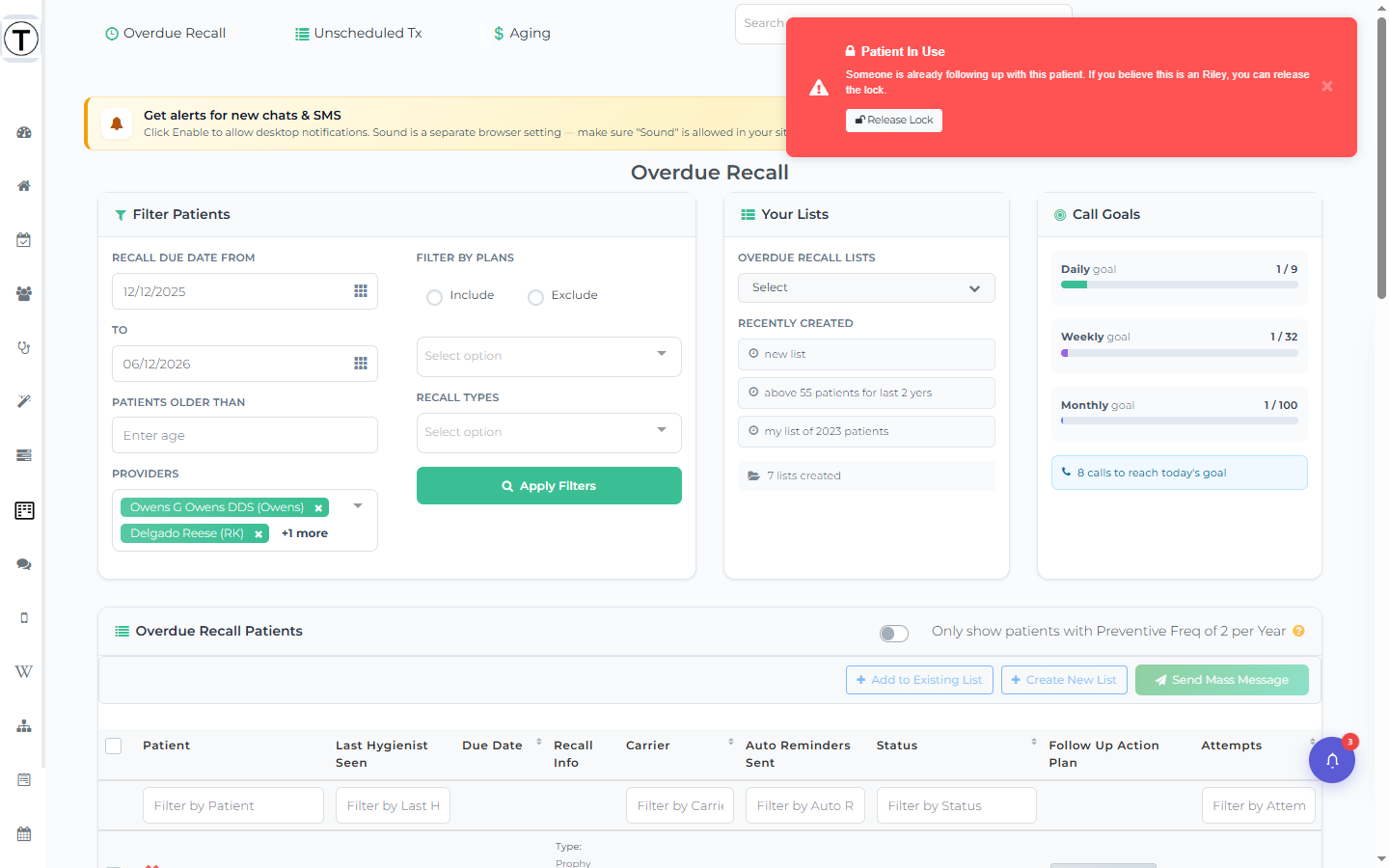
The form shows your outgoing SMS number, a Next Follow-up Date, a Message Template picker (your Wiki SMS templates, with patient variables filled in), and a Follow-up Note. Select Send SMS — it sends the text and logs the attempt in one step. This is a template-based one-shot, not a chat thread.
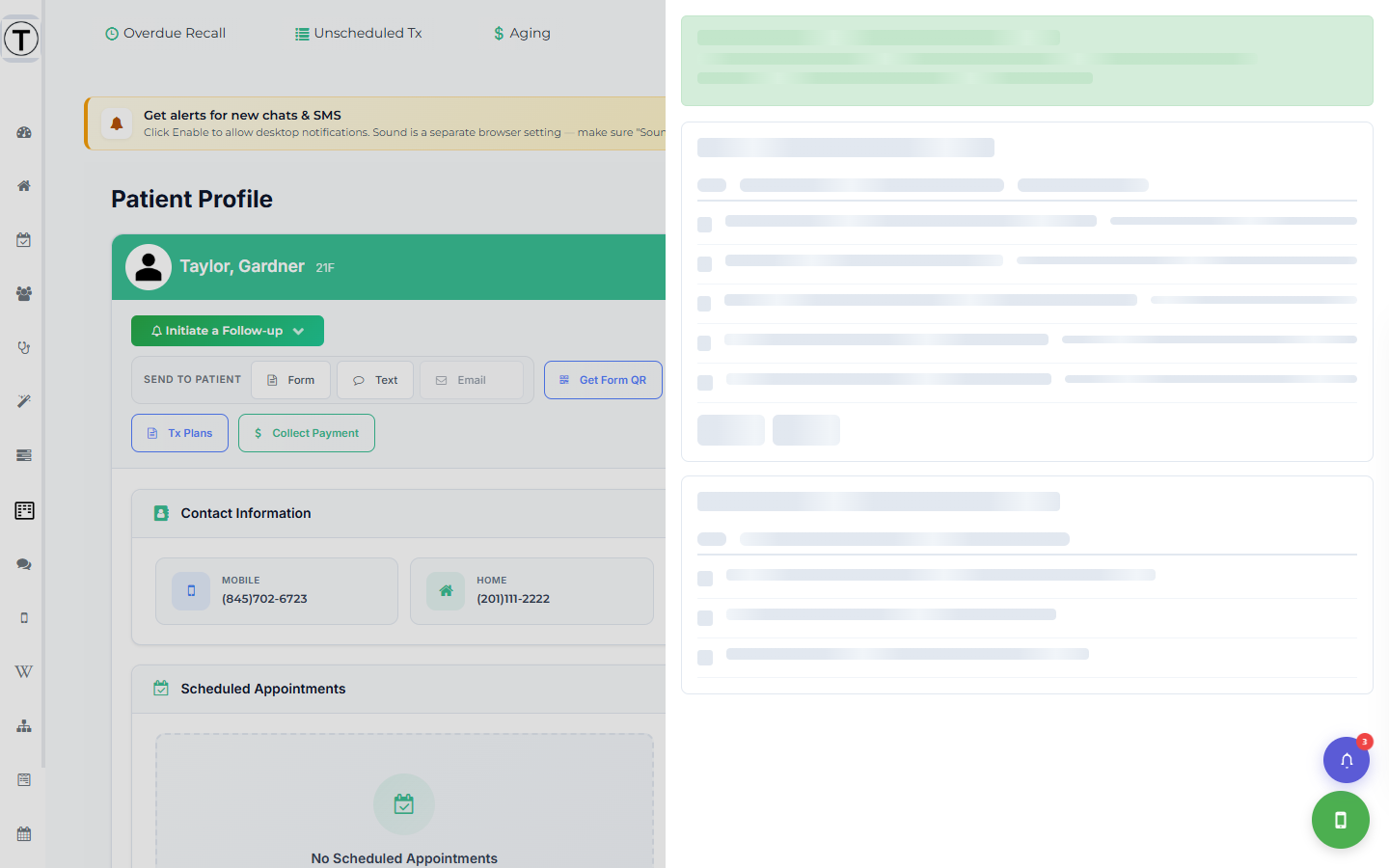
For an actual two-way conversation, open the patient profile and select Text to open the floating SMS widget.
Text many patients at once
Section titled “Text many patients at once”Check several patients on Overdue Recall or Unscheduled Tx, then select Create New List (or Add to Existing List) to save them as a saved list — see that page for the full save flow.
From there, open the New Campaign wizard, reach the recipient step, choose Saved Patient List, and pick your list under From Your Lists. See Saving and reusing patient lists for the Use List flow. Sending as a campaign also gets you scheduling, click tracking, and delivery reporting — none of which a one-shot follow-up text has.
- Personal beats broadcast: a follow-up text referencing the patient’s actual situation outperforms any blast.
- Replies land in SMS Conversations — make sure someone’s watching it (or relying on text message alerts).