
Changing a role or removing a team member
When a teammate’s responsibilities change — or they leave the practice — you manage it from the Employees table on View My Account. This article covers changing a role and removing someone; to add a teammate, see Adding a team member.
Where: Settings menu (the gear ⚙️ icon, top right) → View My Account → Employees
Change someone’s role
Section titled “Change someone’s role”- Open the Settings menu (the gear ⚙️ icon, top right) → View My Account and find the Employees table.
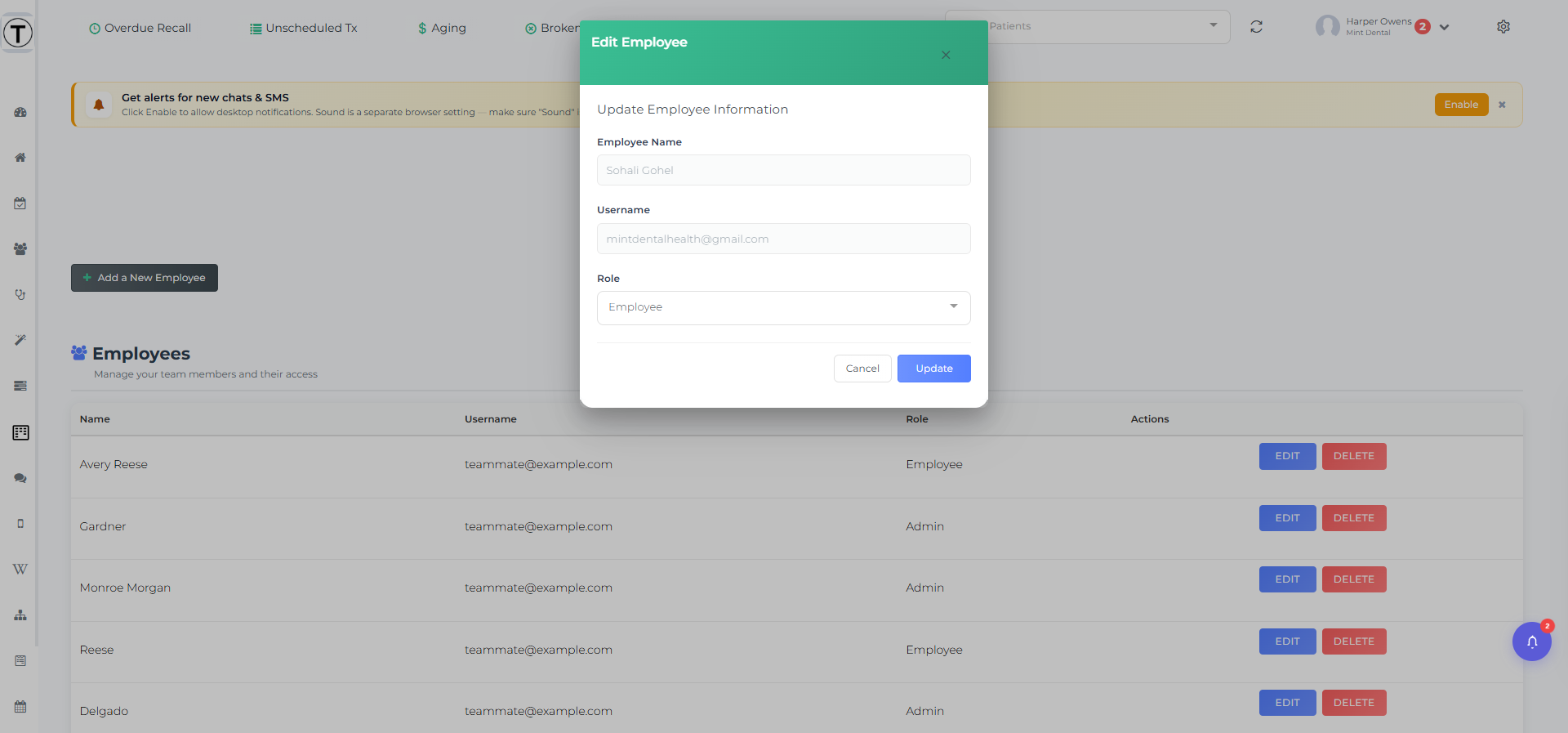
- On the person’s row, select Edit. The Edit Employee window opens.
- The Name and Username are read-only. Open the Role dropdown and choose the new role.
- Select Update (or Cancel to back out).
A role change takes effect after that person logs out and logs back in to Teamio.
Remove a team member
Section titled “Remove a team member”Removing someone is guided, because their work — tasks, workflows, chat rooms — has to go somewhere first. Teamio walks you through it so nothing is lost.
- In the Employees table, select Delete on the person’s row. The Delete Employee - Pre-deletion Check window opens.
- Teamio scans what the person is connected to and asks you to decide for each one. You may be asked to:
- Reassign their tasks — choose Delete all tasks, Assign to me, or Assign to someone else.
- Handle workflows that reference them — Leave as-is or Reassign to another employee.
- Clean up chat rooms, Practice Pulse, responsible lists, and custom alerts that involve them.
- Once every required choice is made, the Delete Employee button becomes available.
- Select Delete Employee to remove the person.
The person can no longer sign in, and the work you reassigned moves to its new owner.
Tips & common questions
Section titled “Tips & common questions”- “The Delete Employee button is greyed out.” You still have a required choice to make in the pre-deletion check — pick an option for each item it lists, then the button enables.
- “I changed someone’s role but they don’t see the change.” They need to log out and log back in for it to apply.
- Reassign, don’t orphan. Use Assign to me or Assign to someone else for an outgoing teammate’s open tasks so nothing falls through the cracks.