
Message notifications
Both messaging tools can alert you with a sound and a desktop notification so messages get seen without anyone staring at the inbox. Each tool has its own settings panel, and each is a single combined switch — sound and desktop alerts turn on together, not separately.
Where the settings live
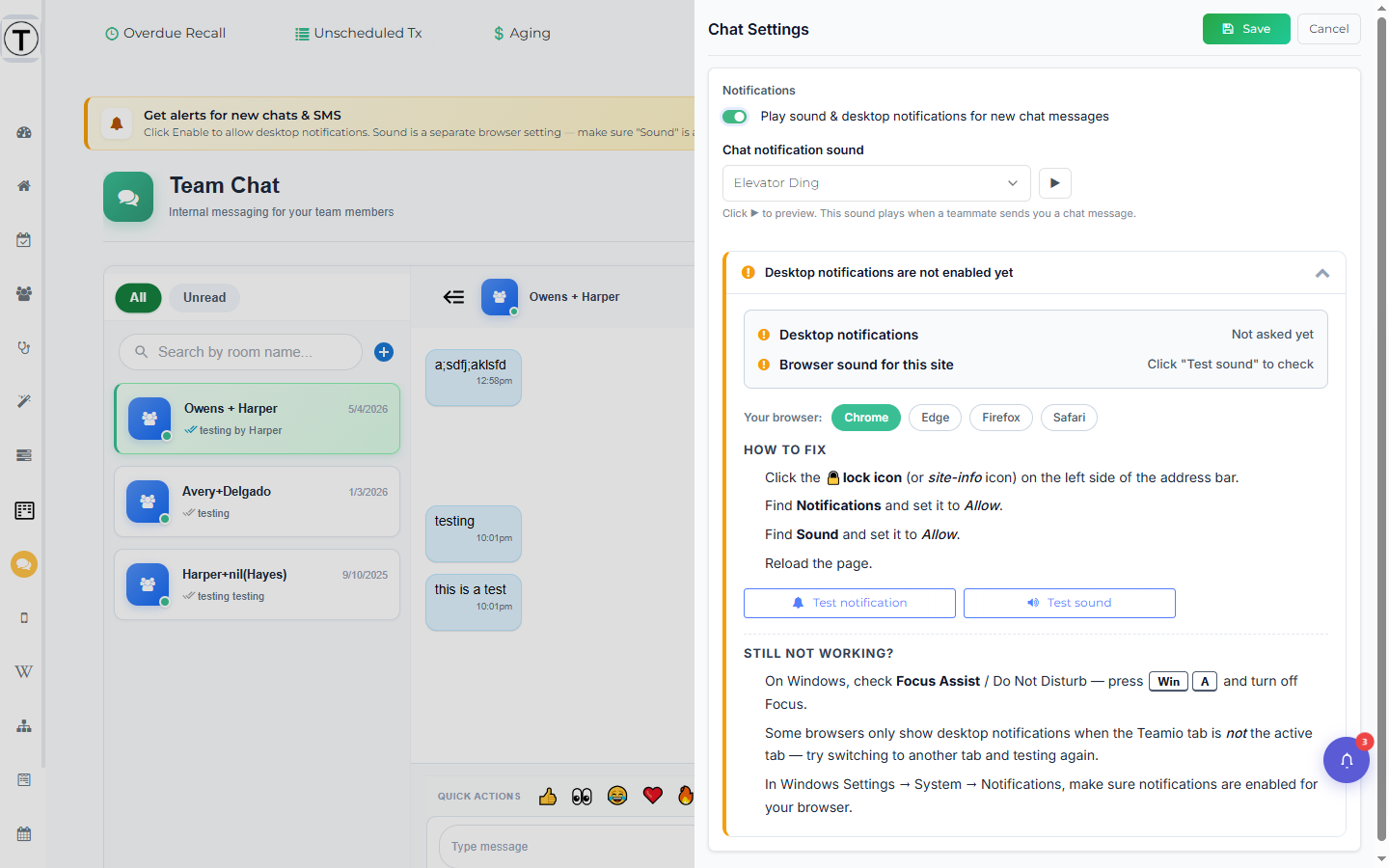
Section titled “Where the settings live”- Team Chat: select the ⋮ menu at the top right of the page header, then Settings. This opens the Chat Settings panel.
- Patient Conversations: select the gear icon at the top right of the page (tooltip SMS Conversation Settings). This opens the SMS Conversation Settings panel.
Both slide out from the right and both require selecting the green Save button to keep changes.
Turn alerts on
Section titled “Turn alerts on”- Open the settings panel (above).
- Toggle the combined switch on:
- Chat: Play sound & desktop notifications for new chat messages
- SMS: Play sound & desktop notifications for new patient SMS
- With the switch on, a sound picker appears. Select a sound; use the ▶ preview button (Click ▶ to preview…) to hear it.
- Select Save.
- When the browser asks for notification permission, choose Allow — that’s what lets desktop alerts appear while Teamio is in a background tab.
Even without desktop permission, the browser tab title changes when a message arrives, so a backgrounded tab is noticeable: a new team chat shows 👀 Teamio - New Chat Message! and new patient SMS shows 📱 Teamio - New SMS Messages! (the tab favicon also switches to an alert icon). In the rail, the Chat and SMS icons show a green dot (not a number) when there’s something unread; room rows in the list show a count badge with the unread count.
The five sounds in the picker are Bell, Soft Ding-Dong, Soft Chime, Elevator Ding, and Alert — the same set for chat and SMS. Whichever you pick plays when a new message arrives in that tool, on any Teamio page (the alert is driven from the left rail, so you don’t have to be on the Chat or Conversations page to hear it).
Fix alerts that aren’t working
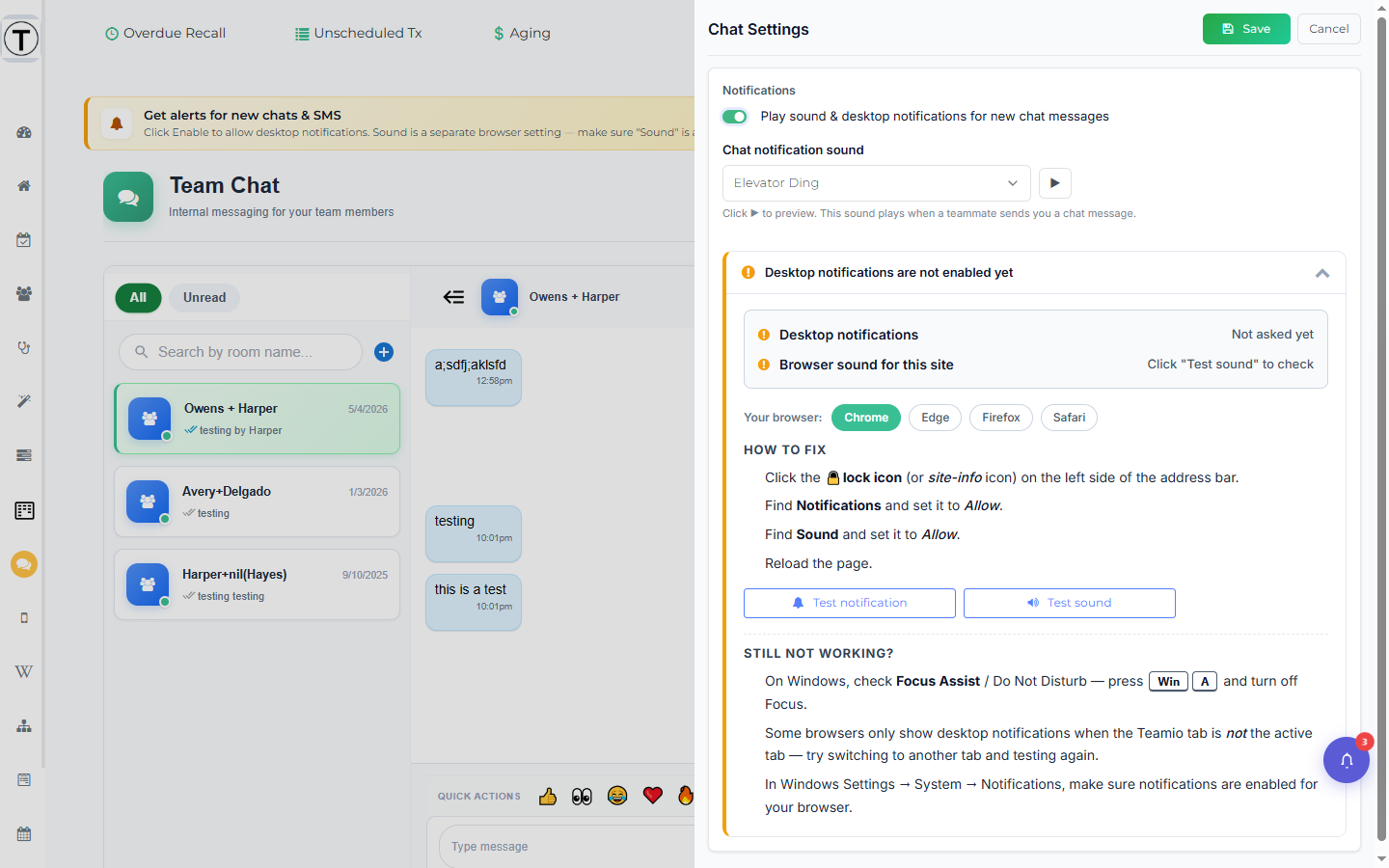
Section titled “Fix alerts that aren’t working”Each settings panel has a built-in troubleshooting section — you don’t need to leave Teamio. Expand it (select its status bar) to see:
- Live status rows: Desktop notifications and Browser sound for this site, so you can tell at a glance what’s blocked.
- Per-browser How to fix steps for Chrome, Edge, Firefox, and Safari.
- Test notification and Test sound buttons to confirm a fix worked.
- A Still not working? list covering OS-level focus modes like Windows Focus Assist and macOS Focus, which silence notifications system-wide.
Troubleshooting
Section titled “Troubleshooting”Notifications are quiet but messages are arriving
Section titled “Notifications are quiet but messages are arriving”Open the panel’s troubleshooting section and check the Desktop notifications and Browser sound for this site status rows. The usual cause is the browser’s site permission being blocked — use the How to fix steps for your browser, then the Test buttons.
Alerts work on one computer but not another
Section titled “Alerts work on one computer but not another”Settings are per browser. Set them again in the Chat Settings / SMS Conversation Settings panel on the other machine.
Everything’s allowed but still silent
Section titled “Everything’s allowed but still silent”Check your operating system’s focus mode — Windows Focus Assist or macOS Focus suppresses notifications even when the browser is configured correctly. The Still not working? list in the panel walks through this.