
Campaigns overview
What Campaigns is
Section titled “What Campaigns is”A campaign is a one-time bulk message you send to a chosen group of patients at once — a recall push to everyone overdue for a cleaning, a reactivation offer to patients you haven’t seen in a year, a holiday-hours announcement, a whitening promotion. You pick the audience, write the message, and Teamio delivers it by email, SMS, or both, then tracks who received, opened, and clicked.
What you can do with it
Section titled “What you can do with it”- Build a message in a four-step wizard — pick the channel, write the content, schedule or send.
- Target the right patients — filter by criteria, use scheduled patients, reuse a saved list, or reach all active patients.
- A/B test subject lines and content to learn what gets opened.
- Track delivery, open, and click rates per campaign, plus site-wide totals in Reports.
Campaigns vs. Workflows
Section titled “Campaigns vs. Workflows”Use Campaigns for a one-time blast to many patients you choose right now (“text everyone overdue for recall this week”). Use Workflows for automatic, per-patient messages that fire on an event over and over (“text each patient two days before their appointment”). One is a manual broadcast; the other is hands-off automation.
SMS, Email, or both
Section titled “SMS, Email, or both”- SMS Only — a text to patients’ mobile phones. Needs a texting number set up for your site.
- Email Only — an email to patients’ inboxes. Needs a verified sending address. Email campaigns use a saved template.
- SMS + Email — reach patients through both channels in one campaign.
Where: Sidebar > Campaigns
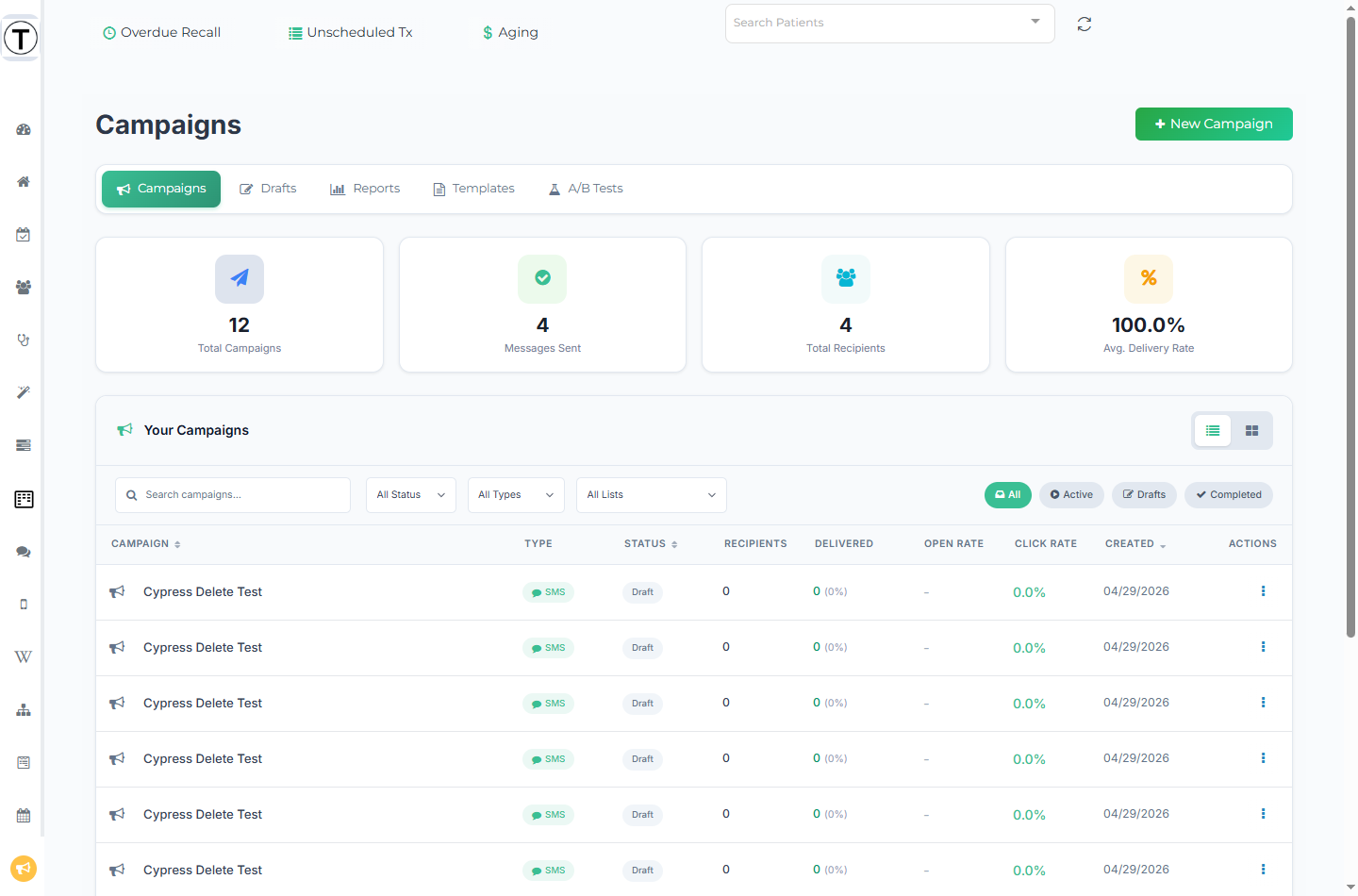
The Campaigns area
Section titled “The Campaigns area”A sub-nav near the top moves you between five pages:
- Campaigns — the home list (this page).
- Drafts — unfinished campaigns you can reopen with Continue Editing.
- Reports — site-wide statistics.
- Templates — email template management.
- A/B Tests — test subject lines and content.
The home page
Section titled “The home page”Stat cards
Section titled “Stat cards”Four cards summarize your sending at a glance: Total Campaigns, Messages Sent, Total Recipients, and Avg. Delivery Rate.
Finding a campaign
Section titled “Finding a campaign”A filter row sits above the list:
- A Search campaigns… box (with a clear icon) matches on name.
- Three dropdowns — All Status, All Types, and All Lists — narrow the table.
- Quick-filter buttons — All, Active, Drafts, Completed — switch the view in one click.
- When any filter is on, a Showing N campaigns bar appears with a Clear Filters link.
List view and grid view
Section titled “List view and grid view”Two icon buttons next to Your Campaigns toggle between List View (the table) and Grid View (campaign cards). In grid view each card carries its own menu, and a draft card adds a Send Now action.
The campaign table (List View)
Section titled “The campaign table (List View)”The table has sortable Campaign, Status, and Created columns plus recipients, delivered, open, and click figures, and an Actions column. When there are more campaigns than fit on one page, pagination controls appear (Showing X-Y of Z, with first / previous / next / last buttons).
If you have no campaigns yet, the page shows a No Campaigns Found empty state with a Create Campaign button.
Statuses you’ll see
Section titled “Statuses you’ll see”The status dropdown filters by Draft, Scheduled, Active, Completed, and Paused — but a row can also show sending (a campaign that is going out right now), sent, and failed. A saved patient list carries an internal list status; those entries appear under Drafts even though you never “drafted” them — see Saving and reusing patient lists.
Opening a campaign
Section titled “Opening a campaign”- Click a draft row to reopen the wizard where you left off.
- Click a sent campaign to open its detail page (
/app/campaigns/<id>), the only place with real per-campaign results — see Reading a single campaign’s results.
Row actions
Section titled “Row actions”The three-dot (kebab) menu in the Actions column offers:
- View Details — open the campaign detail page.
- Edit — drafts only; reopens the wizard.
- Reuse (Duplicate) — start a new campaign from this one.
- Delete — opens a Delete Campaign confirmation (“This action cannot be undone”) with Cancel and Delete.
Start here
Section titled “Start here”- Create your first campaign — the New Campaign wizard.
- Choose recipients well — the targeting is the campaign.
- Read a campaign’s results and make the next one better.