
Collecting a payment
The Collect Payment button on the patient profile opens a short modal where you set the amount and pick how to take the money: a text-to-pay link, an email link, both, or the card terminal at the desk.
Open the chooser
Section titled “Open the chooser”On the patient profile toolbar, select the green Collect Payment button (next to Tx Plans). The Collect Payment modal opens.
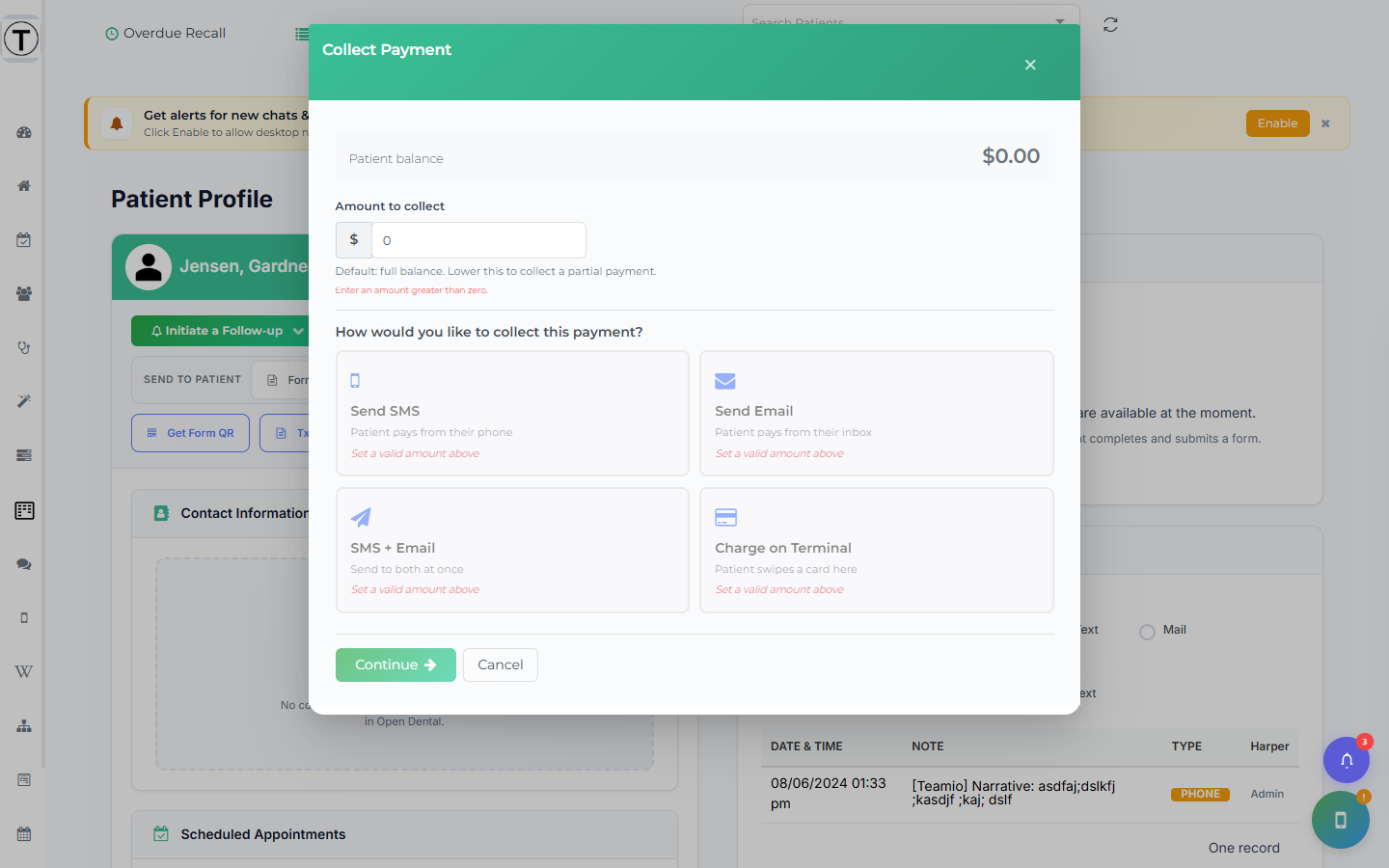
Step 1 — set the amount and pick a method
Section titled “Step 1 — set the amount and pick a method”The first screen shows:
- Patient balance — the current Open Dental balance, for reference.
- Amount to collect — pre-filled with the full balance. Help text reads “Default: full balance. Lower this to collect a partial payment.” Lower it for a partial payment. The amount cannot exceed the balance — an over-amount shows “Amount cannot exceed $X”.
- The four method cards, under “How would you like to collect this payment?”:
| Card | Sub-label | What happens | Best for |
|---|---|---|---|
| Send SMS | Patient pays from their phone | A secure payment link by text | Balances after the patient left; Aging cleanup |
| Send Email | Patient pays from their inbox | The same link by email | Patients who prefer email; larger amounts |
| SMS + Email | Send to both at once | One shared link sent on both channels | Maximizing the chance it’s seen |
| Charge on Terminal | Patient swipes a card here | The card reader at the desk | A patient standing at the front desk |
Select a card, then select Continue. (Selecting a card sends nothing on its own.)
A card you can’t use appears disabled with a short reason: “No phone on file”, “No email on file”, “No payment provider configured”, “Terminal requires Moolah”, or “Set a valid amount above”.
Step 2 — finish the send
Section titled “Step 2 — finish the send”The second screen depends on the method.
Send SMS
Section titled “Send SMS”Pick an SMS template from the dropdown — this fills the editable SMS text box. Variables such as {{payment_link}} are substituted at send time, so leave that placeholder in. Select Send Payment SMS.
If you see “No payment SMS templates found. Tag a wiki page as ‘payment’ in Wiki to create one.”, there’s no template yet. Payment SMS templates are Wiki pages tagged payment — create or tag one in Wiki, then reopen the chooser.
Send Email
Section titled “Send Email”Pick an Email template from the dropdown, then select Send Payment Email. Email templates are Wiki pages tagged with both payment and email-template.
SMS + Email
Section titled “SMS + Email”Both channels share one payment link, so the patient can pay from either. The button is Send SMS & Email. If one channel fails you’ll see a partial-result toast, e.g. “SMS sent, but email failed…”.
Charge on Terminal
Section titled “Charge on Terminal”The terminal picker and receipt options appear next — see Terminal payments for that flow.
After the payment
Section titled “After the payment”Every successful payment is recorded and posted to the patient’s Open Dental ledger automatically, under the payment type your office mapped for that method. See Payments and Open Dental.
Troubleshooting
Section titled “Troubleshooting”The Collect Payment button is grayed out
Section titled “The Collect Payment button is grayed out”Payment collection is off for the site, or no processor is connected. Hover for the “Collect Payment Unavailable” popover. To turn collection on, finish Setting up payment collection in Settings → Payments; to connect or reconnect a processor, contact support.
A method card is disabled
Section titled “A method card is disabled”The chooser tells you why on the card itself — no phone or email on file, no provider configured, Terminal on a Stripe-only site (“Terminal requires Moolah”), or an invalid amount.
”No payment SMS templates found”
Section titled “”No payment SMS templates found””There’s no Wiki page tagged payment yet. Tag one in Wiki (add email-template too for email).