
Presenting a plan chairside
Present Mode is a clean, full-screen view of the plan for a tablet or consult-room screen — totals, options, and explanations with none of the staff clutter. You drive it; the patient watches, picks an option, signs, and pays.
Where: the Builder’s Present in-office button, or Present from the patient’s Tx Plans picker (see Present on a tablet to hand it to another device).
What’s on screen
Section titled “What’s on screen”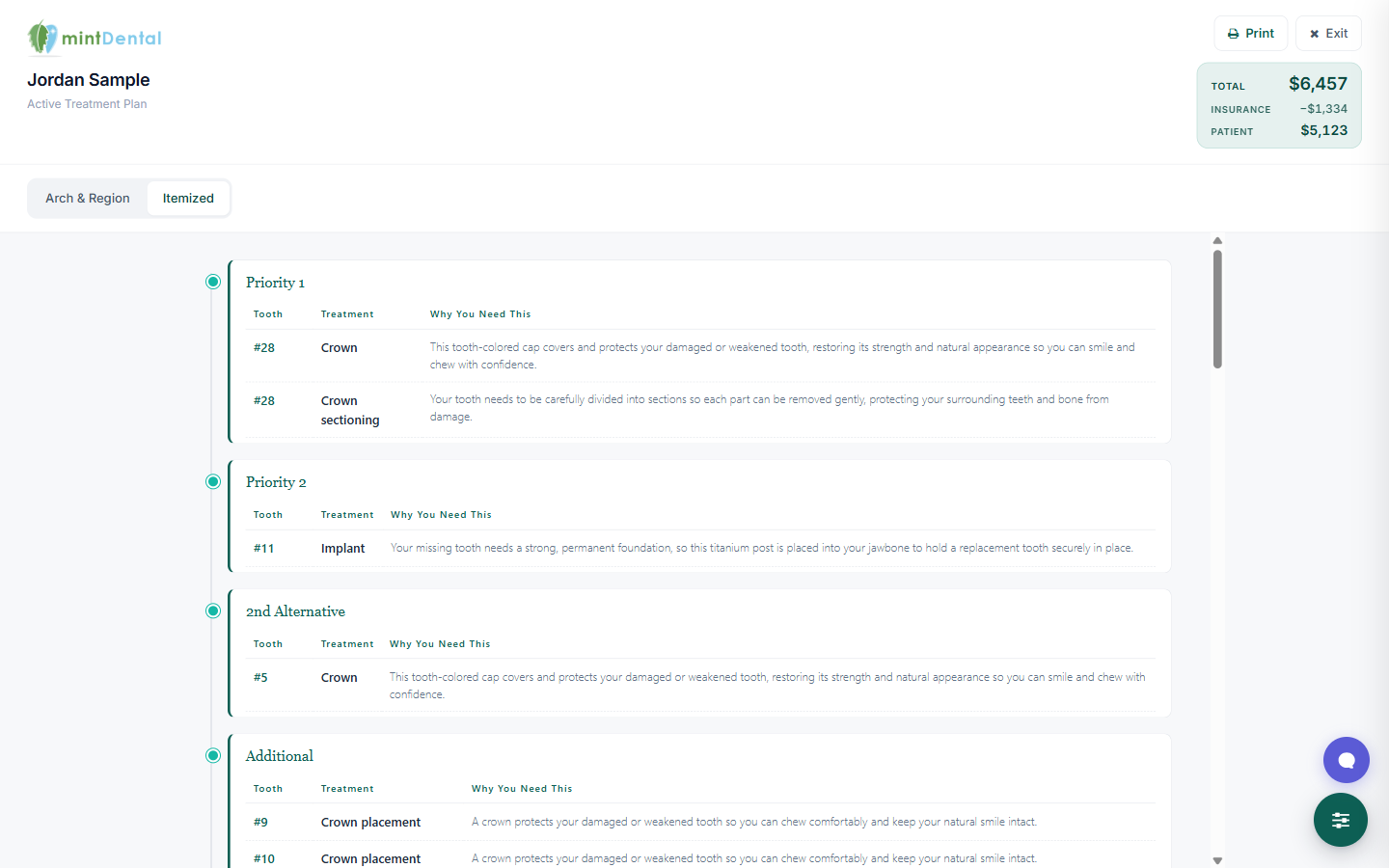
Present Mode shows your practice logo and name, the patient and plan, the plan view (Arch & Region or Itemized), the Plan Summary with the total, and Print and Exit buttons. When more than one view is enabled, a lens switcher lets you flip between them — the change crossfades smoothly so it feels intentional.
Press Esc to exit back to the Builder.
The TC Controls tray
Section titled “The TC Controls tray”The floating sliders button at the bottom-right opens the TC Controls tray — your cockpit, which the patient doesn’t need to see.
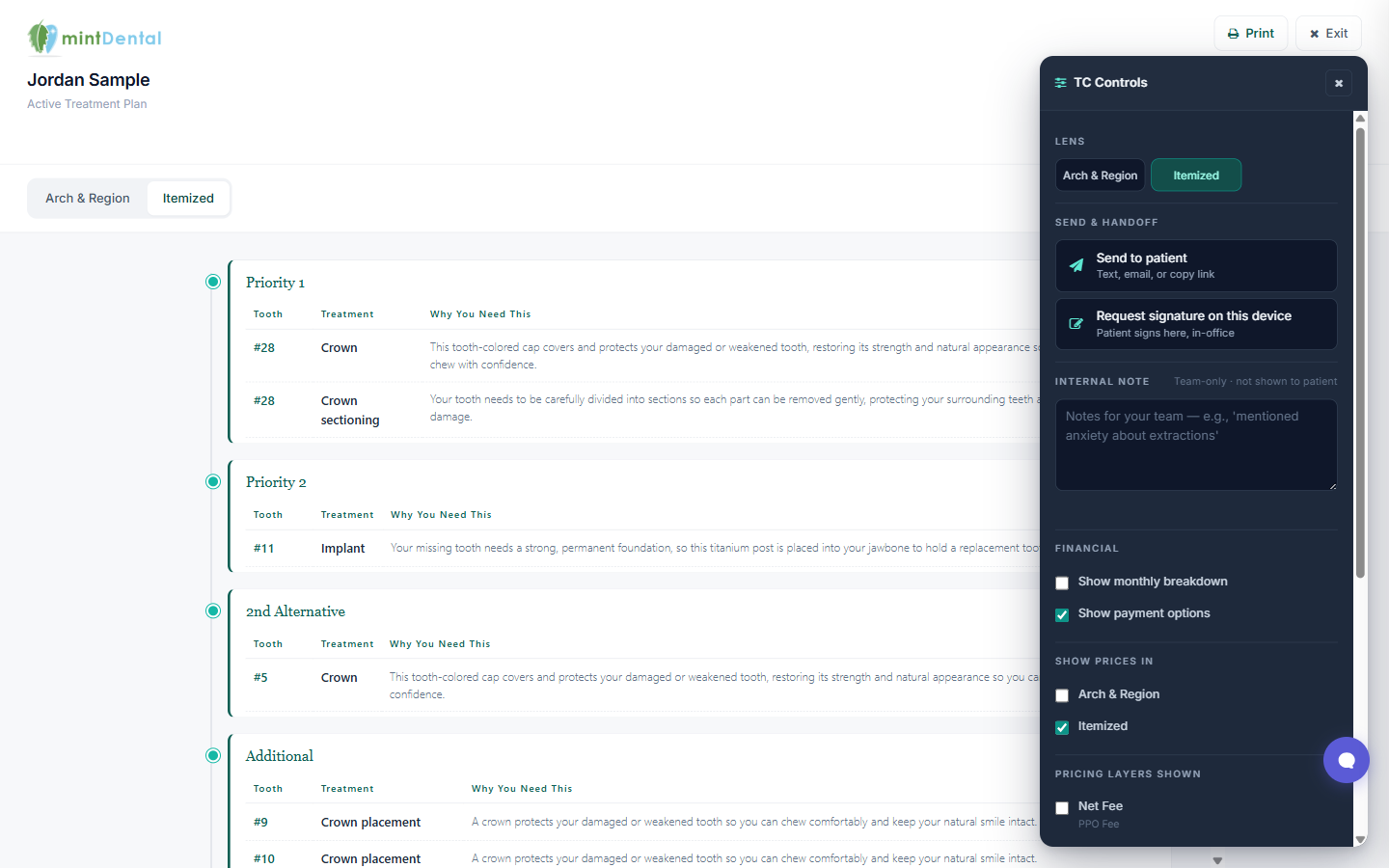
- Lens — switch between the enabled views.
- Send & handoff — Send to patient (text, email, or copy link) and Request signature on this device.
- Internal note — the same team-only note as the Builder’s Notes tab; it saves and syncs everywhere.
- Financial — Show monthly breakdown (with a term slider) and Show payment options.
- Show prices in and Pricing layers shown — the same per-view pricing controls as the Builder’s Financials tab, so you can adjust what’s visible live. Changes save for the patient and carry to their at-home link.
- Itemized layout — Group by priority for the Itemized view.
Walking through the plan
Section titled “Walking through the plan”- Go through the procedures with their plain-language reasons, then the payment option cards. A card can show a “Most popular” badge.
- The patient (or you) picks one option — it highlights with a green “Chosen” badge and the Plan Summary updates instantly. Only one option is ever selected. See Choosing an option & paying.
- To capture the signature here, open the tray and tap Request signature on this device — a signature pad appears at the bottom of the plan.
- Hand the patient the device. They type their name, sign, check the consent box, and tap Sign & send to office.
The signed plan files into Open Dental imaging automatically (the imaging category is set in Settings), just like a signed form. After signing, the deposit panel unlocks — see Collecting a deposit or payment.
Swap an alternative on the fly
Section titled “Swap an alternative on the fly”If a procedure has an alternative attached, you can switch to it mid-conversation on the Arch & Region or Itemized view:
- Find the alternative row under a primary (it has a small swap arrow; hovering highlights it).
- Tap it — it instantly becomes the new primary and the view crossfades. The old primary drops down as an alternative under the new one (nothing is lost).
- The Total pulses briefly if the fee changed.
- An UNDO toast appears at the bottom-left for 6 seconds if you want to reverse it.
The swap is saved — exit and reopen and it sticks, and the patient’s at-home view shows the new primary too.
Show a monthly payment estimate
Section titled “Show a monthly payment estimate”In the tray’s Financial section, tick Show monthly breakdown and a term slider appears (6–60 months). The Total then shows a second line — “$X/mo · N months” — that updates as you drag. It’s a ballpark (total ÷ months, no interest), perfect for “if we split this over 24 months, it’s about $X a month” conversations. For real financing terms with rates, see Setting up financing options.
Tick Show payment options to bring the practice’s option cards on screen for the patient to weigh.
Privacy screen
Section titled “Privacy screen”Need to step away from the chair? Tap the eye-slash button (just above the controls button) for an instant black screen with a “PRIVACY SCREEN ON” hint — nothing shows through. Tap anywhere to resume, or press Esc to dismiss privacy (a second Esc exits Present Mode).
Print the plan
Section titled “Print the plan”Tap the printer icon in the header to open your browser’s print dialog with a clean, paper-formatted copy of the view you’re currently on (switch first if you want the other layout). The on-screen buttons and controls are stripped out.
Why chairside beats “we’ll send it to you”
Section titled “Why chairside beats “we’ll send it to you””Acceptance drops with every hour between the recommendation and the decision. Same-room presentation, clear numbers, sign now, deposit now — that’s the whole point. For patients who need to think it over, send the plan so it follows them home.