
Sending a photo to Open Dental
Walking the office with a phone or tablet? Take a picture of a patient’s insurance card, medication list or any other document and file it straight into their Open Dental chart, in whichever image category you choose.
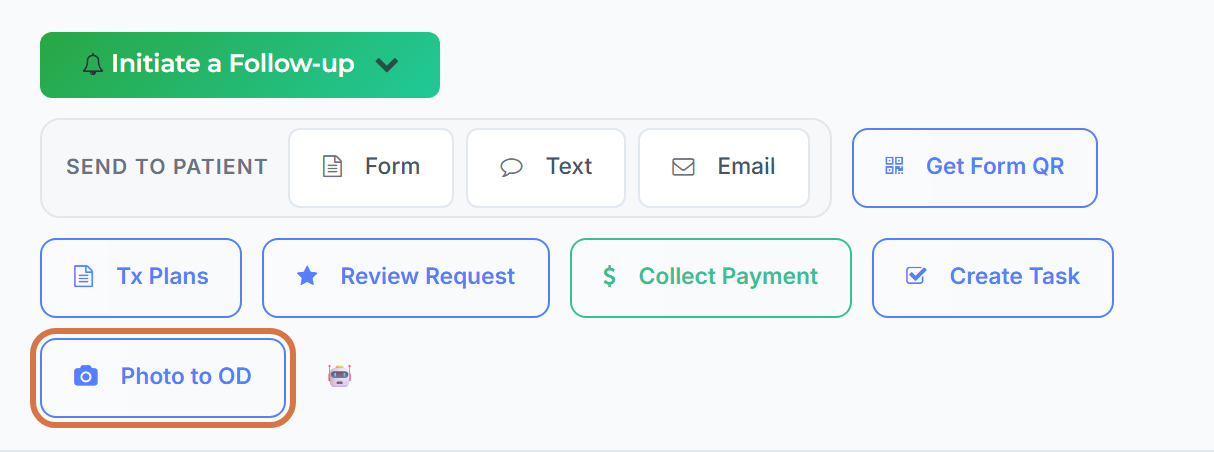
Where: The Photo to OD button in the action row of any patient profile.
Sending a photo
Section titled “Sending a photo”-
Open the patient’s profile. On a phone, the fastest way is the patient search in the top bar. See Finding the patient fast.
-
Tap Photo to OD.
-
Choose Take photo to open the camera, or Upload photo to pick a picture you already have. Take photo only appears on phones and tablets.
-
Frame the shot and confirm with your device’s own Use Photo.
-
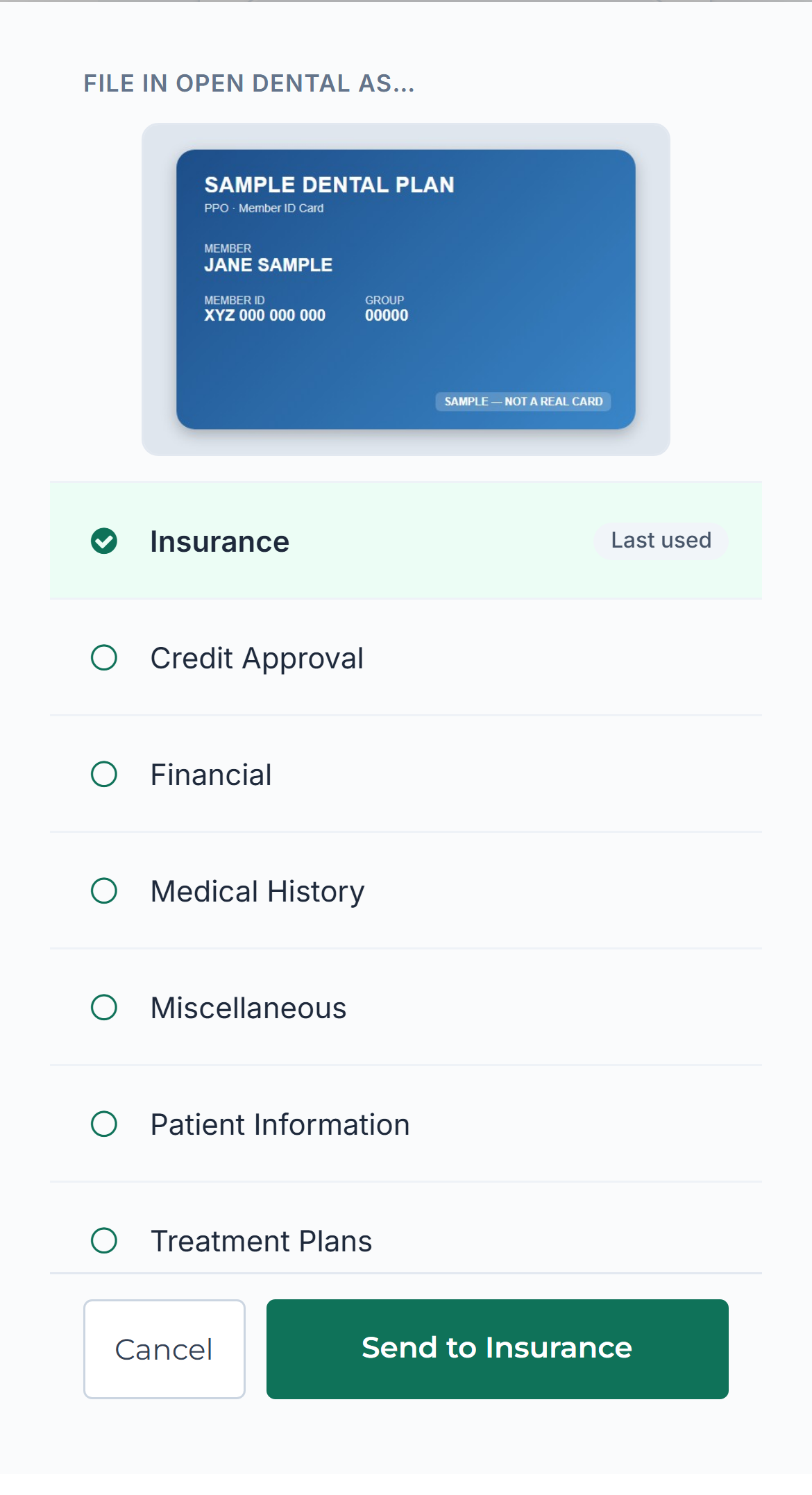
Under File in Open Dental as… you’ll see your photo and your practice’s Open Dental image categories. Tap the category it belongs in, for example Insurance. A check mark shows your choice.
-
Tap Send to Insurance. The button always names the category you picked.
Sent to Open Dental → Insurance confirms it. From there:
- Take another (Insurance) for the back of the card. The same category stays selected, and you still tap Send for each photo.
- Done closes the sheet.
Nothing is sent until you tap Send
Section titled “Nothing is sent until you tap Send”Tapping a category only selects it, so a slip of the thumb while you scroll never files a photo in the wrong place. Change your mind by tapping a different category; the button’s label follows.
To make the usual choice quicker, the category you sent to last on this device sits at the top of the list with a Last used label. It is never selected for you.
Cancel throws the photo away. Nothing is uploaded.
Where it ends up in Open Dental
Section titled “Where it ends up in Open Dental”The photo is filed in the image category you chose, in that patient’s Imaging module. It usually appears within a minute.
- File name: the category and the date, like
Insurance 2026-09-16_ab12cd34.jpg. Different photos never share a name, so the front and back of a card are two separate documents. - Size: the photo is resized to about 2000 pixels on its longest edge. That keeps the text on a card or medication list readable while the upload stays quick.
- The list shows your practice’s Open Dental image categories, in the same order as in Open Dental. Categories hidden in Open Dental don’t appear.
Teamio doesn’t keep these photos. Its temporary copy is deleted once Open Dental has the photo, and after 30 days at the latest.
If something goes wrong
Section titled “If something goes wrong”- Couldn’t load Open Dental categories. Check your connection and tap Retry. If it keeps happening, contact Teamio support.
- No image categories found in Open Dental. Your Open Dental has no visible image categories to file into. In Open Dental, go to Setup → Definitions and select Image Categories.
- That Open Dental category no longer exists. Pick another one. Someone hid or removed that category in Open Dental after the list loaded. The list refreshes; pick again and tap Send.
- Could not send the photo to Open Dental. Please try again. Your photo and your chosen category are still there. Just tap Send again.
- That image type is not supported. Please use a JPEG or PNG photo. Photos from Take photo are normally fine; this usually means an unusual file picked with Upload photo.
Tips & common questions
Section titled “Tips & common questions”- It hasn’t appeared in Open Dental yet. Give it a minute. Teamio hands the photo to the Teamio connector app on your Open Dental server, which checks for new work about once a minute. See How Teamio syncs with Open Dental.
- Switching patients throws the photo away. If you open a different patient before tapping Send, the photo is discarded, so it can never land in the wrong chart.
- Does this change the patient’s picture? Not in Teamio. In Open Dental, though, the patient’s picture is the newest one in your Patient Pictures category, so don’t pick that category for a document. For the patient’s portrait, use the photo circle.
- On a desktop? It works the same with Upload photo, which is handy for a picture someone emailed you.
- Photos patients text in can file into Open Dental on their own. See Photos and attachments.