
Increasing size of Consent Signature box
A signature box that only takes up a third of the page is awkward to sign — especially for a patient using a phone or a tablet at the front desk. You can widen the Signature Field on a consent form, or on any other form, to the full width of the page by changing one setting: Container Size Class.
1. Open the form in the builder
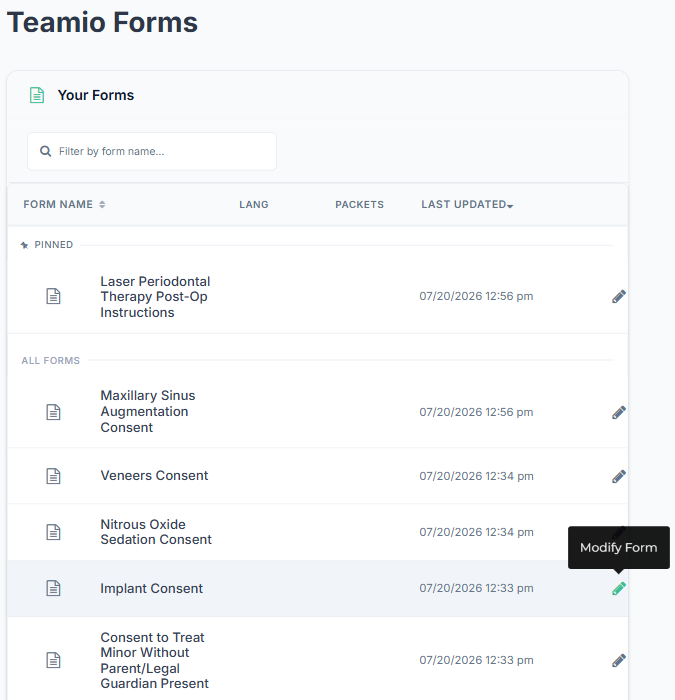
Section titled “1. Open the form in the builder”On the Forms page, hover the form you want to change. A row of icons appears — select the pencil (Modify Form).
The builder opens in a new browser tab, on the Edit Form page. Your Forms list stays open in the original tab.
2. Open the signature control’s configuration
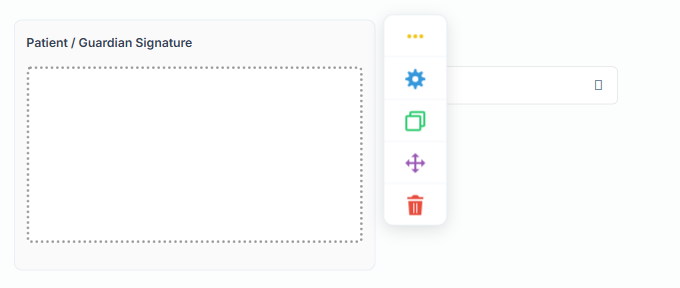
Section titled “2. Open the signature control’s configuration”Scroll down to the signature area of the form and hover over it. A small toolbar of icons appears beside the control.
Select the blue gear — Control Configuration. It is the second icon, just below the yellow Re-position / Drag handle. Take a moment to aim: the red trash icon at the bottom of the same toolbar deletes the control.
3. Set the Container Size Class to COL12
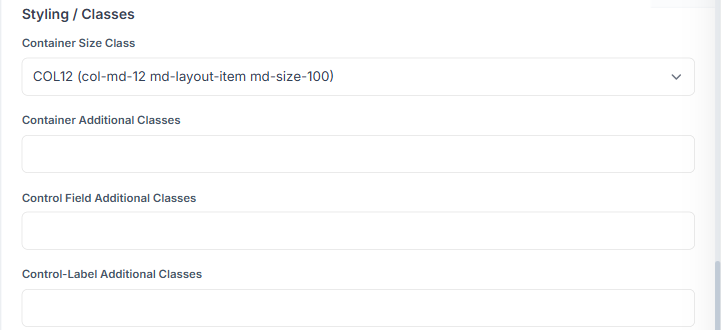
Section titled “3. Set the Container Size Class to COL12”The Control Configuration panel slides in from the right. Scroll to the Styling / Classes section and open the Container Size Class dropdown.
Choose COL12 (col-md-12 md-layout-item md-size-100) — the full width of the row.
New controls are added at COL4 (one-third of the row), which is why a signature box often starts out small. The numbers are twelfths: COL6 is half the row, COL4 a third, COL12 the whole thing.
4. Save the control
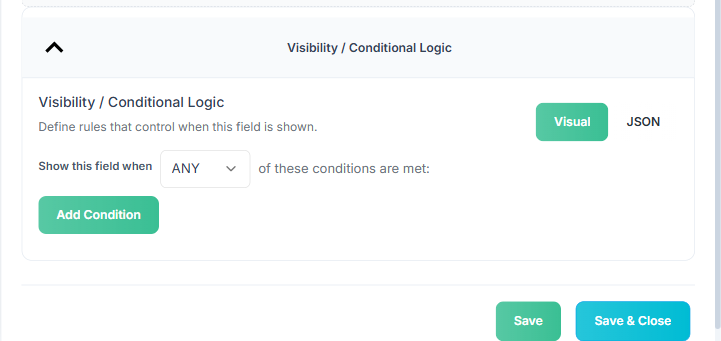
Section titled “4. Save the control”Scroll to the bottom of the Control Configuration panel. There are two buttons: Save and Save & Close.
Select Save & Close to apply the change and close the panel. (Save keeps the panel open, which is handy if you want to keep adjusting.)
5. Save the form
Section titled “5. Save the form”The builder preview updates straight away, but nothing is stored yet. Scroll back to the top of the Edit Form page and select Save Changes.
You’ll see Form updated successfully! when it’s saved. That’s it — the next patient to open the form gets the full-width signature box.

Related
Section titled “Related”- Configuring a control — every universal control setting, including Styling / Classes
- Form controls reference — what the Signature Field does and where the signed PDF goes
- Editing a form — changing an existing form without breaking what’s already been collected