
Appointment booked confirmation
Appointment Booked Confirmation automatically texts and/or emails a patient the moment a team member schedules their appointment in Open Dental — so the patient has something in hand confirming the booking went through, without anyone at the front desk sending it by hand.
This is a different message from the appointment confirmations and reminders covered in Appointment reminders — those go out in the days before a visit and ask the patient to reply. Appointment Booked Confirmation fires once, right when the appointment is created or rescheduled, and doesn’t expect a reply.
Turn it on
Section titled “Turn it on”- Open Appointment Reminders from the sidebar.
- Select the gear (Settings) in the header to open the Appointment Reminder Settings slideout.
- Scroll down to the Appointment Booked Confirmation section — it sits between Pre-Med Reminders and Automated Recall Reminders.
- Turn on the switch, then under How should we notify the patient? check Send via SMS, Send via Email, or both.
- For each channel you check, pick a Wiki template from the dropdown that appears. The SMS dropdown only lists Wiki pages tagged with both
apt-bookedandsms-template; the email dropdown needsapt-bookedandemail-template. If a template you expect isn’t listed, add both tags to it in the Wiki. - Select Save.
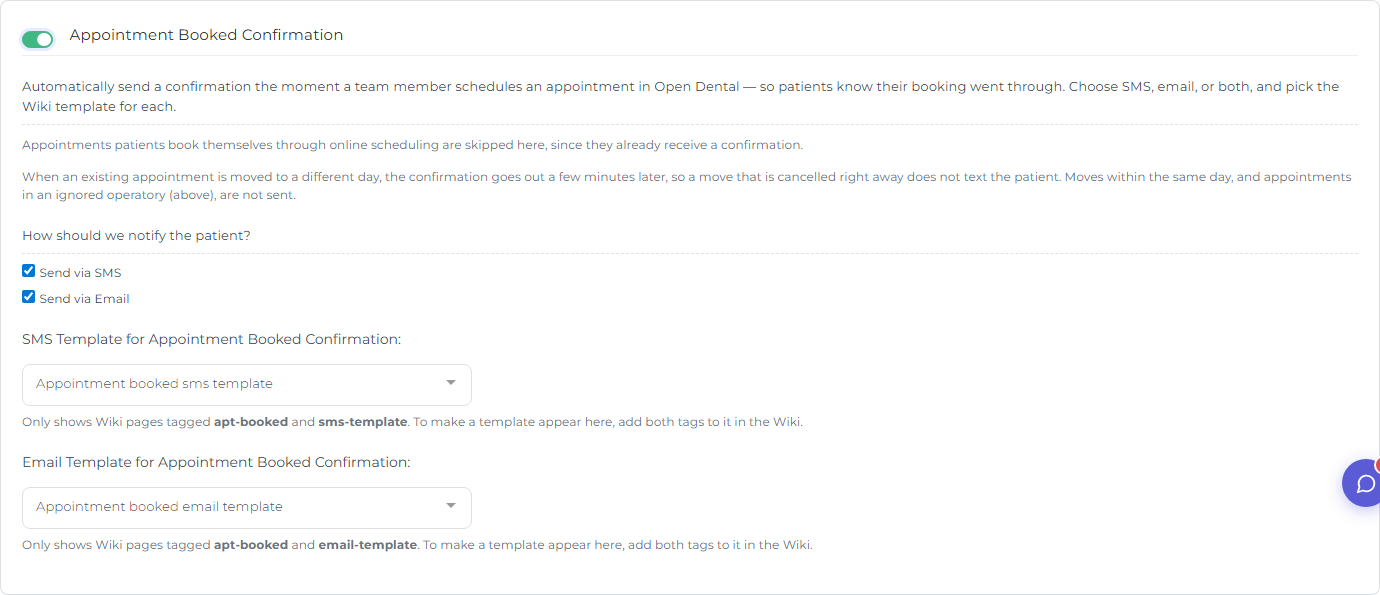
Saving requires at least one channel checked and a template chosen for each channel you check. SMS also needs a texting number and Email a verified sender email already set up for your practice — if either is missing, Teamio tells you which one and lets you turn off that channel to save the rest.
What goes in the message
Section titled “What goes in the message”Point each channel at a Wiki page written for this purpose (tag it apt-booked plus sms-template or email-template so it shows up in the dropdown). Inside that template you can use the same patient, guarantor, and practice variables described in Using the editor → Variables — for example {{patient_first_name}}, {{apt_date}}, {{site_name}}, and {{site_officephone}}. If the patient is a minor, use the guarantor variables ({{guarantor_first_name}}, {{guarantor_last_name}}) too, since that’s who the message actually reaches — see below.
When a confirmation is sent
Section titled “When a confirmation is sent”- A team member books a new appointment in Open Dental.
- An appointment is scheduled from the Unscheduled List, or a broken appointment is put back on the schedule.
- An existing appointment is moved to a different day — the confirmation goes out a few minutes later (not instantly), carrying the appointment’s final date and time. If the appointment is moved again during those few minutes, the patient gets one text with the final time, not one per move.
When nothing is sent
Section titled “When nothing is sent”- The appointment is only moved to a new time or column on the same day — no new confirmation goes out.
- A different-day move is broken, sent back to the Unscheduled List, or deleted within a few minutes of being moved — nothing is sent. This is why a moved appointment doesn’t go out instantly: it gives the office a moment to finish what they’re doing before the patient is told about a new time.
- The appointment is in an operatory listed under Ignore Appointments placed in the following Operatories (in the General section, above this one) — nothing is sent, whether it’s a new booking or a move.
- The patient booked the appointment themselves through Teamio online scheduling — skipped, because online scheduling already sends its own confirmation. If staff later move that appointment to a different day, a confirmation is sent.
- The appointment is in the past.
- For SMS: the patient’s Open Dental record says they don’t want texts.
- For Email: there’s no email on file for the patient.
Who gets it
Section titled “Who gets it”If the patient is younger than your practice’s minor age setting (the same A Minor is a person under age of setting used for reminders — 16, 17, or 18), the confirmation goes to the guarantor instead: their mobile number for SMS, their email for Email.
- Cancelling an appointment? Break it first, then move it if you need it in another column — a broken appointment never triggers a confirmation. Moving first and breaking right after is also safe, since a different-day move waits a few minutes before sending, but breaking first is the more reliable habit.
- If your office parks cancelled or on-hold appointments in a dedicated column, add that operatory to Ignore Appointments placed in the following Operatories so nothing placed there ever texts a patient.
- Only one Wiki page can be selected per channel here — if the dropdown looks empty, check that your intended template has both required tags (
apt-bookedplussms-templateoremail-template).
Troubleshooting
Section titled “Troubleshooting”A patient says they didn’t get a booking confirmation
Section titled “A patient says they didn’t get a booking confirmation”Check, in order: was the move on the same day (no confirmation is sent for those); is the appointment’s operatory on the ignore list; is the patient a minor (the message went to the guarantor instead); did the patient opt out of texts, or is there no email on file; and is a template actually selected for that channel.
Nothing goes out for any booking
Section titled “Nothing goes out for any booking”Confirm the switch is on, at least one of Send via SMS / Send via Email is checked, and each checked channel has a template selected.