
Welcome to Teamio: a 5-minute tour
What Teamio is
Section titled “What Teamio is”Teamio is the daily workspace that sits on top of your practice’s Open Dental database. It reads your patients, appointments, balances, and treatment plans automatically — so instead of running Open Dental reports and chasing spreadsheets, your whole team works from one screen.
In short: Open Dental stays your system of record; Teamio is where your team does the outreach, the texting, the forms, and the follow-up.
What you can do with it
Section titled “What you can do with it”- Work patient lists that build themselves — Overdue Recall, Unscheduled Treatment, Aging, and Broken Appointments stay current straight from Open Dental, so the right patients to contact are always in front of you.
- Text patients two ways — answer incoming texts and start new conversations from one inbox.
- Send and collect forms — new-patient paperwork and medical-history updates come back signed and file into Open Dental imaging.
- Stay organized as a team — tasks, a Kanban board, an internal wiki, team chat, and a daily dashboard keep everyone aligned.
- Automate the routine — workflows, campaigns, appointment reminders, and online booking run on their own once set up.
You won’t use every feature on day one — start with logging in, finding a patient, and working a list, then explore the rest.
How the app is laid out
Section titled “How the app is laid out”Wherever you are in Teamio, the same frame surrounds your work — a top bar, a left icon rail, your account in the top-right corner, and the Action Center in the bottom-right. Once you recognize those four areas, you can find anything. Here they are with the four areas numbered:
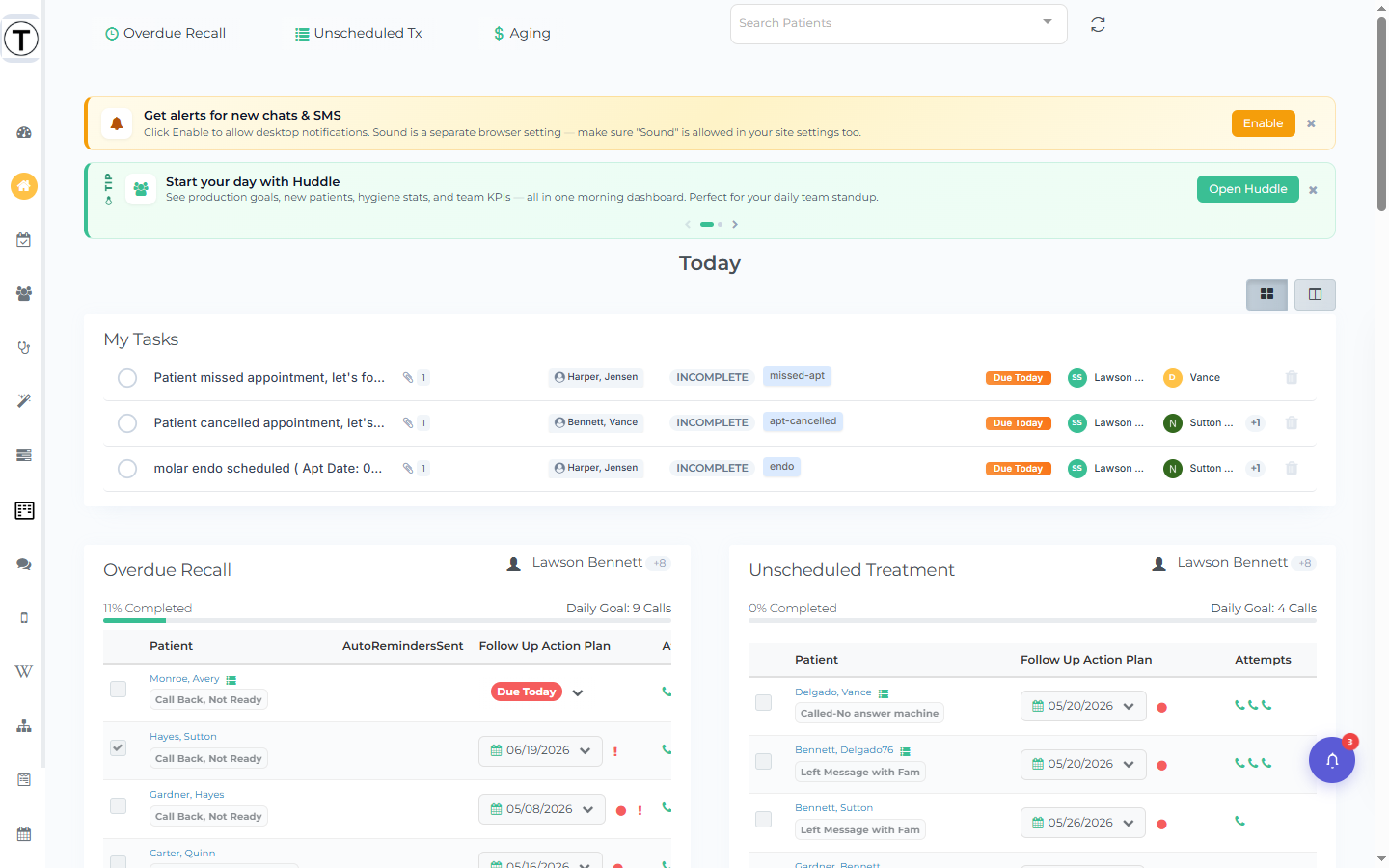
1. Top navigation bar — your patient outreach lists. Buttons here open live, filterable patient lists built automatically from your Open Dental data: Overdue Recall, Unscheduled Tx, Aging, and Broken Appointments. These buttons are role-gated — you only see a list your role is allowed to work. Employees see an outreach list only if an Admin has made them a responsible person for it; Outsourced users see only Aging. Select one any time to start working that list.
2. Left sidebar — Teamio’s features. An icon rail down the far left. From top to bottom the icons are Practice Pulse, Today’s Dashboard, Appointment Reminders, Today’s Huddle, Tx Presenter, Team Insights, My Tasks, Kanban, Chat, SMS Conversations, Wiki, Workflow Builder, Forms, Online Appointments, Campaigns, and a question-mark Teamio How-To icon that opens this help site. Hover an icon to see its name in a tooltip, then select it to open that feature. A small green dot on the Kanban, Chat, or SMS Conversations icon means you have unread items there.
You may see fewer icons than a teammate — visibility depends on your role and which features your office pays for:
- SMS Conversations appears only when your office has a Teamio texting number set up (and never for Outsourced users).
- Tx Presenter appears only when your office has enabled it.
- Practice Pulse, Forms, Online Appointments, Appointment Reminders, and Campaigns are paid features — they appear only when your office has turned them on, and they’re hidden for Outsourced users.
- Outsourced users don’t get Wiki, Huddle, SMS Conversations, or My Account.
See Understanding roles for the full picture.
3. Top right — search and your account. The Search Patients box finds any patient across your practice (see Finding a patient). Next to it, your avatar and name button shows your name with the current site name under it and a notification count badge — selecting it opens your Notifications panel. The far-right Settings icon (the gear ⚙️) opens your account menu: the clinic name, View My Account, Settings (Admin only), Switch Site (multi-site accounts only), and Log Out.
4. Bottom right — the Action Center. A round button in the bottom-right corner opens your Action Center — a live list of things that need a human: an unread or unanswered text, a new form or packet, a signed treatment plan or a question on one, an online booking, or a payment that came in or failed. A number on the button tells you how many items are waiting. See Meet the Action Center.
Notifications
Section titled “Notifications”Select your avatar and name button (top right) to open the Notifications panel — chat mentions, new messages, and other updates collect here. The number badge on the button shows how many are unread, and shows 10+ once you pass ten.
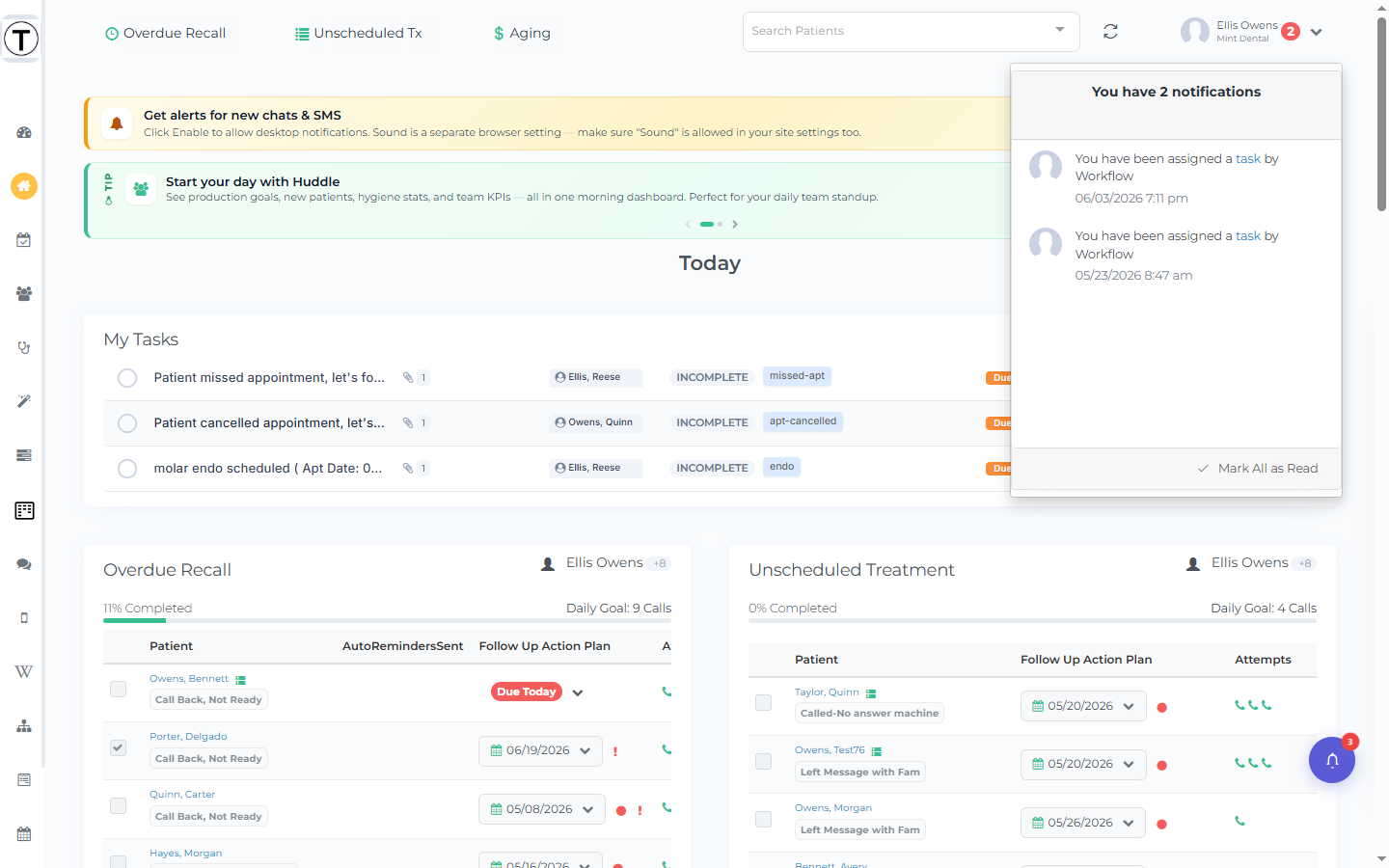
On a narrow window (roughly 1434 pixels wide or less), the header collapses and a separate bell icon appears for notifications. On a normal desktop width there is no separate bell — notifications always open from your avatar and name.
The first time you visit, you may see a banner across the top: Get alerts for new chats & SMS, with an Enable button. Selecting Enable lets your browser pop a notification when a new chat or text arrives, even when Teamio isn’t the active tab.
Where your data comes from
Section titled “Where your data comes from”Everything you see — patients, appointments, balances, claims — syncs from Open Dental automatically, usually within moments of a change. You don’t import anything. See How Teamio syncs with Open Dental.
Suggested first steps
Section titled “Suggested first steps”- Log in and find your site
- Open Today’s Dashboard (left sidebar) — your team’s day at a glance
- Find a patient using the Search Patients box
- If your role allows it, select Overdue Recall in the top bar and explore a patient list
- Check the Action Center (bottom-right button) for anything that needs attention