
Clearing alerts
Clearing a card takes it off the list once it’s handled. This page covers how to clear cards, how to get one back, and the office setting that decides who else stops seeing it.
Clearing one card
Section titled “Clearing one card”Every card has a clear button next to its main button:
They do the same thing: the card leaves the list.
Clearing a whole list
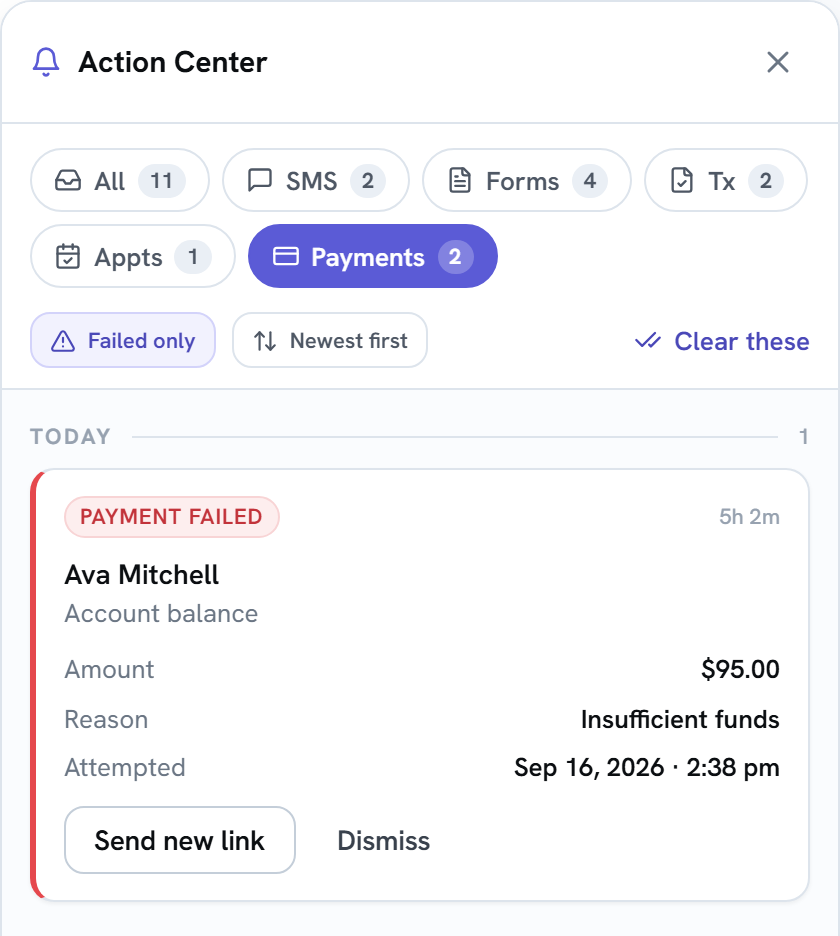
Section titled “Clearing a whole list”Clear all clears exactly what’s listed right now: the chip you’re on, plus the filter if it’s on. Its label tells you what it will clear:
| You’re looking at | The button says | It clears |
|---|---|---|
| The All chip | Clear all | Every card |
| Another chip, like Forms | Clear Forms | Only that chip’s cards |
| Any chip with its filter on, like Payments + Failed only | Clear these | Only the cards that match the filter |
Right after any clear, a bar at the bottom of the panel says what you cleared, like Cleared 4 alerts. Select Undo within about 5 seconds to bring the cards back.
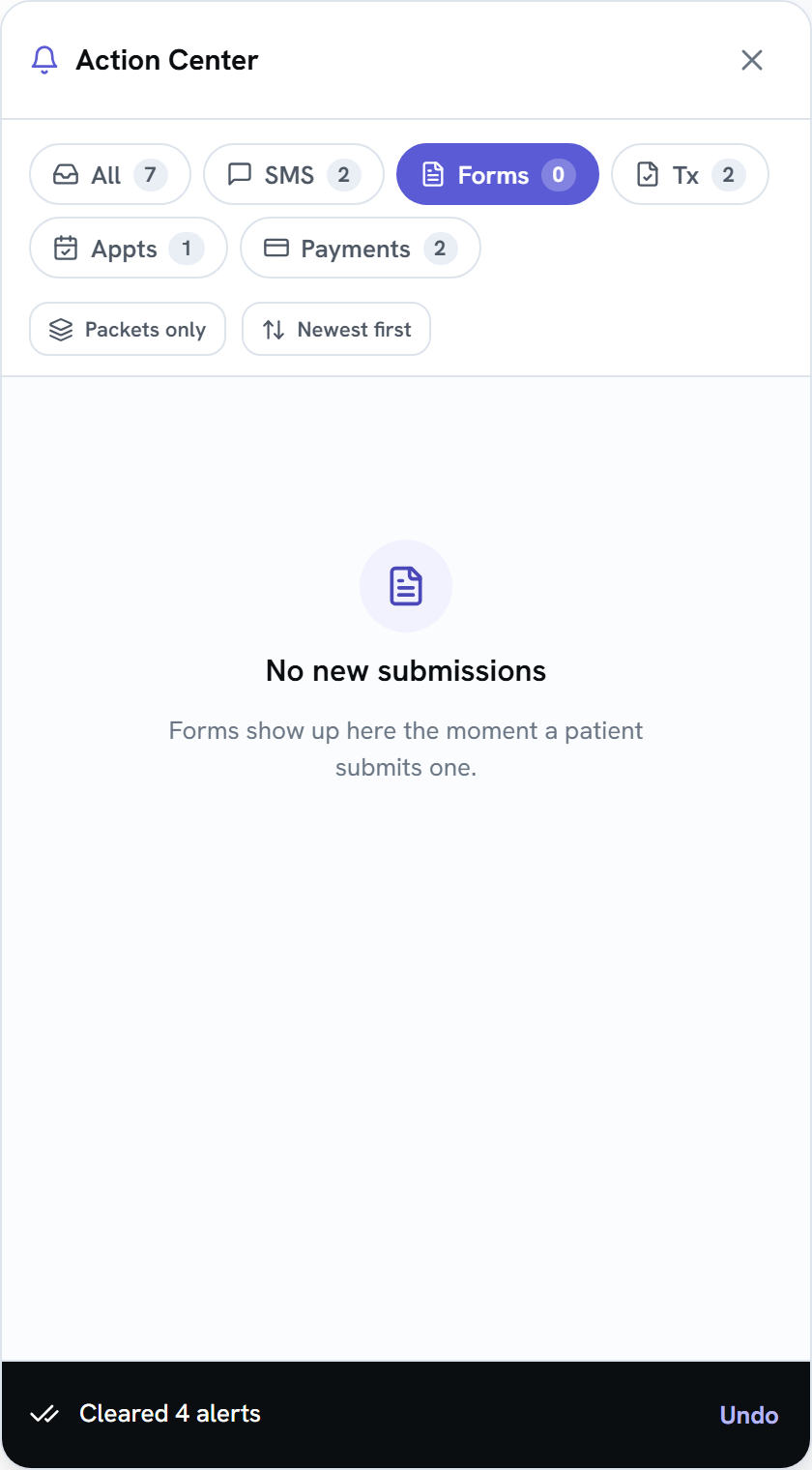
If your office clears cards for everyone, Undo brings them back for everyone too, unless a teammate also cleared the same card.
Clear for everyone, or just for you
Section titled “Clear for everyone, or just for you”Your office chooses what clearing a card does, in Settings → General:
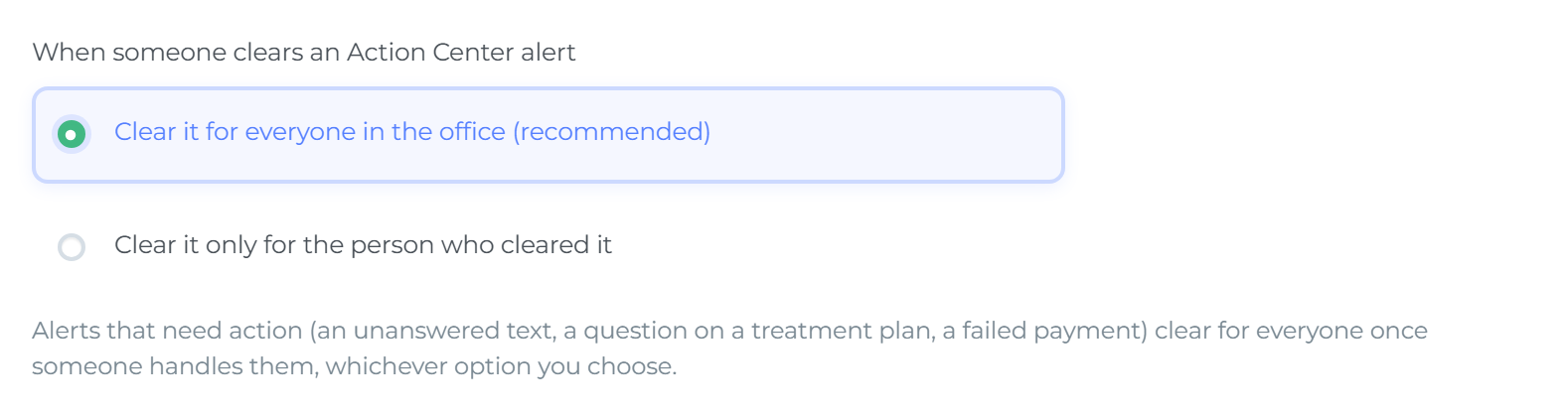
- Clear it for everyone in the office (recommended). When anyone clears a card, it disappears from everyone’s Action Center, so two people don’t handle the same thing. This is the setting every practice starts with.
- Clear it only for the person who cleared it. Clearing a card removes it from your list only. Teammates keep seeing it until they clear it too.
To change it, pick an option and select Save General Settings. Only Admins can see or change this setting.
The change applies to cards that were already cleared, too:
- Switching to everyone removes every card that anyone has already cleared.
- Switching to only for the person brings cards back for teammates who hadn’t cleared them themselves.
Teammates who already have Teamio open see the change the next time they refresh the page.
Cards that clear for everyone on their own
Section titled “Cards that clear for everyone on their own”Some cards need something done, not just a look. Once it’s done, the card clears for everyone, whichever clearing option your office chose:
| Card | Clears for everyone when |
|---|---|
| Unread SMS / Unanswered SMS | Someone replies to the patient |
| Question on plan | Someone replies to the patient’s question, or approves and sends the AI draft reply |
| Payment failed | Someone sends the patient a new payment link, or the patient pays through another link |
When a cleared card comes back
Section titled “When a cleared card comes back”- A patient texts again after their text alert was dismissed.
- A packet is finished. Packet submitted shows up for everyone, even if the in-progress card was cleared.
- You’re typing a reply. If a teammate clears a card while you’re writing a quick reply on it, the card stays on your screen until you send or empty your reply.
How long alerts are kept
Section titled “How long alerts are kept”A card nobody clears stays in the Action Center for 30 days, then it’s removed automatically. A text alert drops off sooner: once the patient’s text is more than 7 days old.