
Task notifications and settings
Task alerts and the site’s delete policy both live in the Task Settings panel. Open it from the Settings icon (the gear-shaped ⚙️ button, tooltip Task Settings) at the right end of the Add Task composer on My Tasks.
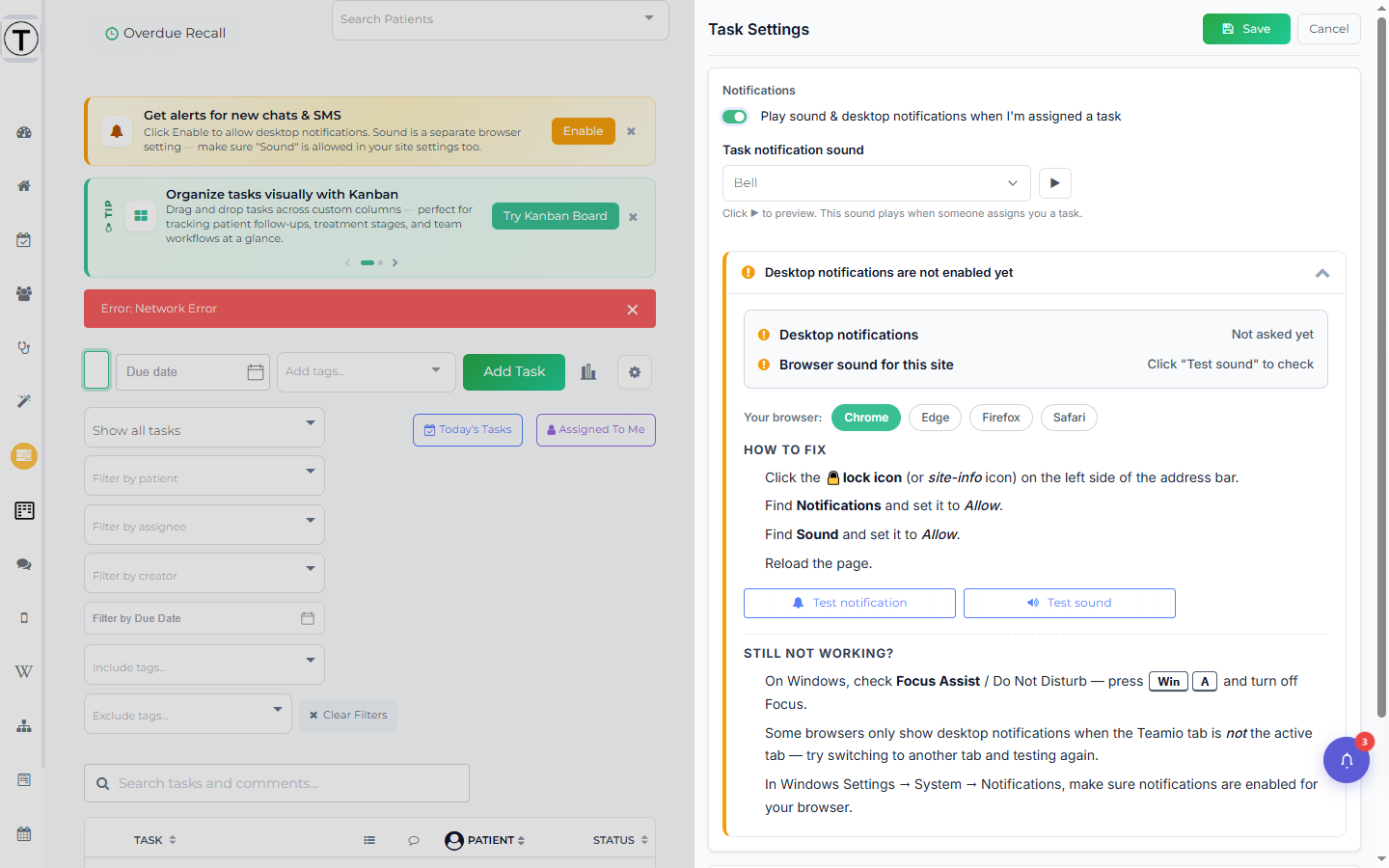
Turn alerts on
Section titled “Turn alerts on”Task assignment alerts default ON, with the Bell sound. If they’re off, or you want a different sound:
- Open My Tasks and select the Settings icon — the gear ⚙️ (Task Settings).
- Toggle Play sound & desktop notifications when I’m assigned a task on.
- Pick a sound from the Task notification sound dropdown — Bell, Soft Ding-Dong, Soft Chime, Elevator Ding, or Alert — and use the play button beside it to preview.
- Select Save. (Use Cancel to discard.)
- When the browser asks to show desktop notifications, choose Allow — that’s what lets alerts appear while Teamio is in a background tab. Without it you’ll get sound only.
Task notifications also show up in the header bell (with an unread count and a Mark All as Read action).
Fix alerts that aren’t working
Section titled “Fix alerts that aren’t working”The panel has a built-in troubleshooting section — you don’t need to leave Teamio. Expand it (select its status bar) to see:
- Live status rows: Desktop notifications and Browser sound for this site, so you can tell at a glance what’s blocked.
- Per-browser How to fix steps for Chrome, Edge, Firefox, and Safari.
- Test notification and Test sound buttons to confirm a fix worked.
Set who can delete tasks
Section titled “Set who can delete tasks”The same panel has a Permissions section, Who can delete tasks?, with two site-wide options:
- Only the creator of the task (default) — a task can be removed only by the person who made it.
- Any employee of this practice — anyone can delete any task.
Pick one and select Save. This applies to every user at the site.
- Kanban has its own, separate alerts. Turn on @-mention notifications from the gear on the Kanban page — see Kanban boards.
- Because notification settings are per browser, you’ll set them again on a new computer or after clearing site data.
Troubleshooting
Section titled “Troubleshooting”Alerts are silent but tasks are arriving
Section titled “Alerts are silent but tasks are arriving”Expand the panel’s troubleshooting section and check the Desktop notifications and Browser sound for this site rows. The usual cause is a blocked browser site permission — follow the How to fix steps for your browser, then the Test buttons.
Alerts work on one computer but not another
Section titled “Alerts work on one computer but not another”Settings are per browser. Open Task Settings on the other machine and turn them on there too.