
Tasks & Kanban overview
Teamio gives your team two tools for getting work done — running to-dos, and moving work through stages. Each solves a different problem, so the trick is knowing which to reach for. They live on the left rail, which is icon-only — hover an icon to see its label.
- My Tasks — your team’s shared to-do list and the workhorse of the two. Add anything that has to get done, hand it to a teammate with @, give it a due date (plain language like by Tuesday works), tag a #patient, set it to recur for routines, and break it into subtasks. Reach for it for any one discrete, owned, due piece of work. → Creating and assigning tasks
- Kanban — shared boards of columns and cards for work that moves through stages. Drag a card from column to column as it progresses, @-mention teammates, and keep a whole pipeline visible at a glance. Reach for it when work flows through steps and the team needs to see the pipeline — insurance follow-ups, lab cases, hiring, projects. → Kanban boards
A quick rule of thumb: use My Tasks for a single owned to-do, a recurring task for a routine, and a Kanban board for a multi-stage pipeline.
Reviewing the day’s numbers as a team is a separate section — see Huddle & Analytics.
Which one do I use?
Section titled “Which one do I use?”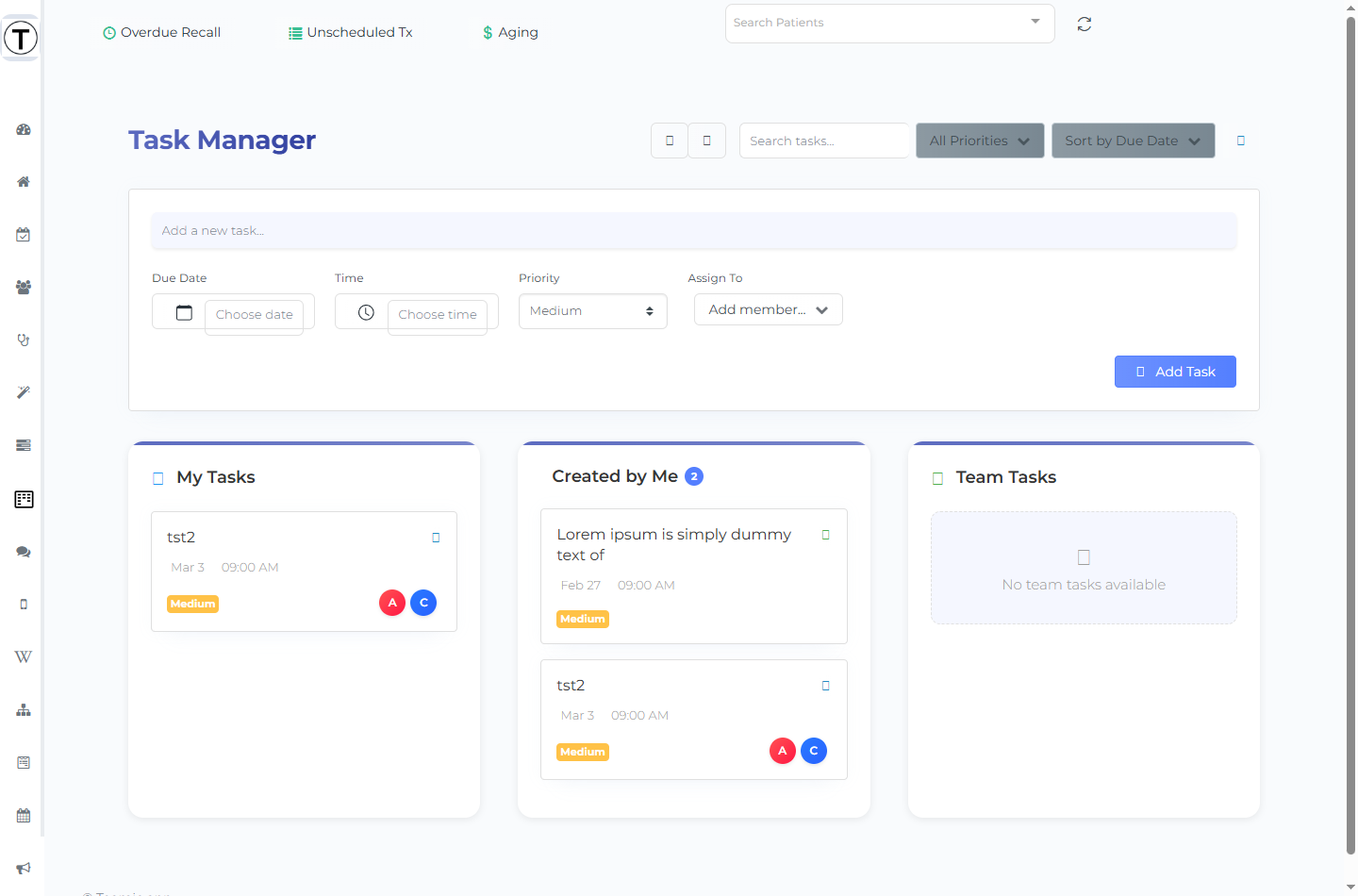
| Situation | Tool |
|---|---|
| ”Call Mrs. Smith back today” | Task |
| ”Sterilization log, every morning” | Recurring task |
| ”Track 14 insurance claims through follow-up stages” | Kanban board |
| ”What are today’s numbers?” | Huddle |
How they connect to the rest of Teamio
Section titled “How they connect to the rest of Teamio”- Today’s Dashboard (
/app/admin) has a My Tasks card listing your tasks due today; when you have none it shows No tasks due today! Click here to create a task. - The sidebar Kanban icon shows a green dot when you have unread Kanban @-mention notifications.
- Workflows can create tasks automatically, and assignments can reach you as notifications.