
On a phone or tablet
The Action Center works the same everywhere: same cards, same chips, same buttons. Only the way the panel sits on the screen changes with its size.
On a phone
Section titled “On a phone”The Action Center opens as a full-screen sheet.
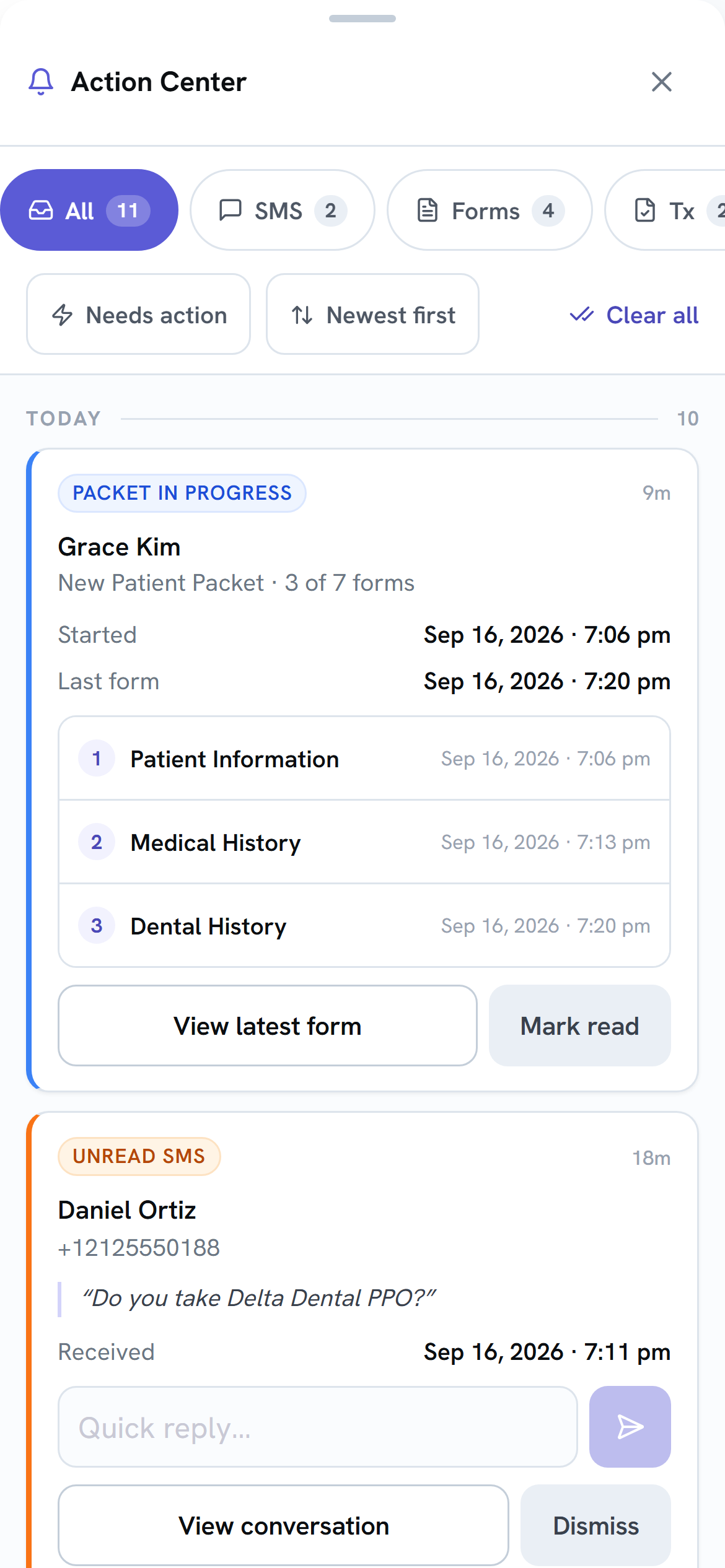
- Close it by swiping down on the handle or the title bar, or tap the X.
- More chips are off to the right. Swipe the chip row sideways to reach Appts and Payments.
- Buttons are larger so they’re easy to tap.
- When you open something from a card, like a conversation or a form, the sheet closes so you can see it. Tap the bell to get back to your list.
On a tablet
Section titled “On a tablet”The Action Center opens as a panel on the right, and the page behind it dims.
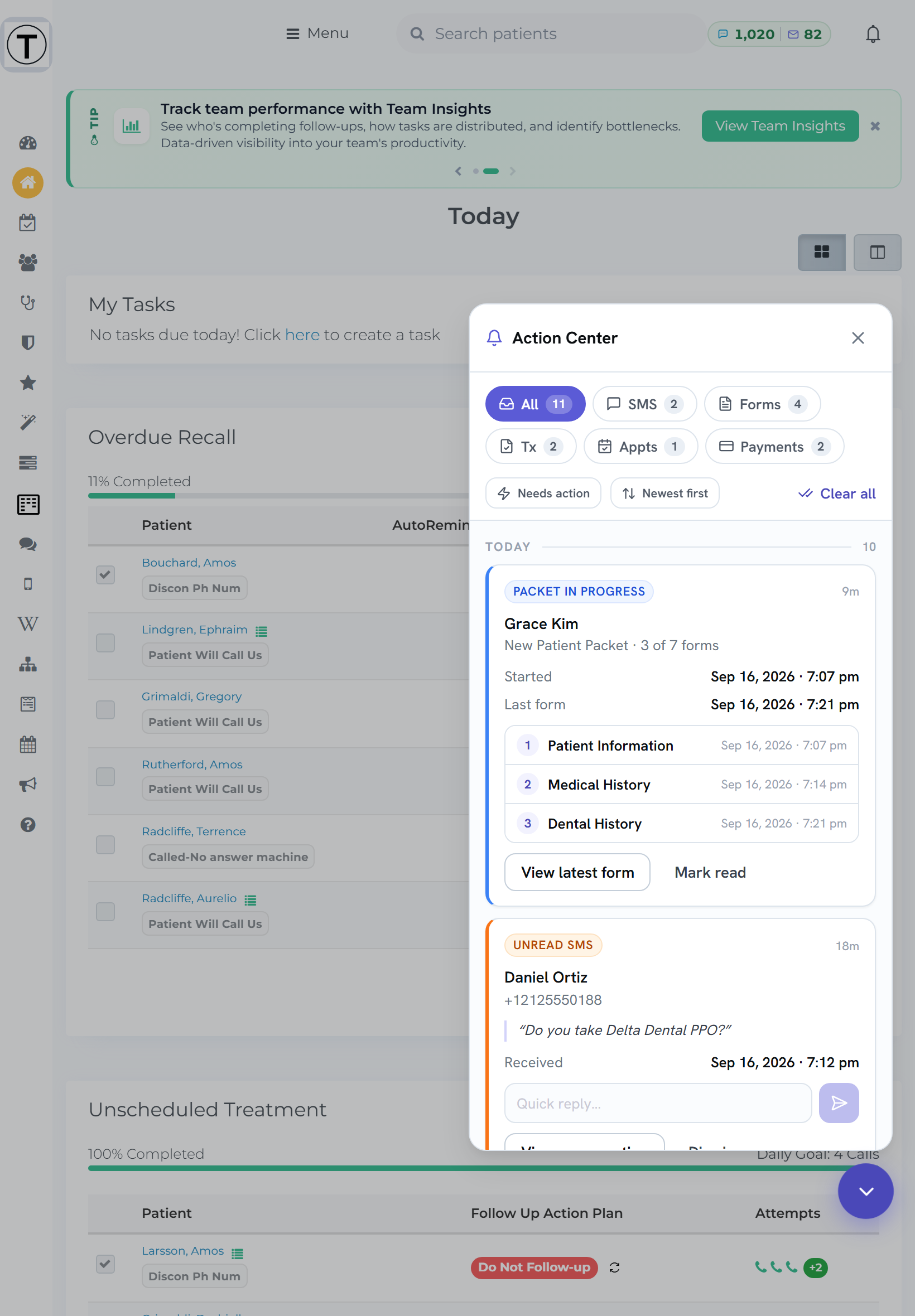
- Close it by tapping anywhere on the dimmed page, tapping the X, or tapping the bell.
- When you open something from a card, the panel closes so you can see the page.
A large tablet turned sideways can be wide enough to get the computer layout below.
On a computer
Section titled “On a computer”The panel opens on the right without dimming the page, and it stays open when you open something from a card, so you can work down the list. Close it with the X, the bell, or the Esc key.