
Adding a team member
Where: Settings menu (the gear ⚙️ icon, top right) → View My Account → Add a New Employee
When someone new joins, you give them Teamio access in a few clicks — no separate password to manage, because they sign in with their Google or Microsoft work account.
Your team list
Section titled “Your team list”On View My Account, the Employees section (“Manage your team members and their access”) lists everyone at the site, with their Name, Username, Role, and an Actions column with Edit and Delete buttons.
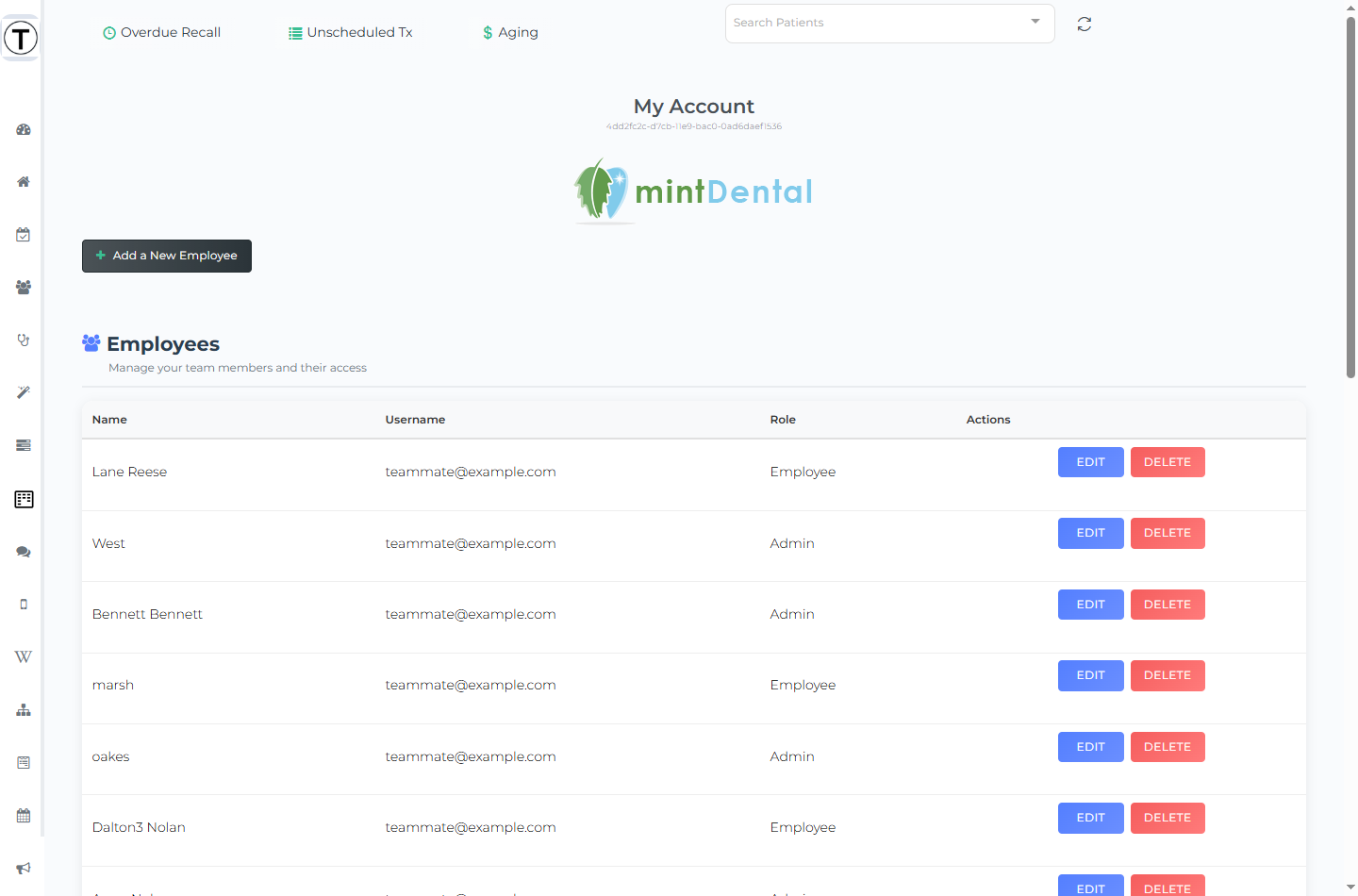
Add a team member
Section titled “Add a team member”- Open the Settings menu (the gear ⚙️ icon, top right) → View My Account, and select Add a New Employee.
- Select Employee — choose the person from your Open Dental employee list. This links their Teamio account to their Open Dental record, so production and follow-up activity attribute to the right person.
- Select Role — pick their role: Admin, Manager, Employee, or Outsourced. The role sets what they can see and do.
- Email — enter the email they’ll sign in with. The hint reads “Employee can sign in with Google or Microsoft using this email.” It must be the Google or Microsoft account they actually use (see Logging in) — Teamio doesn’t issue a password.
- Select ADD (or Cancel to back out).
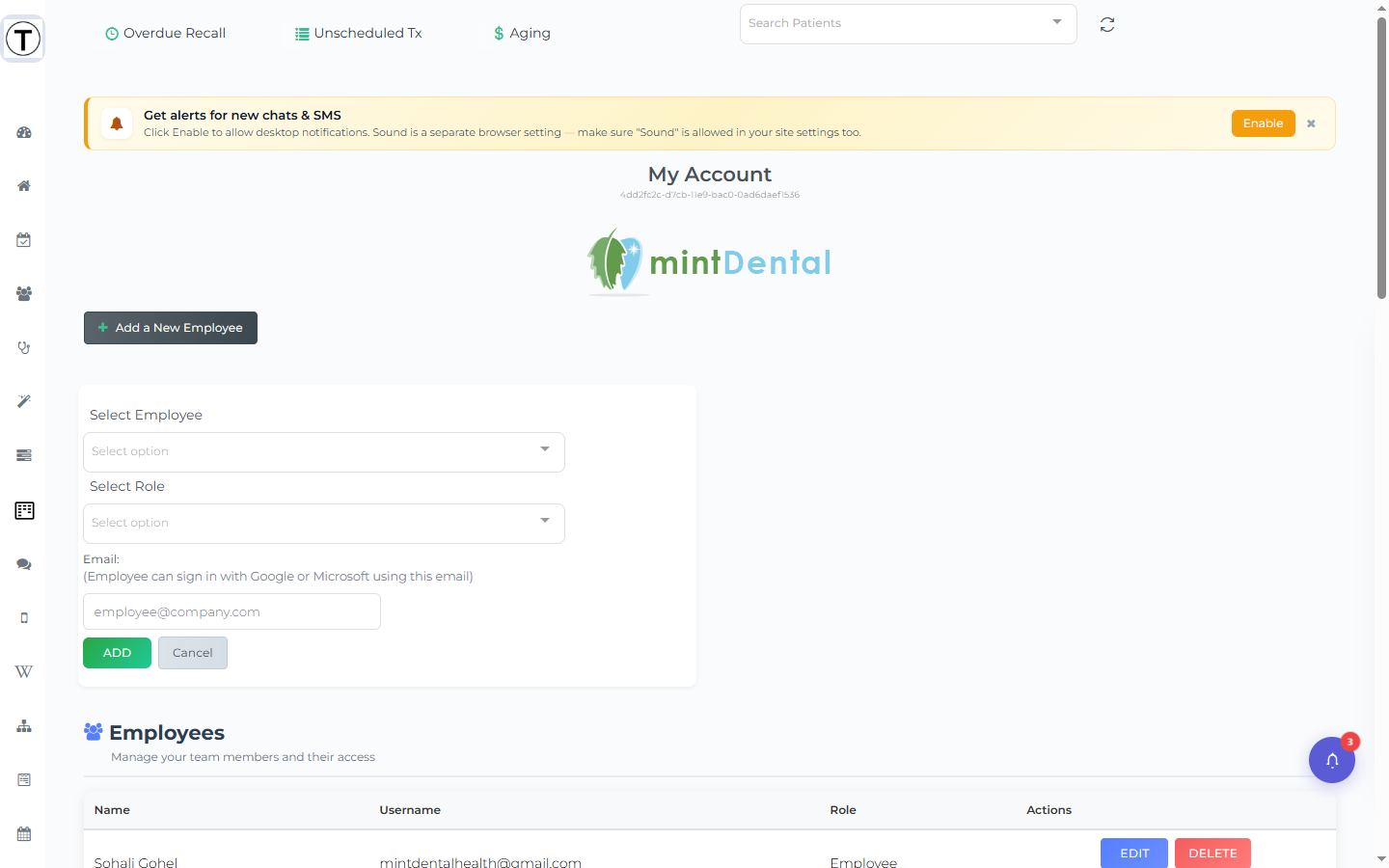
The new teammate can now sign in at https://prod.teamio.app with that account and will land in the site you added them to.
Changing a role or removing someone
Section titled “Changing a role or removing someone”To change a teammate’s role or remove them, use the Edit and Delete buttons in the Employees table. Removing someone runs a guided pre-deletion check (reassigning their tasks, workflows, and chat rooms first). See Changing a role or removing a team member.
- Match the email to the provider. Sign-in fails if you enter a Gmail address but they only have a Microsoft 365 account (or vice-versa). Use the one tied to their work email.
- Pick the role deliberately. Most clinical/front-desk staff are Employee; team leads are Manager; only decision-makers need Admin. You can fine-tune access later in Feature Permissions.
- Multi-location? Add them to each location they should access; otherwise they’ll only see the one you added.