
Sending a plan to the patient
For patients who want to think it over — or a spouse who wasn’t in the room — send the plan to their phone. They get a secure link to read the plan, ask questions, choose an option, sign, and pay from home.
Where: the Builder / Present Mode Send button, or Patient profile → Tx Plans → Send.
Send from the patient profile
Section titled “Send from the patient profile”You don’t have to open the dashboard first. On the patient profile, click Tx Plans in the shortcut row.
A picker lists that patient’s plans — Active plans first (green badge), then Saved plans (amber badge), most recent first. Click a plan and the Send window opens with it loaded.
The Send window
Section titled “The Send window”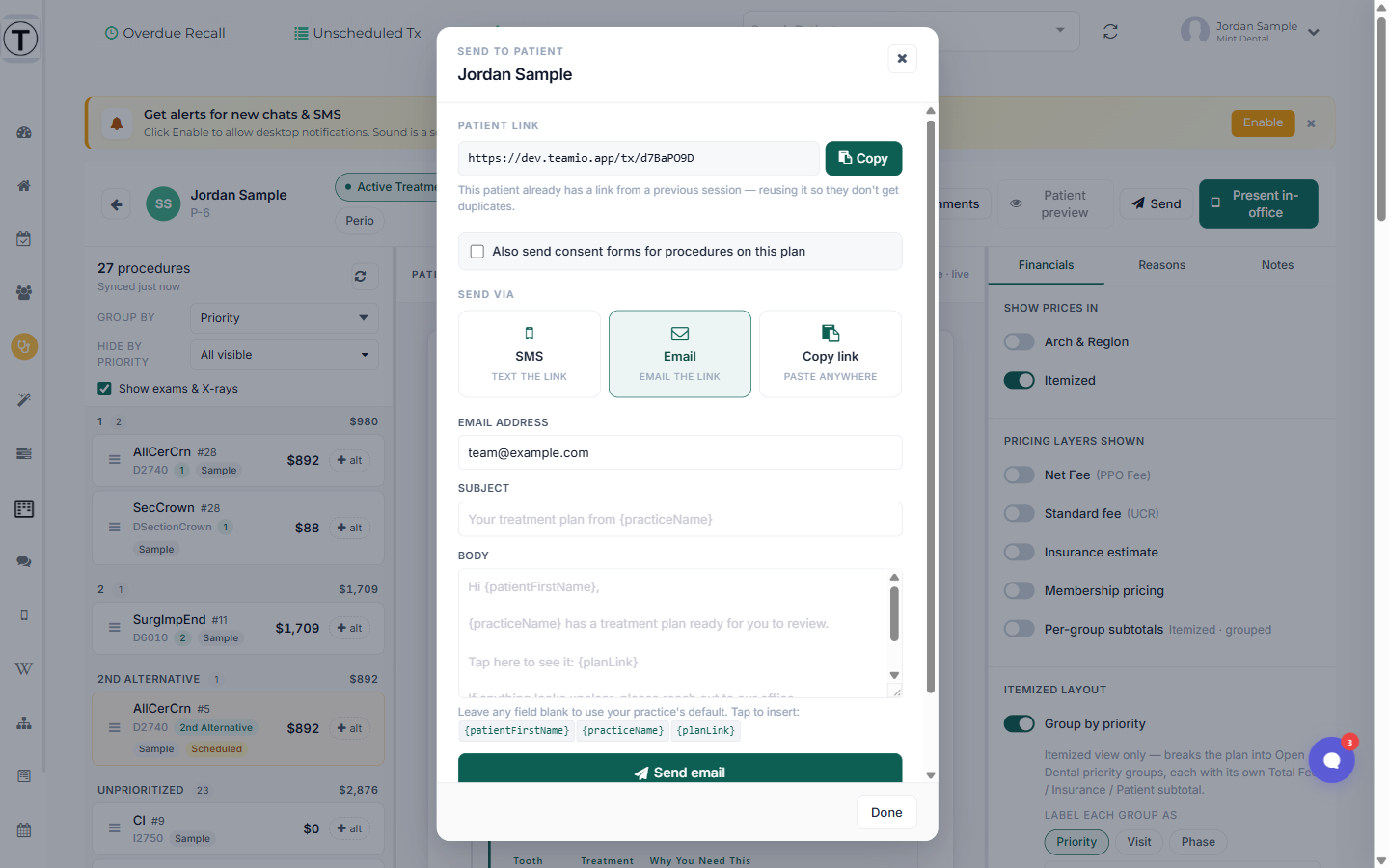
- Confirm the patient’s phone/email shown on the link.
- Choose how to deliver: SMS, Email, or Copy the link to paste elsewhere.
- The patient opens the link and sees the plan with your practice header, the procedures and reasons, payment options, and the sign-and-pay area.
Bundle consent forms (optional)
Section titled “Bundle consent forms (optional)”If your practice has mapped consent forms to procedure codes, you can attach the right ones to the send so the patient fills them out ahead of the visit.
- Tick Also send consent forms for procedures on this plan.
- A green preview strip shows which forms will be included (for example, “Crown Consent,” “IV Sedation Consent”).
- If some procedures have no form mapped, an amber note lists those codes — the send still goes; only mapped forms are bundled.
The patient sees a “Consent forms to fill out before your appointment” callout at the top of their plan, with one-tap links to each form, pre-filled with their info.