
Texting with patients
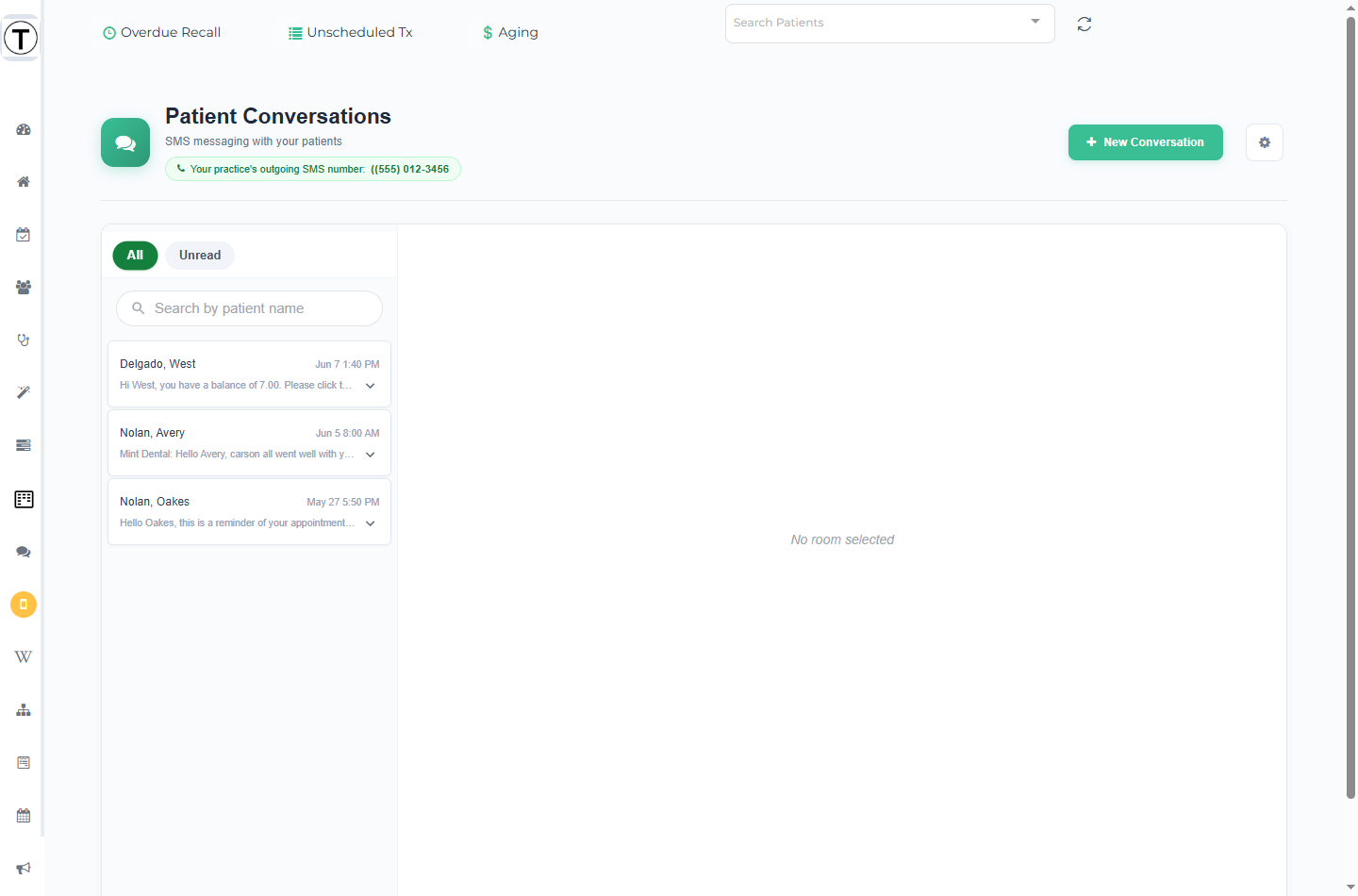
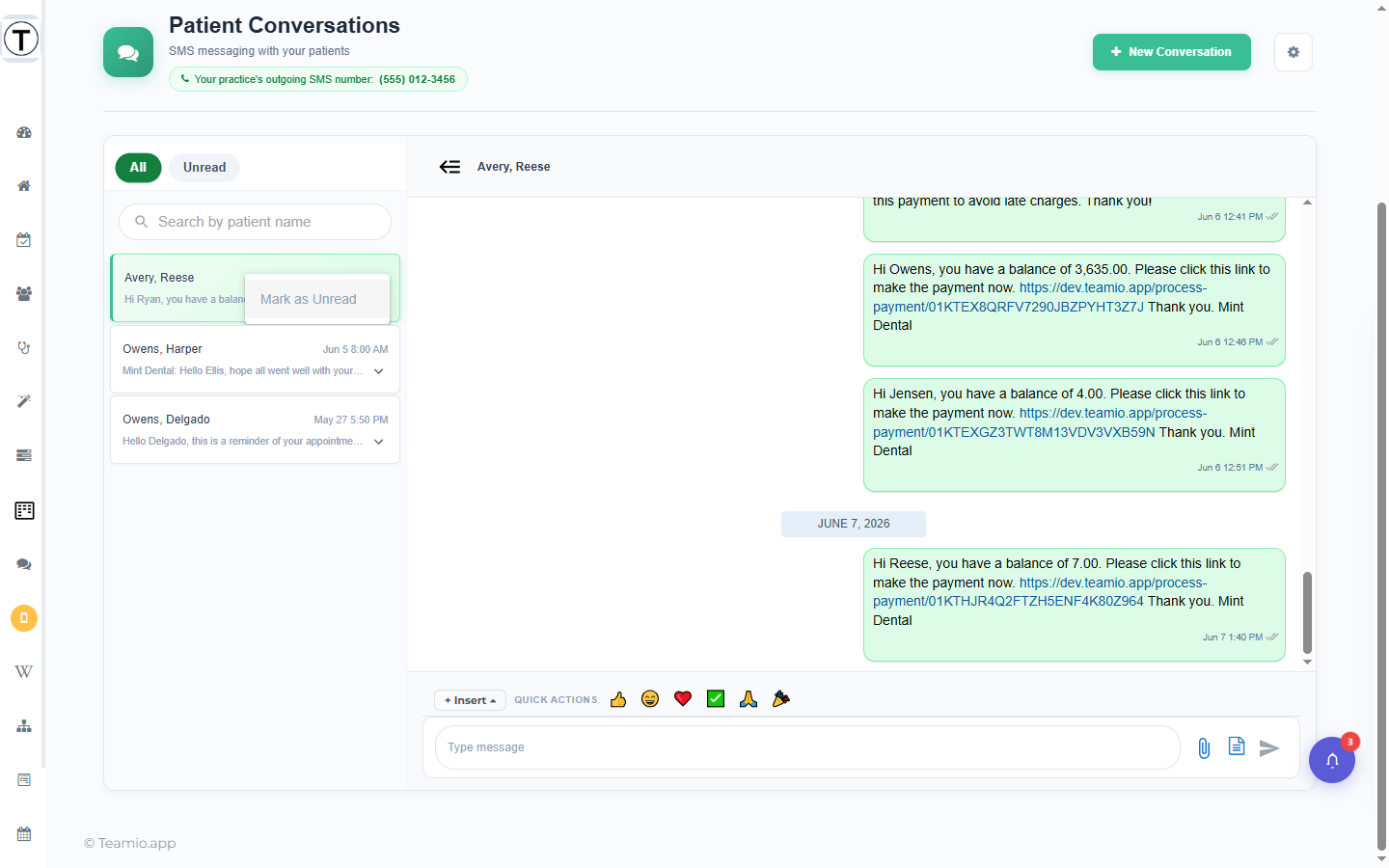
Patient Conversations is the shared inbox where your whole team texts patients from one practice number. Open it from the phone icon in the left rail (tooltip SMS Conversations). The page heading reads Patient Conversations with the subtitle SMS messaging with your patients.
The layout
Section titled “The layout”Two panes:
- Left — the conversation list. Filter chips All and Unread sit at the top; the Unread chip carries a count badge. Below them is a search box (placeholder Search by patient name) that matches a patient’s first or last name — it does not search message text. Clicking empty space in the list deselects the open thread.
- Right — the open thread. Texts come from and go to your practice’s registered number, shown in the header pill {Your practice}‘s outgoing SMS number: (xxx) xxx-xxxx.
Two buttons sit at the top right of the page header: New Conversation (start a thread) and a gear icon (tooltip SMS Conversation Settings) that opens a slide-out panel for notifications and photo-filing — see Message notifications and Photos and attachments.
Start a new conversation
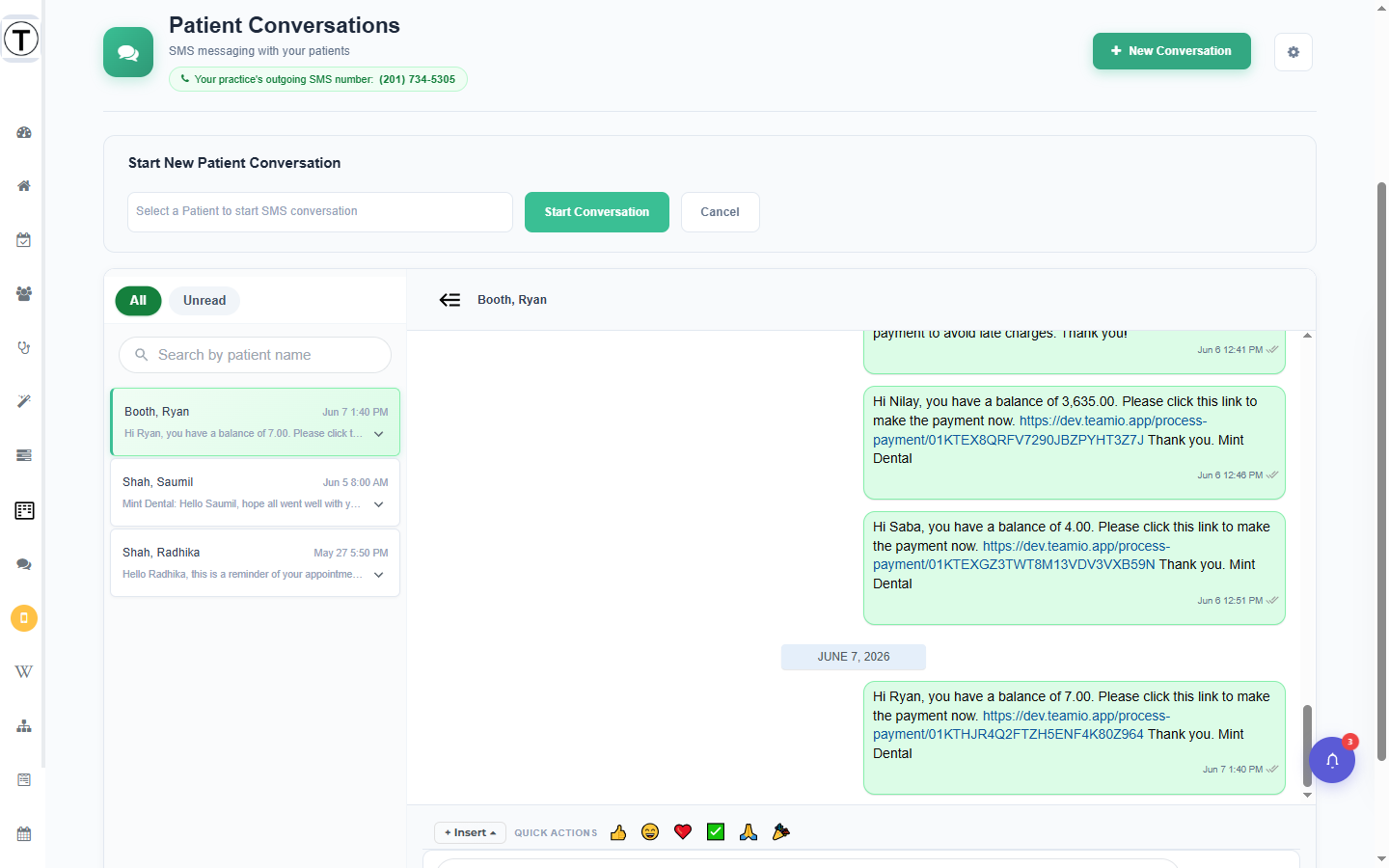
Section titled “Start a new conversation”- Select New Conversation at the top right of the page header.
- In the Start New Patient Conversation form, open the patient dropdown (placeholder Select a Patient to start SMS conversation). Patients are listed as First Last (DOB:mm-dd-yy).
- Choose the patient and select Start Conversation. (Select Cancel to back out.)
The thread opens and you can type your first message.
You can also start a conversation from any outreach list row or from the patient profile.
The message composer
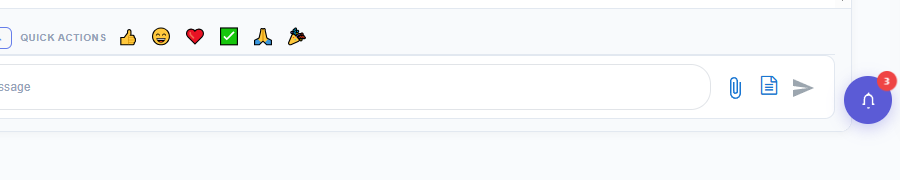
Section titled “The message composer”The box where you type a reply has three icon buttons in a row beneath it:
| Icon | Tooltip | What it does |
|---|---|---|
| Paperclip | Attach file | Sends an image or file out to the patient (see attachment limits below). |
| Document | SMS Templates | Opens your saved templates to drop a pre-written message into the composer. |
| Paper plane | Send message | Sends the message. |
Just above the composer is the Quick Actions bar with a + Insert button for variables and emojis, plus one-click chips for things you’ve used recently. That whole system has its own page: Message variables and Quick Actions.
SMS templates
Section titled “SMS templates”Select the document icon (tooltip SMS Templates) to open the SMS Templates modal.
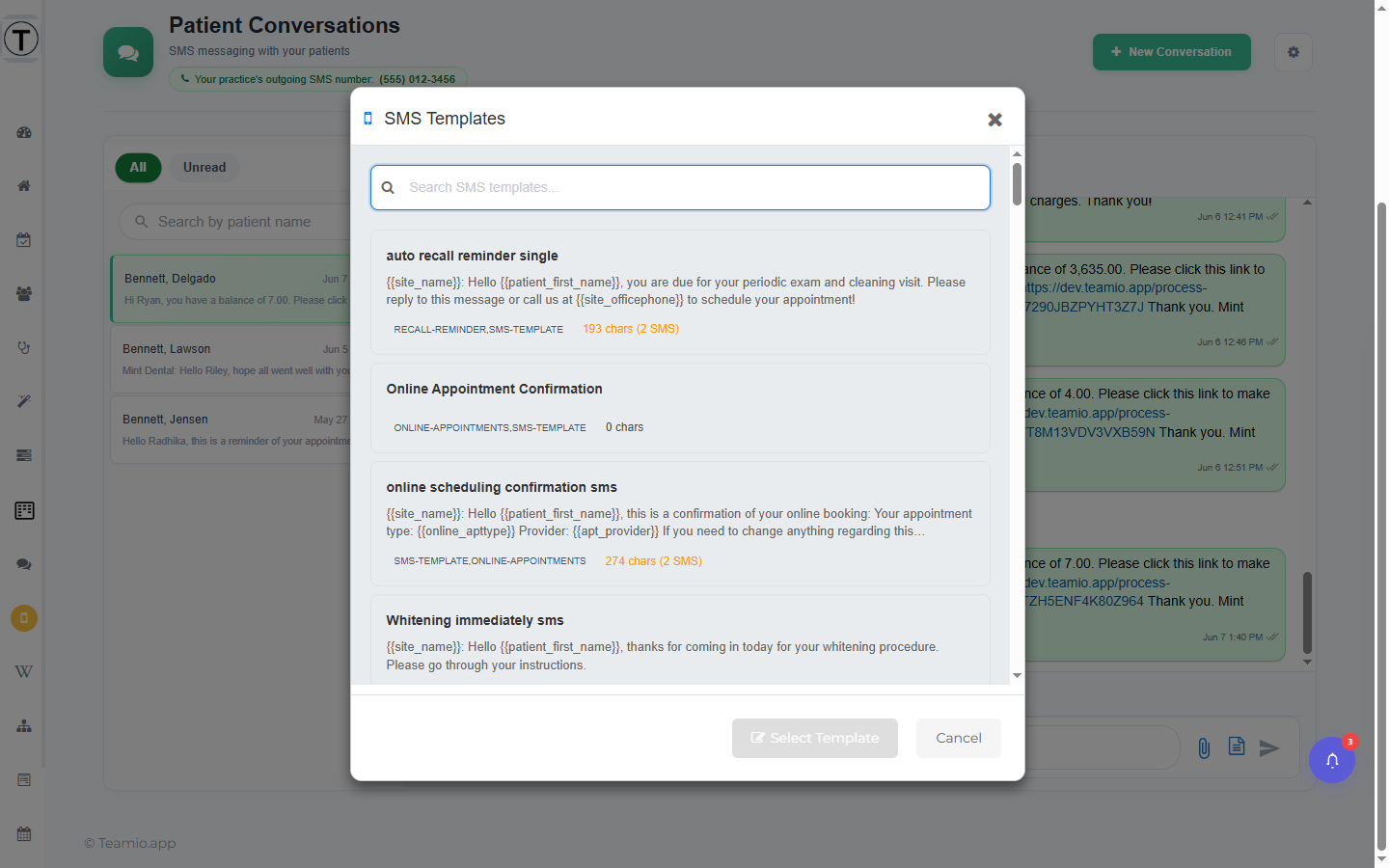
- Search at the top, then pick a template from the list. Each card shows a category chip and a character/segment count (for example 193 chars (2 SMS)).
- Selecting one shows a Selected SMS Template: preview card with its Length and SMS Count analysis.
- Select Select Template to drop it into the composer, or Cancel.
These are your Wiki SMS templates — everyday recall, reminder, and balance texts in one click. A template can contain a [Form: …] link: insert it and Teamio sends the patient a tap-to-open link to that form (for example a New Patient Intake). That’s the simplest way to “send a form” from a conversation.
Confirming the cost before a long or pricey reply
Section titled “Confirming the cost before a long or pricey reply”If a reply is long enough — or has enough emoji or special characters — to cost several message credits, Teamio asks you to confirm the cost before it sends, so a reply never quietly uses up several credits without you knowing. Cancel to go back and shorten it, or confirm to send as written.
If your team doesn’t want to see this every time, tick Don’t ask me again in the confirmation — it remembers your choice on that browser going forward.
See Costs and delivery for how message credits are counted.
Reactions
Section titled “Reactions”You can react to a patient message to acknowledge it without sending a full reply — hover the message and choose a reaction. When a patient taps back on your message from an iPhone or Android (a “tapback”), Teamio converts it into a reaction on that message rather than showing it as a separate Liked … text, so the thread stays clean.
Reply to a specific message
Section titled “Reply to a specific message”Open the menu on any message and choose Reply to respond to that exact message. The quoted message is included with your reply, which is handy when a thread covers several topics.
Mark a thread unread for a teammate
Section titled “Mark a thread unread for a teammate”Hover a conversation row in the left list and select the kebab menu (three dots) that appears. Choose Mark as Unread to put the thread back into the Unread queue — the only way to flag a conversation so a teammate (or you, later) picks it up again.
The Unread filter
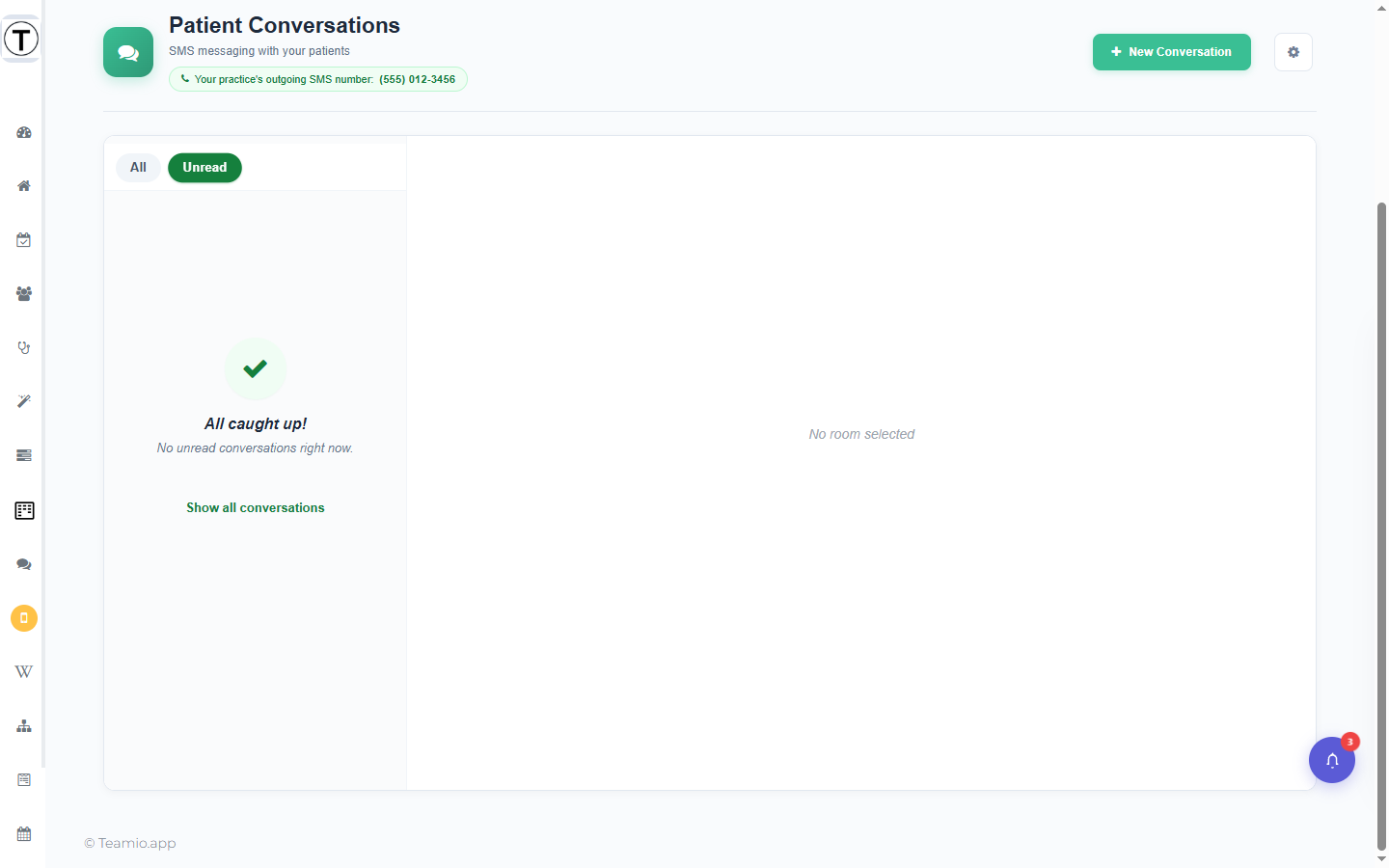
Section titled “The Unread filter”Select the Unread chip to see only conversations that need a reply; the badge on the chip is the unread count. When nothing is unread, you get an All caught up! empty state with a Show all conversations link back to the full list. Treat Unread = unanswered and work the filter to zero like a checklist.
Automated texts share this same thread
Section titled “Automated texts share this same thread”Not every text in a conversation was typed by a person. Appointment reminders, recall reminders, and workflow messages are sent automatically in the background and land in the same thread from the same practice number — they appear on the right alongside your own sent messages. That’s why a registered number and opt-out status matter for the whole practice, not just manual replies: a patient who texts STOP stops receiving the automated reminders too.
Group conversations (group MMS)
Section titled “Group conversations (group MMS)”If a patient texted several recipients at once, the thread shows an orange Group Conversation warning banner: Your replies will be visible to all participants in the group. Keep replies appropriate for everyone on the thread.
Attachment limits for texting
Section titled “Attachment limits for texting”Outbound SMS/MMS delivery supports JPG, PNG, MP3, AMR, MP4, and PDF only, up to 5 MB. Larger files or other types trigger a warning that SMS recipients won’t receive them. Incoming patient photos appear inline and can file to Open Dental imaging.
Troubleshooting
Section titled “Troubleshooting”The message shows “Sending…” or “Failed to send”
Section titled “The message shows “Sending…” or “Failed to send””Outbound messages show a Sending… indicator until Twilio accepts them. If delivery is rejected you get a Failed to send indicator with a Retry button — select it to try again.
Sending fails with a warning instead of going through
Section titled “Sending fails with a warning instead of going through”Some texts can’t be sent at all, and Teamio tells you why with an orange warning message instead of a hard error — there’s no point retrying, because resending won’t change the reason.
The patient opted out of texts. There are two ways this happens, and they’re fixed differently:
- They texted a stop word. A reply of just STOP, STOPALL, UNSUBSCRIBE, CANCEL, END, QUIT, OPTOUT, or REVOKE stops all texts to that phone number. Only the patient can undo it, by texting START. The warning reads Not sent: this patient opted out of texts by replying STOP on [date]. They can text START to opt back in.
- Open Dental says no texts for this patient. Change the patient’s text setting in Open Dental.
See When a patient texts STOP for the full picture.
The number can’t take texts at all — for example, it’s a landline rather than a mobile number. Teamio names the specific reason in the warning so you know exactly what’s wrong instead of just “failed,” and correcting the number on the patient’s chart in Open Dental is what fixes it, not resending.
Until the underlying issue is fixed, every send to that number will be refused — this is a safeguard, not a bug.
The patient never gets your attachment
Section titled “The patient never gets your attachment”Check the file type and size against the limits above (JPG/PNG/MP3/AMR/MP4/PDF, 5 MB). Anything outside that won’t be delivered over SMS.
Habits that keep a shared inbox healthy
Section titled “Habits that keep a shared inbox healthy”- Unread = unanswered. Work the Unread filter to zero.
- Sign personal messages with your name — – Maria turns the practice number into a person.
- Log meaningful outcomes in the patient’s follow-up panel — conversations are the chat; follow-ups are the record.