
Multi-language forms
Teamio translates your forms automatically, and patients can switch languages themselves while filling one out. Spanish (ES) and Russian (RU) are supported today.
Enable languages on a form
Section titled “Enable languages on a form”- Open the form for editing.
- Select Form Configurations at the top of the builder, then scroll to the Translations section.
- Under Enable languages for this form:, tick the languages you want (ES Spanish, RU Russian). The sidebar notes: All form labels, placeholders, and options will be automatically translated when you save.
- Select Save Changes.
Fine-tune the wording
Section titled “Fine-tune the wording”Auto-translation handles labels, placeholders, and options. For the wrapper text you can override the machine translation per language, right in Form Configurations > Translations:
- Headline (
) , Sub-Headline () , and Submit Button Text () . - A Manually edited pencil indicator marks fields you’ve overridden so they aren’t overwritten on the next translate.
Section headlines and sub-headlines have the same per-language fields in each Section Configuration.
Preview before sharing
Section titled “Preview before sharing”On the Edit Form header, Preview in Spanish / Preview in Russian buttons appear once extra languages are enabled. They open the patient-facing renderer (/preview-form/<id>?lang=xx) in a new tab so you can check the translation.
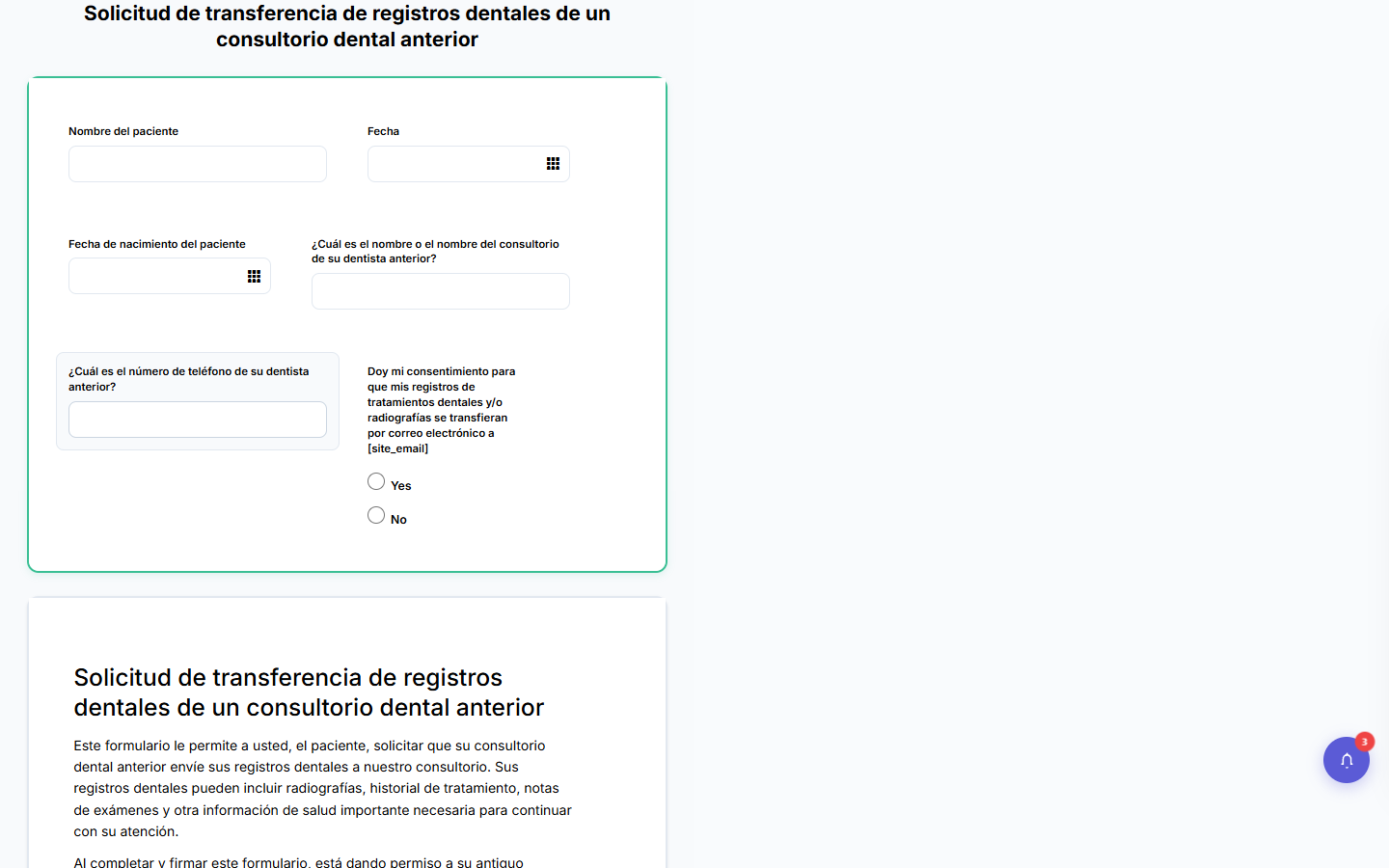
Auto-translation is good but not perfect — have a bilingual team member skim consent language once per form. (Untranslated tokens, like a [site_email] placeholder, render literally — fill those in via the per-language overrides.)
What the patient sees
Section titled “What the patient sees”A Change language: dropdown (flag + language) sits in the form header; patients can switch at any time. Teamio picks the starting language in this order:
- a
?lang=parameter on the URL, - the patient’s saved preference,
- the phone’s browser language,
- English.
The forms list shows ES / RU badges per form, and a submission carries a language badge when it wasn’t completed in English.
How staff read non-English submissions
Section titled “How staff read non-English submissions”The submission detail view renders in the language the patient used — an ES submission shows Spanish labels with a language badge. Staff see the patient’s answers as entered; there is no automatic translation back to English. If you need the answers in English, a bilingual reviewer can read the Spanish render, or rely on the field values themselves (dates, numbers, and chart-mapped choices store language-independently).