
Building and using templates
Templates save your best messages for reuse, so each campaign starts from proven content instead of a blank box.
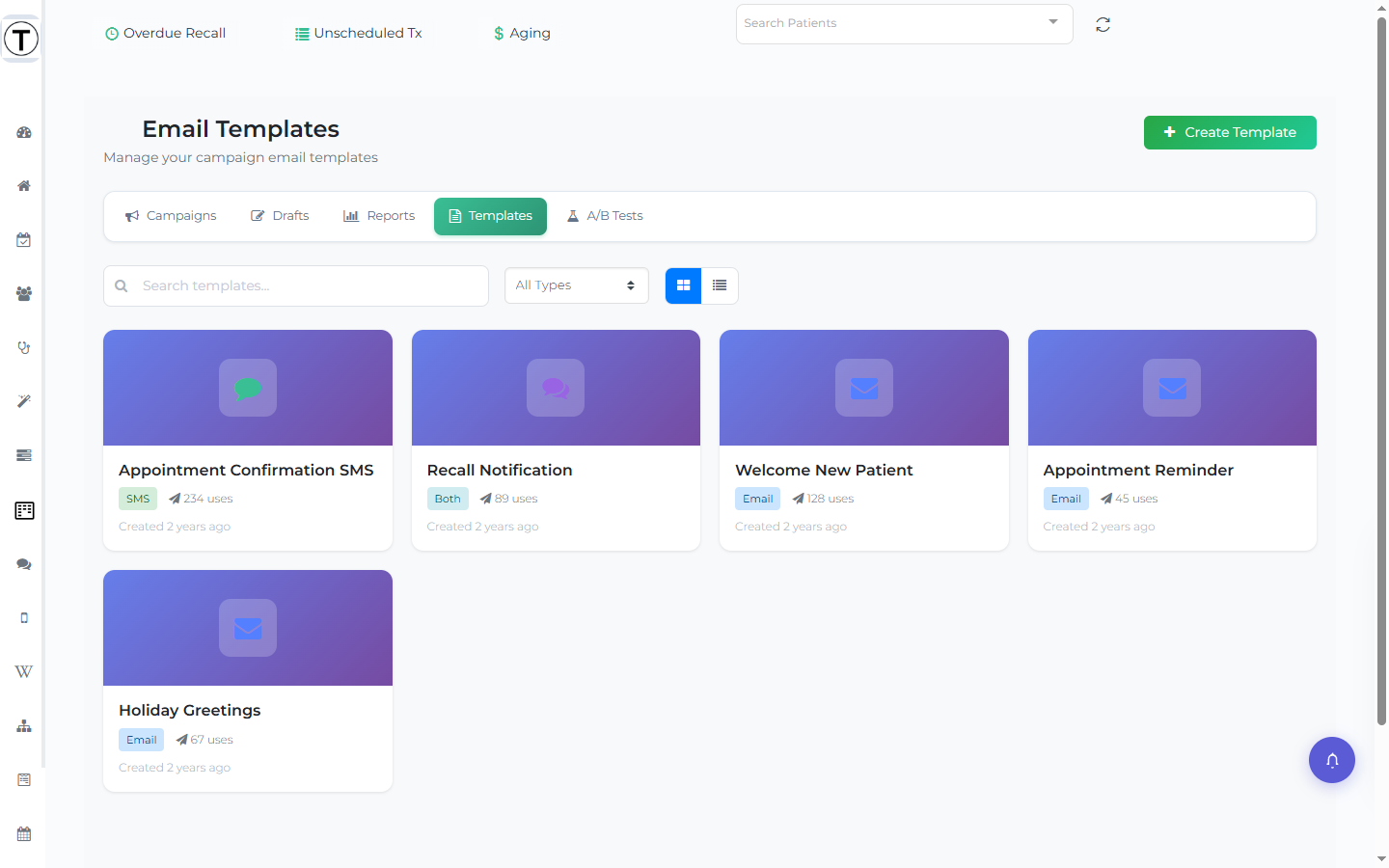
How templates actually work
Section titled “How templates actually work”This is the most important thing to know: the campaign wizard pulls templates from the Wiki, not from the Templates page.
- To offer an SMS template in the wizard, create a Wiki page and tag it
sms-template. - To offer an email template, create a Wiki page and tag it
email-template.
Those tagged pages then appear in the wizard’s Content step (Step 3), searchable and paginated — click one to apply it. For email, the wiki page becomes the subject line and HTML body; an email campaign requires a template, so this is the only way to give your staff email content to choose from. For SMS, the template just prefills the message box, where staff can keep editing.
If no tagged pages exist, the wizard says so plainly — for example, “No SMS templates found. Create wiki pages tagged sms-template to use them here.”
Creating a template (the real workflow)
Section titled “Creating a template (the real workflow)”- Go to Wiki in the sidebar and create a new page.
- Write your message. For email, the page content is the email body; for SMS, keep it short (one 160-character segment is ideal).
- Tag the page
email-template(for email) orsms-template(for SMS). - Save. The page now appears in the campaign wizard’s Content step for that channel.
Personalization
Section titled “Personalization”Add merge fields so each recipient sees their own values. The wizard’s Insert menu uses these tokens:
{{patient_first_name}}/{{patient_last_name}}— the patient’s name{{site_name}}— your practice name{{site_officephone}}— your practice phone{{site_address1}}— your practice address
Patient appointment variables such as {{apt_date}} resolve to each patient’s real data on send (and to sample data in a test message). “Hi {{patient_first_name}}!” consistently outperforms “Dear patient”.
About the Templates page
Section titled “About the Templates page”Where: Sidebar > Campaigns > Templates
For reference, the page shows a card grid (with a grid/list view toggle), a Search templates… box, a type filter (All Types / Email / SMS / SMS & Email), usage counts, and sortable columns (Name, Type, Created on, Uses). Each card’s menu offers Create Newsletter, Rename, Edit, Duplicate, Download HTML, and Delete. A Create Template / Edit Template modal has Template Name, Type, Subject Line, SMS Content (with an X / 160 characters counter), and Email Content (raw HTML).