
Follow-up frequencies & settings
Where: the Settings icon (the gear ⚙️) at the top right → Settings → the per-list tabs
These settings are what make the follow-up panel fill in a Next Follow-up Date for you, and what feed the Call Goals progress bars on the list pages and Today’s Dashboard. Configure them once per list type and the whole team follows the same cadence. Nothing saves automatically — each tab has its own Save button (e.g. Save Overdue Recall Settings) at the top and bottom.
The tabs
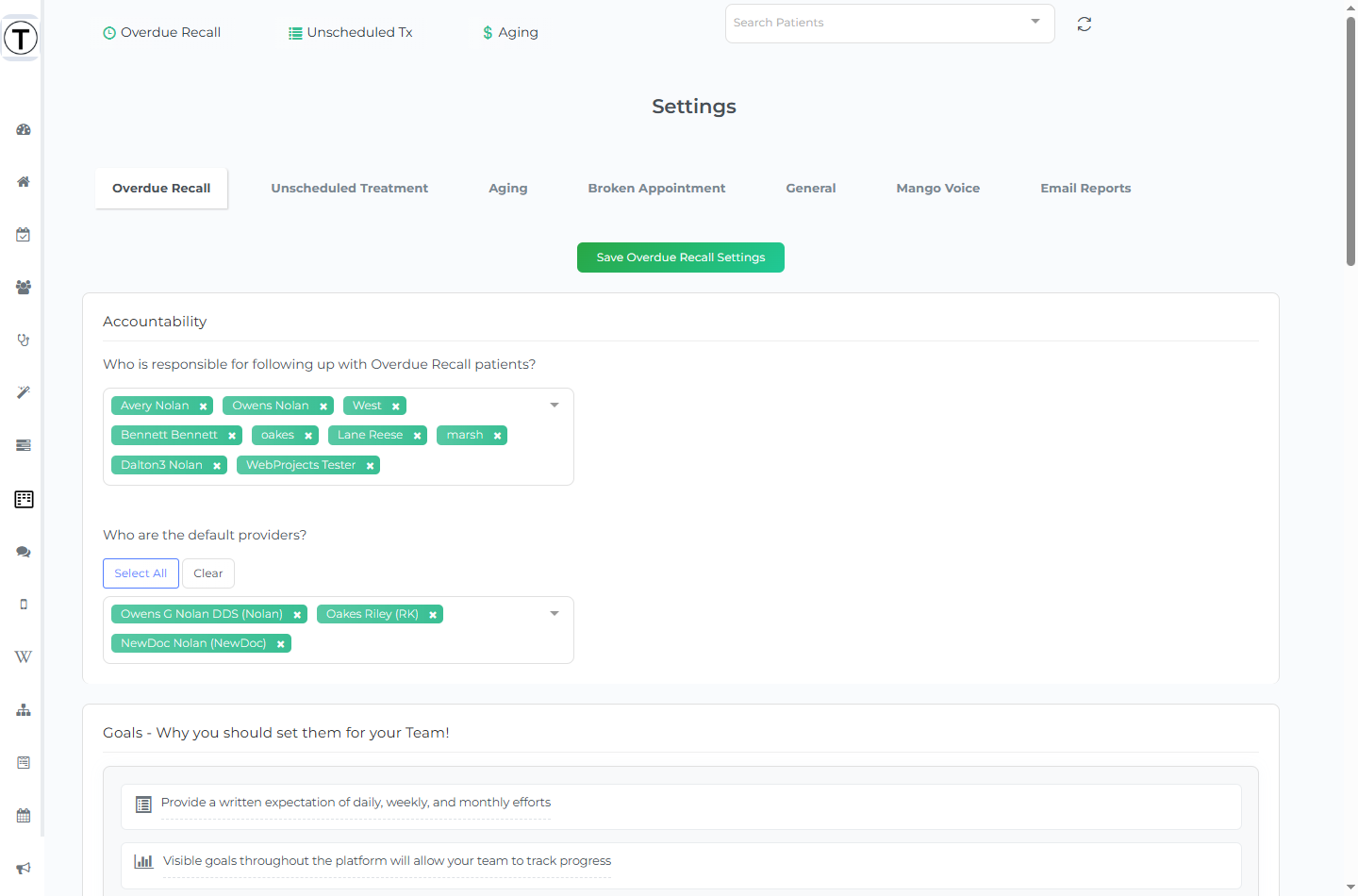
Section titled “The tabs”Settings has a tab per list type: Overdue Recall, Unscheduled Treatment, Aging (one tab with sections for Outstanding Claims, Outstanding Pre-Authorization Claims, Processed Pre-Authorization Claims, and Patient Balances), and Broken Appointment.
What you set, per list type
Section titled “What you set, per list type”-
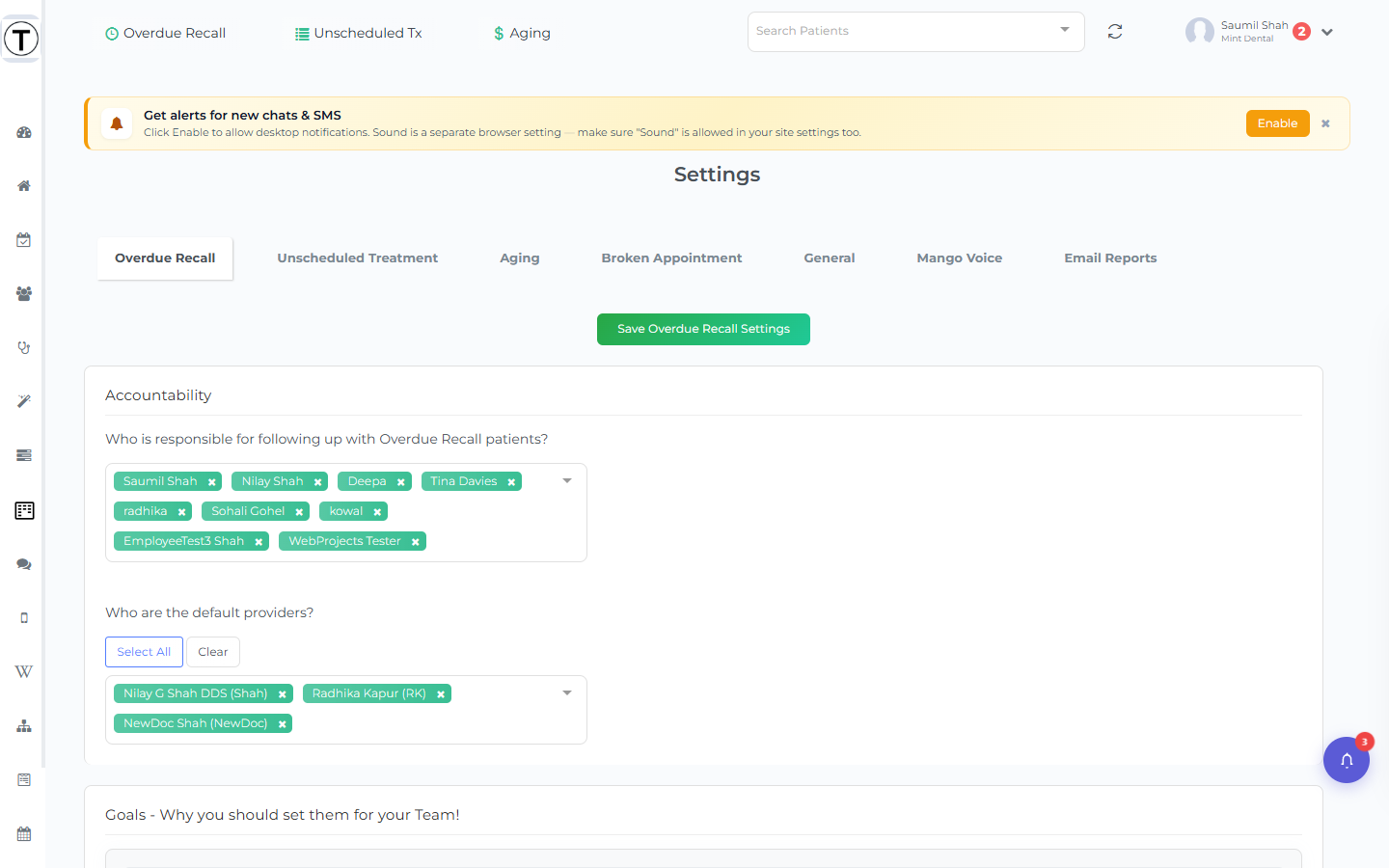
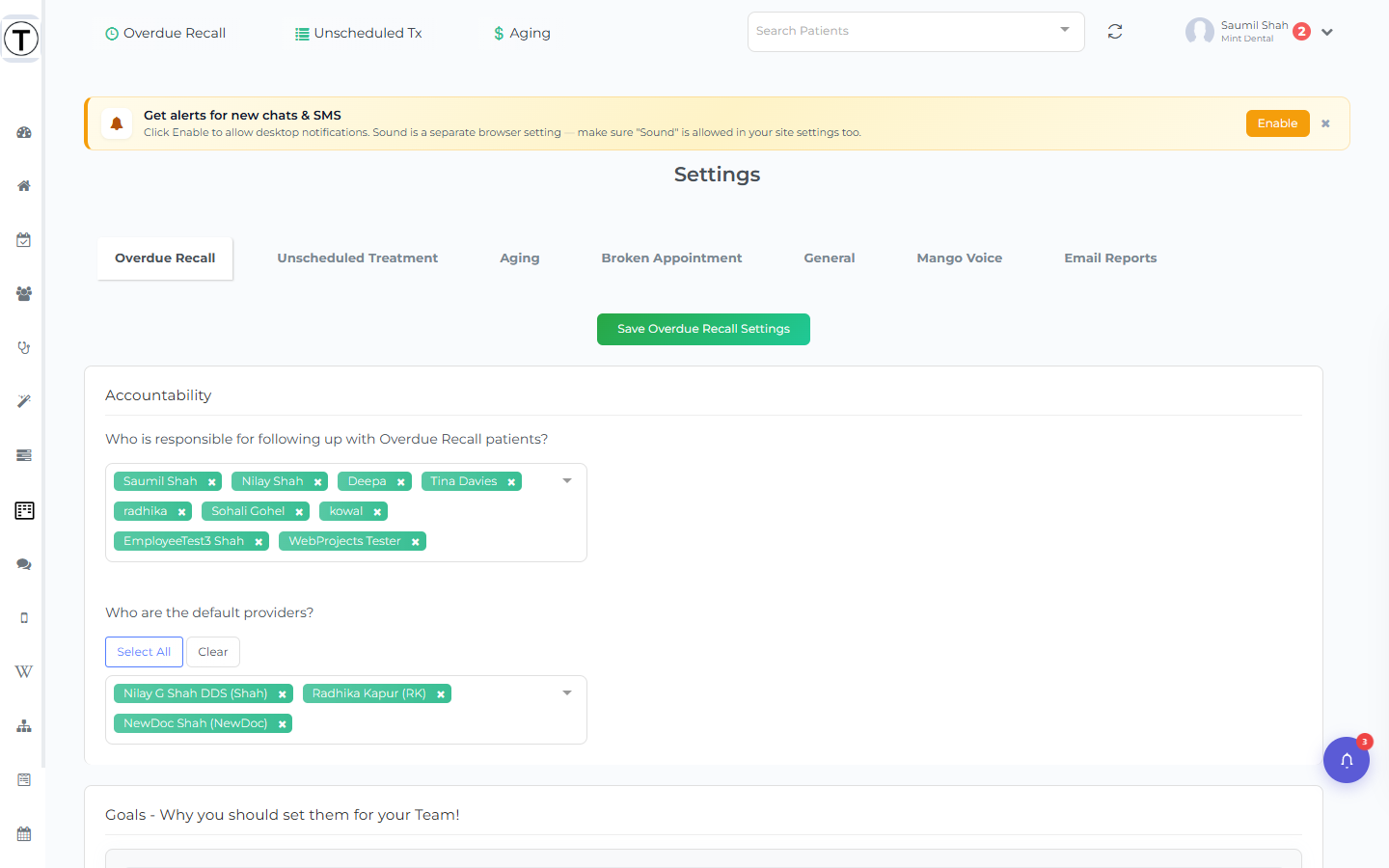
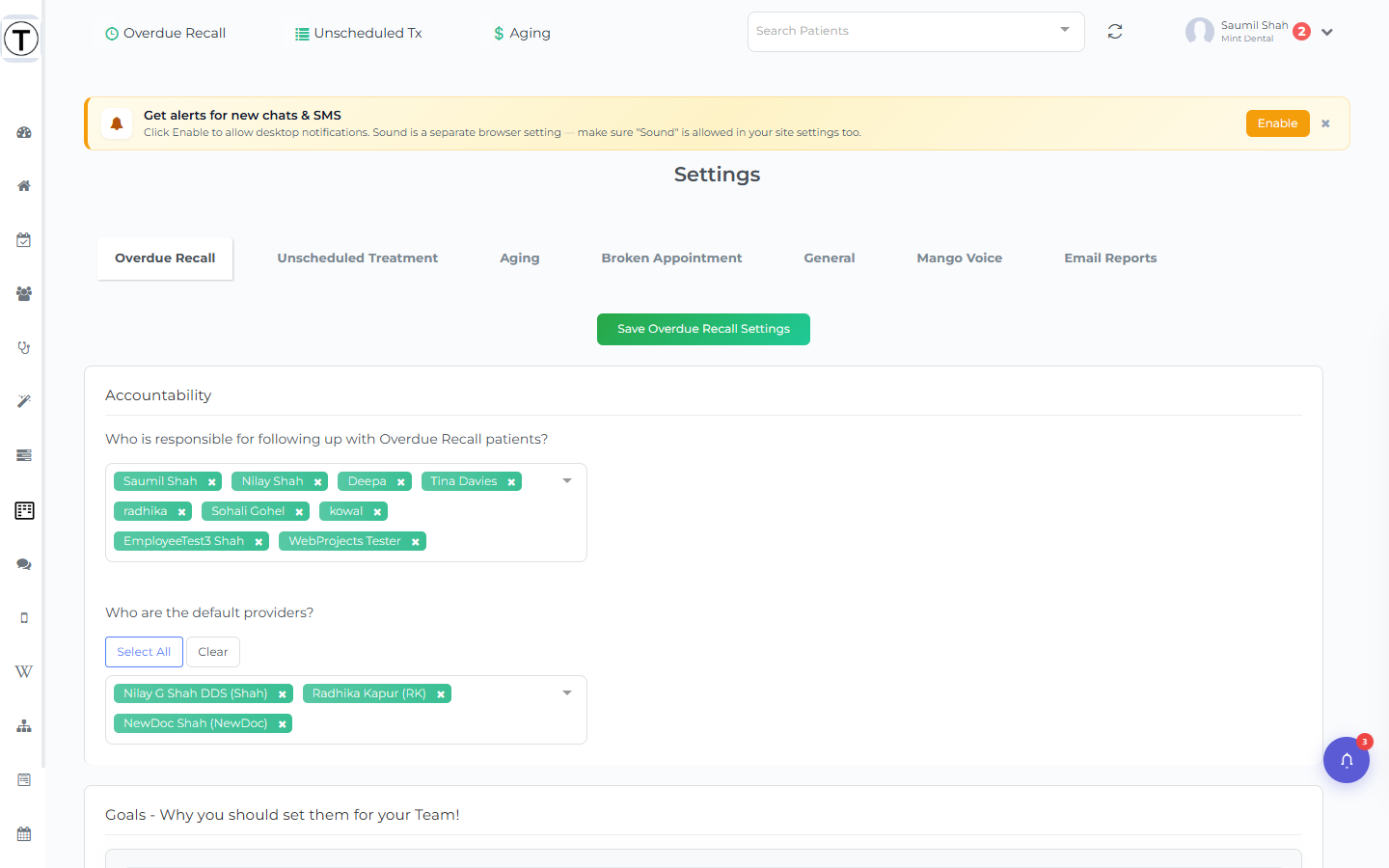
Accountability — the responsible employee(s) who own follow-ups for this list. (This is also why the panel warns “You are not the assignee” when someone else tries to log an attempt, and why named Employees can see the list at all.)
-
Goals - Why you should set them for your Team! — the daily/weekly/monthly call goal that shows as the Call Goals progress panel on the list page and on Today’s Dashboard.
-
Follow-ups → Maximum #of Follow-ups — how many attempts a patient gets before Teamio stops surfacing them. (This is the “1 / 3 completed” counter in the panel.)
-
Auto Set frequency of Followup calls : — the spacing between attempts, two ways:
- Even spacing — “Each subsequent Follow-up call should occur [N] [day(s)/Week/Month(s)] from previous follow-up.” Simple and consistent.
- Custom Frequency : — a different gap after each attempt (e.g. retry in 2 days, then 1 week, then 2 weeks). Good for tapering off politely.
-
Patient’s Communication Log — “Copy follow-up Note to patient’s Communication Log in Open Dental?” writes each note into Open Dental too, so the record lives in both places.
Overdue Recall — default providers
Section titled “Overdue Recall — default providers”The Overdue Recall tab also sets Who are the default providers? (with Select All / Clear). This is why the Overdue Recall list pre-loads with providers already selected.
The status board (drives automation)
Section titled “The status board (drives automation)”Rules for Follow-up Tasks Logic & Automation is a drag-and-drop board: drag each of Your Statuses from Open Dental into one of three buckets — Appointment Scheduled, Require a Follow-up, or Don’t Follow-up.
These buckets become the Follow-up Status options in the panel and drive automation (e.g. a patient who reaches an “Appointment Scheduled” status drops off the list). Some sites show “This section is locked for security!” where Teamio has locked the mapping.
Unscheduled Treatment extras
Section titled “Unscheduled Treatment extras”The Unscheduled Treatment tab adds:
- Custom Code Categories — name a set of procedure codes (e.g. “Implants”). These become the Custom Tags filter on the list.
- Codes to Include / Codes to Exclude — the saved code sets that the list page’s Load saved Proc Codes shortcut loads.
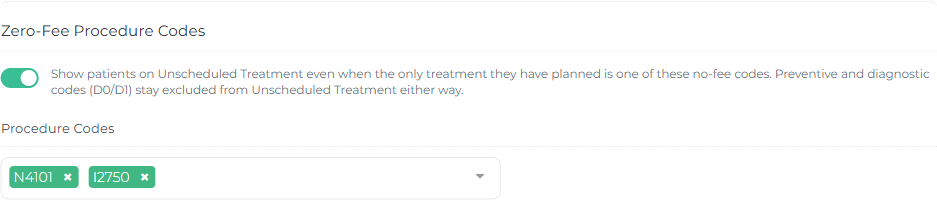
- Zero-Fee Procedure Codes — off unless you turn it on. Some practices plan treatment under codes that carry no fee in Open Dental, and a plan adding up to $0 is normally left off the Unscheduled Treatment list altogether — so those patients never surface. Switch this on, pick the codes that should count anyway, and those patients appear. They show a $0 Tx Plan Amt, which is expected rather than a data problem. Nominating a code only sets aside the fee rule: preventive and diagnostic codes (D0/D1) stay off Unscheduled Treatment either way.
Aging and Broken Appointment
Section titled “Aging and Broken Appointment”The Aging tab carries Accountability/Goals/frequency sections for each of its lists.
The Broken Appointment tab has the same accountability/goals/frequency/status settings, plus an Open Dental Broken Appointments Settings section and a warning banner if Open Dental isn’t tracking broken appointments.
How it shows up for the team
Section titled “How it shows up for the team”Once set, a staff member opening the follow-up panel sees the next date pre-filled by these rules and the attempts remaining from your maximum. They can still Override a date when a patient asks for a specific time — but the default keeps everyone consistent without thinking about it.