
Forms overview
Teamio Forms are digital intake, consent, and medical-history forms that patients fill out on their own phone — no app to install, no paper to scan. The completed form links to the patient and files straight into Open Dental, so the answers reach the chart and a PDF lands in the imaging module automatically.
Videos
Section titled “Videos”Short video walkthroughs of Forms functionality for getting started.
What you can do with Forms:
- Build your own forms in a drag-and-drop builder, or start from a template.
- Share a form as a link or QR code — by text, email, or chairside on a tablet.
- Bundle several forms into a single packet so a new patient completes everything in one sitting.
- Offer forms in other languages (Spanish, Russian) — translated automatically, with a patient-facing language switch.
- Review submissions as the patient filled them out, including signatures, with safety-critical answers highlighted.
- File to Open Dental — answers map to chart fields, and the completed PDF files into imaging.
The three form types (set at creation, locks after the first save):
- New Patient (NP_FORM) — first-visit intake: demographics, insurance, history. Use for anyone new to the practice.
- Medical-History Update (MED_HX_UPDATE) — a returning patient refreshing their medical history. Use this when you want the answers to drive the medical-history flows and the optional update reminders.
- Other (OTHER) — everything else: consents, authorizations, surveys, single-purpose forms. Use when the form isn’t a full intake or a history update.
Where: Left sidebar > Forms
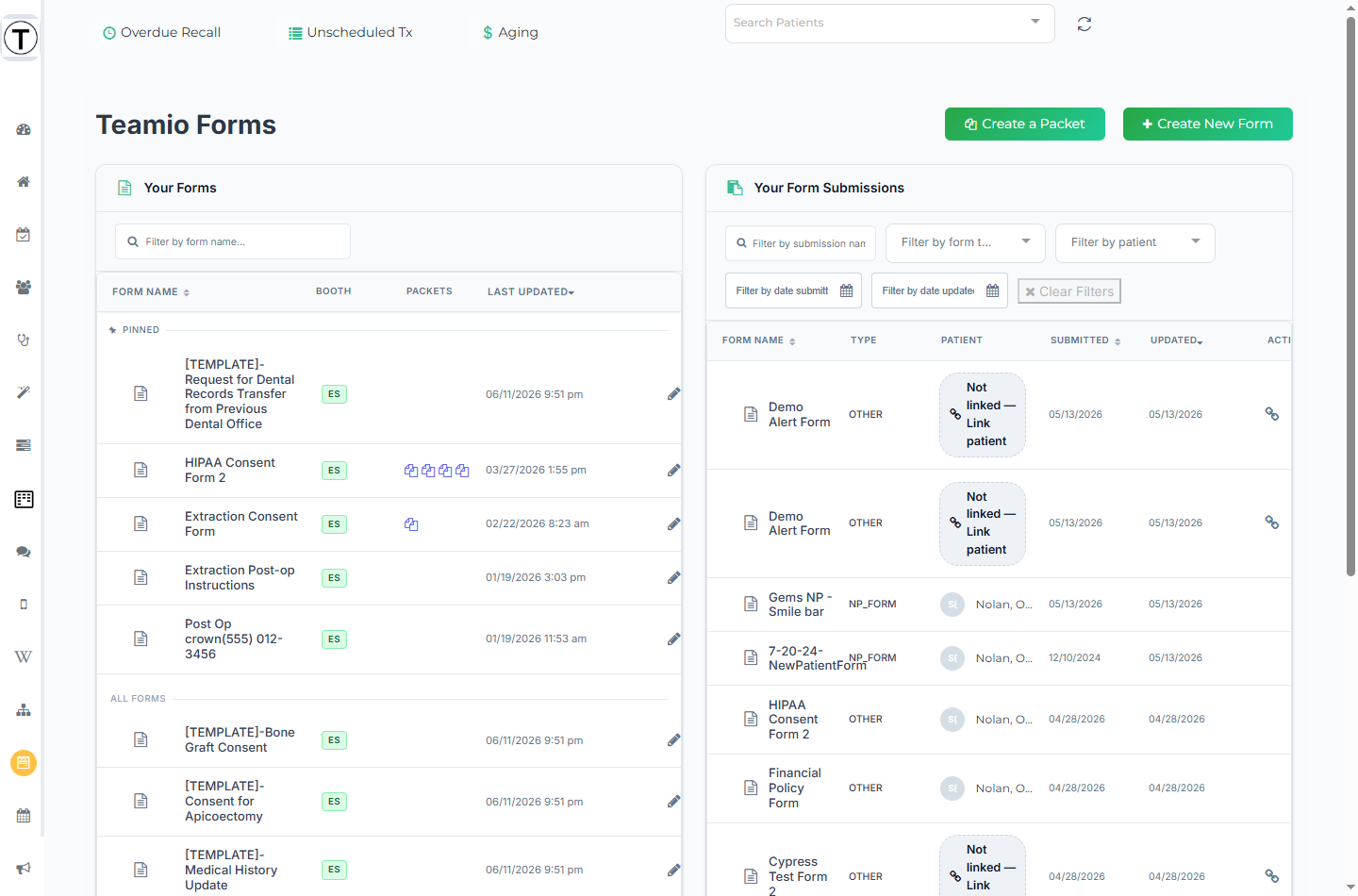
The Forms page
Section titled “The Forms page”The page title is Teamio Forms, and it has two panels side by side.
Your Forms
Section titled “Your Forms”Every form your office has built. Columns: Form Name, Lang (the extra languages enabled on the form, shown as ES / RU badges), Packets (a packet icon if the form belongs to one — hover for the packet name), Last Updated, and Actions.
- Search with Filter by form name… above the list.
- The list shows 10 per page with Showing X-Y of Z and Page X of Y controls at the bottom.
- Packets appear right in this same list with a PACKET badge. See Creating a packet.
- Pinned forms and packets float to a Pinned section above the rest of the list.
Each row’s Actions column has:
| Action | Icon | Who sees it |
|---|---|---|
| Modify Form | pencil | Admin / Manager |
| Delete Form | trash | Admin / Manager (disabled with the tooltip This form is protected and cannot be deleted on protected forms) |
| Get Short URL For the Form | link | Everyone who can view Forms |
| Pin Form / Unpin Form | thumbtack | Everyone who can view Forms |
Clicking a form row (or the pencil) opens it for editing — for users without edit permission, the row is read-only.
At the top of the page: Create a Packet and Create New Form buttons, plus the Settings icon (the gear ⚙️) next to Create New Form — Teamio uses this to set up medical-history update reminders for your practice.
Your Form Submissions
Section titled “Your Form Submissions”Completed forms coming back from patients. Columns: Form Name, Type (NP_FORM, MED_HX_UPDATE, or OTHER), Patient, Submitted, Updated, and Actions. A language badge (e.g. ES) appears when the patient completed the form in another language.
Filter bar: Filter by submission name…, Filter by form type, Filter by patient, Filter by date submitted, Filter by date updated, and Clear Filters. Submissions also paginate 10 per page.
- A submission with no patient shows a Not linked — Link patient pill; select it to open the Link Submission to a Patient modal. A linked patient name is a link that opens the Patient Profile in a new tab.
- Submissions can be pinned/unpinned just like forms.
- Click a submission to read it — see Viewing submissions.
Key concepts
Section titled “Key concepts”- Form — one fillable document (new-patient intake, medical history update, consent…). Built once in the form builder, reused forever.
- Packet — a bundle of two or more forms sent as one link, so a new patient completes everything in one sitting. See Creating a packet.
- Form type — every form is NP_FORM (new-patient intake), MED_HX_UPDATE (medical-history update), or OTHER. The type governs which back-end flows run (for example, medical-history processing); how individual answers reach the chart is set per control. The type is chosen at creation and locks after the first save.
Empty states
Section titled “Empty states”- No forms yet: No forms available yet. Please click “Create New Form” button above to get started.
- No submissions yet: No submissions available yet.
- If your site doesn’t have the Forms feature, the page shows TeamIO Forms Not Available with a Request Forms Feature button.
Common jobs
Section titled “Common jobs”- Create a form — the builder, sections, and controls
- Share a form with a patient
- Get the consent form for a patient’s appointment — the right consent, teeth already filled in
- See what the patient experiences
- Read submissions
- Offer forms in Spanish or another language
- Where the PDF goes in Open Dental