
Working the Aging lists
Where: Top navigation bar → Aging
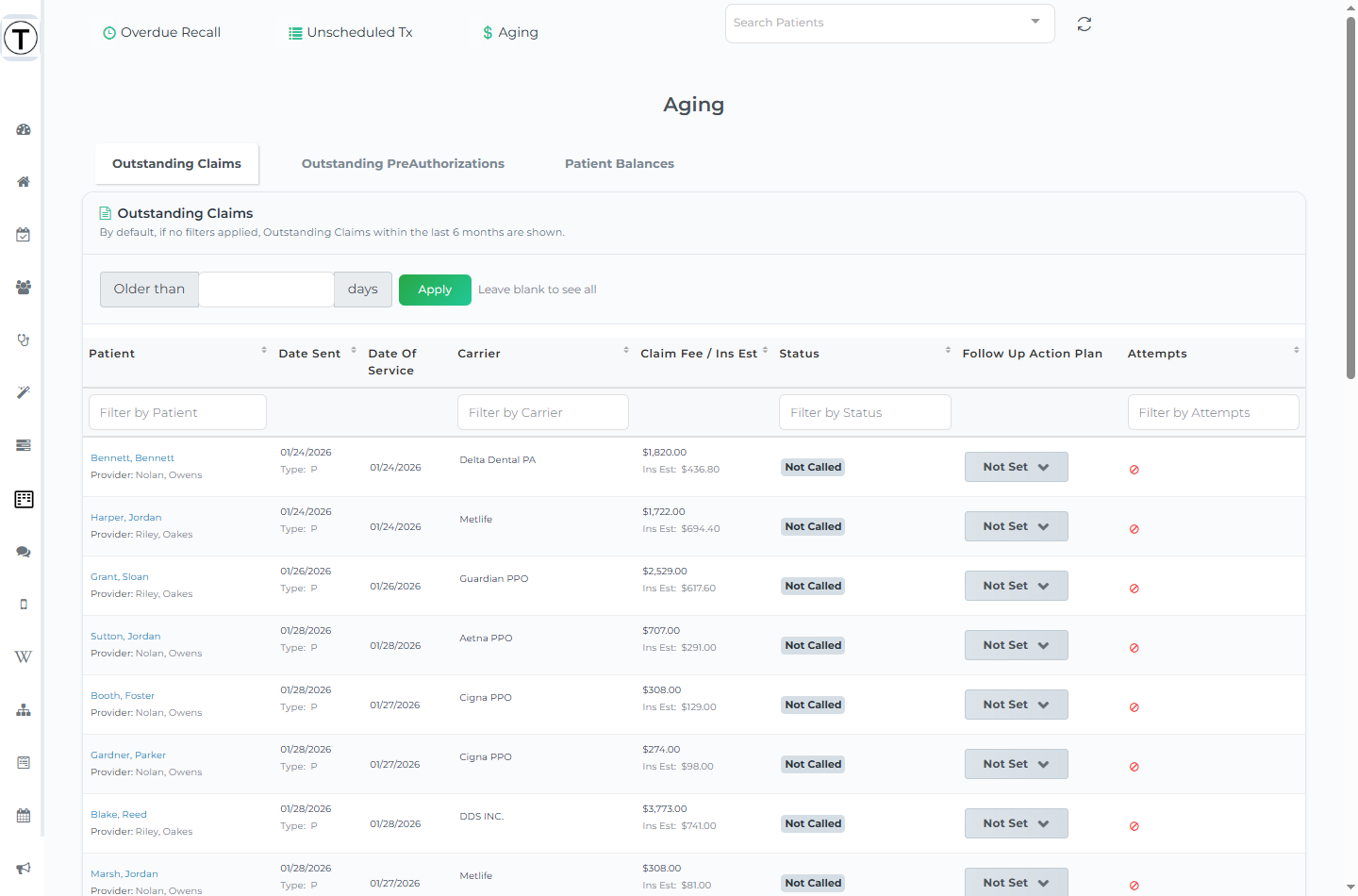
Aging is three lists in one page. It opens straight into tabs — there are no summary cards. You can deep-link to a tab with #outstandingClaims, #preAuth, or #patientBalances in the URL.
These rows have no checkboxes, no mass messaging, and no saved lists — unlike Recall and Unscheduled Tx, you work them one at a time. To open a row, select the patient or guarantor name; that opens the follow-up panel (one more click on the name inside the panel reaches the full profile).
The three tabs
Section titled “The three tabs”Outstanding Claims
Section titled “Outstanding Claims”Insurance claims submitted but unpaid. Filter with Older than [N] days plus Apply (leave it blank to see the last six months). Work oldest-first; carriers count on slow follow-up.
Columns: Patient, Date sent (with the claim Type), Date of Service, Carrier, Claim Fee / Ins Est, Status, Follow up Action Plan, Attempts.
Outstanding PreAuthorizations
Section titled “Outstanding PreAuthorizations”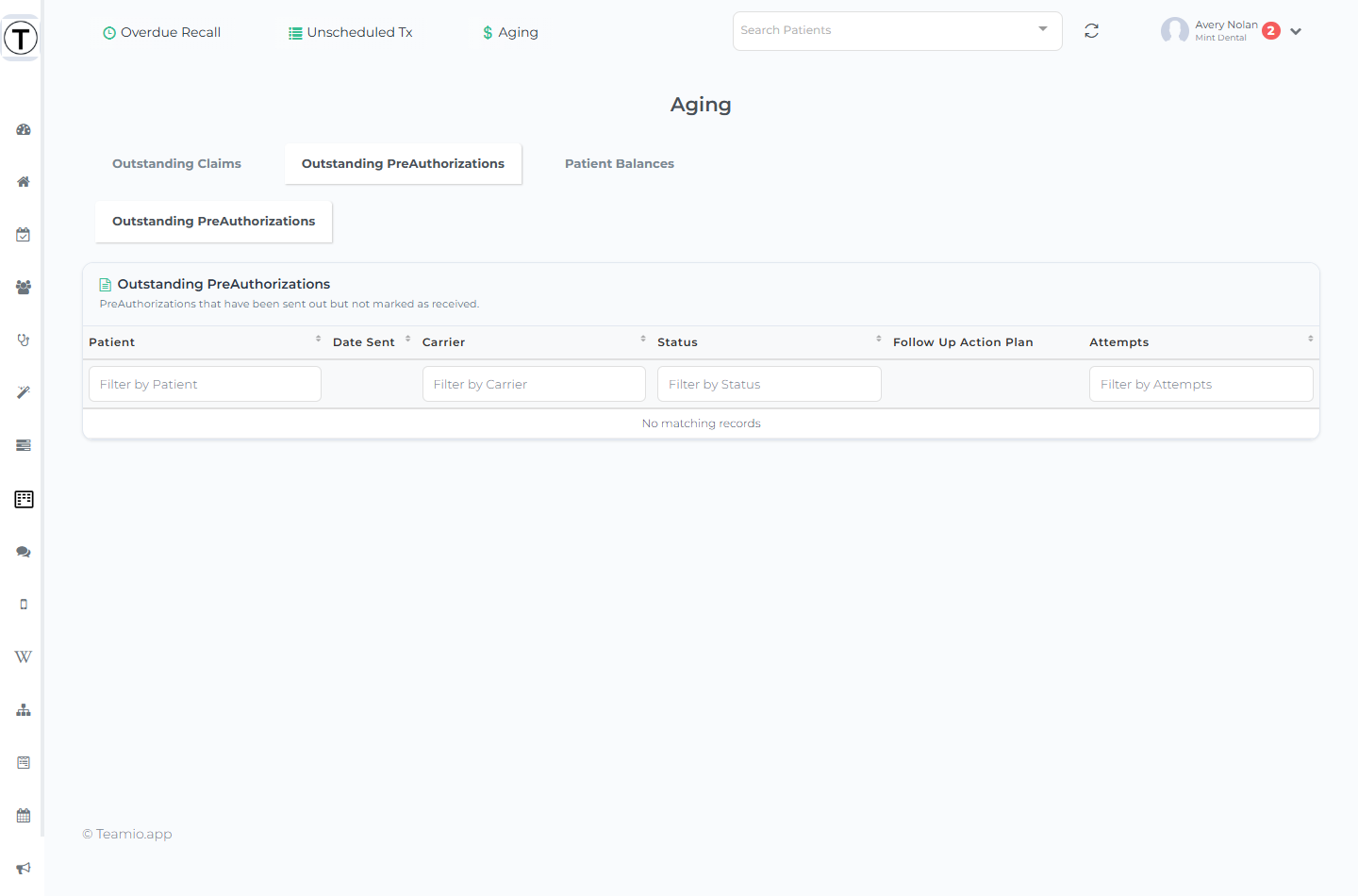
Pre-authorizations awaiting a carrier response. This tab has no filter. Each row is a patient whose treatment is stalled on paperwork; when one comes back, treatment should get scheduled the same week. (A workflow on the Pre-Auth Marked As Received trigger can create that task automatically.)
Patient Balances
Section titled “Patient Balances”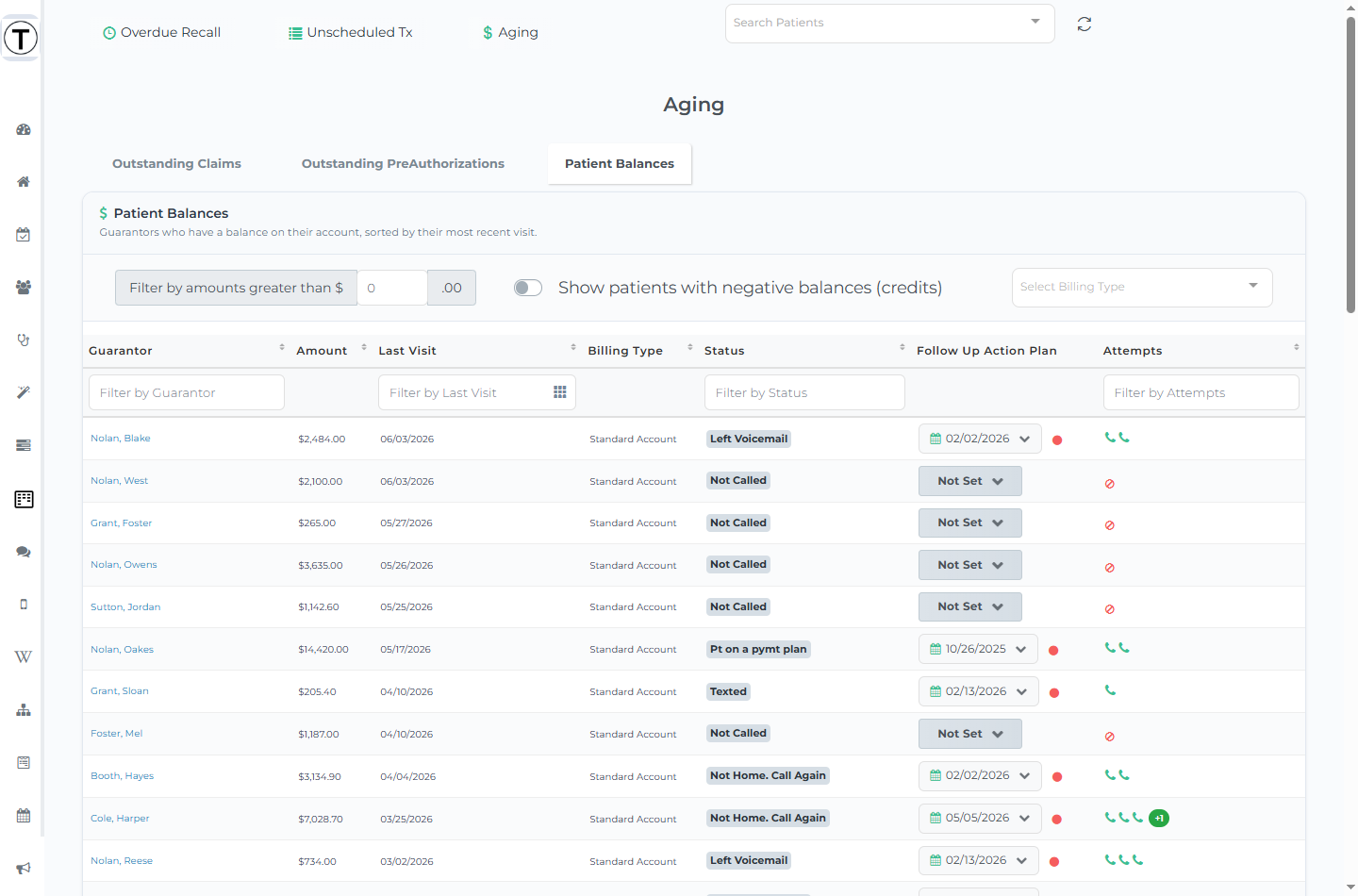
What patients owe after insurance. Three filters: Filter by amounts greater than $, a Show patients with negative balances (credits) switch, and a Select Billing Type dropdown.
Columns: Guarantor, Amount, Last Visit, Billing Type, Status, Follow Up Action Plan, Attempts.
To send a payment link for a balance — including text-to-pay — open the patient from the row and use Collect Payment on the patient profile.
Working a row
Section titled “Working a row”Select a name to open the follow-up panel, log every contact, and let the next date carry the story forward — “called carrier 6/10, reprocessing, check back 6/24” is the difference between following up and starting over.
Two things are unique to Aging:
- Assign to Employee. Inside the Follow up Action Plan date dropdown there’s an Assign to Employee: selector that hands a specific claim or balance to one of the responsible employees. The assignment then shows under the cell. (The next follow-up date here is directly editable — no Override link.)
- Extra panel tabs. The follow-up panel shows Claim Information and Claim Status History on claims, Outstanding PreAuthorization Info on pre-auths, and Outstanding Claims for Family on balances.