
Choosing an option & paying
This is the patient’s side of the plan, whether they’re reading the link at home or you’re presenting chairside. Understanding it helps you guide them and follow up.
Choosing a payment option
Section titled “Choosing a payment option”Below the Plan Summary, the patient sees payment option cards — Pay in full, Half & Half, an in-house plan, financing, and so on.
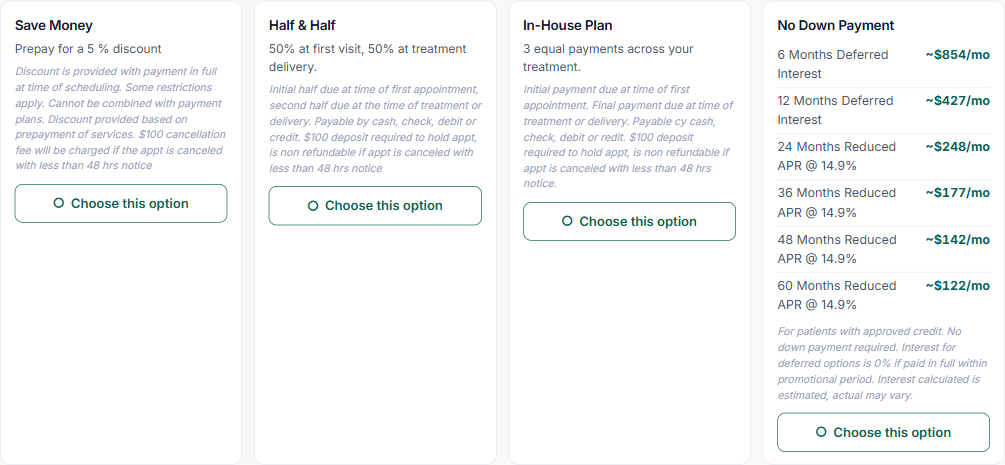
- Tapping a card highlights it, shows a green “Chosen” badge, and updates the Plan Summary above instantly (total due, what they pay, per-payment amounts).
- Only one option is ever selected — tapping another switches to it.
- When the patient picks an option on their own link, it shows a green “Sent to your office” so you can see their choice and follow up.
After signing: the guided next-steps wizard
Section titled “After signing: the guided next-steps wizard”The moment the patient signs — at home or chairside — Teamio can walk them straight through what’s left, instead of leaving them to find it on their own.
If your practice has this turned on (Settings → General → Guide patients after signing, on by default), a step-by-step popup opens right after the signature:
- Any consent forms mapped to procedures on the plan open and fill out one at a time, right there in the popup — the patient never leaves the page or opens a new tab.
- Once every consent form is signed, an optional payment step appears. The patient can pay right then, or skip it and pay later from the plan page — payment is never required to finish.
The plan’s top banner also shows a live “Signed” state and a way to reopen the wizard if the patient closes it early. This tracking is per treatment plan, so completing the steps for one plan never marks a different plan as done.
Turn the wizard off in Settings if you’d rather patients see the plain sign-then-pay flow.
Making a payment
Section titled “Making a payment”The payment area sits below the signature card — on the patient’s link (at home) and below the signature in Present Mode (chairside). It always shows Paid so far, Remaining, and a list of any payments already made.
At home (card only): after signing, the patient enters an amount (pre-filled with your suggested amount, capped at the remaining balance) and taps Pay $X now to open a secure card page. The payment then appears in the history and Remaining drops. They can pay again anytime until it reads Paid in full.
Chairside: you collect through the same area using the methods in Collecting a deposit or payment — terminal, pay link, cash, check, or “mark as financed.”
Good to know:
- Payments land in Open Dental as prepayments with your configured payment type.
- Payment dates show in your practice’s time zone, so an out-of-town patient still sees the office’s date.
- The amount can never exceed the remaining balance; at $0 the area reads Paid in full.