
Working with drafts
Leave the campaign wizard before sending and your work lands in Drafts — nothing is lost.
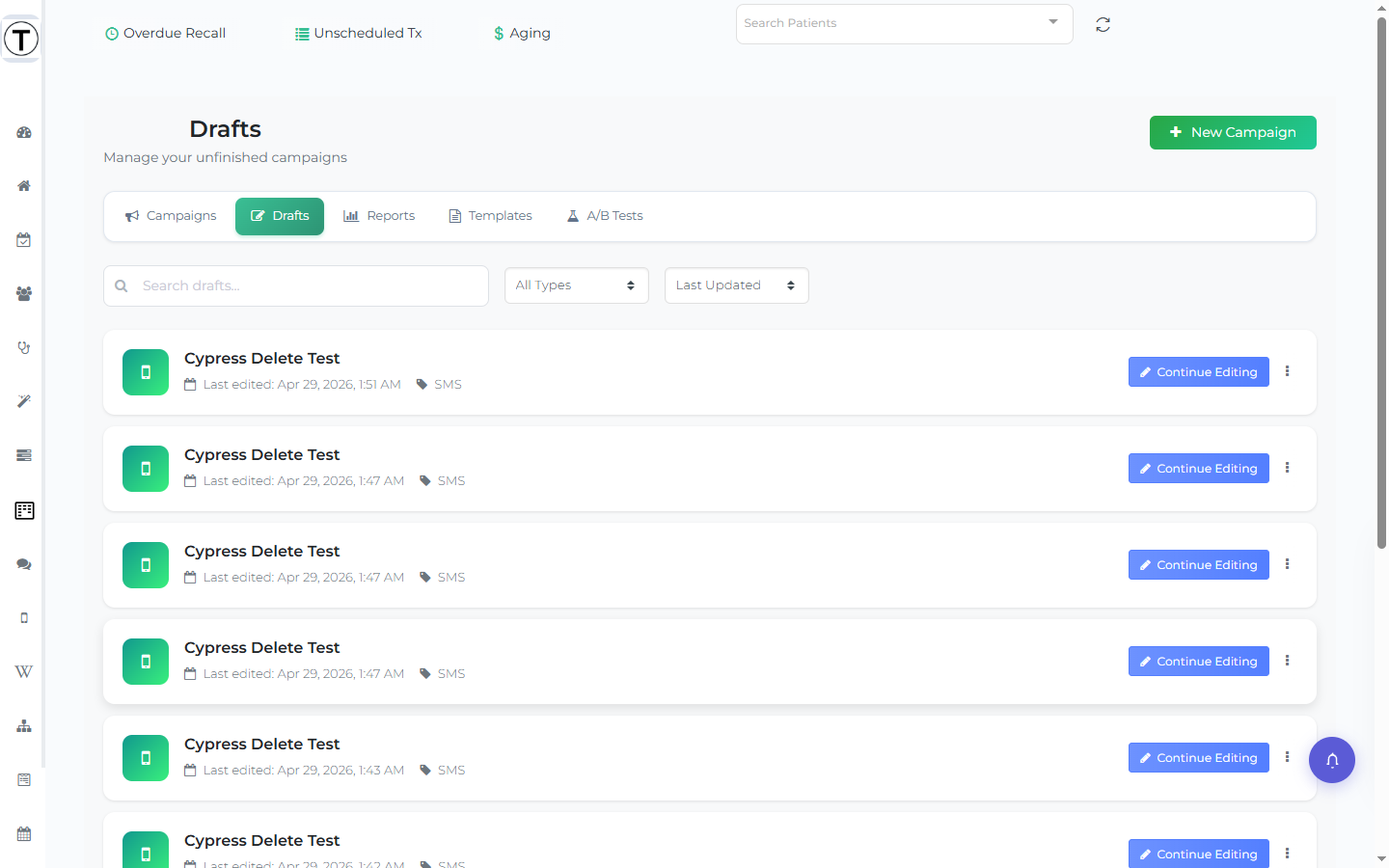
Where: Sidebar > Campaigns > Drafts
What you’ll see
Section titled “What you’ll see”Each draft is a horizontal card showing the campaign name, a colored type icon with its type in the meta row (email, SMS, or both), a Last edited: timestamp, the recipient count if you got that far, and a Continue Editing button that reopens the wizard where you left off.
Saved audiences appear here too. When you use Save List in the recipient step to store an audience without sending, that list shows up in this view with a list status alongside your true drafts — so you may see entries you never “drafted”. See Saving and reusing patient lists.
A toolbar above the cards helps you find one:
- A Search drafts… box.
- A type filter (All Types / Email / SMS / Email & SMS).
- A sort dropdown (Last Updated / Date Created / Name (A-Z)).
- Pagination when there are more than fit on a page.
The New Campaign button here takes you to the Campaigns page, where the wizard opens.
Managing a draft
Section titled “Managing a draft”The card’s three-dot menu offers:
- Duplicate — copy the draft to spin off a variant.
- Rename — opens a Rename Draft modal with a Draft Name field.
- Delete — opens a Delete Draft confirmation (“This action cannot be undone”).
- Drafts are a feature, not a failure — drafting Tuesday and sending Thursday morning beats rushing a send at 5 pm.
- Duplicate a nearly-right draft rather than rebuilding from scratch.
- Prune dead drafts now and then so the list stays meaningful.