
Creating and assigning tasks
My Tasks is your team’s shared to-do list. You add a task, point it at a teammate, give it a due date, and it shows up on their list and yours right away.
Where: Sidebar > My Tasks (/app/todo)
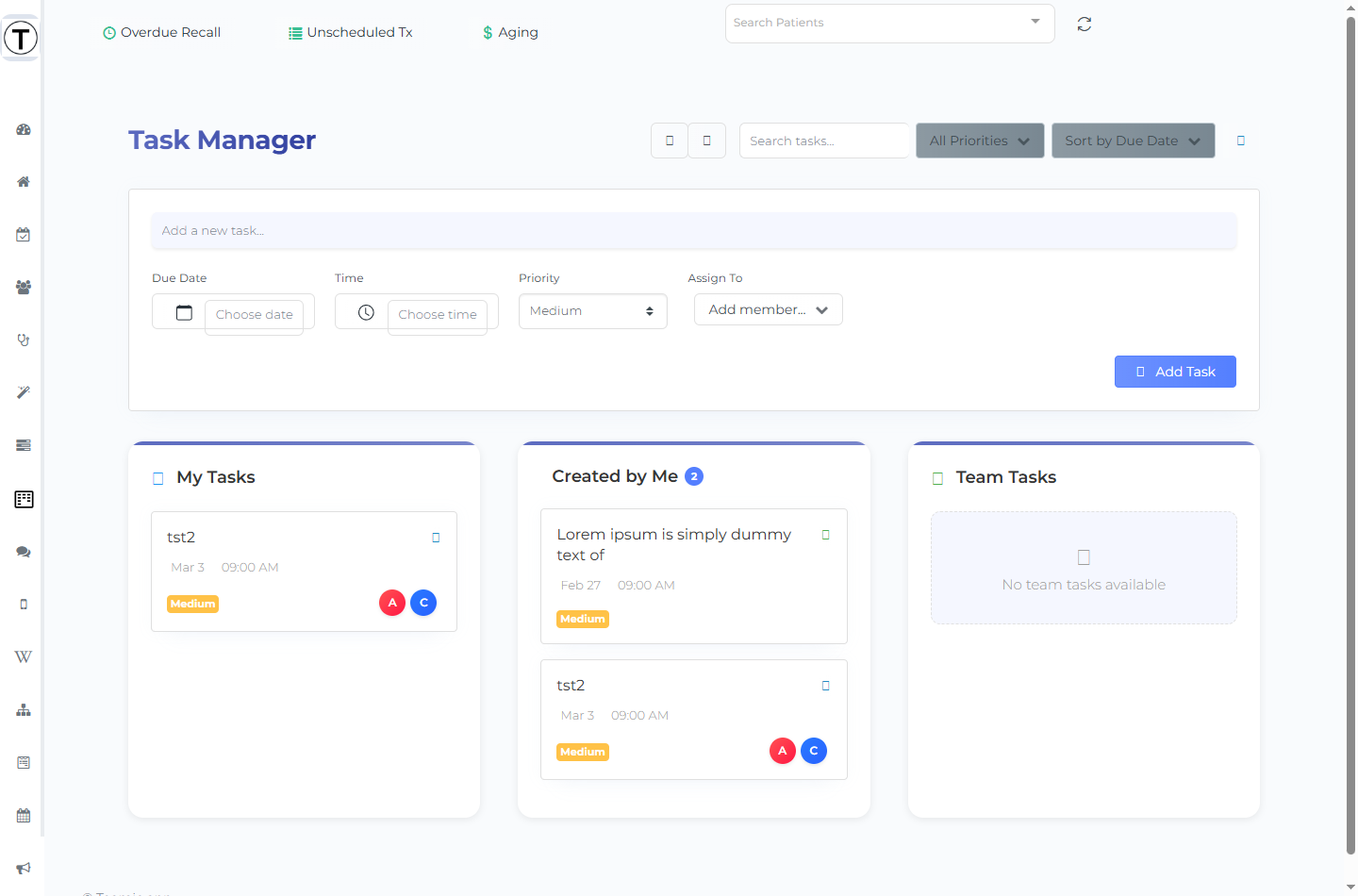
The very first time you open My Tasks you’ll see a Streamline Your Workflow with Tasks intro with feature cards and a Start Creating Tasks button. Once you’ve added a task, the list takes over.
Add a task
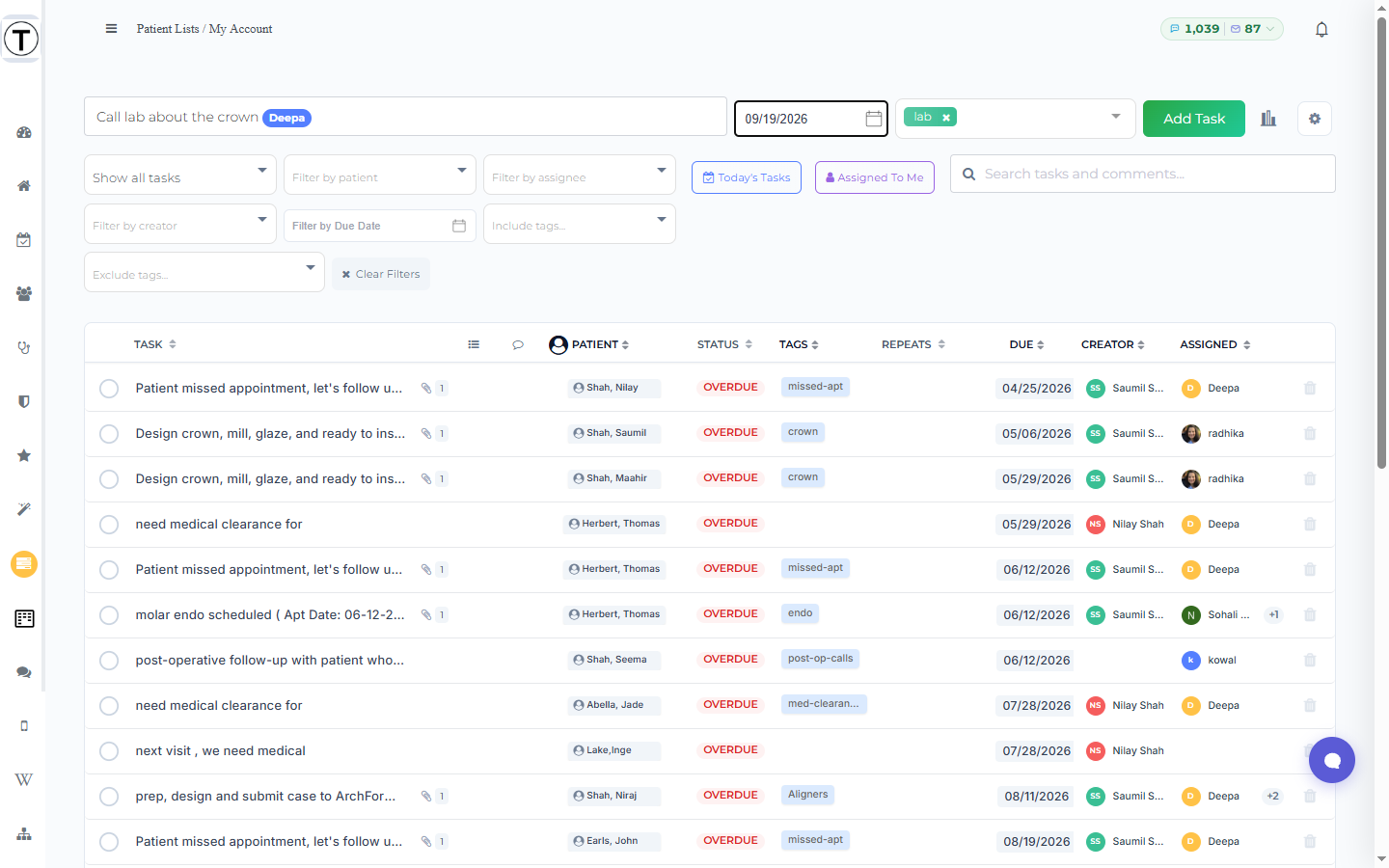
Section titled “Add a task”There is no pop-up dialog. You type the task into the composer at the top of the page and press Add Task.
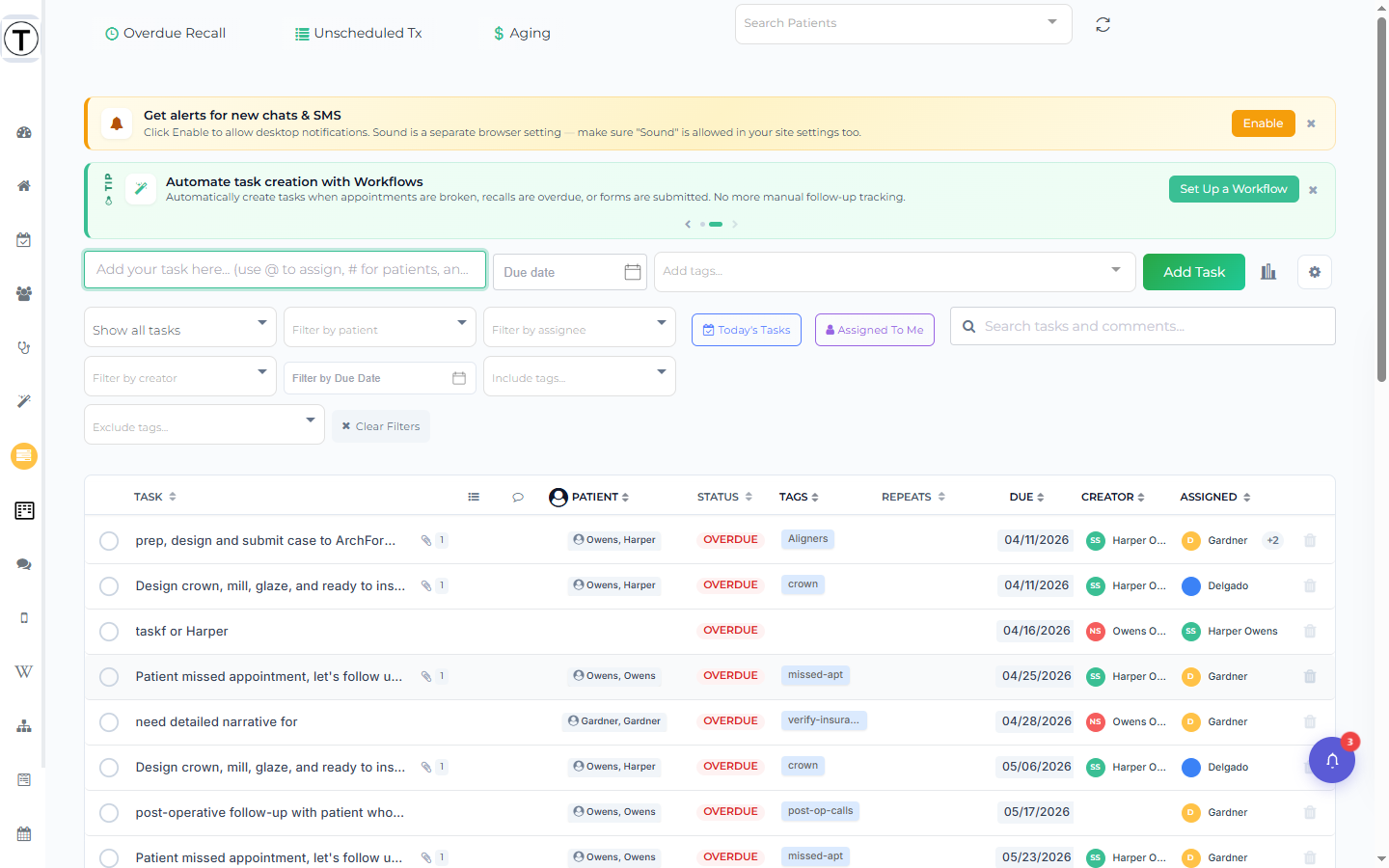
- Select the composer input — it reads Add your task here… (use @ to assign, # for patients, and natural language for dates like ‘by Tuesday’ or ‘every Monday’).
- Enter what needs doing, e.g. Call lab about the crown.
- To assign it, enter @ and pick a teammate from the dropdown. Their name becomes a blue pill inside the task text.
- To link a patient, enter # and pick the patient from the typeahead (it lists patients with their date of birth). The patient becomes a pill that links to their profile.
- Optional. Set a deadline with the Due date picker, or just enter a natural-language date in the text — by Tuesday, next Monday — and Teamio reads it.
- Optional. Add a category with the Add tags… multiselect to the right of the input. Pick an existing tag or enter a new word and press Enter to create it.
- Select the green Add Task button.
The task appears in the list immediately — and on the assignee’s list too.
Work the list
Section titled “Work the list”Each task is a row you can act on without opening it:
- Completion circle (far left) — select it to mark the task done; its tooltip toggles between Mark as complete and Mark as incomplete.
- Status badge — every task is Incomplete, Overdue, or Completed. There is no “in progress” state.
- Trash button (far right) — deletes the task (see Delete a task).
The list columns are all click-to-sort: Task, attachments (paperclip + count), subtasks (an x/y count badge), comments (count, with a ! when there are unread comments), Patient, Status, Tags, Repeats, Due (with a Due Today badge), Creator, and Assigned.
Selecting a value inside a row — a patient pill, a tag, a status, a due date, a creator, or an assignee — filters the list by that value, so one click shows you “everything tagged insurance” or “everything assigned to Maria”.
Filter and search
Section titled “Filter and search”The filter row above the list gives you:
- Filter tasks… — a combined dropdown: Show all tasks, Show incomplete tasks only, Show overdue tasks only, Show tasks with new comments, Show repeating tasks only, Show non-repeating tasks only, Show all completed tasks, and Delete all completed tasks.
- Filter by patient, Filter by assignee, Filter by creator, and Filter by Due Date.
- Include tags… and Exclude tags… multiselects.
- Clear Filters to reset everything.
Two quick-action buttons jump to the common views: Today’s Tasks and Assigned To Me.
The Search tasks and comments… box searches both task text and comment text (enter at least 2 characters). Results come back in Tasks and Comments sections.
Open a task: the Task Details panel
Section titled “Open a task: the Task Details panel”Select a task’s text (not its completion circle) to slide out the Task Details panel on the right. Everything about that piece of work lives here:
- Task ID with a copy button — handy when you reference a task to support.
- Created By — who added it.
- Assigned To — the people responsible. Only the creator can change this list; everyone else sees it read-only.
- Patients — the patient(s) tagged with #, linking to their profiles.
- Status badge, plus Completed On and Completed By once the task is done.
- Due Date with a Set to repeat link to turn it into a recurring task (see Recurring tasks).
- Subtasks — break the task into smaller steps; check them off, drag to reorder, and watch the progress bar. See Subtasks, wiki links, and patient comments.
- Attach a Wiki — link a wiki page (a protocol, a script) right to the task.
- Comments — a threaded discussion attached to the task, so context lives with the work instead of scrolling away in chat. Tick Save to CommLog on a comment to copy it into the patient’s Open Dental CommLog.
- Footer buttons: Mark Complete / Mark Incomplete, Save Changes, and Cancel.
Delete a task
Section titled “Delete a task”Select the trash button at the right end of a task row. A one-off task asks Are you sure you want to delete this task?
A repeating task instead opens the Delete Repeated Task choice: Yes - Delete next instance only (skip just this occurrence) or Yes - All instances (end the whole series). See a recurring task didn’t appear if a skipped instance leaves you wondering where a task went.
Whether you can delete a task at all depends on the site-wide Who can delete tasks? setting (creator-only by default, or any employee) — see Task notifications and settings.
- Write tasks so anyone could pick them up: who, what, and by-when in the description.
- One owner per task beats three — shared tasks diffuse responsibility. For team-visible work stages, use a Kanban board instead.
- Tasks can also be created automatically by workflows — e.g. every broken appointment spawns a follow-up call task.
- Tasks due today also surface on the My Tasks card of Today’s Dashboard.
- Managers: the bar-chart icon next to the composer opens Task reports — your team’s task scoreboard.