
Logging in and switching sites
Where: Sign in at https://prod.teamio.app.
Teamio has no separate Teamio password. You sign in with the Google or Microsoft work account your office set up for you — the same account you already use for work email. This is called single sign-on (SSO): Teamio never sees or stores your password; Google or Microsoft confirms it’s you.
The sign-in screen
Section titled “The sign-in screen”When you open https://prod.teamio.app while logged out, you’ll see this:
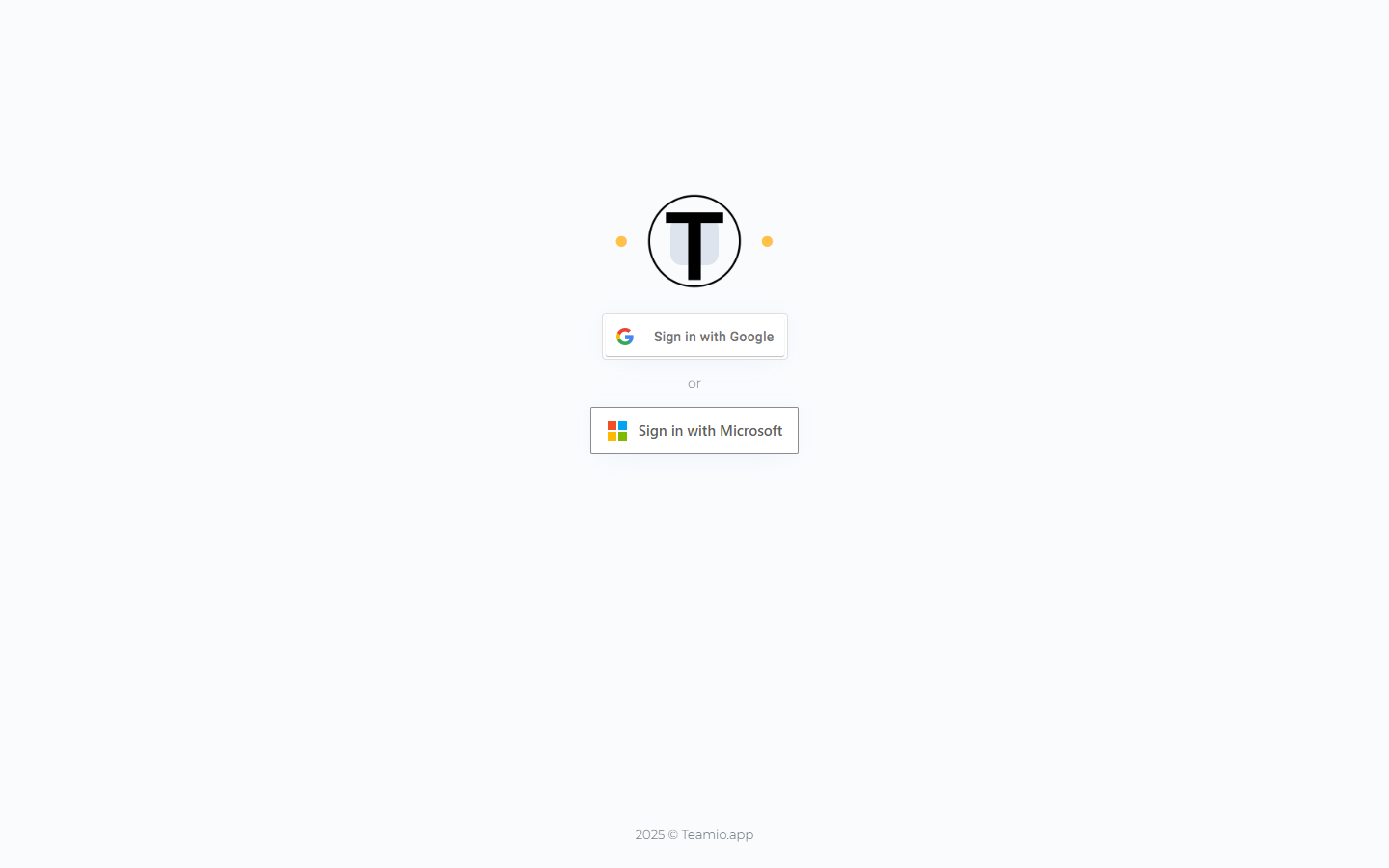
There are two ways to sign in, and you only ever use one — whichever your office used when they created your account:
| Button | Choose this if your work email is… | Examples |
|---|---|---|
| Sign in with Google | A Google / Google Workspace account | you@gmail.com, or a practice domain running on Google (you@brightsmiledental.com hosted by Google Workspace) |
| Sign in with Microsoft | A Microsoft 365 / Outlook account | you@outlook.com, you@hotmail.com, or a practice domain running on Microsoft 365 |
Not sure which one? Use the same provider you use to check your work email. If signing in one way fails with “account not found,” it almost always means your account was created under the other provider — try that button instead, or ask your office admin which one your account uses.
Sign in with Google
Section titled “Sign in with Google”- Select Sign in with Google.
- A Google window opens. Pick your work account (or type your Google email and password).
- If Google asks you to allow Teamio access the first time, approve it.
- The window closes and Teamio shows a Signing In overlay (“Please wait while we sign you in…”) while it loads your practice.
Sign in with Microsoft
Section titled “Sign in with Microsoft”- Select Sign in with Microsoft.
- A Microsoft window opens. Pick your work account (or enter your Microsoft email and password).
- Approve the permission prompt the first time.
- The window closes and Teamio shows the Signing In overlay while it loads.
If your account has access to just one location, you land straight on your dashboard.
Picking a site (multi-location accounts)
Section titled “Picking a site (multi-location accounts)”If your account can access more than one location, the Select Site screen appears right after sign-in:
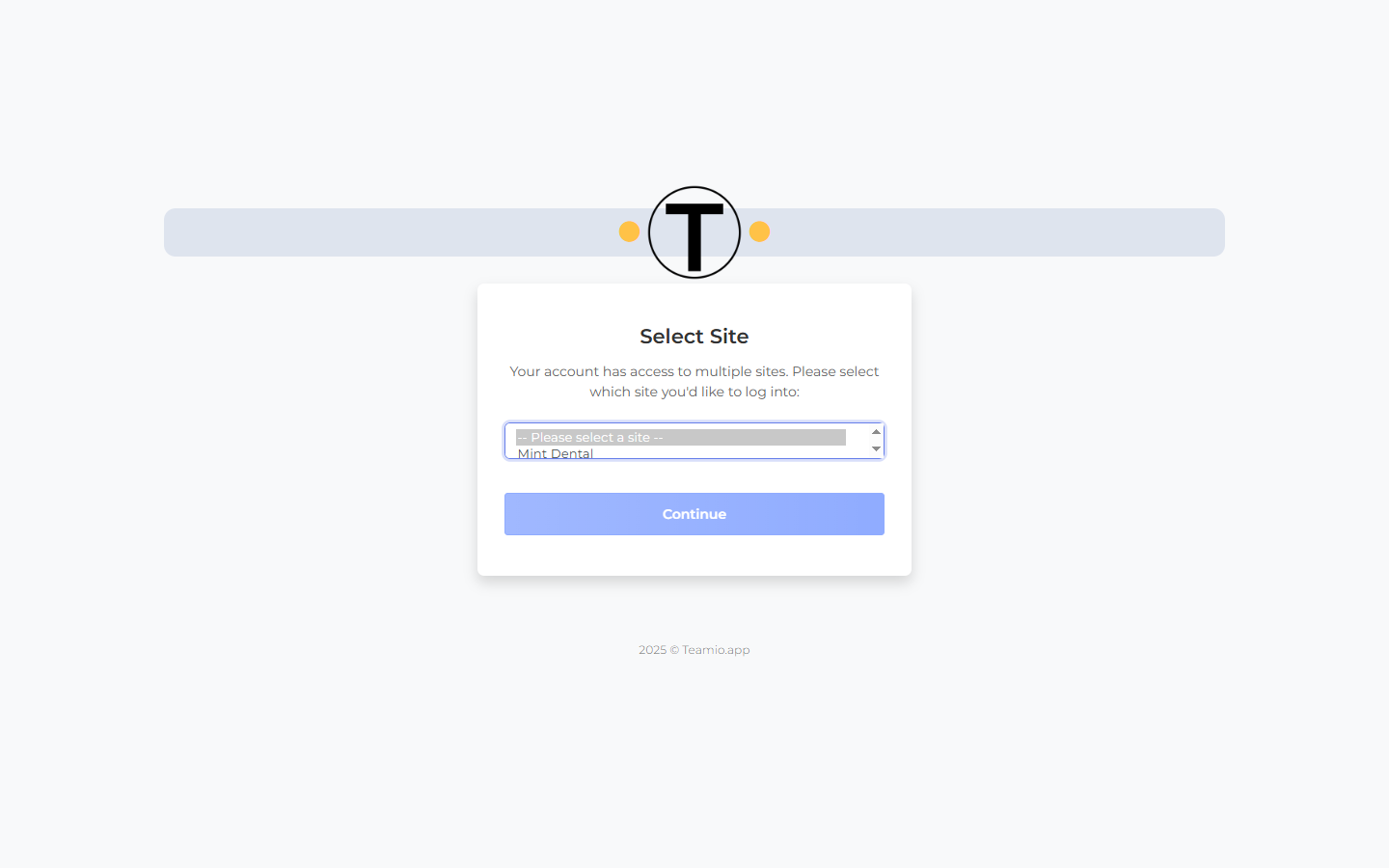
- Open the dropdown — it starts on — Please select a site — — and choose the location you want to work in.
- Select Continue.
Teamio loads that location’s patients, tasks, and settings. The Continue button stays greyed out until you’ve picked a site. If something went wrong loading your sites, the screen offers a Back to Login button so you can sign in again.
Switching sites later
Section titled “Switching sites later”You don’t need to sign out to move to another location. Everything starts from the Settings menu — open it from the Settings icon (the gear ⚙️) in the top-right corner:
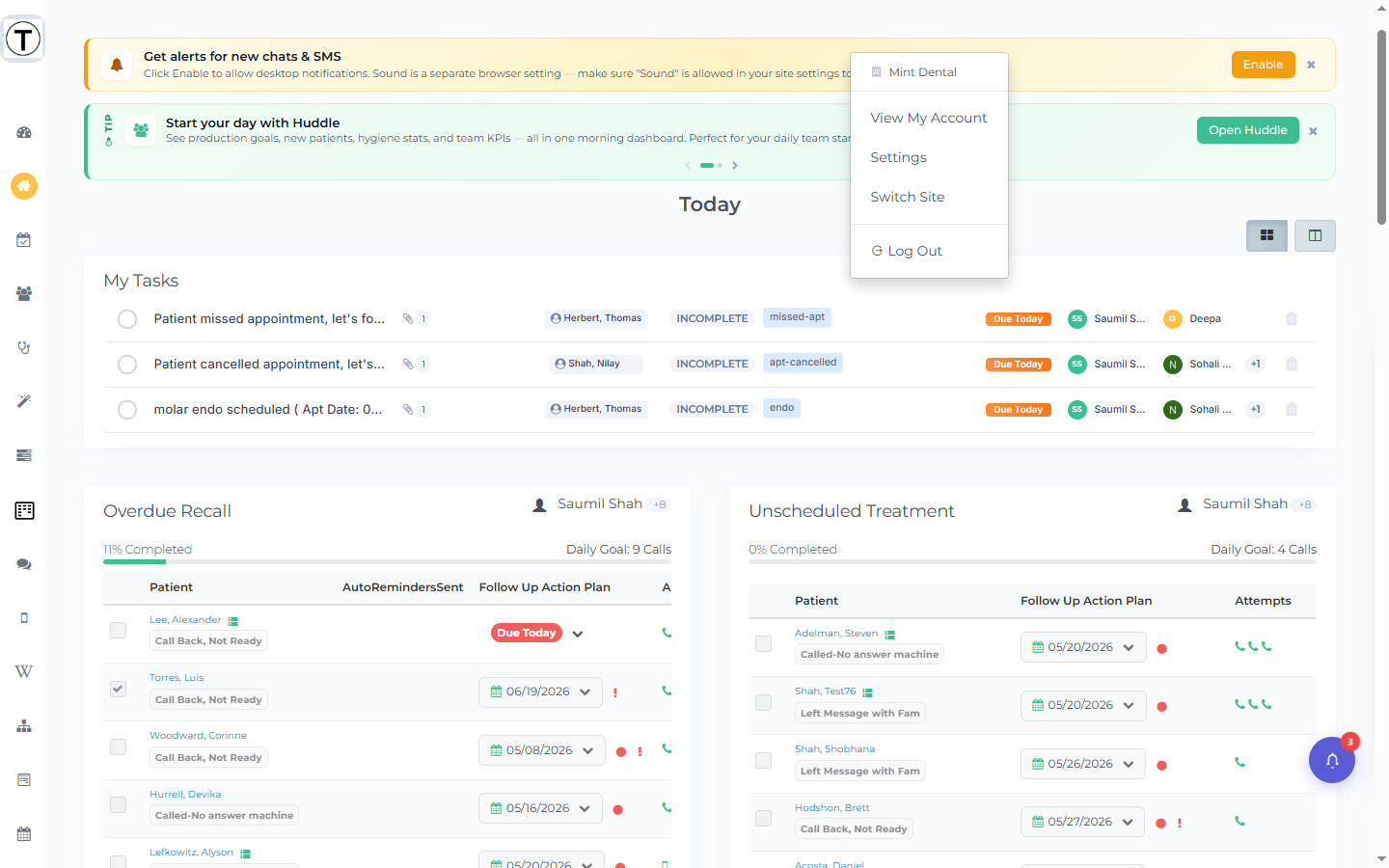
The Settings menu shows the location you’re currently in (next to a building icon) plus View My Account, Settings (Admin only), Switch Site, and Log Out — so you can always confirm where you are before making changes.
To switch:
- Select the Settings icon (the gear ⚙️) at the far top-right of the app.
- Select Switch Site. (This appears only if your account has more than one location. If you only have one, a message reads “You only have access to one site.”)
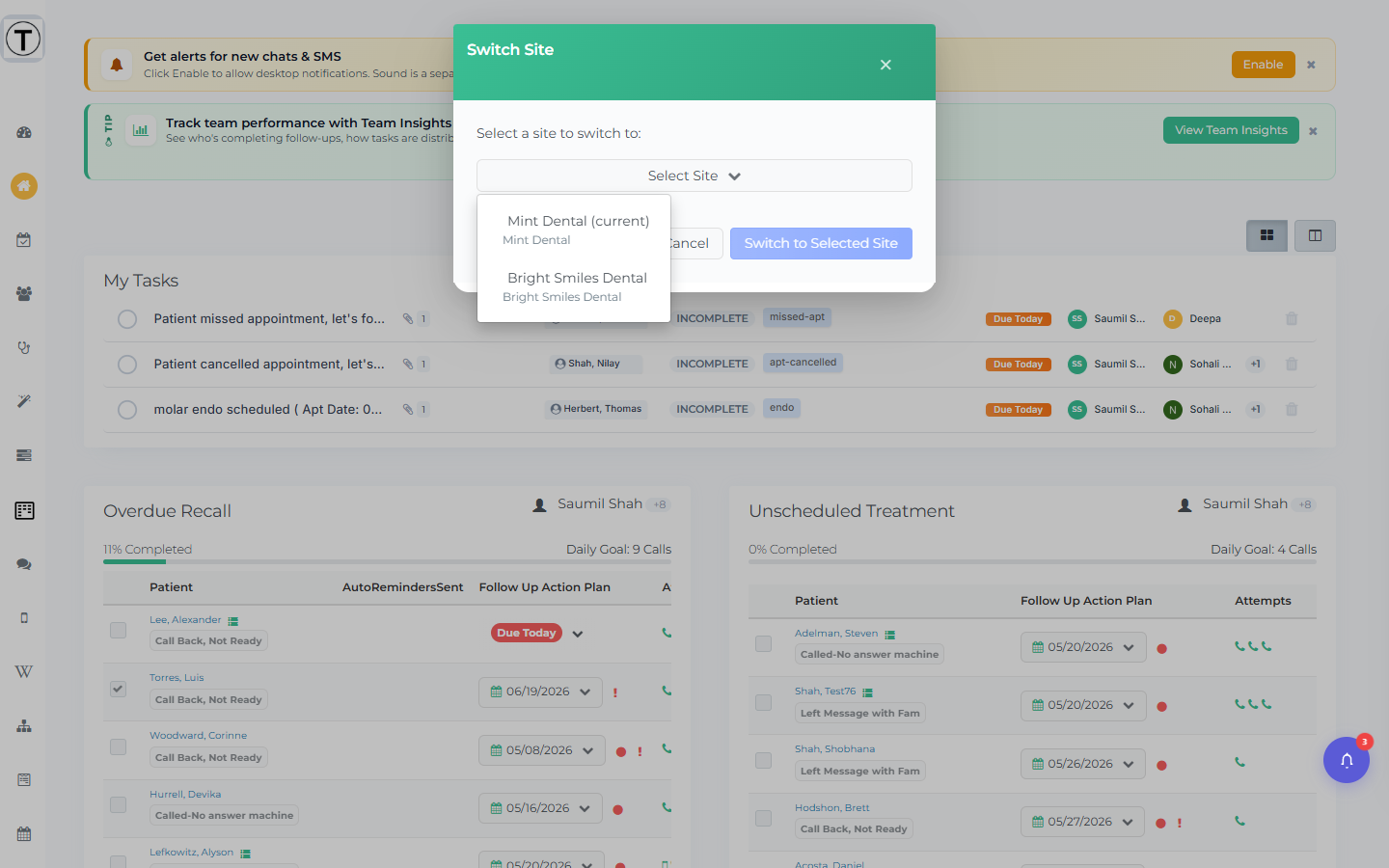
- The Switch Site window opens — “Select a site to switch to:”. Open the Select Site dropdown (your current location is marked (current)) and pick where you want to go.
- Select Switch to Selected Site. The button shows Switching… while Teamio reloads with that location’s data, or select Cancel to stay put.
Staying signed in & signing out
Section titled “Staying signed in & signing out”- Teamio keeps you signed in on the same browser, so you normally won’t re-enter your Google/Microsoft password every visit.
- To sign out of Teamio, open the menu in the top-right corner and click Log Out.
- Signing out of Teamio does not sign you out of Google or Microsoft on your other devices (your phone, your home computer, etc.).
Sharing a computer between employees
Section titled “Sharing a computer between employees”This is the most important thing to know on a shared front-desk computer.
Logging out of Teamio does not automatically sign you out of your Google or Microsoft account. Teamio uses that account to confirm who you are, but it can’t end the account’s own session in the browser — only Google or Microsoft can. So after you click Log Out, your Google/Microsoft account may still be signed in in that browser, and the next person can get logged straight back in as you.
If that happens — it’s most common with Google accounts — sign out of the account itself, too:
- Google: open mail.google.com (or click your Google profile picture at the top-right of any Google page) → Sign out.
- Microsoft: open outlook.com (or click your Microsoft profile picture) → Sign out.
Then the next employee can open Teamio and sign in with their own account.
The cleanest long-term fix for an always-shared computer is to give each employee their own browser profile, or simply close the browser between users — either one clears the signed-in account automatically, with no extra steps. Your IT support can help set this up.
Why was I signed out unexpectedly?
Section titled “Why was I signed out unexpectedly?”You shouldn’t be logged out at random during the day. If it happens, it’s almost always one of these:
- Your access changed. When an office admin changes your role, removes you, or deactivates your account or your location, Teamio signs you out so the change takes effect right away.
- A new version was released. After we ship an update, your open tab may prompt you to refresh (or refresh on its own) to load the latest version. That’s a quick reload, not a real sign-out — you won’t need your password.
- A different browser or device, or cleared browsing data. Each browser keeps its own sign-in, so signing in elsewhere — or clearing your browser data — means signing in again here.
If you’re being signed out repeatedly and none of these fit, contact support and let us know roughly how often it happens and whether it’s just you or the whole office.
Tips & common questions
Section titled “Tips & common questions”- “I don’t see Switch Site.” Your account has access to only one location. (If you do select it on a single-site account, you’ll just see “You only have access to one site.”) Ask your office admin if you need another location added.
- “My sign-in fails / account not found.” You’re probably using the wrong button — try the other provider (Google vs Microsoft). If you see “There was an issue with your login. Please contact Teamio support,” your office admin may not have added you yet, or your email was set up under the other provider.
- “It opened a Google/Microsoft window and nothing happened.” Pop-up blockers can stop the sign-in window. Allow pop-ups for the Teamio address and click the button again.
- “Wrong location loaded.” Use the Settings menu (gear ⚙️ icon, top right) → Switch Site to change it; you don’t need to sign out.