
Appointment reminders
Appointment reminders automatically text and email patients to confirm and remind them about upcoming visits, then give you a day-view board to see who’s confirmed and a full activity log per appointment — so the morning “did they get the text?” question has a definite answer.
The day board
Section titled “The day board”Open Appointment Reminders from the sidebar. The board auto-loads today the moment you open it.
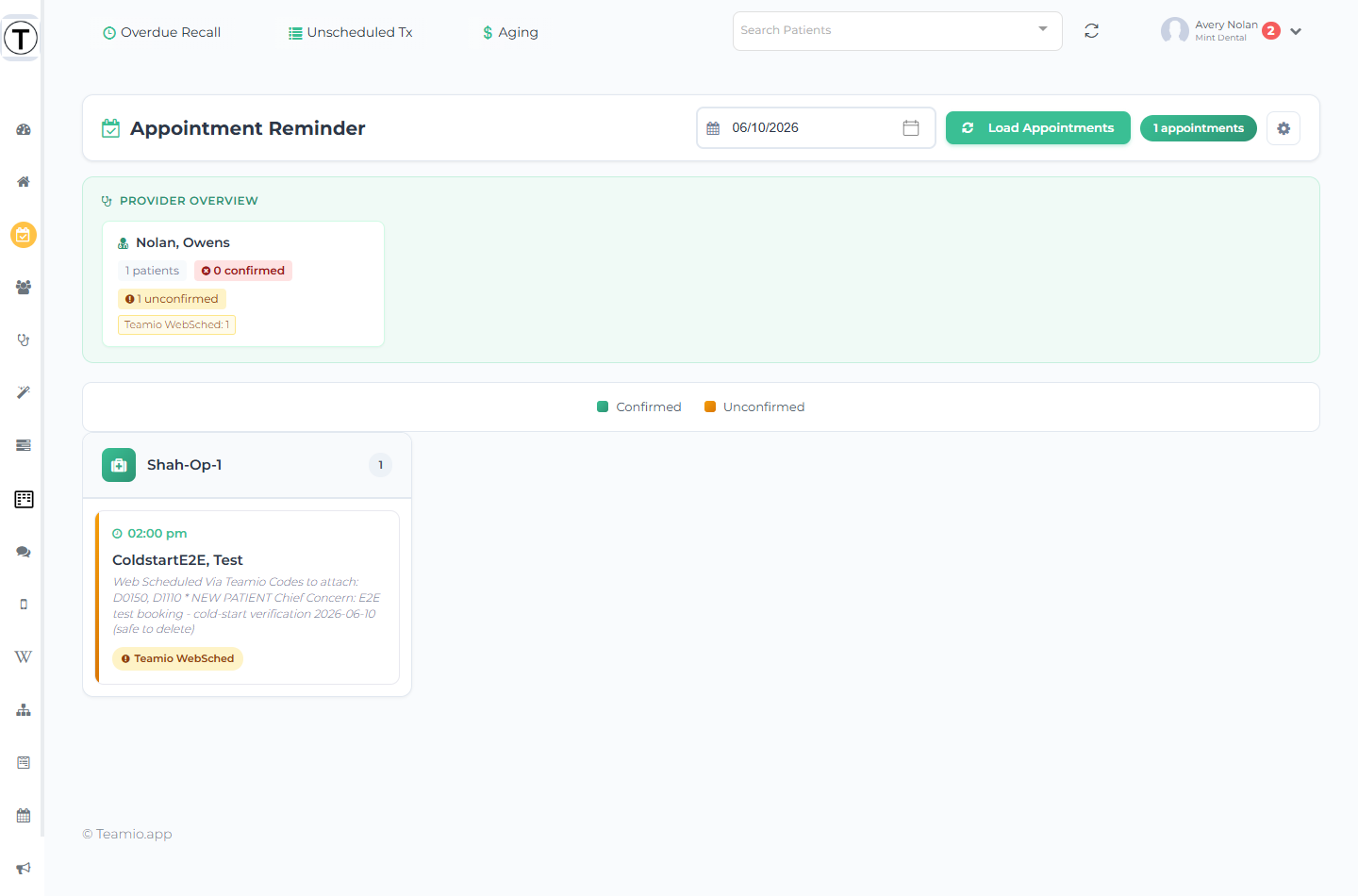
The header row (one line) holds a date picker, a Load Appointments button, the appointment count, and a gear Settings button. To view another day, pick a date and select Load Appointments (you don’t need to for today).
Below the header:
- Provider Overview cards — one per provider, each showing how many patients they have that day, how many are confirmed, how many unconfirmed, and a status breakdown.
- A Confirmed / Unconfirmed color legend.
- Operatory columns of appointment cards, each card showing the time, patient, procedures, and a status badge. Confirmed cards show a green Confirmed badge; unconfirmed cards show the actual Open Dental confirmation-status name (in orange) — not the literal word “Unconfirmed”.
The morning use: scan for orange, call the unconfirmed. Pairs perfectly with the huddle.
Per-appointment activity
Section titled “Per-appointment activity”Select any appointment card and a slideout opens from the right.
- Appointment Details — operatory, procedures, note, and status.
- Reminder Activity — a timeline of every text and email Teamio sent, each with its delivery status, plus exactly when the patient confirmed and what they replied.
This is the answer to “did the patient actually get the reminder?” — you can see each message, whether it delivered, and the patient’s own words back.
Reminder settings
Section titled “Reminder settings”Select the gear (Settings) in the header to open the Appointment Reminder Settings slideout. It’s a large panel; the sections below group it.
General
Section titled “General”| Setting | Effect |
|---|---|
| Status line + Start Appointment Reminder From | Shows whether reminders are running, and the date to start sending from. While active, a Pause Appointment Reminder button stops all sending. |
| Ignore operatories | Operatories to skip entirely (blocks, doctor-only chairs). |
| Ignore confirmation statuses | Open Dental statuses that shouldn’t get reminders — already-confirmed patients, for example. |
| Minor age | Under this age (16 / 17 / 18), messages address the guardian. |
| Spanish Language Support | A switch — patients whose Open Dental language is Spanish get the Spanish version automatically. |
Text Confirmations and reminders
Section titled “Text Confirmations and reminders”A patient confirms by replying to the text, and that confirmation flows back to the appointment and the day board.
- Time of day to send — typically a morning window (8 AM–12 PM).
- Templates (each a Wiki page) for a single appointment, multiple family members the same day, and the auto-reply.
- Confirmation #1, #2, #3 — each with its own enable checkbox and a 1–21 days-before picker, so you can stack several touches.
- Keywords to confirm appts — the words a reply must contain to count as confirmed (for example yes, c).
- Text Reminders #1–2 and Text Same Day Reminder — reminders (distinct from confirmations) with their own toggles and timing.
Email and pre-med
Section titled “Email and pre-med”- Email Confirmations #1–2 and Email Reminders #1–2 — the email equivalents, each with its own toggle and template.
- Pre-Med Reminders — a separate reminder for patients who need to pre-medicate before the visit.
Select Save to apply. The same slideout also holds Appointment Booked Confirmation — a one-time text/email sent the moment an appointment is scheduled, not a reminder before the visit — and Automated Recall Reminders, which texts overdue patients to come back in. Both are separate automations with their own articles: Appointment booked confirmation and Automated recall reminders.
Troubleshooting
Section titled “Troubleshooting”A patient says they never got a reminder
Section titled “A patient says they never got a reminder”Open their appointment card and read the Reminder Activity timeline — it shows each message, its delivery status, and whether the operatory or confirmation status was on an ignore list.
Nobody is getting reminders
Section titled “Nobody is getting reminders”Check the settings status line — reminders may be paused, or Start Appointment Reminder From may be set in the future.
Confirmations aren’t registering
Section titled “Confirmations aren’t registering”A reply only confirms if it matches a word in Keywords to confirm appts. Add the words patients actually send.