
Answering patient questions
When a patient reads their plan at home, they can ask questions right on it. Those questions come back to you as a conversation thread on the plan, and Treatment Presenter can draft AI replies for you to review or send automatically.
Spotting new questions
Section titled “Spotting new questions”On the Treatment Presentations dashboard, a patient with something needing your attention shows an amber, pulsing “N NEW” chip next to their name.

The count includes:
- Patient questions you haven’t read yet.
- AI drafts waiting for your review (when AI replies are set to review mode).
It does not count AI replies that already went out on their own (auto mode). The chip clears once you open that patient’s comments thread or reply.
Reading and replying
Section titled “Reading and replying”- Open the patient’s Builder and click Comments in the top bar to open the thread.
- Read the question and reply in the compose box. Replying marks the thread as read and clears the dashboard chip.
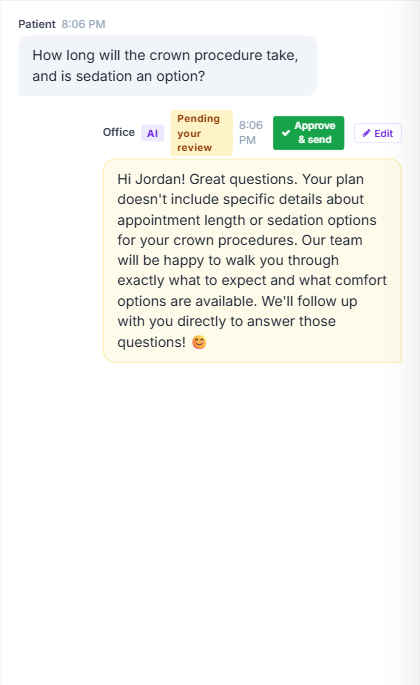
While the panel is open, new patient messages appear within about 10 seconds without a refresh. (Updates pause if you switch browser tabs, and catch up the moment you come back.) The patient sees your replies just as quickly on their end.
AI-drafted replies
Section titled “AI-drafted replies”Treatment Presenter can draft answers to common questions from your plan’s content. How those drafts are handled depends on your AI Reply Mode in Settings → General:
- Review — the AI writes a draft and holds it for you. You approve, replace, or discard it before anything reaches the patient. Held drafts count toward the “NEW” chip.
- Auto — the AI reply goes out to the patient on its own. New practices start in auto for trials.