
Forms and Open Dental
Completed forms don’t just sit in Teamio — they connect back to Open Dental in two ways: answers can write to the chart, and a PDF files into imaging.
Answers can update the patient record
Section titled “Answers can update the patient record”Chart write-back is driven per control, not by the form type. On any control’s Configuration panel you set Save to Open Dental Field to map that answer to a specific chart field. The form’s type governs which broader flows apply (for example, medical-history processing on a MED_HX_UPDATE form) — but it’s the per-control mapping that decides which field a given answer lands in.
Mappable Open Dental fields
Section titled “Mappable Open Dental fields”The Save to Open Dental Field dropdown (default — Select Field —) offers, among others:
| Group | Fields |
|---|---|
| Name | First Name, Last Name, Middle Initial, Title, Preferred Name |
| Demographics | Birth Date, Position, Gender, Social Security Number |
| Phones | Home Phone, Work Phone, Wireless Phone |
| Contact | Email, Preferred Contact Method, Text-Message-Ok |
| Address | Address 1, Address 2, City, State, Zip |
| Medical | Premed, Medical Urgent Notes, Medical Summary, Service Notes, Complete Medical History |
| Emergency | Emergency Contact Name, Emergency Contact Phone |
| Lists | Allergies / Other Allergies, Diseases / Other Problems, Medications / Other Medications, Referrals |
Your site’s custom fields also appear in the list. Leave the mapping as — Select Field — for answers that should stay in Teamio only.
Phone and Social Security Number answers are written to Open Dental in Open Dental’s own format (phones as (555)555-1234, SSNs as nine digits) no matter how the patient typed them, so the chart matches numbers your team types by hand. Add the Is Phone Number or Is Social Security Number validation rule to a control mapped to one of these fields to make sure only a valid value reaches the chart — the builder offers to add it for you; see Configuring a control → Phone and Social Security Number fields.
The Open Dental Data Field control
Section titled “The Open Dental Data Field control”The Open Dental Data Field control is special: it pulls one of the practice’s real lists straight from Open Dental — Diseases, Allergies, Medications, or Referrals — so the patient picks from your actual chart data rather than typing free text, and their selections write back to the chart.
- Diseases, Allergies, and Medications are multi-select lists with a None option, mapped with Save to Open Dental Field set to Diseases, Allergies, or Medications.
- Referrals powers a “How did you hear about us?” question. It is single-choice with no None option, and the pick is written to the chart as the patient’s referral source — added if they have none, replaced if they do, never removed by a form. A returning patient sees their current source pre-selected. Set Save to Open Dental Field to Referrals and the data type to REFERRALS; the builder refuses to save the control if only one of the two is set. Full walkthrough: Marking Patient Referrals in Open Dental.
- Diseases can also be shown as large category buttons with checkboxes instead of the standard dropdown, for patients who struggle with searching a long list. See Health History by Category.
See the controls reference for the control’s settings. Its alert-highlighting behavior — None never alerts (Referrals has no None, so any pick alerts) — is covered in Per-option alert flags.
One field per form for each Open Dental list
Section titled “One field per form for each Open Dental list”On one form, only one field can have Save to Open Dental Field set to Diseases. The same is true for Allergies, for Medications, and for Referrals — it doesn’t matter which kind of field they are (for example, the standard Diseases dropdown and the category-button layout can’t both save to Diseases on the same form). A form can have one field for each of the four lists, and only these four lists are limited this way — other Save to Open Dental Field choices aren’t, so several fields can still save to, say, Medical Summary or Service Notes.
Two fields saving to the same list would conflict when a patient submits, and that list on the chart wouldn’t update correctly — so Teamio won’t let you set this up. This is checked across every field on the form, including any hidden by Visibility / Conditional Logic.
In a field’s Control Configuration panel, Save and Save & Close are refused with a message naming the list and the field already using it, for example: Only one field on a form can save to Diseases in Open Dental. “Diseases” already saves there. Clear or change Save to Open Dental Field on one of them. The panel stays open so you can fix it.

On the form itself, Save Changes — including the first time you save a form — is refused the same way, with a message naming the list and every field involved, for example: Cannot save form: more than one field saves to Diseases in Open Dental (“Diseases”, “Do any of the following conditions apply to you?”). Only one field per form can save to Diseases, Allergies, Medications or Referrals. Clear or change Save to Open Dental Field on all but one. This also catches a form that already had two such fields before you opened it.
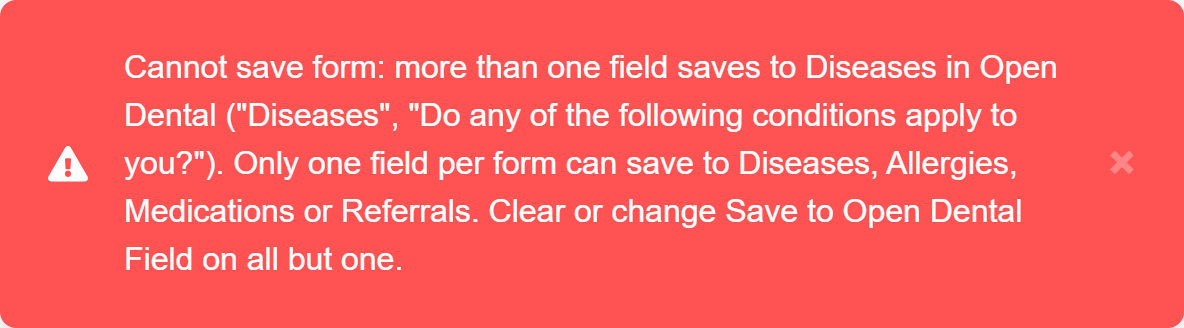
How to fix it: decide which field should write to the chart. On the other one, open Control Configuration and either clear Save to Open Dental Field (Optional) — its answers then still show on the submission and PDF, just not on the chart — or remove the field. Save the control, then select Save Changes; once only one field saves to that list, the form saves normally.
Older forms: if a form you built earlier ended up with two fields saving to the same list, open it and fix it the same way — submissions from it aren’t updating that list on the chart correctly. The builder points to the fields involved the next time you select Save Changes.
A PDF files into imaging
Section titled “A PDF files into imaging”When a form is submitted, Teamio renders a PDF of the completed form and files it into the patient’s Open Dental imaging module — the same place you’d file a scanned paper consent.
Where and what it’s named are controlled by the form’s PDF settings, not by whether the form has a signature. In the builder, open Form Configurations and set:
- Save PDF to Open Dental Imaging module under Category — the imaging category.
- Select file name for this form — the base name; the file saves as
<name>_<timestamp>.pdf. - Save uploaded images / files… under Category — where patient uploads (insurance cards, IDs) file, separately from the form PDF.
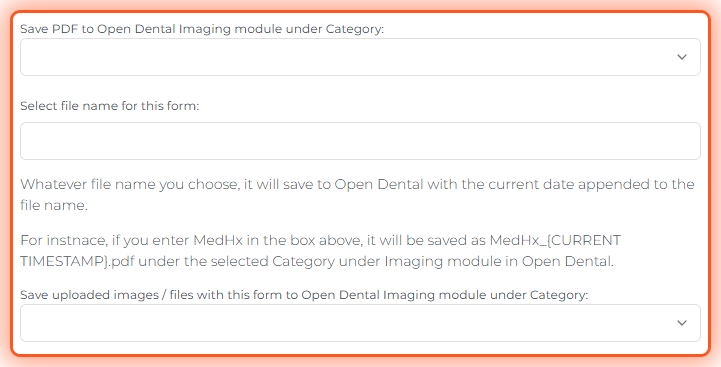
These three fields sit partway down the Form Configurations panel, below the headline and Translations settings — scroll the panel to reach them.
This filing runs through the Teamio connector on your Open Dental server, so the server must be on for documents to arrive (they queue and catch up if it’s briefly offline).
Tips and common questions
Section titled “Tips and common questions”- Verification matters here. Identity verification (date of birth + initials) is what makes it safe to write a submission to the right chart — think twice before enabling Skip patient verification on medical forms.
- Unlinked submissions can’t file. A submission with no patient (a link made without choosing one) can’t reach a chart until staff use Link to Patient.
- Missing a document in Open Dental? See Troubleshooting: submission missing in Open Dental.