
Setting provider goals
Every ”% of goal” figure on the Huddle needs a goal to measure against. This is where you set them. Do it once and the goal bars stay meaningful all month.
Where: Sidebar > Today’s Huddle (/app/huddle) > the gear icon at the right of the page header (tooltip Set Goals).
The gear opens a slide-out titled Set Provider Goals with four sections. Save at the bottom commits all four at once.
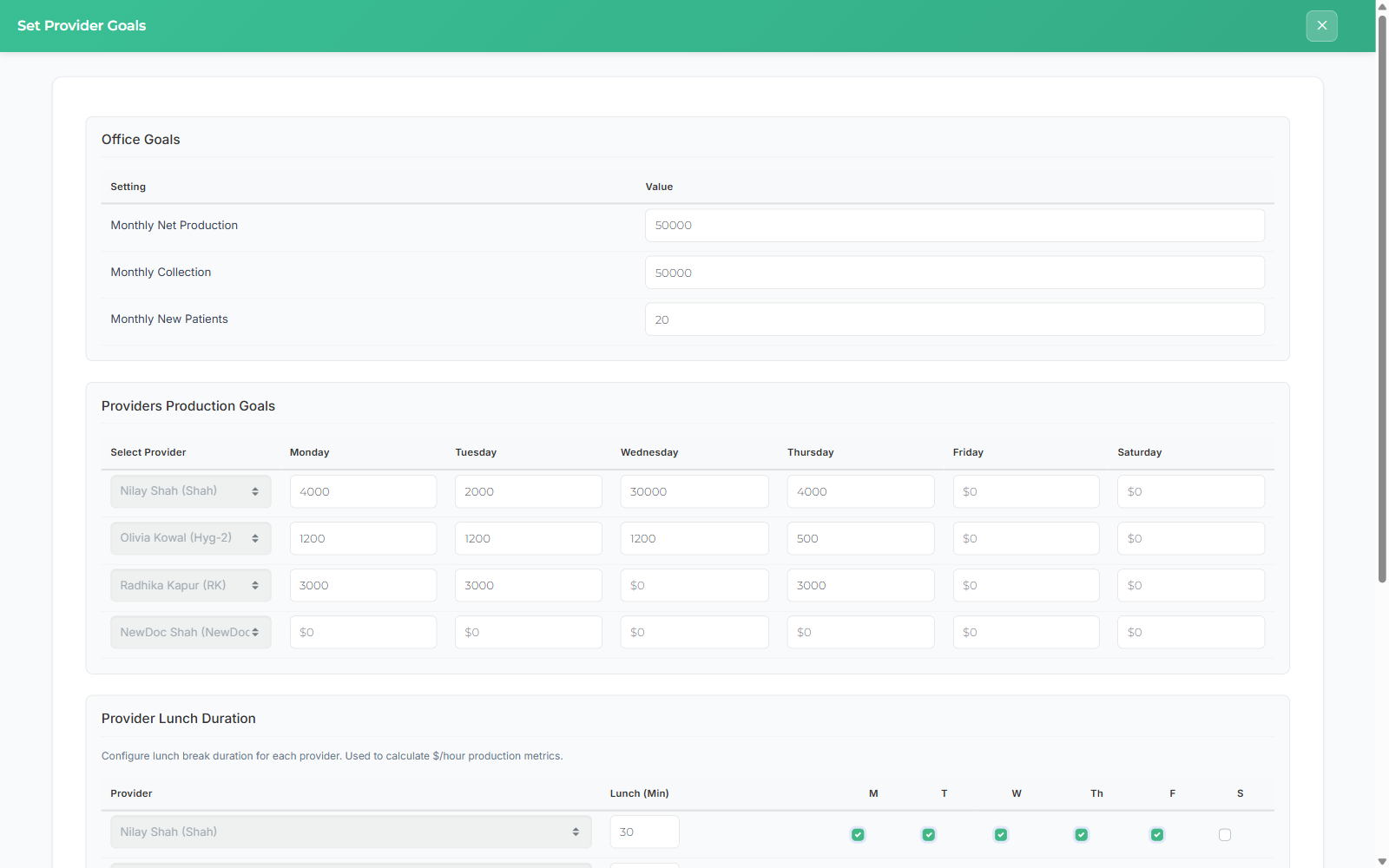
Office Goals
Section titled “Office Goals”Three practice-wide monthly targets:
- Monthly Net Production
- Monthly Collection
- Monthly New Patients
These drive the month-to-date goal markers on the Huddle’s Net Production, Collections, and New Patients charts, and they’re the figures quoted in the automated email reports.
Providers Production Goals
Section titled “Providers Production Goals”A production goal per provider, per weekday, Monday through Saturday. Days a provider doesn’t work stay at $0.
Setting these per day rather than per month is what makes the daily goal bar honest — a Tuesday hygiene day and a Wednesday surgery day shouldn’t be held to the same number.
Provider Lunch Duration
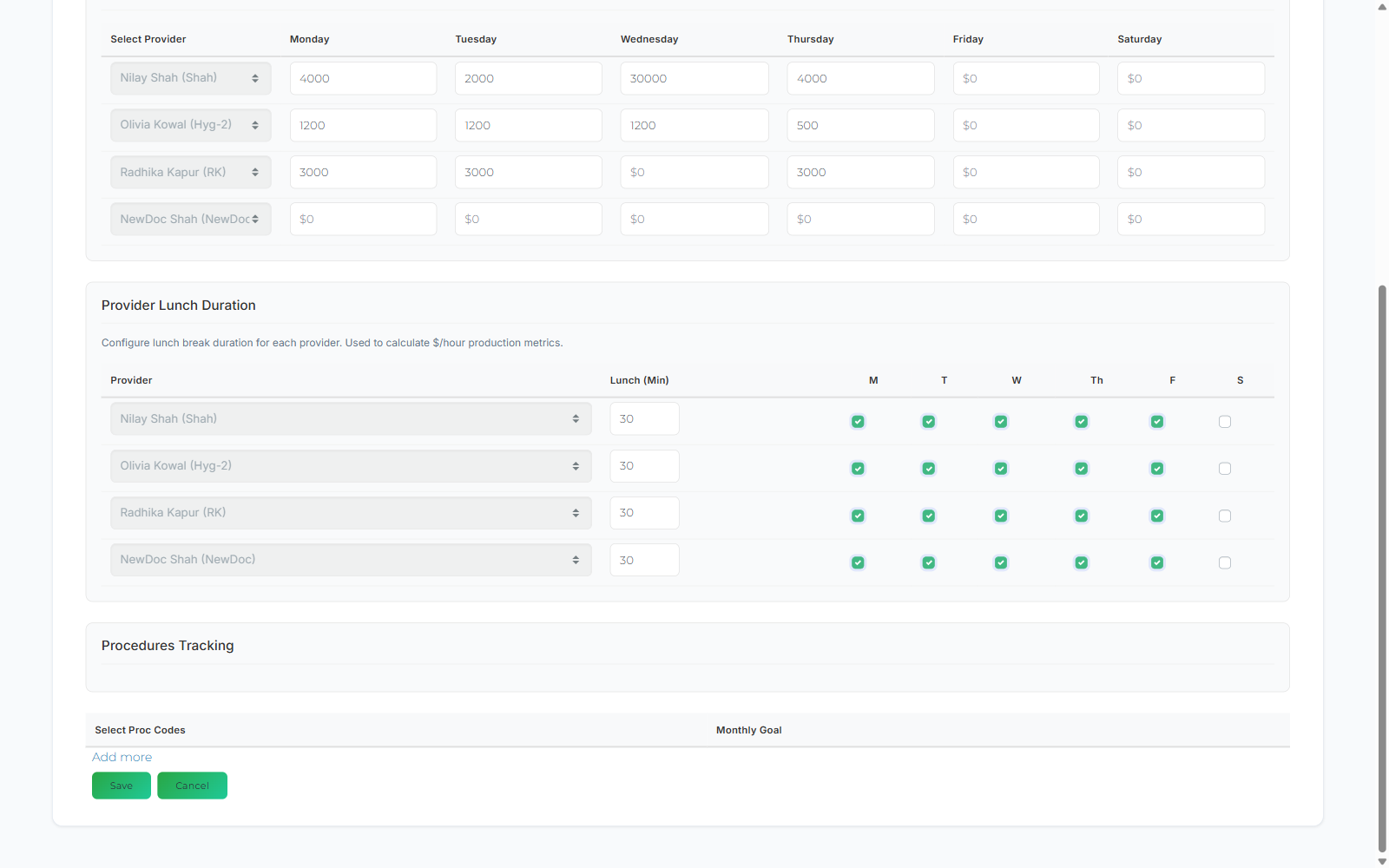
Section titled “Provider Lunch Duration”Lunch (min) per provider, plus checkboxes for which days they take it. The panel notes this is used to calculate $/hour production metrics — clinical hours have lunch subtracted before the division, so getting this wrong quietly skews every $/HR figure on the Huddle and in Production Trends.
Procedures Tracking
Section titled “Procedures Tracking”Pick procedure codes and give each a Monthly Goal; Add more adds another row. Use it for the handful of procedures you’re actively trying to grow — implant cases, aligner starts, night guards — rather than trying to track everything.
Where your goals show up
Section titled “Where your goals show up”- On the Huddle — month-to-date Net Production, Collections, and New Patients charts each show their goal, and the per-provider table shows production against goal. See the two different ”% of goal” bars.
- In email — the same goal figures appear in the automated email reports.