
Working the Broken Appointments list
Where: Top navigation bar → Broken Appointments
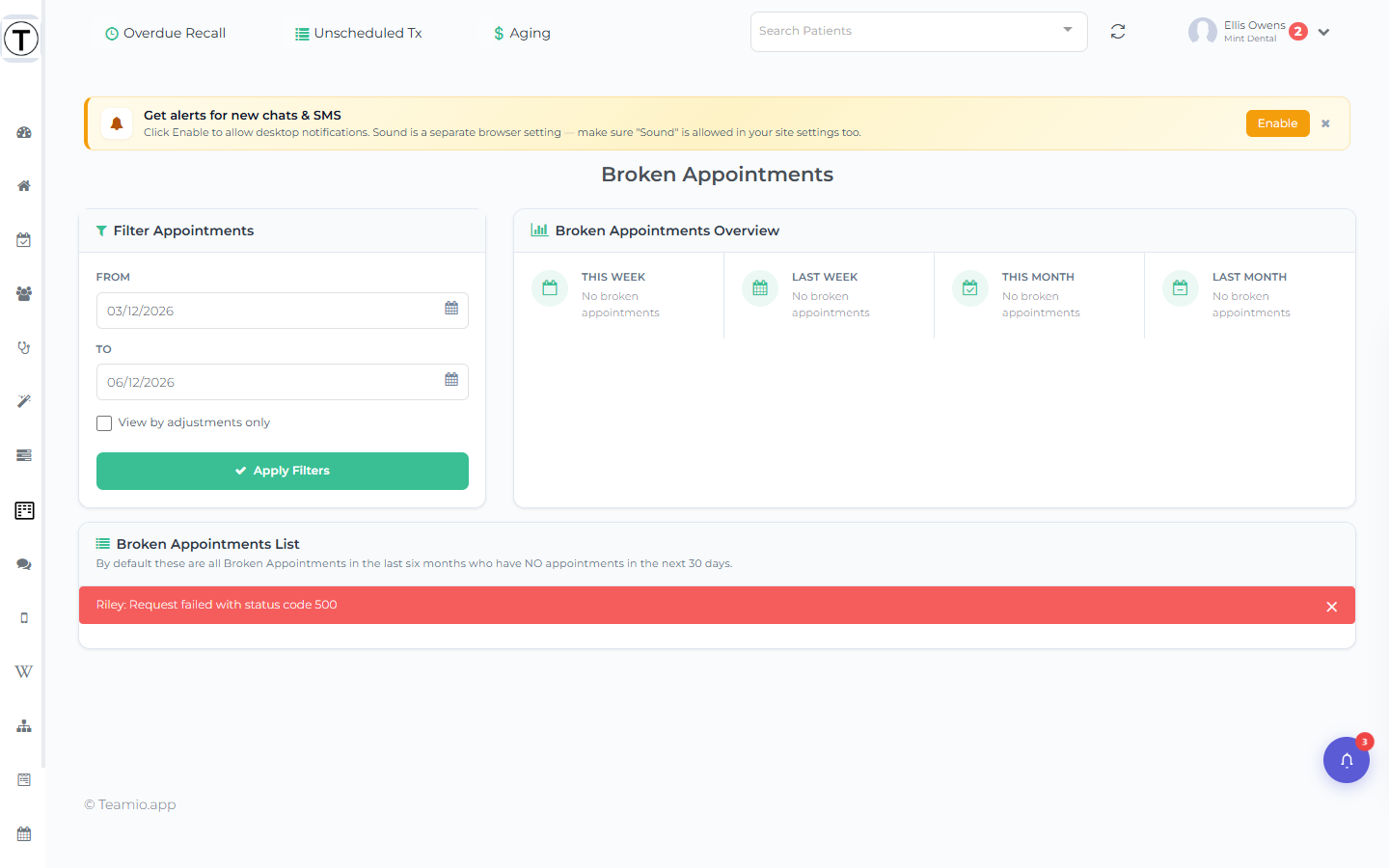
By default the table shows all broken appointments in the last six months for patients who have no appointment in the next 30 days — the people genuinely worth chasing. The fresher the break, the easier the rebook.
The overview cards
Section titled “The overview cards”Four Broken Appointments Overview cards sit at the top: This Week, Last Week, This Month, and Last Month. Each shows a count and a Net Production Loss dollar figure, with an eye button that opens a popover listing that window’s broken appointments. These cards are fixed time windows for at-a-glance trend watching — they ignore the table’s date filter.
Filtering the table
Section titled “Filtering the table”The Filter Appointments panel drives the table only:
- From / To date pickers.
- View by adjustments only checkbox.
- Apply Filters.
Reading the table
Section titled “Reading the table”| Column | What it shows |
|---|---|
| Patient | Name (links to the profile). |
| Date | When the appointment broke. |
| Procedure Code | The code, with a truncated description. |
| Fee | The appointment’s fee. |
| Status | The follow-up status badge. |
| Follow Up Action Plan | Next follow-up date and the change/stop controls. |
| Attempts | Phone / envelope / mobile icons per logged attempt. |
This page has no checkboxes and no mass messaging — you work it one patient at a time.
The play
Section titled “The play”- Let automation take the first shot. The broken-appointment rescue workflow texts the patient within moments of the break — set it up once and this list gets easier forever.
- Work the list for everyone who didn’t rebook. Select the patient’s name to open the follow-up panel and log a call or text (Phone Followup / SMS Followup / Email Followup); same-week contact matters most. The panel also has a Broken Appointment History tab so repeat-breakers are obvious.
- Log outcomes so patterns become visible rather than surprises.