Message variables and Quick Actions
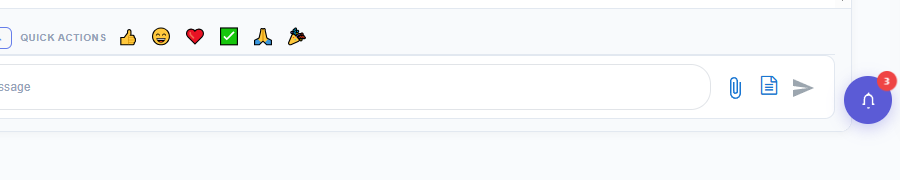
The + Insert menu and the Quick Actions bar are the personalization tools that sit just above the SMS composer in Patient Conversations. Variables let you write one message that auto-fills each patient’s name, appointment, or your office details; Quick Actions remembers what you reach for so it’s one click next time.
Insert a variable
Section titled “Insert a variable”- Open any patient conversation.
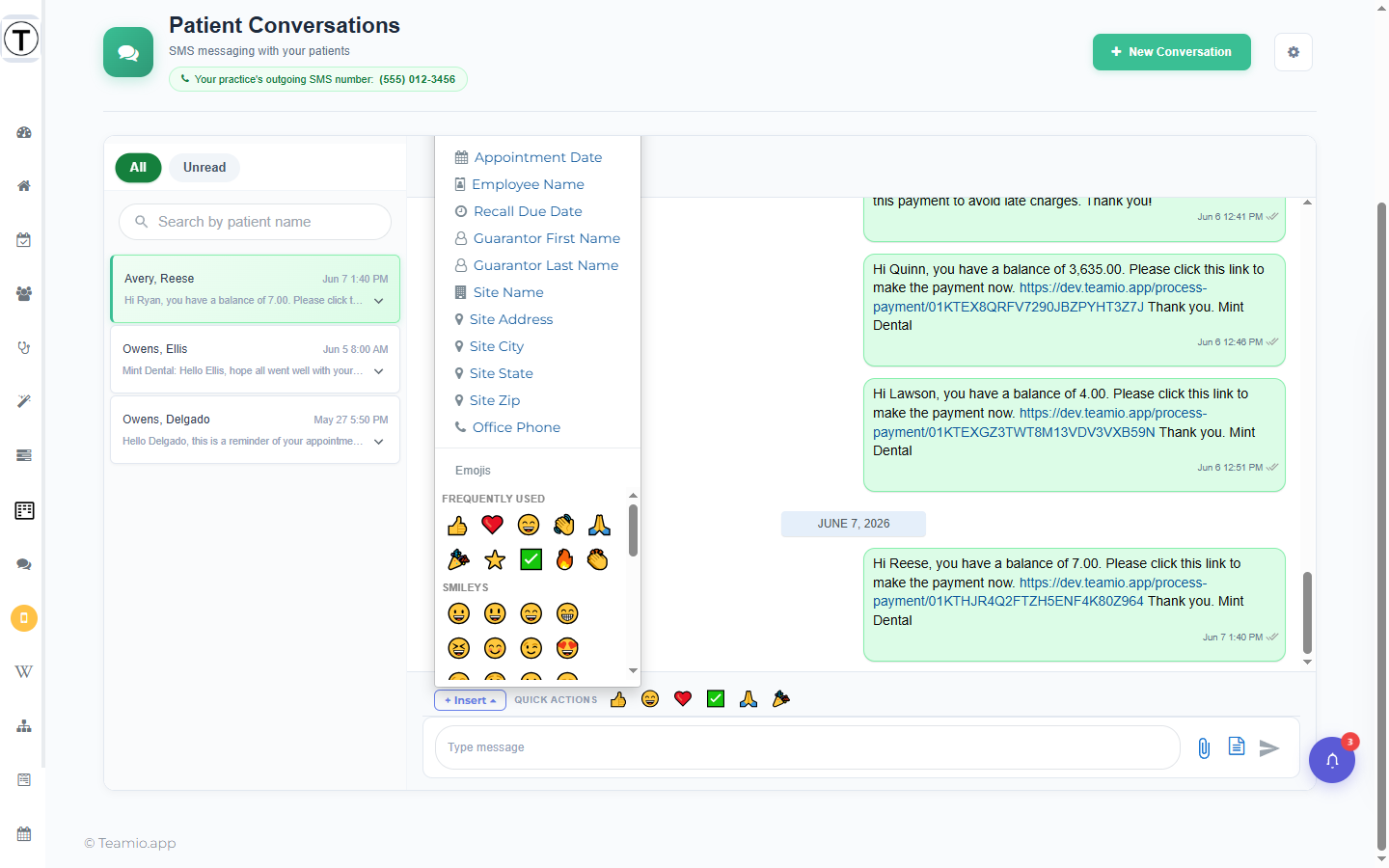
- In the Quick Actions bar just above the composer, select + Insert. A drop-up opens with two sections: Variables and Emojis.
- Choose a variable. It’s inserted into your message as a
{{placeholder}}token (for example{{patient_first_name}}). - Finish your message and send. Teamio replaces each token with that patient’s real value on send, so the patient sees Hi Maria, — never the raw
{{…}}.
The full variable list
Section titled “The full variable list”There are 13 variables, grouped here by what they pull from.
| Variable | Fills in |
|---|---|
| Patient First Name | The patient’s first name |
| Patient Last Name | The patient’s last name |
| Appointment Date | The patient’s appointment date |
| Recall Due Date | When the patient’s recall is due |
| Employee Name | The name of the signed-in employee sending the text |
| Guarantor First Name | The first name of the account guarantor |
| Guarantor Last Name | The last name of the account guarantor |
| Site Name | Your practice name |
| Site Address | Your practice street address |
| Site City | Your practice city |
| Site State | Your practice state |
| Site Zip | Your practice ZIP code |
| Office Phone | Your practice phone number |
Insert an emoji
Section titled “Insert an emoji”The chat window’s built-in emoji picker is turned off, so emojis come from the + Insert menu instead. Open + Insert and pick one from the Emojis grid in the same drop-up.
Emojis switch an SMS to Unicode encoding, which shortens the per-segment character limit — the character counter on a template reflects this, so a message with emojis may use more SMS segments than the same text without them.
Quick Actions: reuse what you use
Section titled “Quick Actions: reuse what you use”The Quick Actions bar sits directly above the composer and remembers your recent picks as one-click chips:
- recently used emojis
- recently used variables
- recently used templates
Select a chip to drop that item straight into your message without reopening + Insert or the templates modal. The list is remembered per browser, so the chips reflect how you text on this computer — they don’t sync to other workstations or to your teammates.