
Sharing a form with a patient
Forms are shared as a link. You grab the link (or a QR code) from Teamio and deliver it however fits the moment — usually a text.
Get the link
Section titled “Get the link”- On the Forms page, in Your Forms, find the form (or packet) you want.
- Select the link icon in its Actions column (tooltip Get Short URL For the Form, or Get Short URL For Packet for a packet). The Get Form Link modal opens.
- Optional. Under Select a Patient:, pick the patient the link is for. You can leave this empty — the modal notes Leave this empty if you’d like to create a link for a non-existing patient, which is the right choice for a brand-new patient not yet in Open Dental.
- Choose how to get it:
- Get Link (green) — generates the URL and copies it to your clipboard. The modal shows Generating link…, then displays the URL in a read-only field with a copy button and the message Link generated and copied to clipboard!.
- Get QR Code — renders a QR code inside the same modal. Show it on your screen or a tablet; the patient scans it with their phone camera.
- Select Close when done.
Deliver it
Section titled “Deliver it”- Text is the highest-completion channel — paste the copied link into an SMS conversation. Most patients complete the form on their phone within minutes.
- Email — send it straight from the patient’s profile (below), or paste the link into any email.
- Chairside — open the QR code on a tablet and hand it over.
The patient taps the link, verifies their identity (unless the form has Skip patient verification on), and fills out the form — see What patients see. The completed form appears in your Your Form Submissions panel.
Send forms from the patient’s profile
Section titled “Send forms from the patient’s profile”When you’re already on a patient’s profile, you can send one or more forms without copying any links.
- Open the patient’s profile and select Form.
- Check the forms (or packets) you want to send, then select Next.
- Under How would you like to send these forms?, choose Send via SMS or Send via Email. Only the options your practice and this patient can use are shown.
- For email, the message is written for you: a greeting, one line per form — [Form: form name] — and your practice’s name. Edit the wording around those lines if you like.
- Select Send. You’ll see Email with forms queued. It will be sent to the patient shortly.
![The Send via Email step: the prefilled message listing each form as [Form: form name], and the green note explaining that those items become clickable links for this patient.](/images/ui/forms-send-form-email.png)
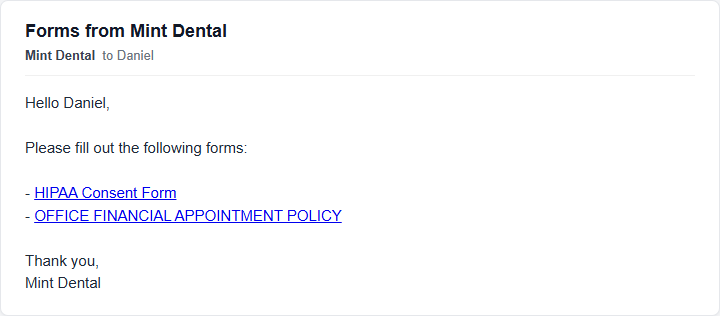
In the email, each form’s name is the clickable link that opens that form for this patient. The email comes from your practice’s own email address.
Tips and common questions
Section titled “Tips and common questions”- “I made a link without choosing a patient.” That’s supported for new patients. The link skips chart pre-fill, and the submission arrives unlinked — staff then use Link to Patient on the submission to attach it to the right chart. See Viewing submissions.
- “Can I send one link to a whole family?” When you tie a link to a specific patient, answers file to that chart — generate one per person rather than reusing a link.
- Don’t delete a form you’ve shared. Deleting a form kills all previously shared links for it — the delete modal warns Shared links will stop working. See Editing a form.