
Follow-ups — what to do on every list
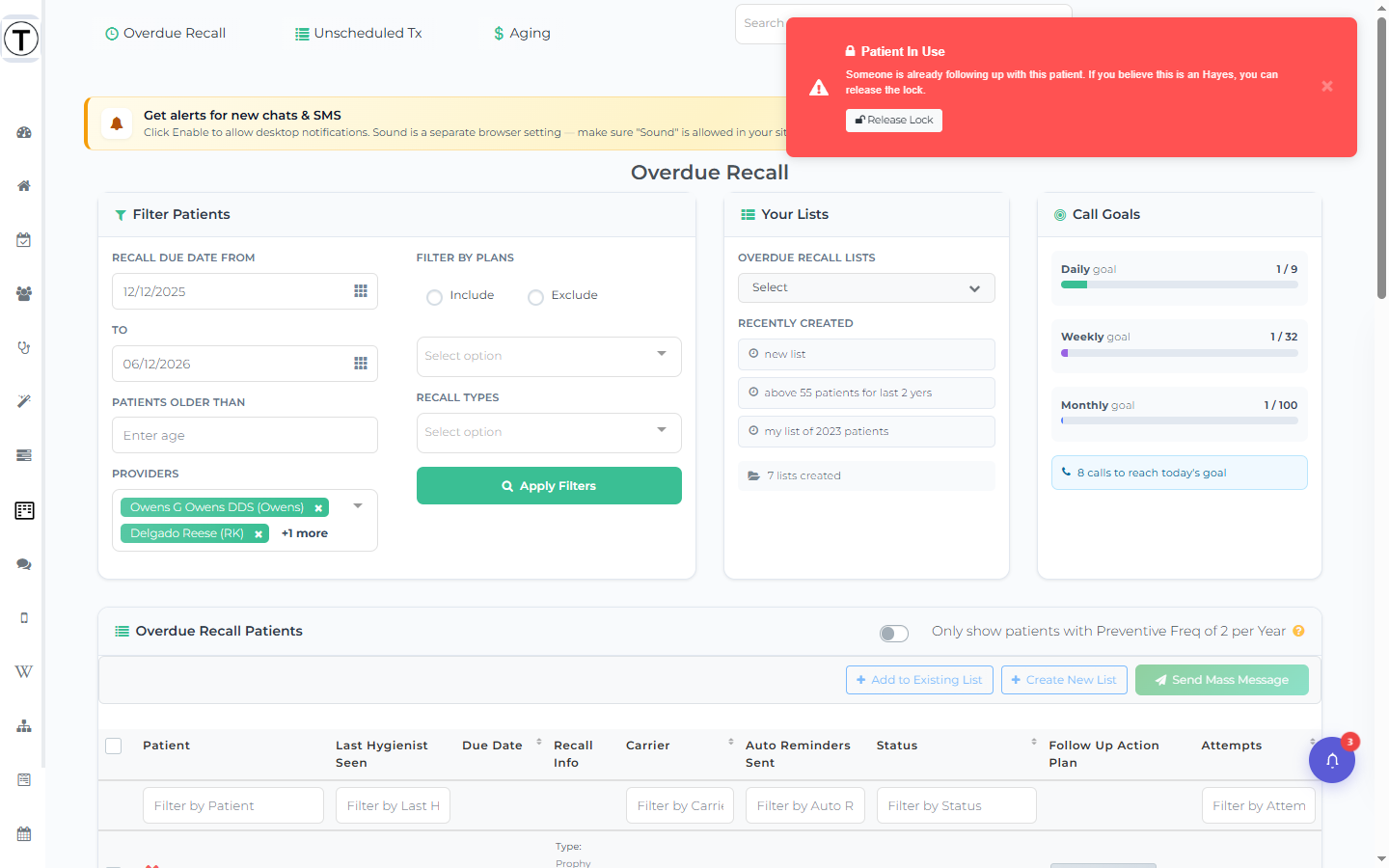
The outreach lists (Overdue Recall, Unscheduled Tx, Aging, Broken Appointments) all work the same way. Each row is a patient who needs a contact attempt. This page covers exactly what you do on a list — the per-row controls, the bulk actions, and the follow-up panel that does the real work.
What you can do on a row
Section titled “What you can do on a row”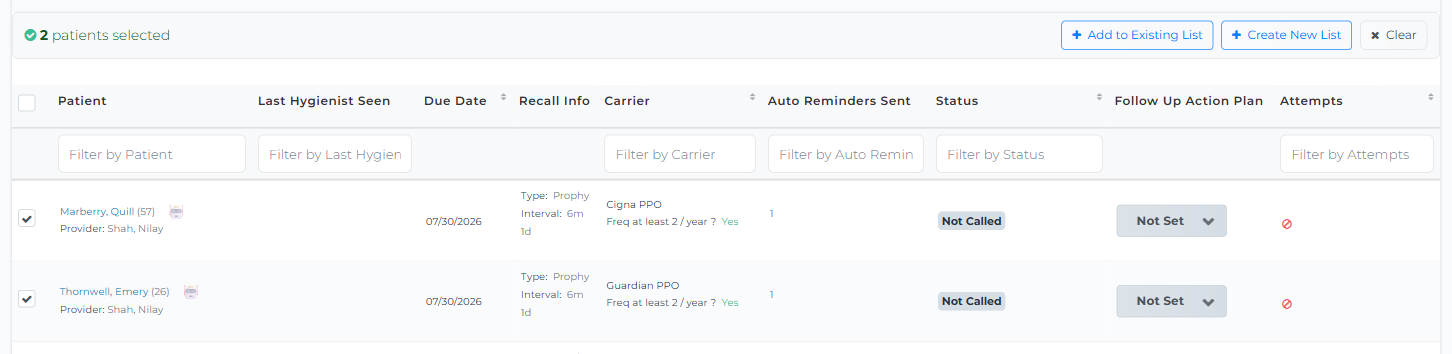
Every row has these pieces:
- Patient name — select it to open the follow-up panel (covered below). This is the main thing you do here.
- Status — the badge from the last attempt (e.g. Call Back, Not Ready) so you can scan who’s been touched.
- Follow up Action Plan — set, change, or stop the patient’s next follow-up date right on the row (see the vocabulary below).
- Attempts — phone / envelope / mobile icons, one per logged attempt, with a “+N” overflow and a hover tooltip (“N attempt(s) made so far”); a ban-circle icon means no attempts yet.
- Checkbox — only on Overdue Recall and Unscheduled Tx (and their saved-list pages). Tick rows for a bulk action. Aging and Broken Appointments rows have no checkboxes.
Each column header has its own filter box (filter by Patient, Carrier, Status, Attempts, and so on), and lists page 50 patients at a time.
The Follow up Action Plan cell
Section titled “The Follow up Action Plan cell”The cell speaks a small vocabulary:
| What you see | What it means |
|---|---|
| Due Today (red pill) | Follow-up is due now — select it to open the date dropdown (if you have the permission). |
| Past Due! (red dot) | The follow-up date has passed. |
| Not Set (dropdown) | No follow-up yet — opens Start Following Up On: with a date and an optional note saved to the commlog. |
| Date button | Opens a dropdown with Change Follow-up Date to:, plus Stop Follow-ups / Remove Initial Set Follow-up (each asks “are you sure”). |
| Follow-ups done (amber pill) | The patient hit your office’s max attempts. |
| Do Not Follow-up (pill) | The patient is flagged not to be contacted. |
| Circular-arrow icon | Restart the follow-up cycle for a stopped patient. |
| ! marker | The next date was manually overridden. |
| Note icon | Shows the initial follow-up note. |
The follow-up panel
Section titled “The follow-up panel”Selecting a patient’s name slides out the follow-up panel — the single place where you record a contact attempt and decide what happens next.
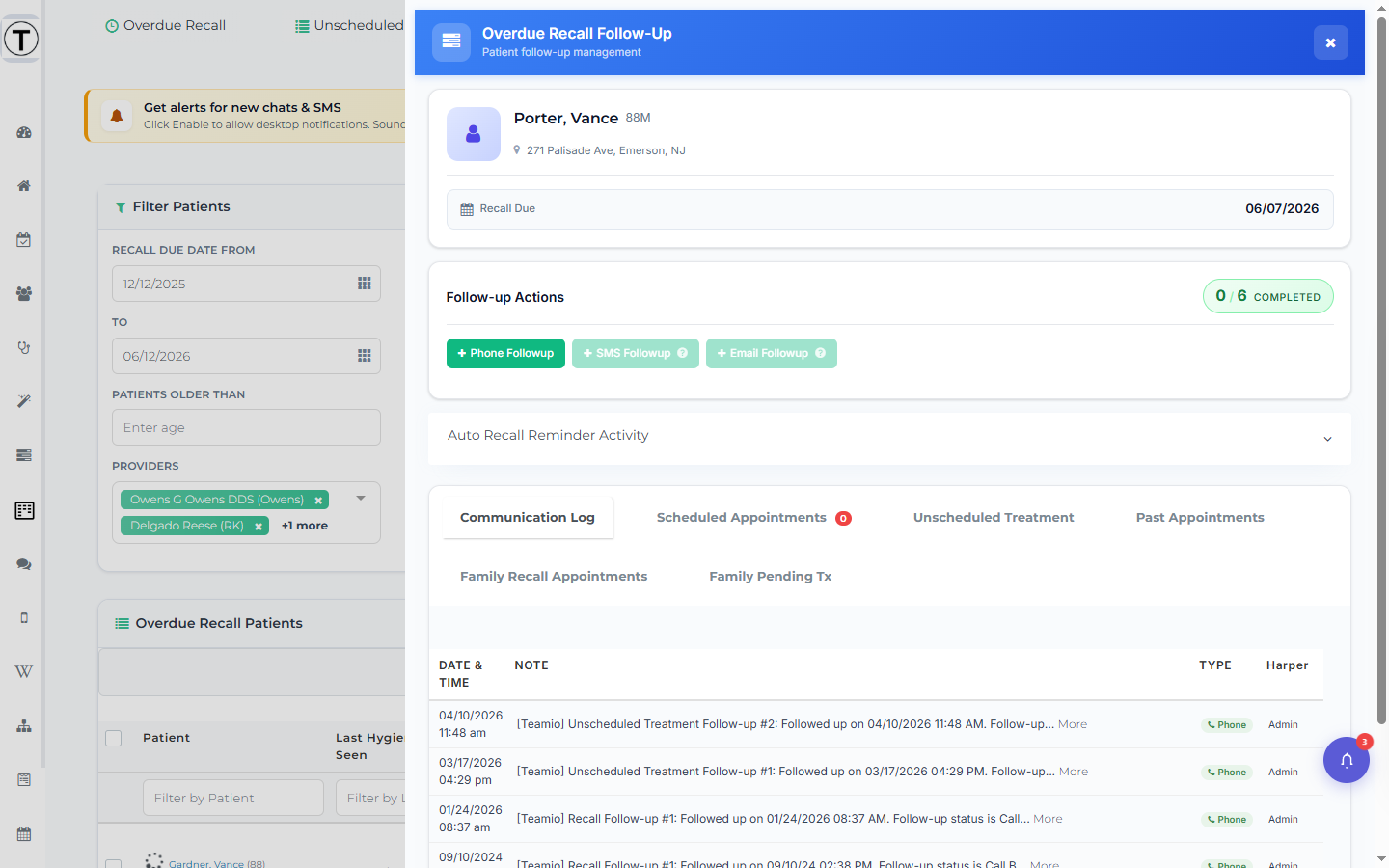
Patient card (top)
Section titled “Patient card (top)”Confirms who you’re calling: name (select it to jump to the full patient profile), age and gender, a Premed flag if relevant, contact pills (home / mobile / work phone and email), and the address. A status strip shows the figure that matters for this list — Recall Due date, account Balance, or Recall Scheduled.
Follow-up Actions
Section titled “Follow-up Actions”A counter shows attempts made against the allowed maximum — e.g. “1 / 3 completed” — so you know how many tries remain under your office’s settings. Then the action buttons, each of which logs an attempt:
- Phone Followup — record the outcome of a call you make.
- SMS Followup — text the patient from your practice number and log it in one step. Disabled if the patient has no mobile number or texting isn’t set up — hover the ? to see why.
- Email Followup — email the patient and log it. Disabled if there’s no email on file or email follow-ups aren’t enabled.
- AI Call — (Recall and Unscheduled Treatment only) an AI-placed call simulation, marked with a SIM badge; requires a patient mobile number. Currently in limited rollout — contact Teamio to enable it for your practice.
The follow-up form (Phone / SMS / Email)
Section titled “The follow-up form (Phone / SMS / Email)”Picking an action opens its form. Which fields appear depends on the form:
| Field | Phone | SMS | |
|---|---|---|---|
| Follow-up Status (outcome from your office’s status list) | Yes | auto-set | auto-set |
| Next Follow-up Date (auto-filled; see below) | Yes | Yes | Yes |
| Message Template (from your Wiki templates) | — | Yes | Yes |
| Follow-up Note (written to the patient’s communication log) | Yes | Yes | — |
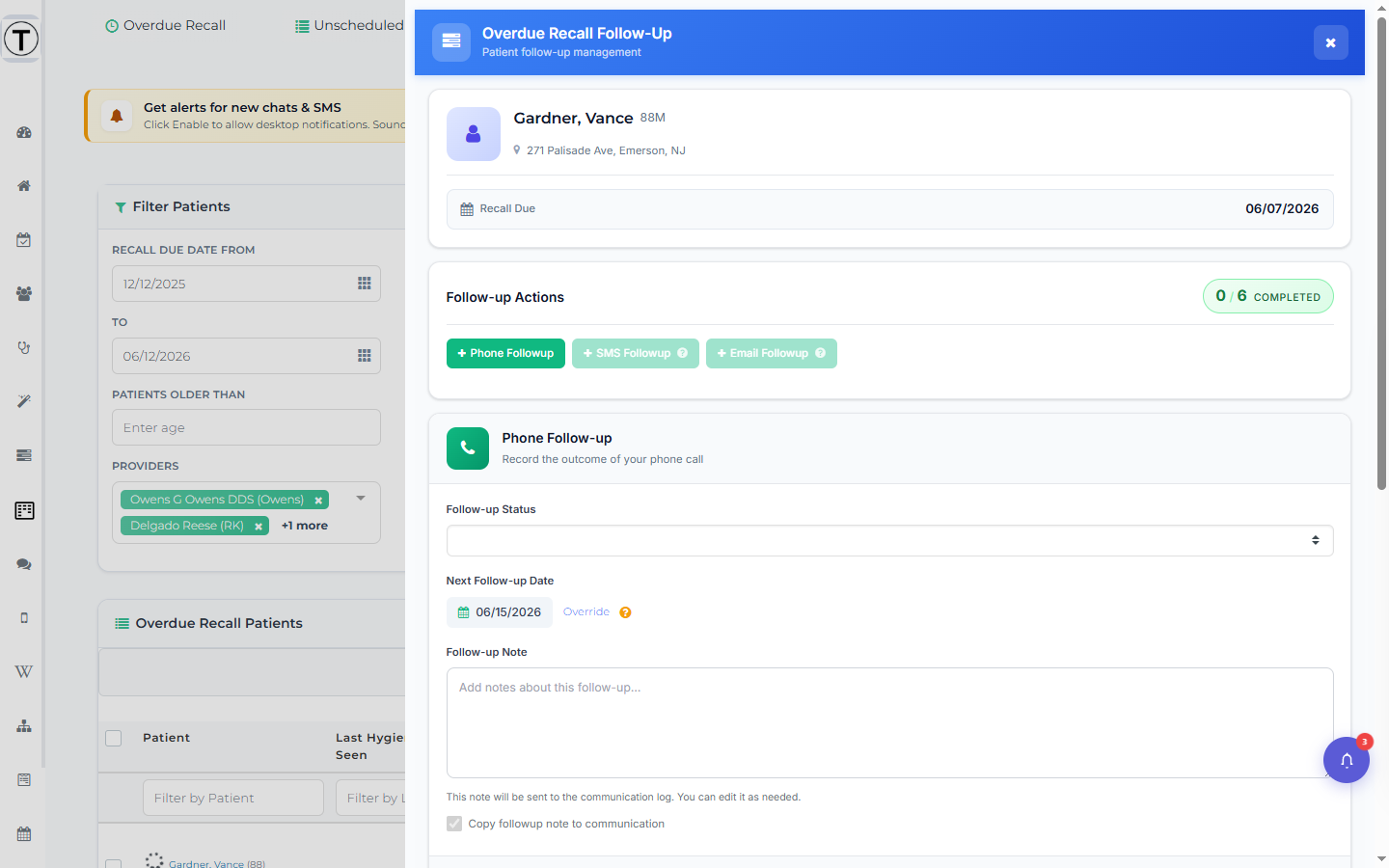
Only the Phone form lets you choose the Follow-up Status by hand; SMS and Email set it automatically. The Email form has no note field (it sends a template only); if there are no email templates yet it shows “No email templates found. Create one first.” linking to the Wiki.
Select Save Attempt (phone) or Send SMS / Send Email to log it. The attempt count ticks up, the status badge updates on the row, and the next-follow-up date is set — so the next person continues the story instead of starting over.
Where the next date comes from (and overriding it)
Section titled “Where the next date comes from (and overriding it)”You don’t pick the Next Follow-up Date by hand each time — Teamio fills it in from your office’s follow-up-frequency settings. If your office is set to “each subsequent follow-up 1 week from the previous one,” the field comes pre-filled one week out.
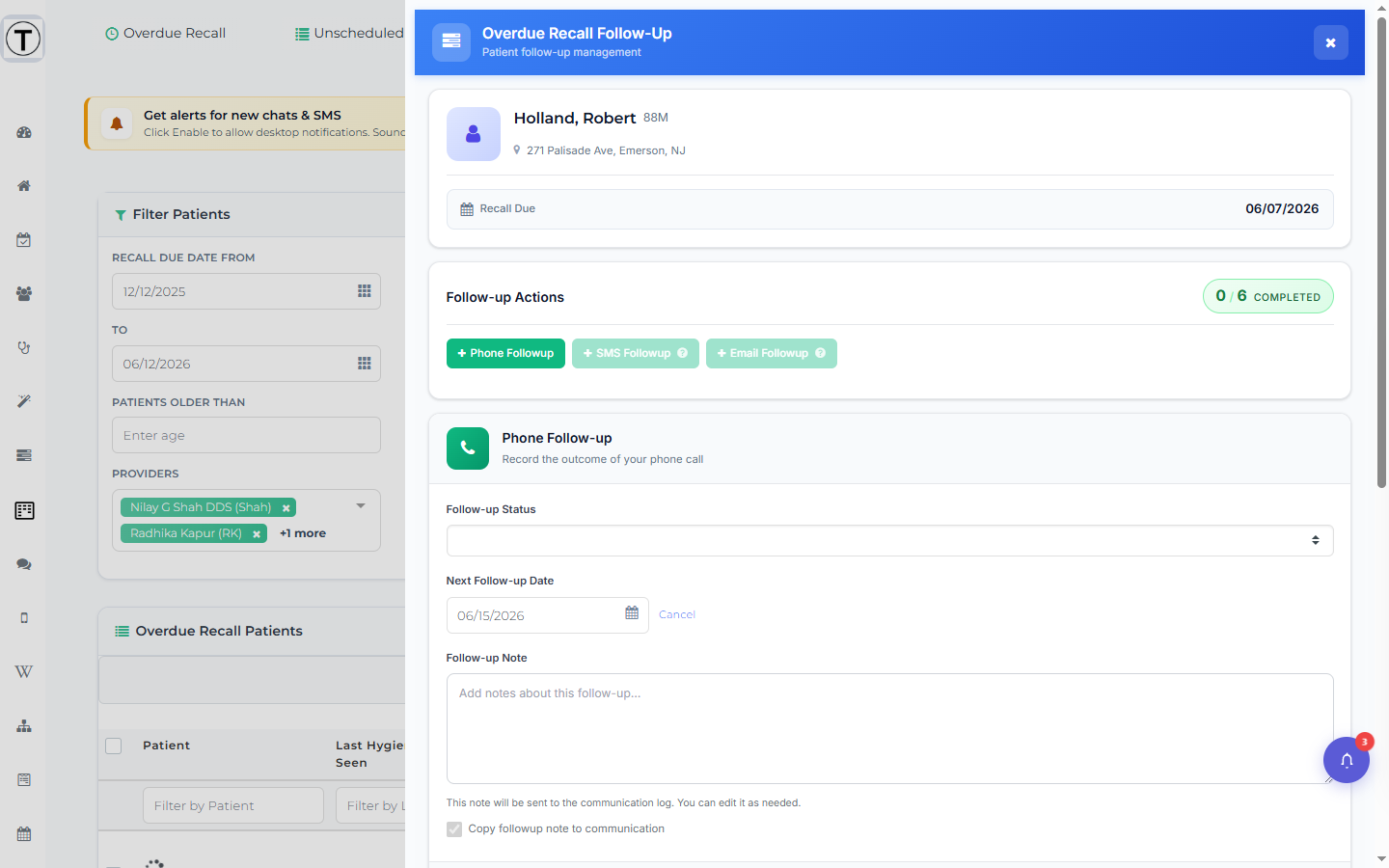
When a patient asks for something specific (“call me after the 20th”), select Override: the date field unlocks and you can pick your own date (today or later), and the link changes to Cancel to restore the auto date.
Panel accordions and context tabs
Section titled “Panel accordions and context tabs”Below the actions, the panel keeps the patient’s history close:
- Follow-up Activity — every past note, with an edit pencil (gated by the follow-up-note permission).
- Auto Recall Reminder Activity — when you pay for Appointment Reminders: the reminders already sent plus the next scheduled one.
A strip of context tabs shows the right background for the list type. Every list has Communication Log; Recall adds Scheduled Appointments, Unscheduled Treatment, Past Appointments, Family Recall Appointments, Family Pending Tx, Family Members, and Insurance Info; Unscheduled Tx adds Planned/Scheduled Appointments; claims add Claim Information and Claim Status History; and so on.
Bulk actions (Overdue Recall and Unscheduled Tx)
Section titled “Bulk actions (Overdue Recall and Unscheduled Tx)”Tick the checkboxes on several rows and a bar appears with:
- Create New List — save the selected patients as a reusable list.
- Add to Existing List — add them to a list you already have.
- Clear — deselect everyone.
There is no per-list assignee or per-list goal, and no “Save List” / “Call Goals” button — accountability and goals are office-wide per list type in follow-up settings, and the on-page Call Goals panel is a read-only progress display.
The habit that makes lists work
Section titled “The habit that makes lists work”After every attempt — answered, voicemail, or no answer — open the panel, pick a status, write one line, and let the next date set itself. Ten seconds per patient. Teams that do this stop re-calling the same five patients while fifty go untouched.