
Wiki overview
The Wiki is your practice’s internal knowledge base — and it does double duty as the template library that powers messaging everywhere else in Teamio. It’s where your standard operating procedures, phone scripts, training guides, and equipment manuals live, all in one searchable place instead of scattered across binders, sticky notes, and someone’s inbox. And a Wiki page marked as a template becomes a reusable SMS or email you write once and send from many places.
What you can do with it:
- Write rich pages — SOPs, opening/closing checklists, phone scripts, training docs — with headings, lists, checklists, tables, and images.
- Organize by tags — group pages by topic (
how-to,insurance,recall) and filter or search to find any page fast. - Turn pages into SMS & email templates — reusable messages with patient variables, used in Workflows, Campaigns, and SMS Conversations.
- Share pages publicly — post-op instructions or a “what to expect” guide patients open by link, no login needed.
- Offer pages in other languages — auto-translate templates to Spanish and Russian.
- Import what you already have — bring in Word docs and PDFs instead of retyping them.
When to use it: reach for the Wiki any time your team needs a single source of truth — a how-to anyone can follow, a script everyone reads from, or a message you’ll send again and again.
Where: Left sidebar → Wiki (the W icon)
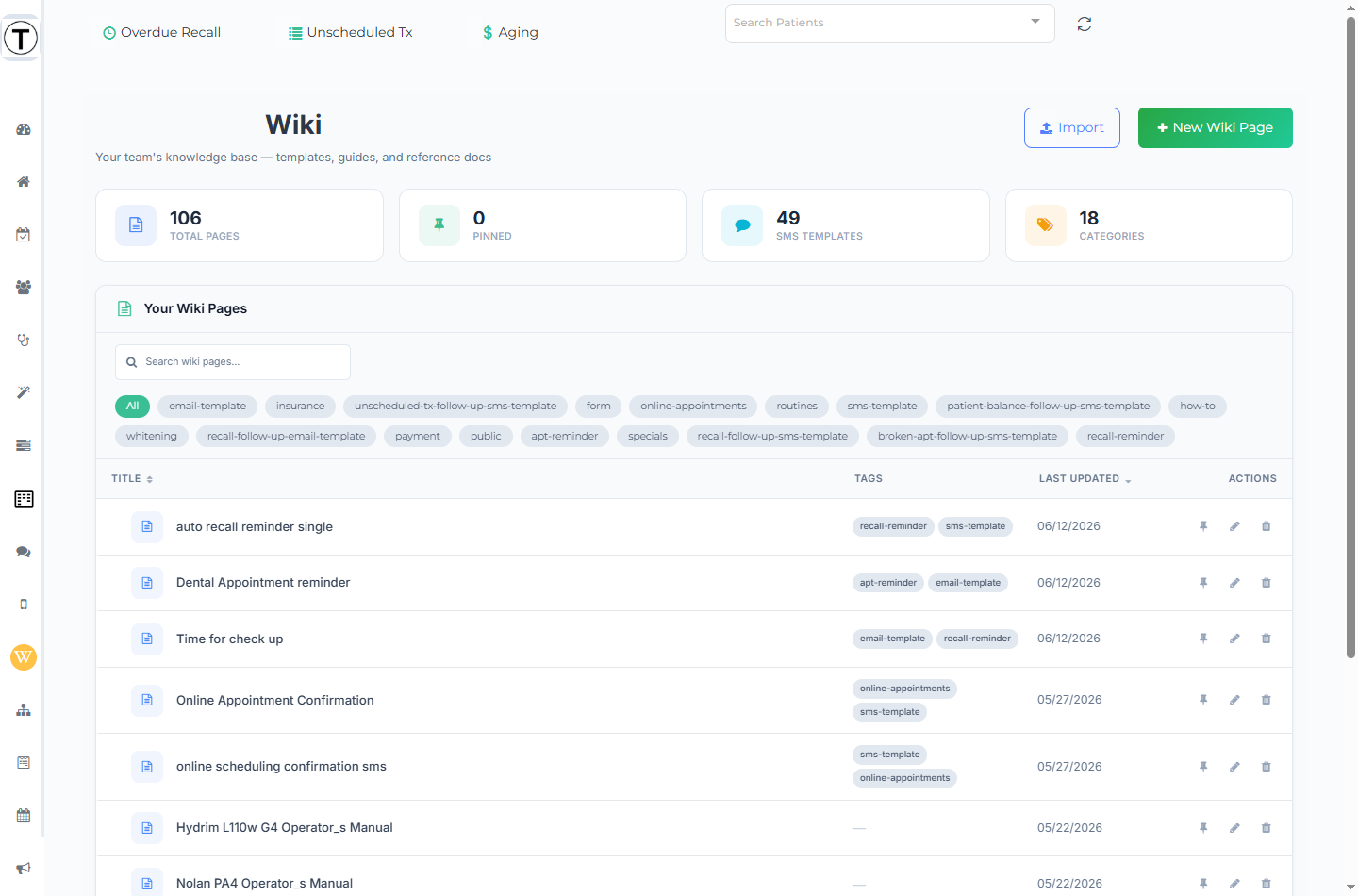
The Wiki home page
Section titled “The Wiki home page”- Stats bar — Total Pages, Pinned, SMS Templates, and Categories (your tags). It appears once the site has at least one wiki page; on a brand-new site you’ll see the empty state instead.
- Search — the Search wiki pages… box matches the page title only. It waits a moment after you stop typing, shows a spinner while it searches, and has a clear (x) icon to reset.
- Tag filter chips — a row of your tags with All at the front. Select a tag to filter the list to pages carrying it; All clears the filter. When a tag is active you’ll see Showing pages tagged: <tag> with a Clear Filter link.
- Pages table — columns are Title, Tags, Last Updated, and Actions. The Title and Last Updated headers are clickable to sort ascending/descending. Each row’s tag chips are clickable too (they filter by that tag) and collapse to a +N chip after the first three tags. Public pages show a green Public badge next to the title.
- Pinned vs All Pages — pinned pages are grouped at the top under a Pinned label, followed by an All Pages label for the rest.
- Pagination — the list shows up to 10 unpinned rows per page (pinned rows always show, on every page). A bar at the bottom reads Showing X–Y of Z and Page X of Y with first / previous / next / last buttons.
- Buttons — Import (outline) brings in existing docs and PDFs; New Wiki Page (green, with a +) starts a blank page.
Empty and loading states: while pages load you’ll see a loading skeleton. A site with no pages shows No wiki pages yet with a New Wiki Page button. A search with no matches shows No results found / No pages match “term”.
Per-row actions: Pin/Unpin, Edit Page, Delete Page (shown only if your role can delete the page), and Copy Public Link (only on public pages). See Managing pages.
Opening a page
Section titled “Opening a page”Select a row to open the page’s read-only view (the URL becomes /app/wikiview/...). From there you get a Back to Wiki link, the page title and tags, an Updated <date> line, a Public globe indicator on public pages, and Edit Page / New Page buttons in the header. A Browse by Tag sidebar lets you jump to related pages.
What you can build
Section titled “What you can build”- Knowledge pages — internal references, training, equipment manuals, opening/closing procedures.
- SMS templates — reusable texts with a live phone preview and character/segment counter.
- Email templates — reusable emails with a subject line and formatted body.
- Public pages — a page you can share by link with patients (no login).
Common jobs
Section titled “Common jobs”- Create a wiki page
- Use the editor — blocks, formatting, images, links, and variables
- Build SMS & email templates
- Share a page publicly
- Offer pages in other languages
- Import existing documents
- Manage pages — pin, links, delete
- Who can do what in the Wiki
Why the template double-duty matters
Section titled “Why the template double-duty matters”You write a “Whitening special” message once as a Wiki SMS template. From then on, a Workflow can send it after a cleaning, a Campaign can blast it to a list, and a team member can drop it into a conversation — all pulling the same up-to-date wording, with {{patient_first_name}} and other variables personalized per patient. Update the page, and every place that uses it updates too.