
A/B testing
An A/B test sends different versions of a message to slices of your audience, measures which performs better, and lets you roll the winner out to everyone else.
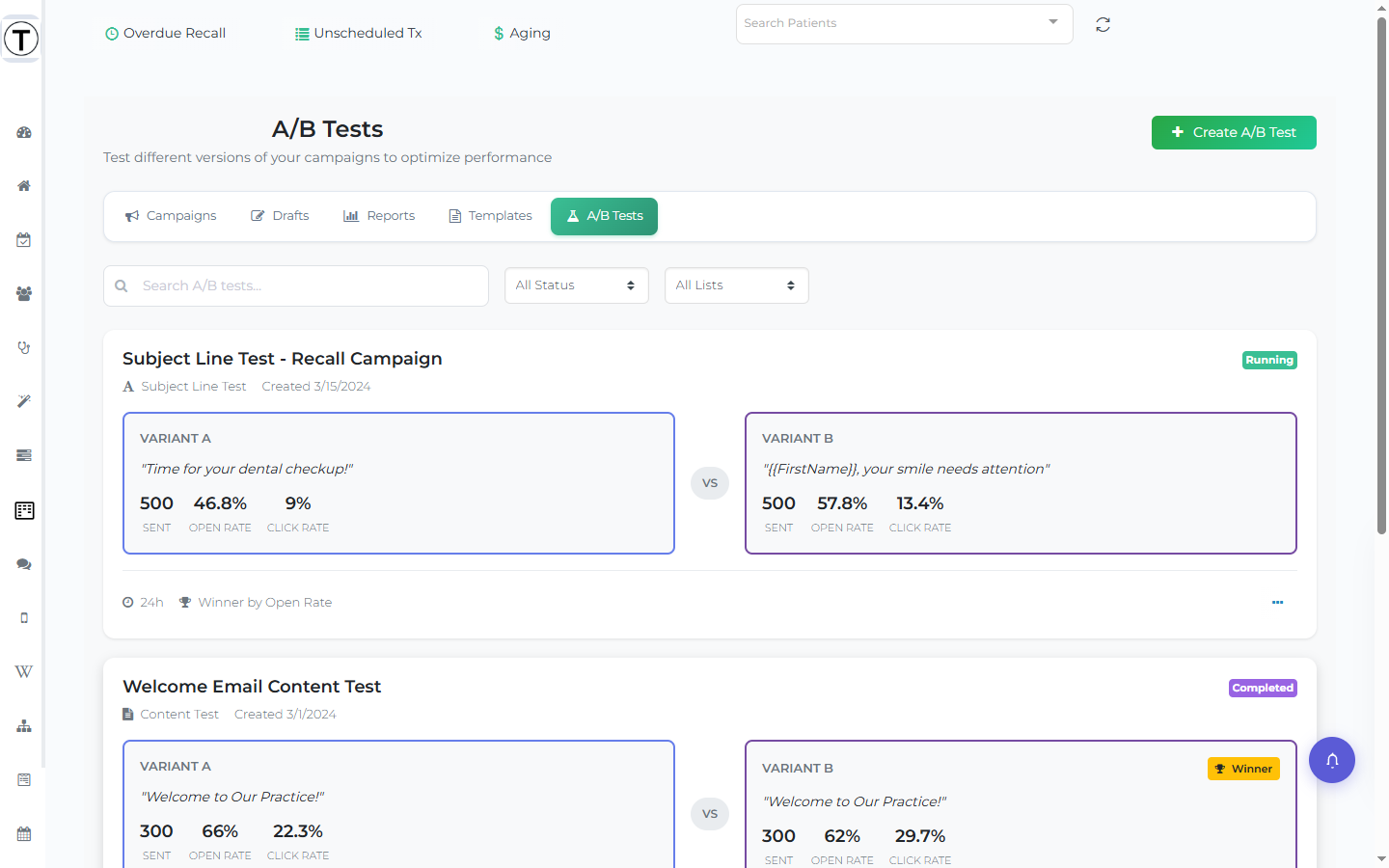
Where: Sidebar > Campaigns > A/B Tests
What you’ll see
Section titled “What you’ll see”The page has a Create A/B Test button, a search box, a Status filter (All Status / Draft / Running / Completed), and a list filter. Each test is a card comparing variants — for example Variant A vs Variant B — with Sent, Open Rate, and Click Rate for each, a VS divider, and a trophy Winner badge on the completed sample test. The footer notes the test duration and how the winner was decided. The card menu offers View Results, Edit / Start Test (drafts), Stop Test (while running), Send Winner to All, Duplicate, and Delete. With no tests, an empty state invites you to create one.
How a test is meant to be set up
Section titled “How a test is meant to be set up”Selecting Create A/B Test opens a four-step modal:
- What do you want to test? — choose Subject Line or Content.
- Test Details — Test Name, Linked List, From Name, and Reply-to Email.
- Variants — up to five variants (add C, D, E). Each variant has its own subject with emoji and variable insert menus and a 60-character recommendation counter. A Content test locks the subject across variants so only the body differs.
- Test Settings — a Test Group Size slider (10–50% gets the test, the rest gets the winner), a Test Duration dropdown, an Automatically send winner checkbox, and tracking checkboxes (Track clicks, Google Analytics tracking). The winner is decided by Open Rate (default) or Click Rate.
Tips (for when the feature ships)
Section titled “Tips (for when the feature ships)”- Test one thing at a time — two subject lines, not two entirely different emails, or you won’t know what made the difference.
- Winner by Open Rate judges the subject line; Click Rate judges the content and call to action.
- Keep a running note of winners — your office accumulates its own playbook fast.