
Create a task from the patient profile
Create a follow-up to-do for a specific patient without leaving their profile — the task is linked to that patient and shows up in My Tasks like any other.
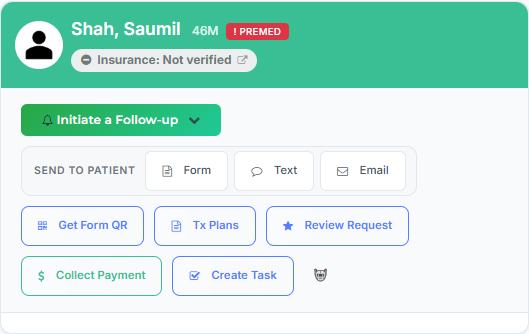
Where: Open any patient’s profile — use the Search Patients box in the top-right of the header, or select the patient from any list. In the action row at the top of the profile, Create Task is the last button (outline style, check-square icon), after Collect Payment.
Create the task
Section titled “Create the task”- On the patient’s profile, select Create Task in the action row.
- A Create Task panel opens on the right, subtitled for {Last name, First name}. The patient is already attached as a grey pill, with the cursor right after it — you don’t need to add them.
- Type the task, e.g. Call about the crown. It’s the same composer as My Tasks, so:
- Enter @ to assign a teammate — they become a blue pill and are notified they’ve been assigned a task.
- Enter # to attach another patient in addition to this one.
- Set a deadline with the Due date picker, or type a plain-language date like tomorrow, next Monday, or every Monday (which makes it recurring) and Teamio fills the Due date in for you.
- Add a category with the Add tags… box.
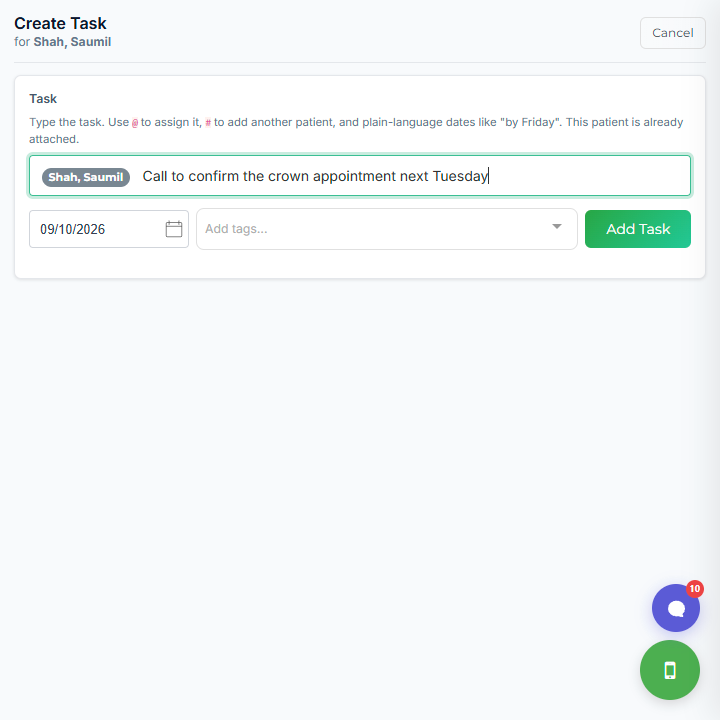
- Select the green Add Task button. A Task created message appears, the panel closes, and the task shows in the patient’s Tasks card right away.
Select Cancel at any time to close the panel without saving.
See the patient’s tasks on their profile
Section titled “See the patient’s tasks on their profile”The profile’s right column has a Tasks card, directly under Follow-ups, with a badge counting the patient’s open tasks. It lists every open task linked to this patient, with columns for Task, Due, Assigned to, and Status (an Open or Overdue badge).
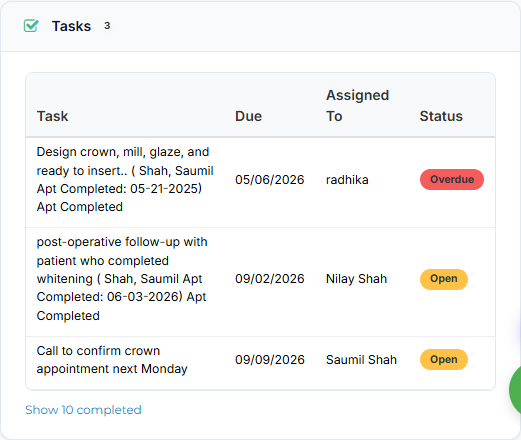
- A Show N completed / Hide N completed link below the list toggles the completed tasks in and out of view.
- Select any row to open the same task details panel as My Tasks, where you can complete, edit, comment on, or delete the task.
- When a patient has no open tasks, the card reads No open tasks for this patient.
Tips & common questions
Section titled “Tips & common questions”- Nothing happens when I select Add Task. An empty task won’t save — with no text typed you’ll see Please enter a task description before submitting. Type the task first.
- Do I have to keep the patient pill? No. The task stays linked to this patient even if you delete the pill before saving — the link comes from opening the task on their profile.
- Does the assignee find out? Yes. When you assign someone with @, they get a notification that they’ve been assigned a task, and it appears in their My Tasks. See Task notifications and settings.
- Can I make it repeat? Yes. Type a recurring phrase like every Monday and the task renews itself, the same as recurring tasks created from My Tasks.
The task also appears in My Tasks like any other, carrying the patient’s name as a pill — nothing else about My Tasks changes.
