
Understanding roles: who can see what
Every Teamio user has a role that controls what they can see and do. If a teammate has a sidebar icon you don’t, this page explains why.
The four roles
Section titled “The four roles”| Role | Typical use |
|---|---|
| Admin | Office decision-makers — full day-to-day access plus Settings. Can never be restricted. |
| Manager | Team leads — broad access without admin-only configuration. Can also add and remove team members. |
| Employee | Front desk and clinical staff — everyday tools. |
| Outsourced | External helpers (e.g. remote billing) — the most limited access. |
Two practical effects you’ll notice:
- Settings (in the Settings menu — open it from the gear ⚙️ icon at the top right) only appears for Admins.
- Some dashboard sections or sidebar icons show an Access Restricted state, or are hidden entirely, based on your role and your office’s permission setup.
What each role sees by default
Section titled “What each role sees by default”- Admin — everything the office has paid for. Admins are never restricted by Feature Permissions.
- Manager — the same outreach lists, tasks, chat, wiki, and insights as an Admin, plus the ability to add and remove team members.
- Employee — Tasks, Kanban, Chat, SMS Conversations, Wiki, Huddle, Team Insights, and the ASAP list. Employees do not see Overdue Recall, Unscheduled Treatment, Aging, or Broken Appointments by default — they gain one of those lists only when an Admin makes them the responsible person for it, or grants access in Feature Permissions.
- Outsourced — the most restricted: the claims, pre-auths, and balances views (Aging), Tasks, Chat, Kanban, and Team Insights. No Wiki, no Huddle, no SMS Conversations, and no My Account.
Fine-tuning access with Feature Permissions
Section titled “Fine-tuning access with Feature Permissions”Admins can adjust what Managers, Employees, and Outsourced users can do, feature by feature.
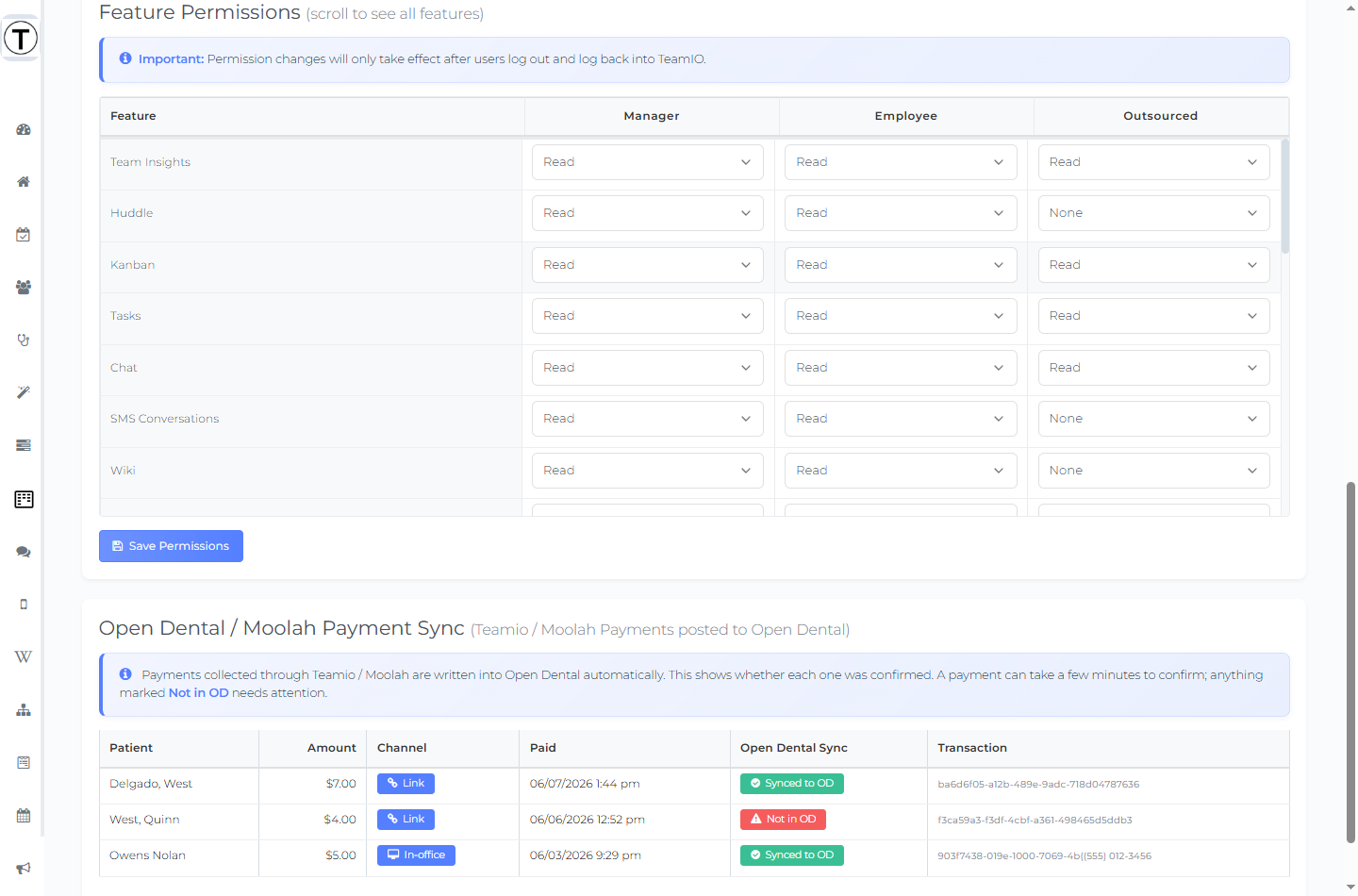
- Open the Settings menu (the gear ⚙️ icon, top right), then View My Account.
- Scroll to the Feature Permissions card.
- Each row is a feature. Set the access level for each role using its dropdown.
- Select Save Permissions.
The matrix has columns for Manager, Employee, and Outsourced only — there is no Admin column, because Admins can never be restricted.
Access levels
Section titled “Access levels”Most features offer only None or Read. The full set is available only where it makes sense:
| Feature(s) | Levels you can set |
|---|---|
| Forms, Workflow, Employee Management | None / Read / Update / Delete |
| Follow-up Date, Follow-up Note | None / Update |
| Everything else (see list below) | None / Read |
Features in the matrix include: Team Insights, Huddle, Kanban, Tasks, Chat, SMS Conversations, Wiki, Forms, ASAP List, Overdue Recall, Unscheduled Treatment, Outstanding Claim, Broken Appointment, Patient Balances, Outstanding Preauths, Settings, KPI, Practice Pulse, Workflow, Campaigns, My Account, Employee Management, Follow-up Date, and Follow-up Note.
Campaigns is a special case: it appears when your office has paid for Campaigns, and is hidden for Outsourced users.
Tips & common questions
Section titled “Tips & common questions”- “I need access to something I can’t see.” Ask your office Admin — they can change it in Feature Permissions, then you sign out and back in.
- “I changed a permission but nothing happened.” The affected user has to log out and log back in for it to apply.
- Set permissions once, early. Most offices configure this during onboarding and rarely touch it again.